Review membership applications
Approve or reject applications to join, record a fee paid by bank transfer, cheque or cash, and enter an application on someone's behalf.
Where to find it: Event admin › Membership › Applications
People apply to join through your online application form, or your team enters an application for them. Applications in the membership menu is where you decide on them. Approving one adds the member to the register, gives them a membership ID and sends the approval email.
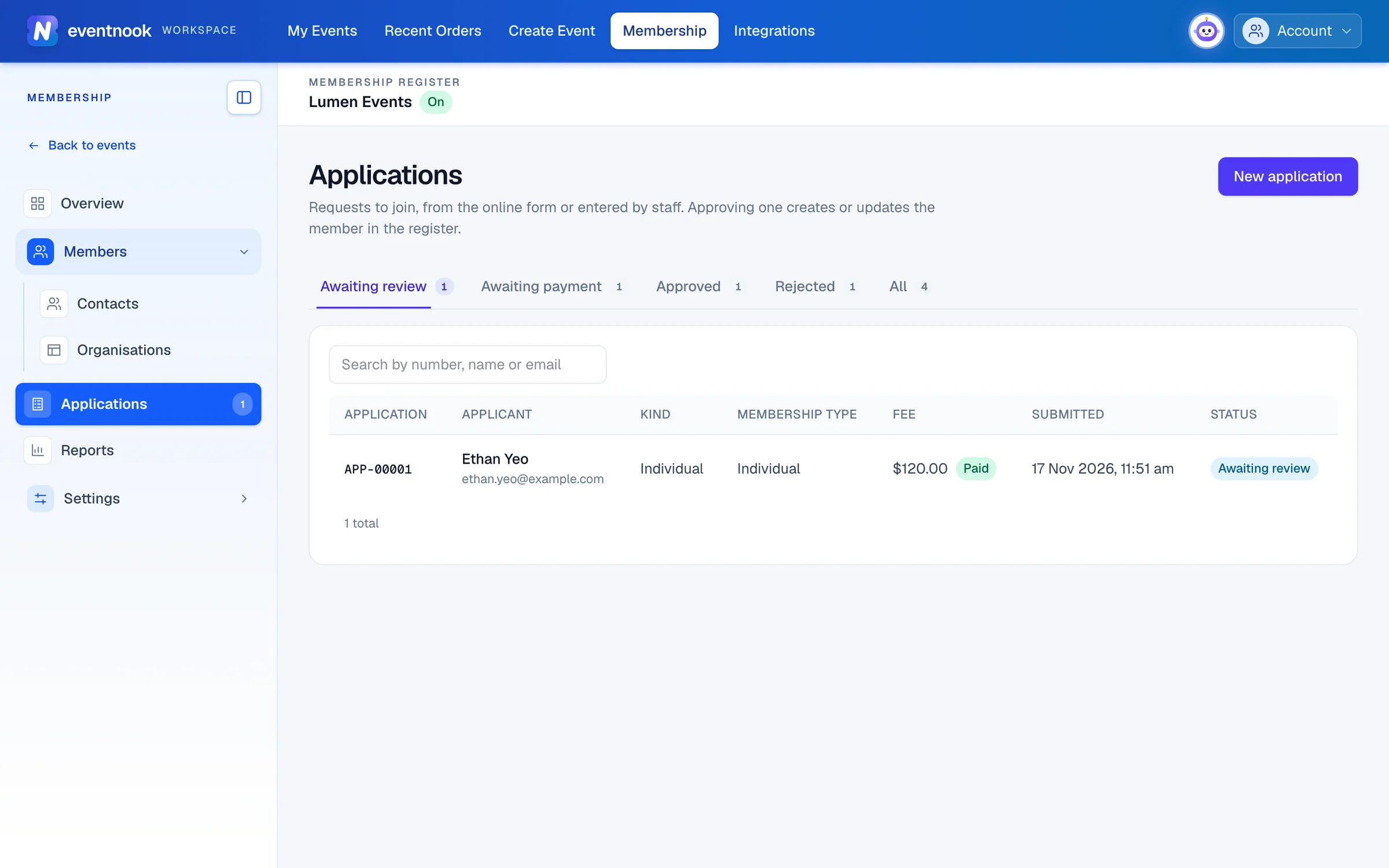
- 1Applications by where they are, with counts
- 2Search by number, name or email
- 3Enter a paper or phone application
Where an application is#
| Tab | What's in it |
|---|---|
| Awaiting review | Ready for you to approve or reject. The membership menu shows how many are waiting. |
| Awaiting payment | The membership type has a fee and the applicant hasn't paid yet. |
| Approved, Rejected | Applications already decided. |
| All | Everything, including applications the applicant withdrew. |
Click a row to open the application: the membership type and fee, when it was submitted, every answer, the payments and the decision.
A membership type that doesn't need approval approves its applications by itself: a free one at once, a paid one as soon as the fee is paid. See Membership types.
Approve an application#
- Open it from Awaiting review.
- Check the answers. A yellow warning means someone with the same email, or an organisation with the same name, is already in the register. Approving updates that record instead of adding a second one.
- Click Approve. The dialog says what approving does.
- Optional: add an Internal note. It's kept with the decision and not sent to the applicant.
- Click Approve application.
The membership becomes active, a membership ID is issued, and the approval email is sent. For an organisation's application, the organisation becomes a member organisation with the applicant as its primary contact.
If the fee hasn't been paid, the button says Approve anyway: approving makes the membership active without the payment.
Reject an application#
- Open the application and click Reject.
- Type the Reason. It can be shown in the rejection email, so write it for the applicant.
- Optional: add an Internal note for your team.
- Click Reject application. Nothing is added to the register. The rejection email is sent if it's switched on.
Record a payment made offline#
When an applicant pays by bank transfer, cheque or cash, record it so the application can go ahead.
- Open the application and click Record payment.
- Type the Amount: it must equal the fee. Part payments can't be recorded.
- Choose the Method: Bank transfer, Cheque, Cash or Other.
- Type the Reference, such as the bank reference or cheque number, and the Date received.
- Click Record payment.
The application is marked paid and the payment-received email is sent. If its membership type needs no approval, the application is then approved by itself.
Enter an application for someone#
For an application that arrived on paper, by phone or by email:
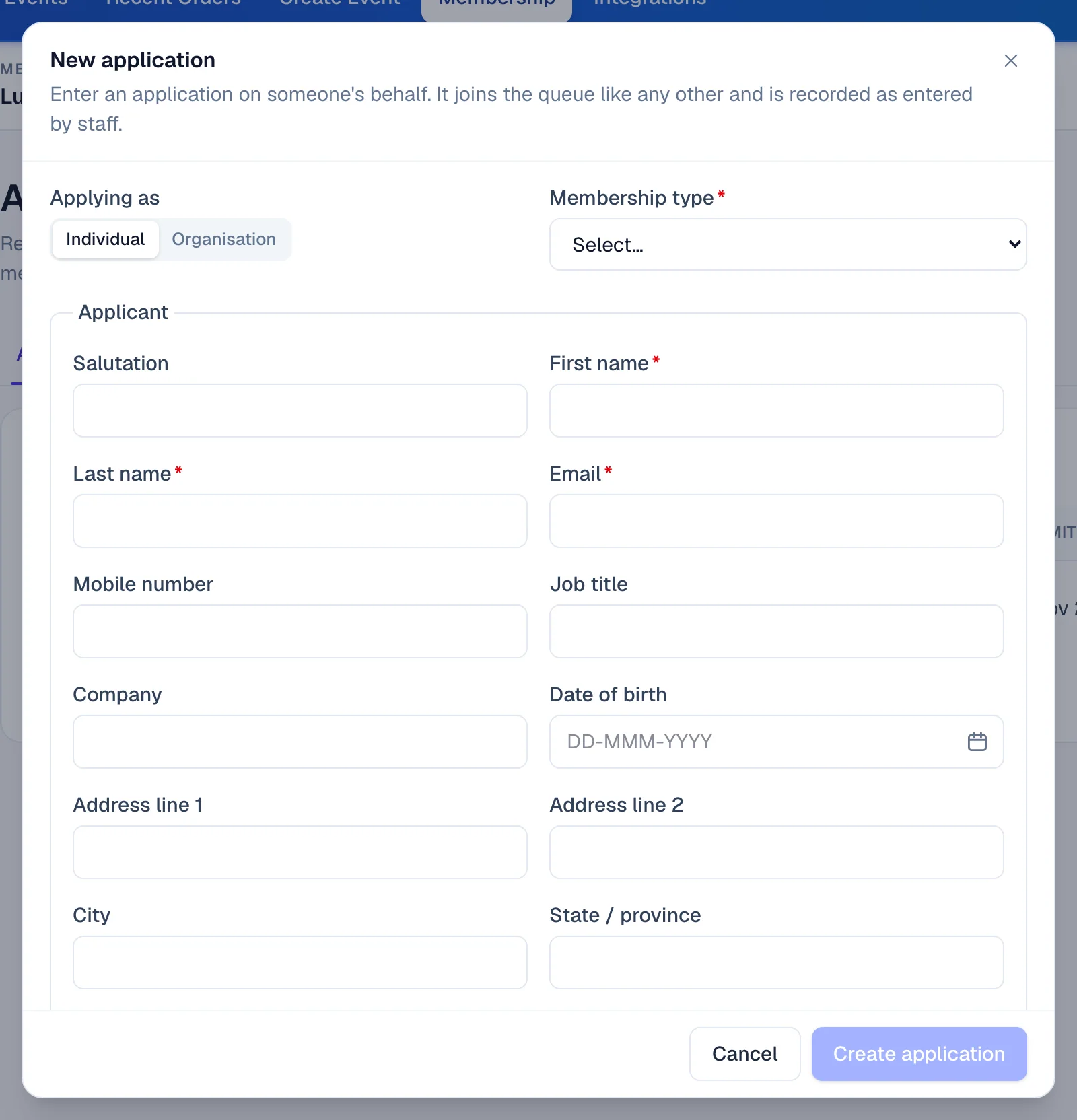
- Click New application.
- Under Applying as, choose Individual or Organisation.
- Choose the Membership type. Its fee and whether it needs approval are shown below it.
- Fill in the answers.
- Optional: tick Send the applicant the “application received” email. It's off by default for applications your team enters.
- Click Create application. It joins the queue like any other, marked Entered by staff.
If something looks wrong#
- The approve button says Approve anyway. The fee hasn't been paid. Record the payment first, or approve without it.
- "This application has already been decided". A colleague got there first. Open it to see the decision.
- The amount is refused. It must equal the membership fee exactly.
- An application approved itself. Its membership type doesn't need approval. Change that in Membership types.
- No applications arrive. Check the form is published, under Application form.
- An application isn't where you expect. Look on the All tab, or search for its number.
Who can do this#
Organisation owners and admins can review applications, record payments and enter applications.
Related guides
- Set up the online application formPublish the public form people use to apply for membership, choose who can apply and how they pay, and decide which fields the form and the register record.
- Membership settingsSet the membership currency, numbering and renewal reminders, define your membership types, word the membership emails, and link members to your events.
- Manage member contactsFind, add and edit the people in your membership register, give them a membership, renew it, and archive a contact you no longer need.
- Manage member organisationsAdd the companies and associations that hold a membership, add the people their membership covers, choose a primary contact, and renew or archive them.
Still stuck? In EventNook, ask HeyNook. It knows the page you're on and your event, and can take you straight to the right setting.