Membership settings
Set the membership currency, numbering and renewal reminders, define your membership types, word the membership emails, and link members to your events.
Where to find it: Event admin › Membership › Settings › General
Membership's settings are under Settings in the membership menu: General, Membership Types, Fields, Application Form, Email Templates and Event Link. This guide covers General, types, emails and the event link. For fields and the application form, see Set up the online application form.
General#
Settings › General switches Membership on and off, and holds the rules every membership follows. Change what you need and click Save general settings. See Get started with Membership for switching it on.
| Setting | What it does |
|---|---|
| Currency code | One currency for all membership fees, such as SGD. It can't change once membership payments exist. |
| Numbering | A prefix and a number of Digits for each Individual membership ID, Organisation membership ID and Application number. Next looks like shows the result. A change applies to numbers issued from then on. |
| Expiry grace period (days) | How many days a membership stays active after its expiry date before it's marked expired. |
| Renewal reminder (days before expiry) | When the renewal reminder is sent. 0 switches the reminder off. |
Membership types#
A membership type is a tier or class of membership you offer, such as Member, Student or Corporate, each with its own fee, term and eligibility. Switching Membership on adds a default Member type.
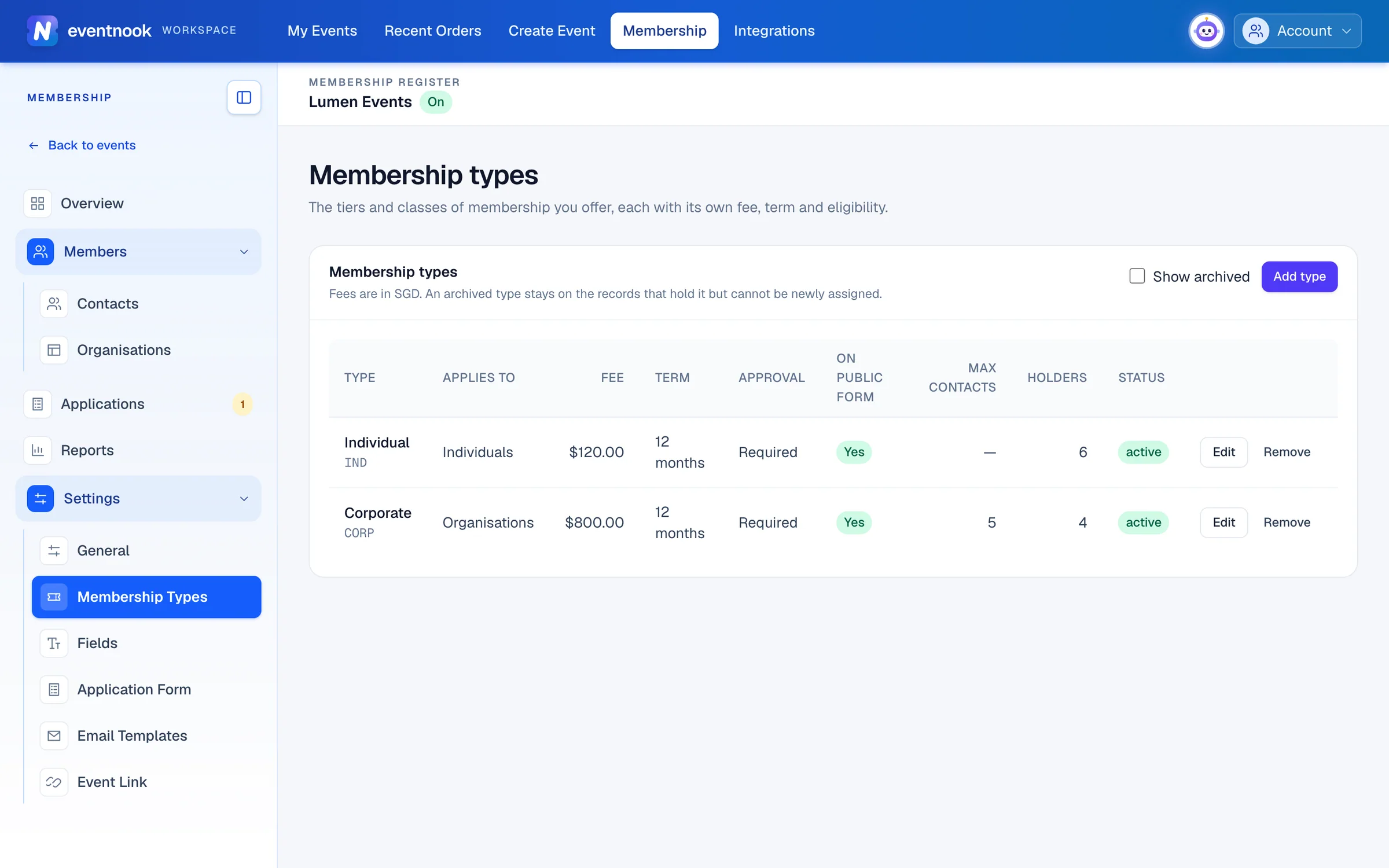
- 1A new tier, with its fee, term and who it's for
Add or change a type#
- Open Settings › Membership Types and click Add type, or Edit on a type's row.
- Fill in the settings below.
- Click Add type, or Save.
| Setting | What it does |
|---|---|
| Name, Code | What the type is called, and a short code unique among your types. |
| Description | Optional. |
| Applies to | Individuals, organisations, or both. It can't be narrowed while holders of the excluded kind exist. |
| Fee | 0 means free: the application never asks for payment. |
| Term (months) | How long one membership period lasts. Or tick Lifetime membership (never expires). |
| Maximum contacts | For member organisations: how many contacts one membership covers. Leave it blank for no limit. |
| Status | Active, or Archived: an archived type isn't offered and can't be newly given to anyone. |
| Applications need approval | When off, a free application is approved at once, and a paid one as soon as its payment is received. |
| Offer on the public application form | Whether people can choose this type on the form. |
The list shows each type's Fee, Term, Approval, whether it's On public form, Max contacts and how many Holders it has. Tick Show archived to see archived types.
Remove a type#
Click Remove on its row and confirm. A type that no contact, member organisation or application uses is deleted. A type in use is archived instead: it stays on the records that hold it, leaves the application form and can't be newly given.
Membership emails#
Settings › Email Templates lists the emails applicants and members receive. They're sent from your organisation's default verified sender.
| When it's sent | |
|---|---|
| Application received | To the applicant, when they submit an application. |
| Application approved | To the applicant, when the application is approved, by a reviewer or automatically. |
| Application rejected | To the applicant, when a reviewer rejects the application. |
| Payment received | To the applicant, when a membership fee is paid or recorded. |
| Renewal reminder | Before a membership expires, to the member or a member organisation's primary contact. |
| New application notice | To your staff, when an application is submitted. |
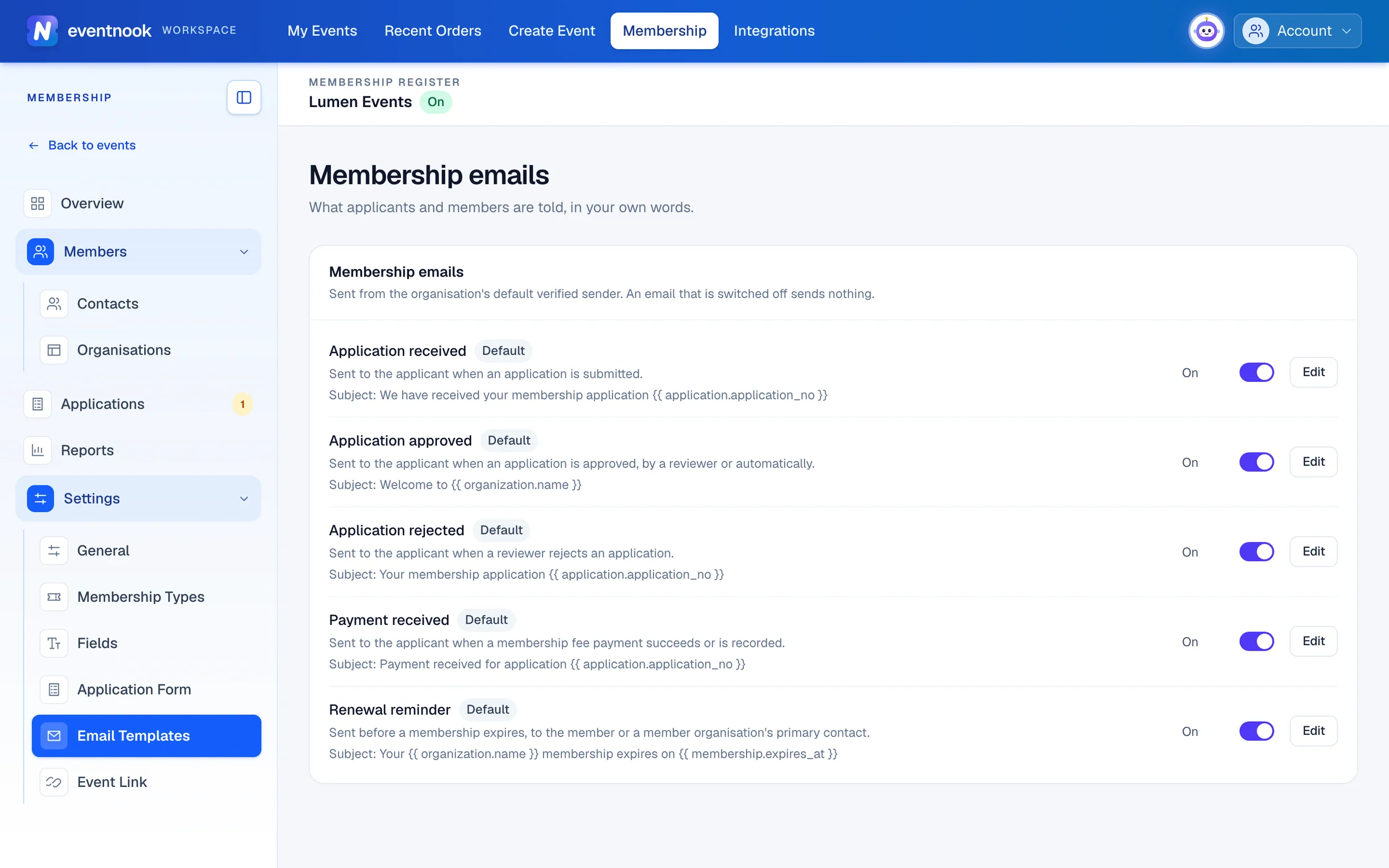
- 1Each email, with its switch and Edit
- Switch an email off or on with the switch on its row. It saves straight away. An email that's off sends nothing.
- Change the wording. Click Edit, change the Subject and Body, and click Save. Click a variable under Variables to insert details such as the member's name or the application number.
- Check it first. Click Preview to see it with sample data, or Send test to me to get it in your inbox. The test uses this draft, saved or not.
- Go back to the standard wording. Click Reset to default. The on or off switch is kept.
Default on a row means the standard wording is in use. Customised means you saved your own.
Link members to your events#
The event link connects the register to your events, so a contact's page shows the events they registered for and attended, and Membership reports shows members at each event. It's optional. It only reads event registrations: nothing in registration, orders or attendee records changes, and switching it off removes nothing.
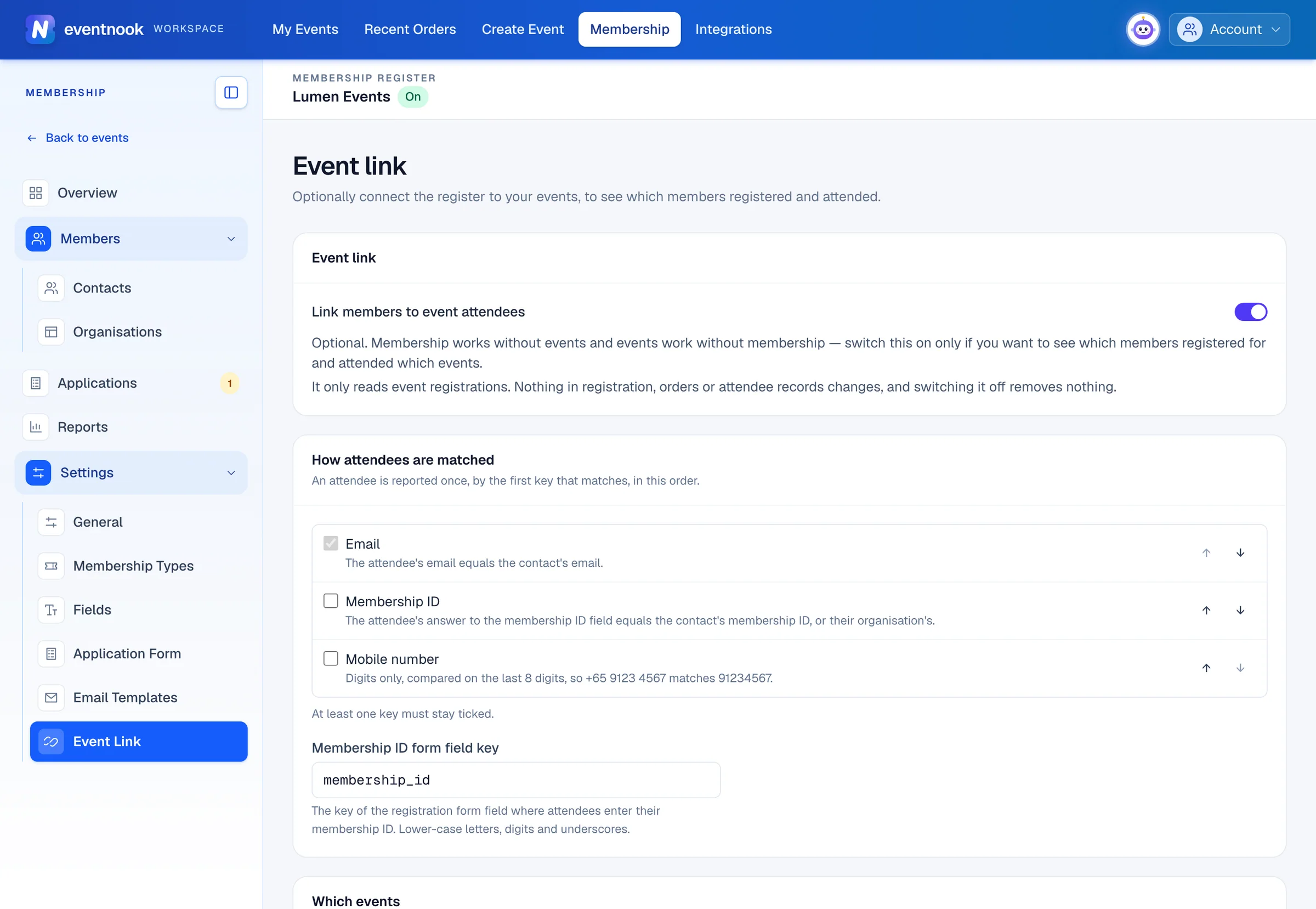
- 1Optional. Shows which members registered and attended
- 2The order attendees are matched in
- Open Settings › Event Link and turn on Link members to event attendees.
- Under How attendees are matched, tick the ways to match an attendee to a member, and put them in order with the up and down buttons. Each attendee is matched once, by the first one that fits.
- If you match by Membership ID, type the Membership ID form field key: the key of the registration form question where attendees type their membership ID.
- Under Which events, choose All events, including ones created later, or Selected events and tick them.
- Click Save event link.
| Match by | How it matches |
|---|---|
| The attendee's email is the contact's email. | |
| Membership ID | The attendee's answer to the membership ID question is the contact's membership ID, or their organisation's. |
| Mobile number | The last 8 digits match, so +65 9123 4567 matches 91234567. |
Test registrations are never matched.
If something looks wrong#
- "Another active membership type already has this name". Choose another name, or edit the existing type.
- A type isn't on the application form. Check it's Active and has Offer on the public application form ticked, and that the form accepts the kind it applies to.
- The renewal reminder isn't sent. Check Renewal reminder is On under Email Templates, that the days under General aren't
0, and that member organisations have a primary contact. - "The template has an error". A variable is misspelt or a block isn't closed. The message says where. Use only the variables listed.
- A contact's page says "Event link is off". Turn it on under Settings › Event Link.
- The settings are read-only. Only organisation owners and admins can change membership settings.
Related guides
- Get started with MembershipSwitch on the membership register for your organisation, find your way around it, and read the overview of members, applications and renewals.
- Set up the online application formPublish the public form people use to apply for membership, choose who can apply and how they pay, and decide which fields the form and the register record.
- Review membership applicationsApprove or reject applications to join, record a fee paid by bank transfer, cheque or cash, and enter an application on someone's behalf.
- Membership reportsSee your members by type and status, how membership grows and lapses each month, applications and fees for a period, members at your events, and export the register.
Still stuck? In EventNook, ask HeyNook. It knows the page you're on and your event, and can take you straight to the right setting.