Manage member organisations
Add the companies and associations that hold a membership, add the people their membership covers, choose a primary contact, and renew or archive them.
Where to find it: Event admin › Membership › Members › Organisations
A member organisation is a company, association or other body that holds a membership with you. The people who belong to it are its contacts, and its membership covers them all. Member organisations are under Members › Organisations in the membership menu.
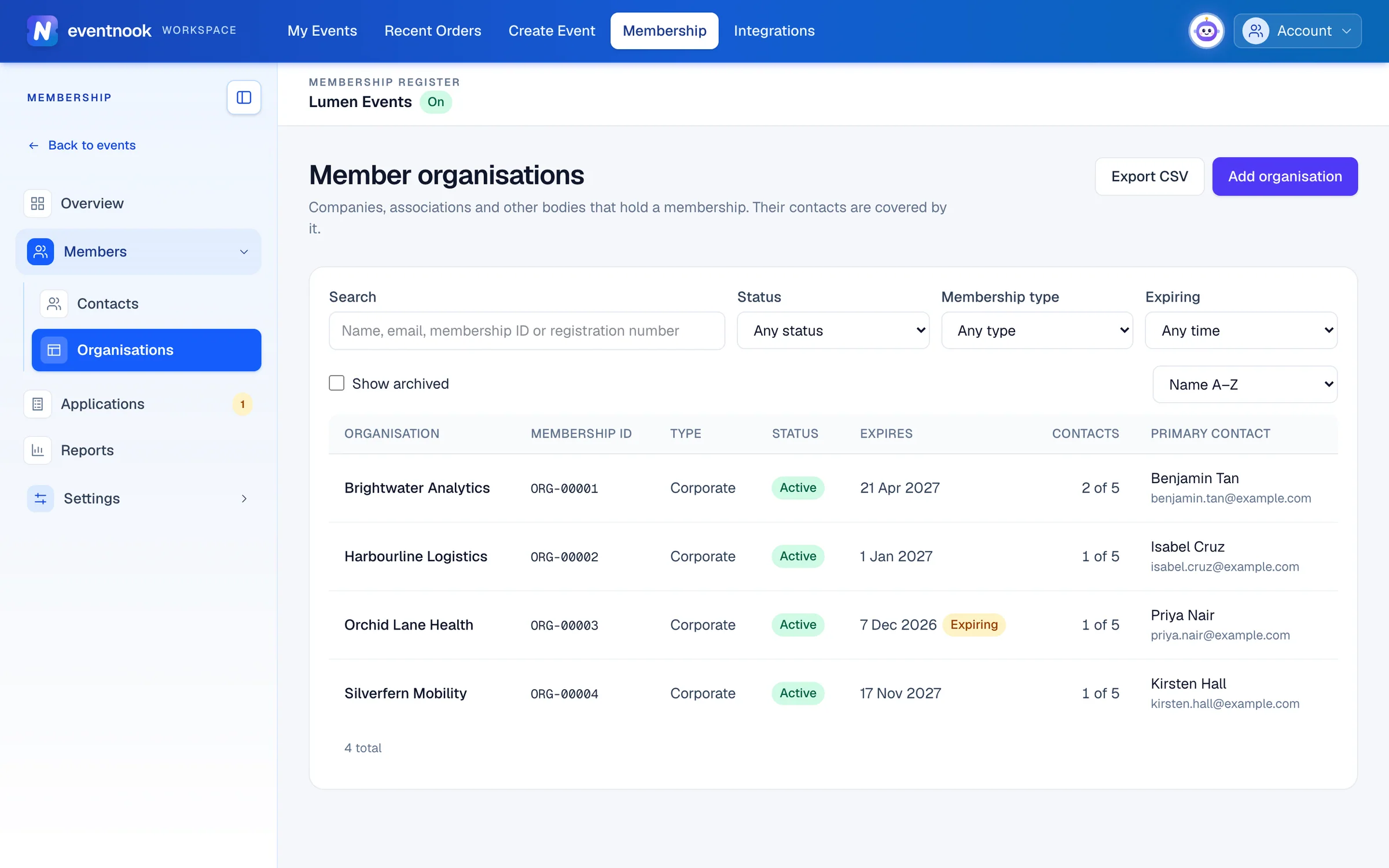
- 1Name, email, membership ID or registration number
- 2Add a company or association that holds a membership
The list shows each organisation's Membership ID, Type, Status, when it Expires, how many Contacts it has and its Primary contact. Expiring means its membership ends within 30 days. Search it, filter it by Status, Membership type and Expiring, and sort it, as on Contacts. Export CSV downloads the list as filtered.
Add a member organisation#
- Click Add organisation.
- Fill in its details, such as its name and registration number.
- Under Membership, choose a Membership type and set Status to Active. Leave Joined, Expires and Organisation membership ID blank to use today, the type's term and the next number.
- Click Add organisation.
- Open it and add the people who belong to it.
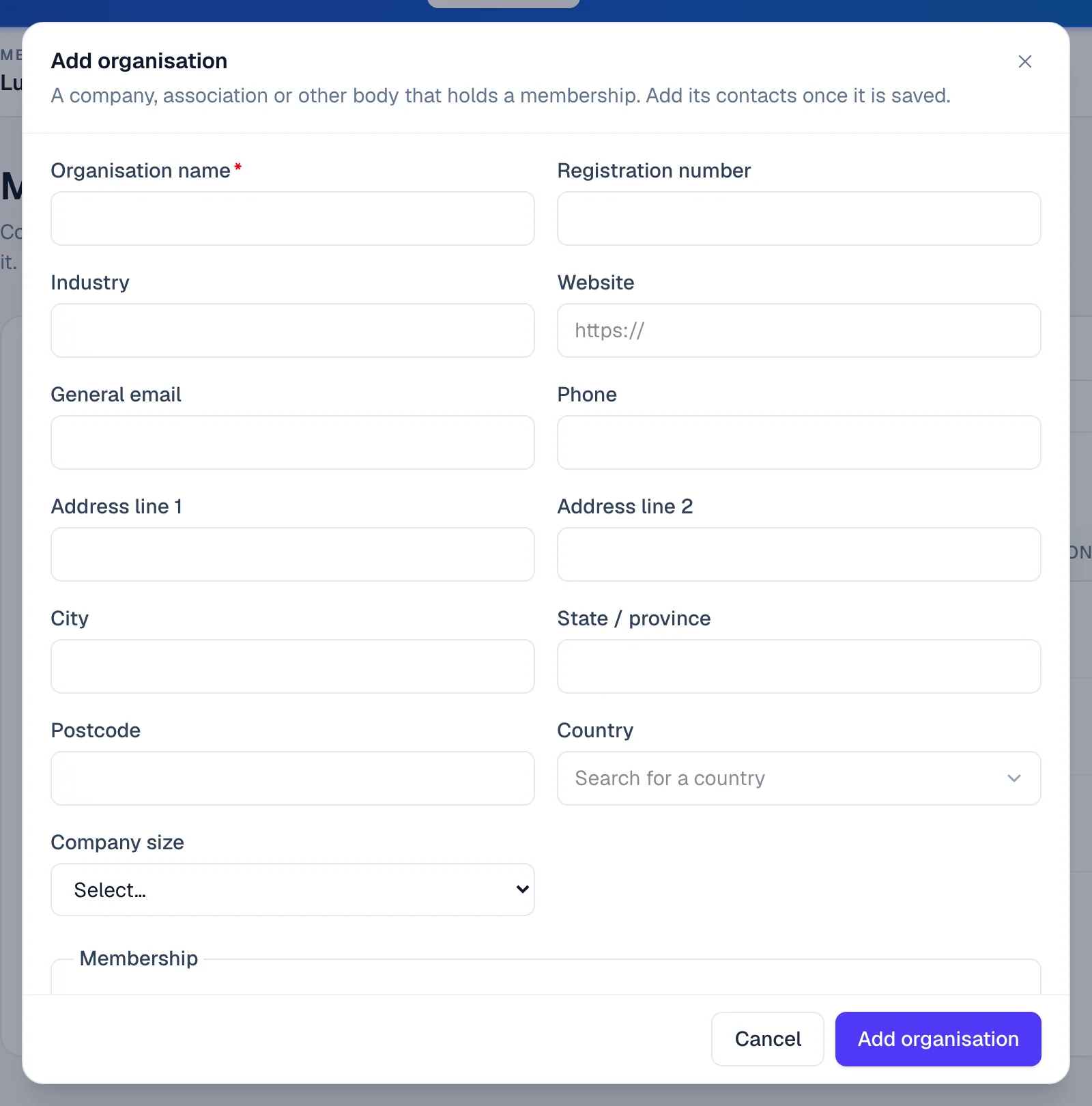
Only active membership types that apply to organisations are offered. See Membership types.
Add the people it covers#
- Open the organisation.
- On Contacts, click Add contact.
- Fill in the person's details and click Add contact. They're covered by the organisation's membership straight away.
The card says how many contacts the membership type allows, for example "3 of 5 contacts allowed". When it's full, Add contact is greyed out. To add someone who's already in the register, open them and set Belongs to to this organisation. See Manage member contacts.
Choose the primary contact#
Click Make primary next to one of its contacts. Renewal reminders go to the primary contact, so every member organisation with contacts should have one.
Change, renew or archive its membership#
The organisation's page has the same cards as a contact's: Details, Contacts, Events, Membership, Notes and Archive.
- Change the tier. On Membership, choose another Membership type and click Save membership. All its contacts show the new type.
- Renew. On Membership, click Renew. Leave the date blank to add one term, or choose a new expiry date.
- Archive it. Click Archive organisation and confirm. It leaves lists, exports and event matching. Its contacts stay linked but read as non-members until it's restored or they're moved. Click Restore organisation to bring it back.
If something looks wrong#
- "Another member organisation already has this name". Search for it, and tick Show archived in case it was archived.
- A membership type is missing from the list. Only active types that apply to organisations are shown. Check its Applies to and Status in Membership types.
- Add contact is greyed out. The organisation has reached the contact limit of its type. Raise Maximum contacts on the type, or choose a larger type.
- "No primary contact chosen. Renewal reminders go to the primary contact." Click Make primary next to one of its contacts.
- "This record was changed by someone else". The latest version was loaded. Check it and make your change again.
Who can do this#
Organisation owners and admins can see and change the register. Exporting it needs the right to export.
Related guides
- Manage member contactsFind, add and edit the people in your membership register, give them a membership, renew it, and archive a contact you no longer need.
- Membership settingsSet the membership currency, numbering and renewal reminders, define your membership types, word the membership emails, and link members to your events.
- Review membership applicationsApprove or reject applications to join, record a fee paid by bank transfer, cheque or cash, and enter an application on someone's behalf.
- Membership reportsSee your members by type and status, how membership grows and lapses each month, applications and fees for a period, members at your events, and export the register.
Still stuck? In EventNook, ask HeyNook. It knows the page you're on and your event, and can take you straight to the right setting.