Organisations and roles
See the organisations you belong to, switch between them, create one, edit its profile, manage its members and their roles, and check its plan, activity and security log.
Where to find it: Event admin › Account › Organisations
Every event belongs to an organisation: your company, agency or team in EventNook. Its events, payment accounts, API tokens and members register are shared by everyone in it. You can belong to several organisations, with a different role in each.
Open them from Account › Organisations in the top bar.
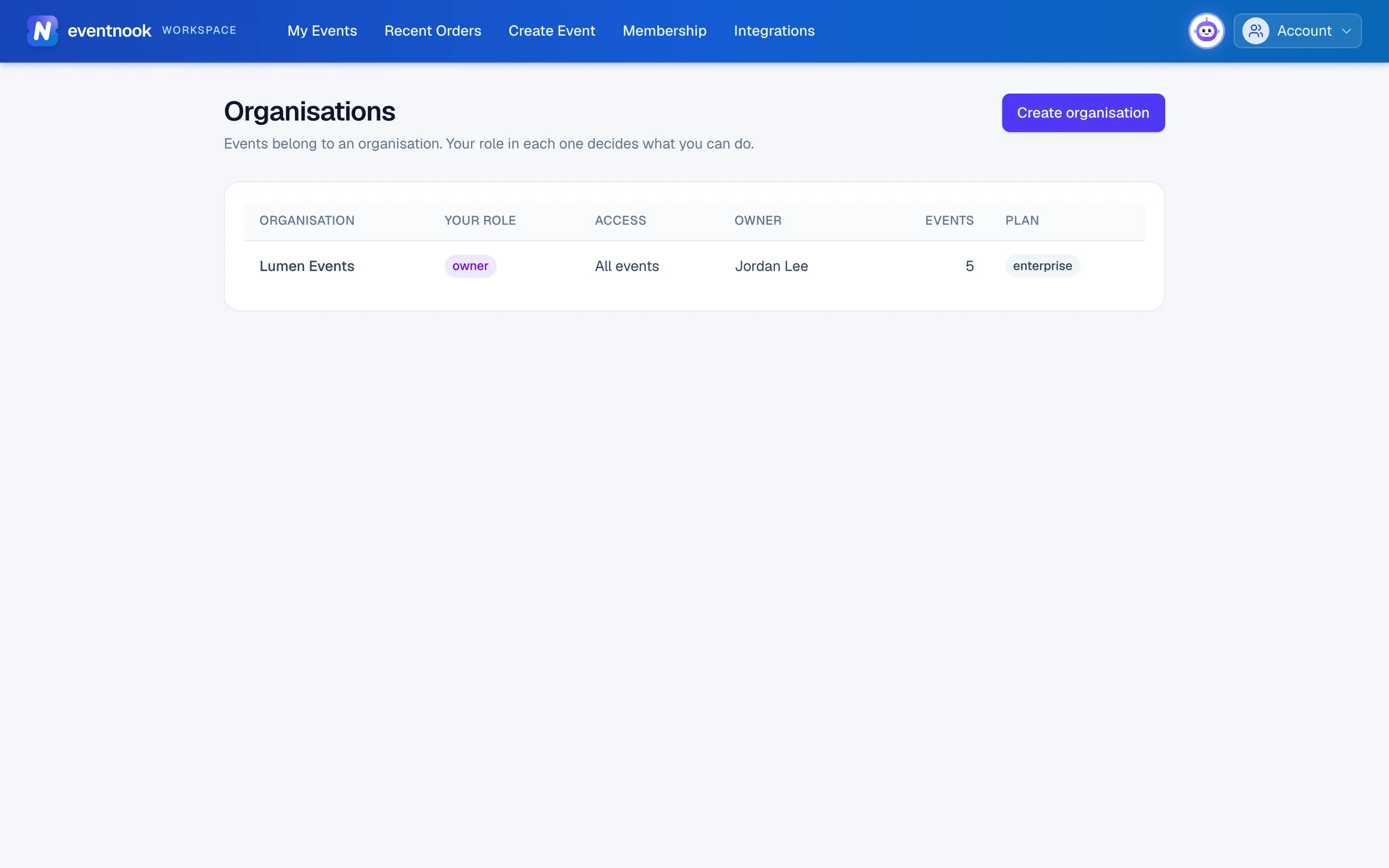
- 1Start another organisation, owned by you
The list shows each organisation's name, Your role, your Access (All events or Selected events), its Owner, how many Events it has and its Plan. last used marks the one the account pages open by default. Click a row to open it.
Roles#
| Role | What they can do |
|---|---|
| owner | Everything, including handing the organisation over to someone else and closing it. There is one owner. |
| admin | Everything except handing over or closing the organisation: events, members, payment accounts, API tokens, billing and settings. Only the owner can make someone an admin. |
| member | Read-only: sees events, orders, attendees and reports. |
Someone can also be limited to Selected events: they see only those events, whatever their role. For one event only, invite them as a collaborator instead. See Invite your team.
Switch between organisations#
If you belong to more than one, pages that work on one organisation have an organisation list at the top: My Events, Credit Usage, API Tokens, Payment Collection and Membership. Your choice is remembered, and the other pages follow it.
Create an organisation#
- On Organisations, click Create organisation.
- Type its Name and Timezone, for example
Asia/Singapore. - Click Create. You're its owner, and it starts on the trial plan.
Edit the organisation's profile#
Open the organisation. The Profile tab has its Name, URL name, Legal name, Website, contact details, Timezone, Currency and address. Change what you need and click Save.
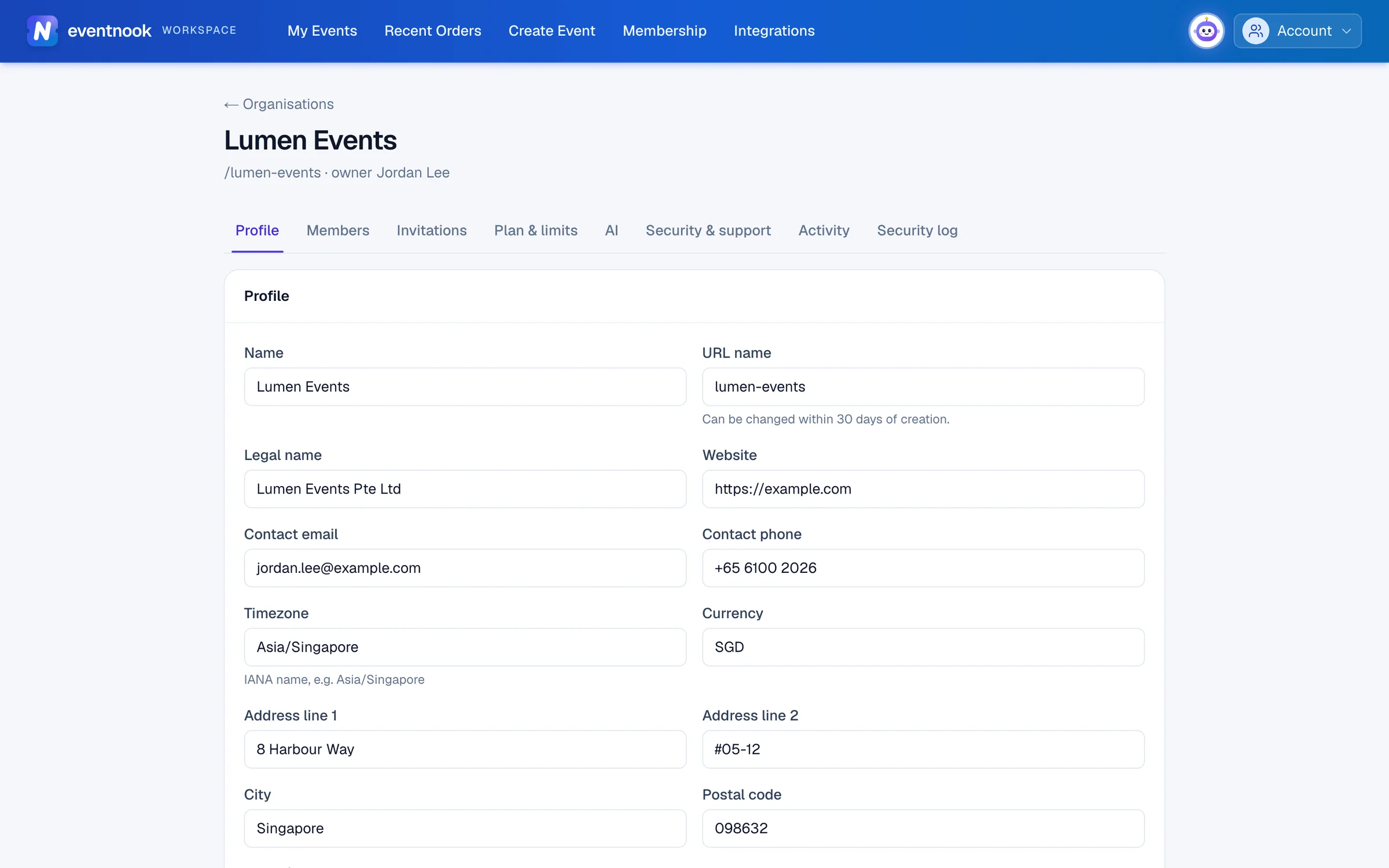
- 1The tabs you see depend on your role
- 2Can be changed in the first 30 days only
The URL name can be changed within 30 days of creating the organisation. After that it's locked: contact EventNook support to change it. The Plan card is read-only: your plan is managed by EventNook.
The organisation's tabs#
| Tab | Who sees it | What's there |
|---|---|---|
| Profile | Everyone | The organisation's details and its plan. |
| Members | Owner, admins | Everyone in the organisation, with their role, events and status. |
| Invitations | Owner, admins | Invitations sent, with Resend and Revoke. See Invite your team. |
| Plan & limits | Everyone | The features your plan includes, and its event limits and defaults. |
| AI | Everyone. Owner and admins change it | What HeyNook and its specialists may do for this organisation. |
| Security & support | Owner, admins | The two-step policy, and every time EventNook support accessed the organisation. |
| Activity | Owner, admins | Every change, who made it, when, and where it came from. |
| Security log | Owner, admins | Sign-ins, password and two-step changes, team and access changes, support access, exports, personal data viewed and deletions. |
Manage members#
Open the Members tab.
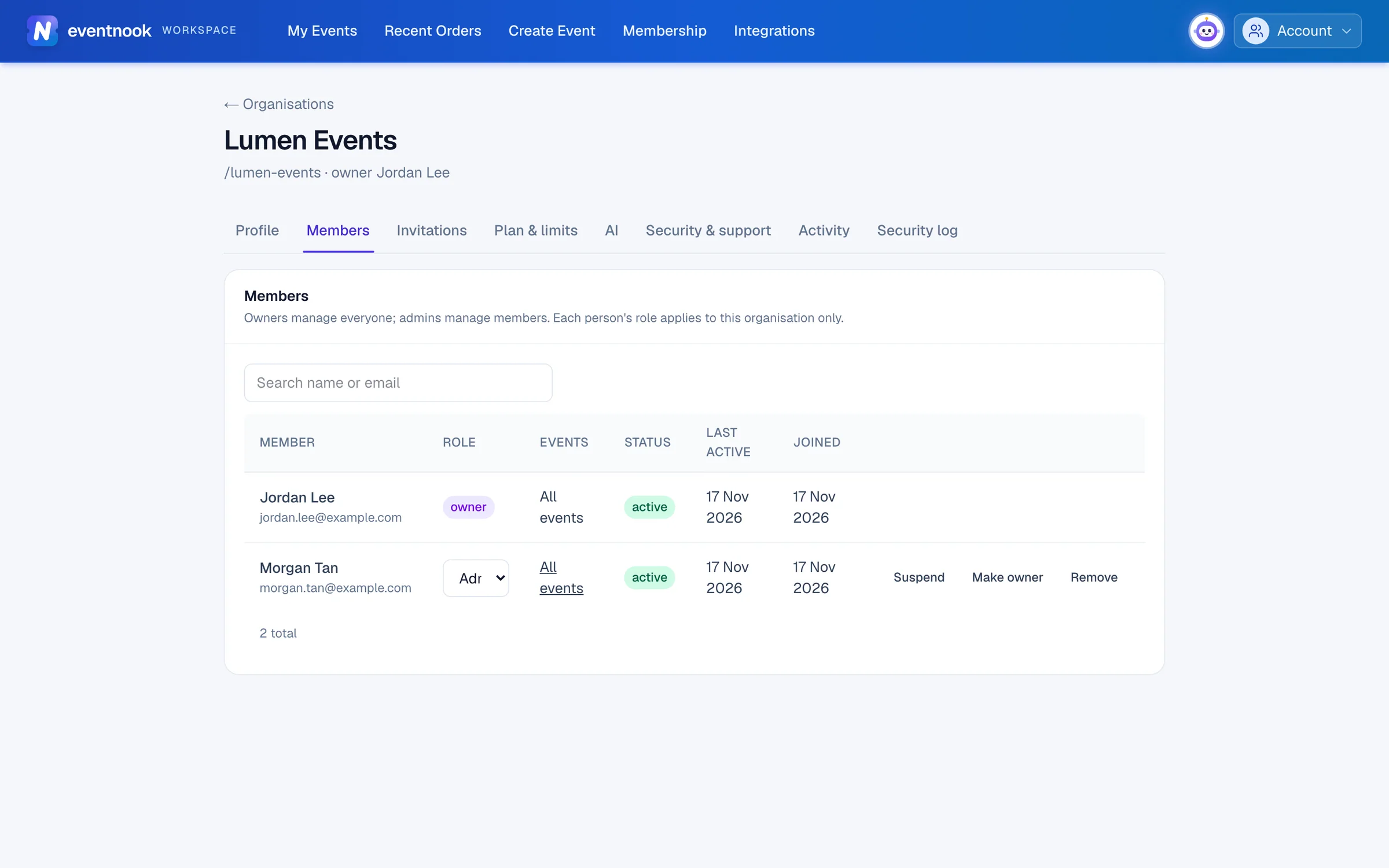
- 1Change someone's role here
- 2All events, or only the events you pick
- Change someone's role. Pick Admin or Member in their Role column. It saves straight away.
- Limit them to some events. Click the value in their Events column, untick All events, including future ones, tick the events and click Save.
- Pause their access. Click Suspend. Reactivate gives it back.
- Take them out. Click Remove and confirm. They lose access straight away. Their past activity keeps their name.
- Hand over the organisation. The owner clicks Make owner on an active admin's row and confirms with their password. The old owner becomes an admin.
Check your plan#
The Plan & limits tab lists the features your plan includes, marked included or not, and the limits that apply: test and live events, and attendees per event. To change your plan, contact EventNook.
Choose what the AI may do#
On the AI tab, owners and admins choose:
| Setting | What it does |
|---|---|
| Let people attach screenshots when they ask HeyNook and its specialists | Lets your team add a screenshot to a question. Screenshots go to the AI as they are, so personal details in them can't be masked: crop them out first. |
| Keep conversations for | How long private conversations with HeyNook, and their screenshots, are kept: One day, 30 days or 90 days. |
| Let the data agents check organisation names on the web | When an agent judges which companies fit a description, it may look the company names up. Never people's names. |
Click Save after changing them.
Look at the activity and security log#
- Activity lists every change in the organisation. The From column says which app it came from. Click a row to see the change before and after, and where it came from.
- Security log lists security events, newest first. Filter by Category, Person, Result and Period (the last 7, 30, 90 or 365 days), and click Load older for more. Click a row for everything recorded about it.
For example, to check for failed sign-ins, set Category to Sign-in and Result to Failed or Refused.
Close the organisation#
Closing an organisation happens in steps, and only the owner can start it.
- On Profile, click Deactivate organisation. Read what it does, type the organisation's name, click Email me a verification code, type the code and click Deactivate organisation.
- Open the deactivated organisation from Organisations, where it's listed under Deactivated organisations. Optional: type a reason, then click Send deletion request.
- EventNook reviews the request. If it's approved, the owner who asked gets a deletion code by email. Type the organisation's name and the Deletion code, then click Delete organisation permanently.
You can Withdraw request while the request is open.
If something looks wrong#
- "You don't belong to an organisation yet". Create one, or ask a colleague to invite you.
- A tab is missing. It's for the owner and admins only.
- "Someone else changed this organisation." The latest version was loaded. Check it and save again.
- "Only the owner can change an admin's role or make someone an admin." Ask the owner.
- "This person reaches events you cannot." You reach only some of the organisation's events, so you can't manage people who reach others. Ask the owner, or an admin who reaches every event.
- "Your plan allows up to … team members." Remove people who no longer need access, or contact EventNook to change your plan.
- There's no delete button. Deactivate the organisation first, then send a deletion request.
Related guides
- Invite your teamAdd colleagues to your organisation so they can help with every event, or invite someone to one event only, and choose what each person can do.
- Accept an invitationJoin an organisation or an event you were invited to, with your existing account or a new one, or decline an event invitation.
- Connect a payment accountConnect your organisation's Stripe or PayPal account so buyers' payments go straight to you, choose the default for new events, and see what you pay EventNook.
- Create and manage API tokensCreate API tokens so your own software, workflow tools and AI agents can work with your organisation's events, and rotate or revoke them safely.
Still stuck? In EventNook, ask HeyNook. It knows the page you're on and your event, and can take you straight to the right setting.