Change your password and two-step verification
Change your password, sign out other devices, add an authenticator app or text-message codes, keep recovery codes, and reset a forgotten password.
Where to find it: Event admin › Account › Change Password
Your password and a code keep your account safe. Every EventNook sign-in asks for both: the code comes by email unless you add an authenticator app or text messages. Change your password under Account › Change Password, and choose how you get your codes under Account › Two-Step Verification.
Change your password#
- Open Account › Change Password.
- Type your Current password.
- Type the New password twice: at least 8 characters, with an uppercase letter, a lowercase letter and a number, and different from your current one.
- Click Change password. The page says how many other sessions were signed out.
You stay signed in where you are. Every other device is signed out, and earlier password-reset links stop working.
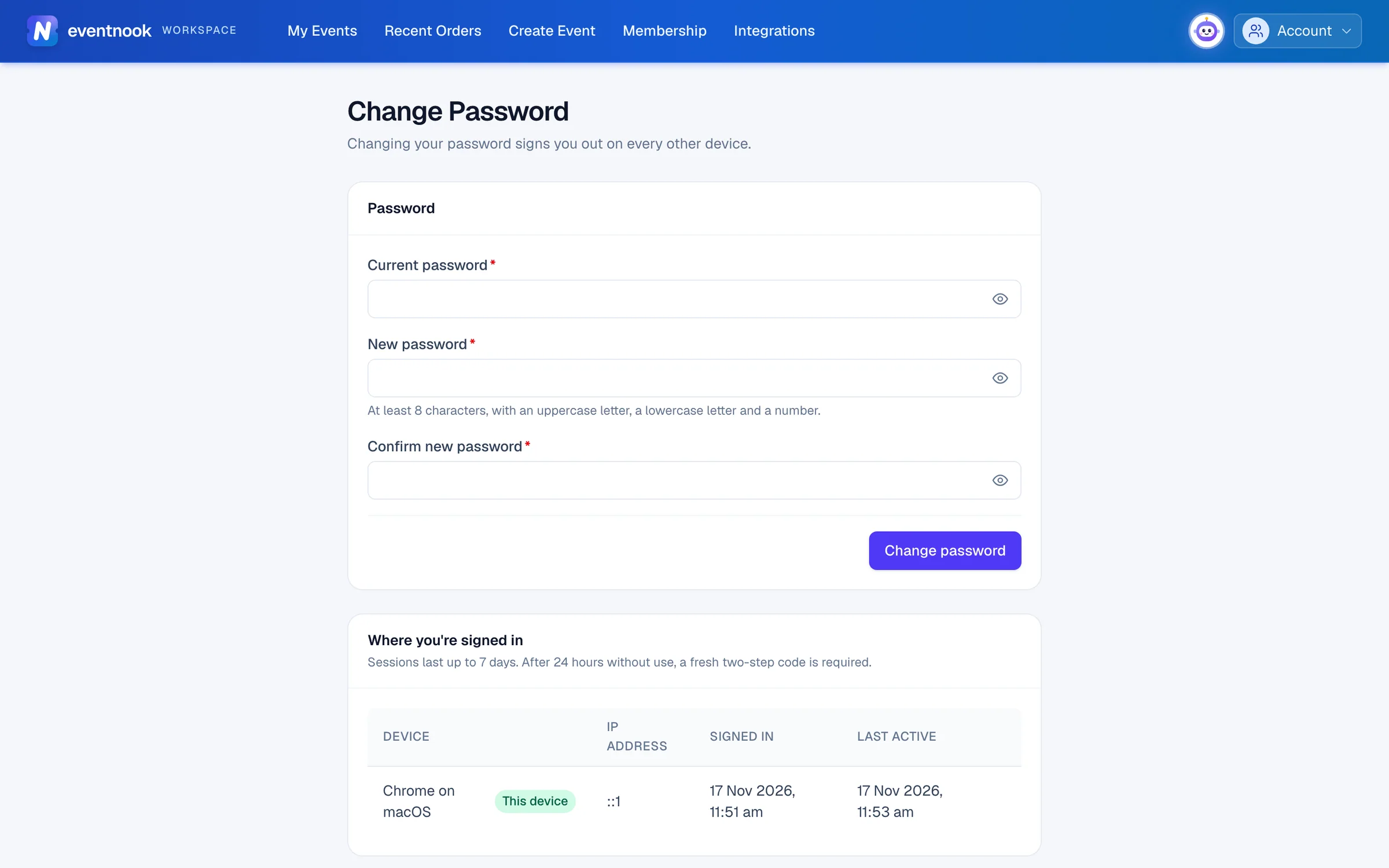
- 1Signs you out on every other device
- 2Every browser where you're signed in, with Sign out on each
See where you're signed in#
Where you're signed in, on the same page, lists every browser with an open session: its Device, IP address, when it Signed in and was Last active. This device marks the one you're using. Needs a code means it hasn't been used for a day and asks for a fresh code before it carries on.
- To sign out one device, click Sign out on its row.
- To sign out every device but this one, click Sign out everywhere else and confirm.
Sessions last up to 7 days.
Choose how you get your sign-in code#
Two-step verification is on for every EventNook account, and can't be turned off. With nothing else set up, your code comes by email: Email codes shows Default.
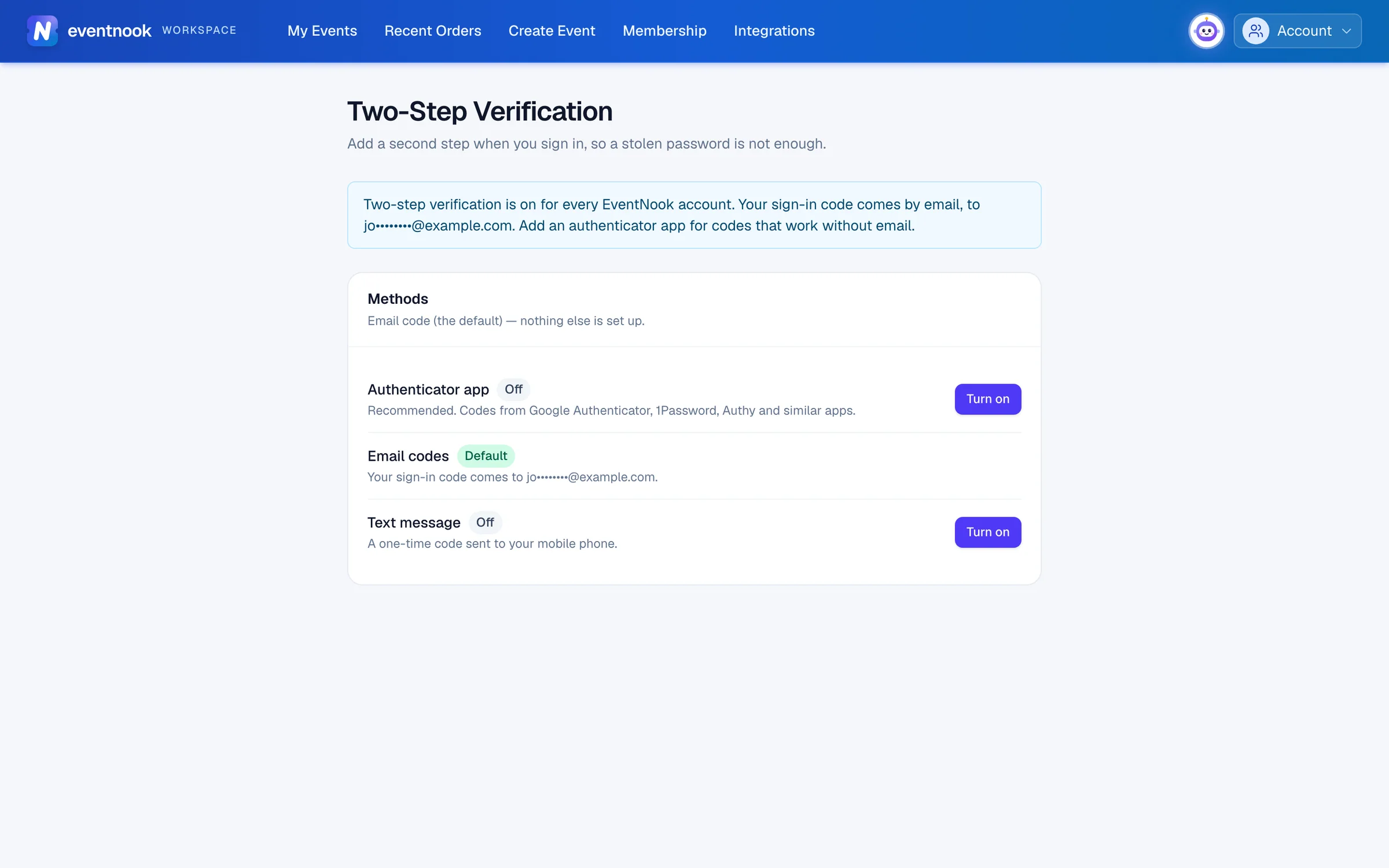
- 1Recommended. Codes that work without email
| Method | How the code arrives |
|---|---|
| Authenticator app | Recommended. A code from Google Authenticator, 1Password, Authy or a similar app. Works without email or signal. |
| Email codes | A one-time code sent to your account's email when you sign in. |
| Text message | A one-time code sent to your mobile phone. |
Add an authenticator app#
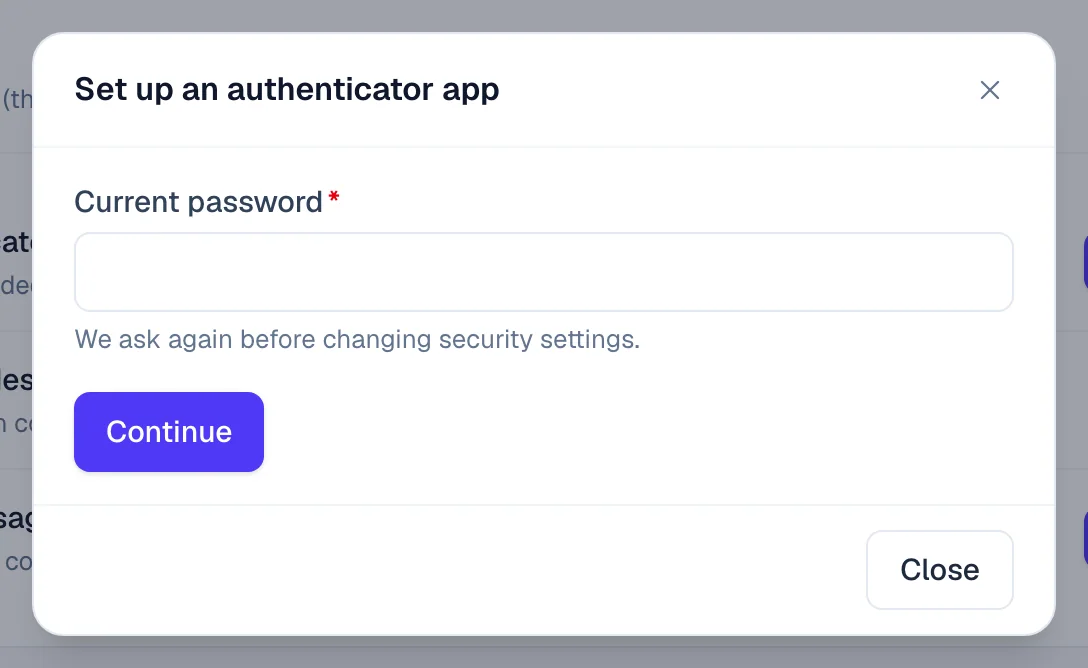
- Open Account › Two-Step Verification and click Turn on next to Authenticator app.
- Type your Current password and click Continue.
- On your phone, tap open in authenticator app. Or type the key shown into your app by hand.
- Type the 6-digit code your app shows into Verification code and click Verify and turn on.
- Save the recovery codes: click Copy or Download. They're shown only once.
Add text-message codes#
- Click Turn on next to Text message.
- Type your Current password, your Country code and Mobile number, and click Continue.
- Type the 6-digit code sent to your phone and click Verify and turn on. The code expires in 10 minutes.
Remove a method#
Click Remove next to it and confirm with your current password. If you remove the last one, the page says your sign-in code now comes by email.
Got a new phone? Remove the authenticator app, then Turn on again and set it up on the new phone.
Recovery codes#
A recovery code gets you in when you can't use your usual method, for example if you lose your phone. Each one works once. Once you've added an authenticator app or text messages, the Recovery codes card shows how many unused codes you have left.
To get a new set, click Generate new codes and confirm with your password. Every earlier code stops working. Copy or download the new ones straight away: they're shown only once.
To sign in with one, click Use a recovery code on the code page. Afterwards EventNook takes you to Two-Step Verification and says You signed in with a recovery code. Check your methods, and generate a fresh set.
Forgot your password#
- On the sign-in page, click Forgot your password?.
- Type your Email and click Send reset link. The email arrives if that address has an account.
- Click the link in the email. It works once, for 24 hours.
- Type a New password and Confirm new password, then click Reset password.
- Sign in with the new password.
Resetting your password signs you out everywhere. It also ends a pause on sign-in after too many wrong passwords.
If something looks wrong#
- "Your current password is not correct". Retype it. If you've forgotten it, sign out and use Forgot your password?.
- "Choose a password different from your current one". The new password must not be the one you have now.
- The set-up code is rejected. Use the newest code, and check your phone's clock is set automatically. A set-up expires after 10 minutes: close the dialog and start again.
- "This sign-in attempt has expired". More than 10 minutes passed, or 5 codes were wrong. Click Sign in again.
- "The reset link is invalid, expired or has already been used". Click Request a new link and use the newest email.
- You've lost every method and every recovery code. Contact EventNook support.
Related guides
- Create your account and sign inSign up as an organiser, confirm your email address, sign in with your password and a code, and get back in if you forget your password.
- Edit your profileChange your name, display name, job title and contact details, see your account's status, and choose how HeyNook looks to you.
- Organisations and rolesSee the organisations you belong to, switch between them, create one, edit its profile, manage its members and their roles, and check its plan, activity and security log.
Still stuck? In EventNook, ask HeyNook. It knows the page you're on and your event, and can take you straight to the right setting.