Accept an invitation
Join an organisation or an event you were invited to, with your existing account or a new one, or decline an event invitation.
When someone adds you to their organisation or to one of their events, EventNook emails you an invitation. Open the link in that email to accept it. Access starts only once you accept, and only with the email address the invitation was sent to.
There are two kinds:
| Invitation | What you get |
|---|---|
| To an organisation | A role in the organisation (admin or member), for all its events or the ones chosen for you. |
| To an event | A role on one event, such as Event Editor, sometimes until a set date. |
Join an organisation#
- Open the link in the invitation email. The page says Join and the organisation's name, the role you're invited as, and the address it was sent to.
Accept it in one of these ways:
- You're already signed in with the invited address: click Accept invitation.
- You have an account but aren't signed in: click Sign in to accept, sign in with the invited address, and you come back to the invitation. Click Accept invitation.
- You don't have an account yet: type your First name, Last name and a Password, then click Create account and join.
- You land on Organisations, which says Invitation accepted — welcome to your new organisation.
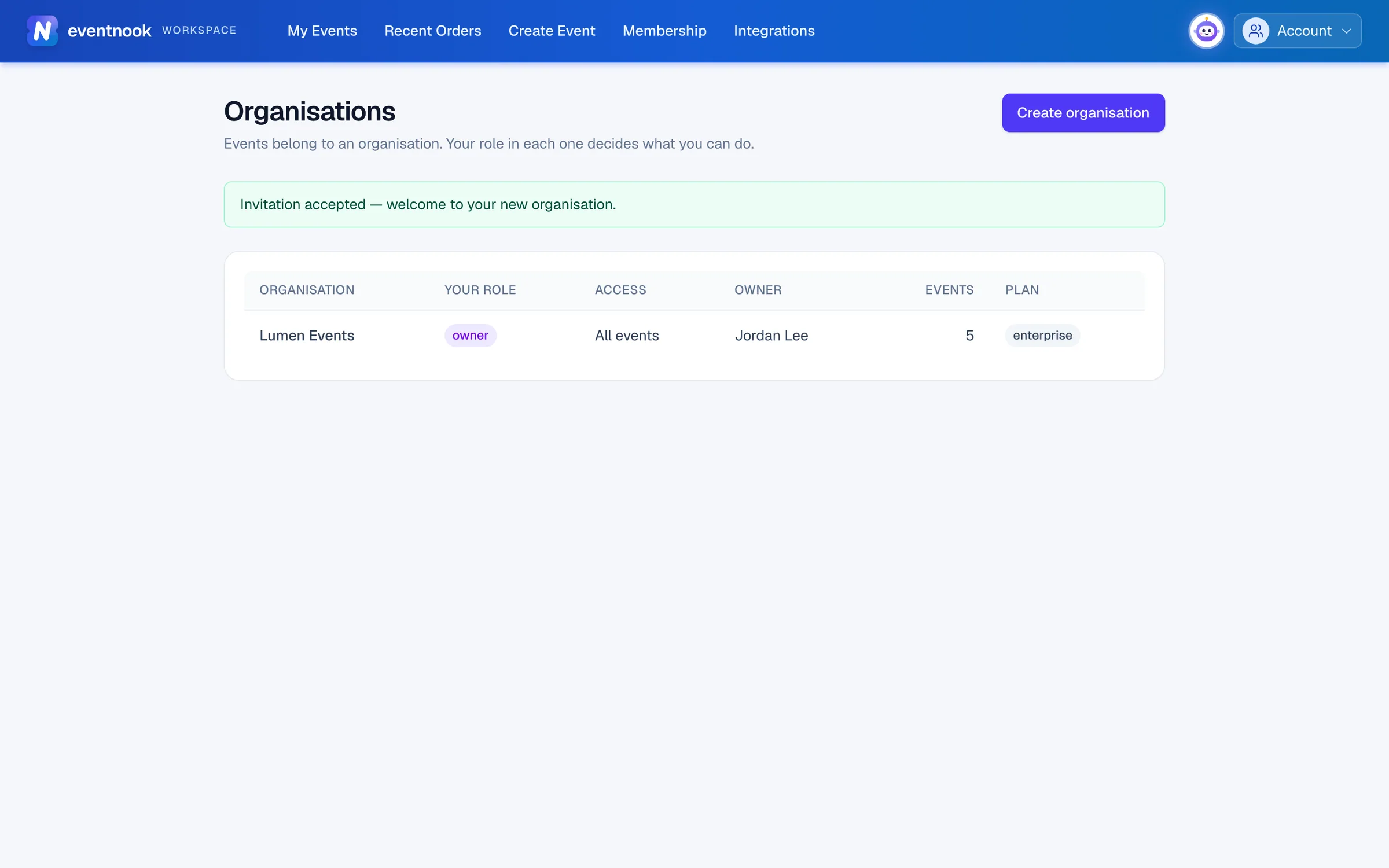
- 1Shown once you've joined
The organisation's events now appear on My Events. If you belong to several organisations, choose this one from the organisation list beside the Events heading.
Accept an invitation to an event#
- Open the link in the invitation email. The Event invitation page shows the event, who invited you, Your role, when your Access expires and the address it was Sent to.
- If you're signed in with the invited address, click Accept invitation. The event opens.
- If you're not signed in, click Sign in to accept and sign in with the invited address, then click Accept invitation.
- No account yet? Click Create an account to accept and sign up with the invited address. When your email is confirmed, open the invitation link again and click Accept invitation.
You only see that one event, with what your role allows. See Invite your team for what each role can do.
Decline an event invitation#
Click Decline. The page says You declined this invitation. The organiser has been told.
If something looks wrong#
- "This invitation can't be used". The invitation is invalid, expired, revoked or already accepted. Ask the person who invited you to send a new one. Organisation invitations last 14 days.
- "This invitation has expired. Ask the organiser to send a new one." Event invitation links last 14 days. The organiser can send it again.
- "You're signed in with a different email address." Sign out, then sign in with the address the invitation was sent to.
- "Signed in with a different account". Click Sign in as and the invited address, and sign in with it.
- "This invitation has already been accepted." It's done: the organisation or event is already in your account. Check My Events.
- "This invitation was withdrawn or declined." Ask the organiser for a new invitation.
- Sign-up asks for an invitation code. EventNook is currently invite-only. Contact EventNook support for a code, then sign up with the invited address.
- The invitation went to the wrong address. Ask the organiser to revoke it and invite the address you use.
Related guides
- Invite your teamAdd colleagues to your organisation so they can help with every event, or invite someone to one event only, and choose what each person can do.
- Organisations and rolesSee the organisations you belong to, switch between them, create one, edit its profile, manage its members and their roles, and check its plan, activity and security log.
- Create your account and sign inSign up as an organiser, confirm your email address, sign in with your password and a code, and get back in if you forget your password.
Still stuck? In EventNook, ask HeyNook. It knows the page you're on and your event, and can take you straight to the right setting.