Create and manage API tokens
Create API tokens so your own software, workflow tools and AI agents can work with your organisation's events, and rotate or revoke them safely.
Where to find it: Event admin › Account › API Tokens
An API token lets software work with your organisation's events without anyone signing in: your own integration, a workflow tool or an AI agent. Each token can only do what its permissions allow. Tokens belong to the organisation, not to the person who made them, so they keep working if that person leaves.
Open them from Account › API Tokens in the top bar.
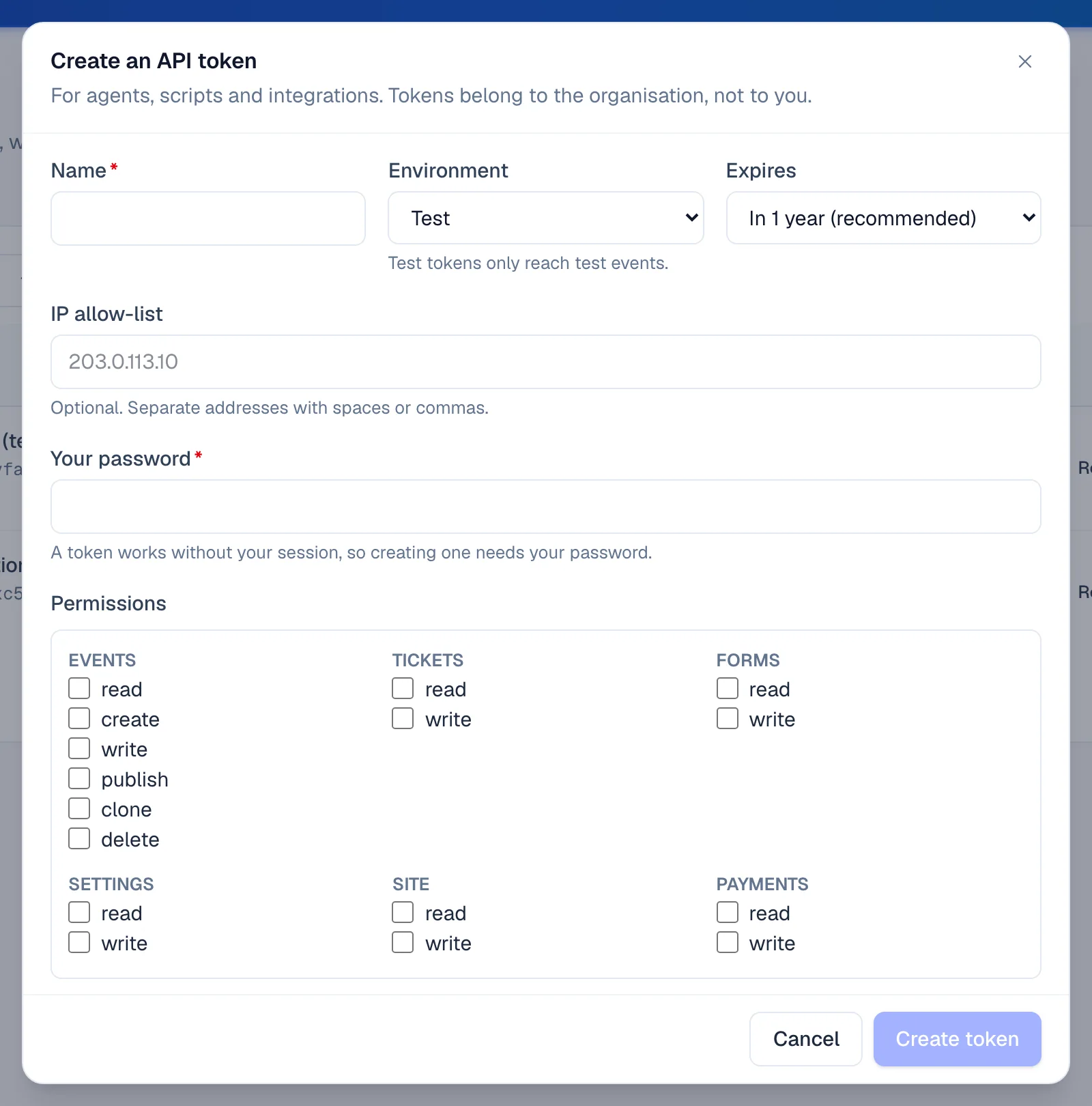
- 1A new token, with only the permissions it needs
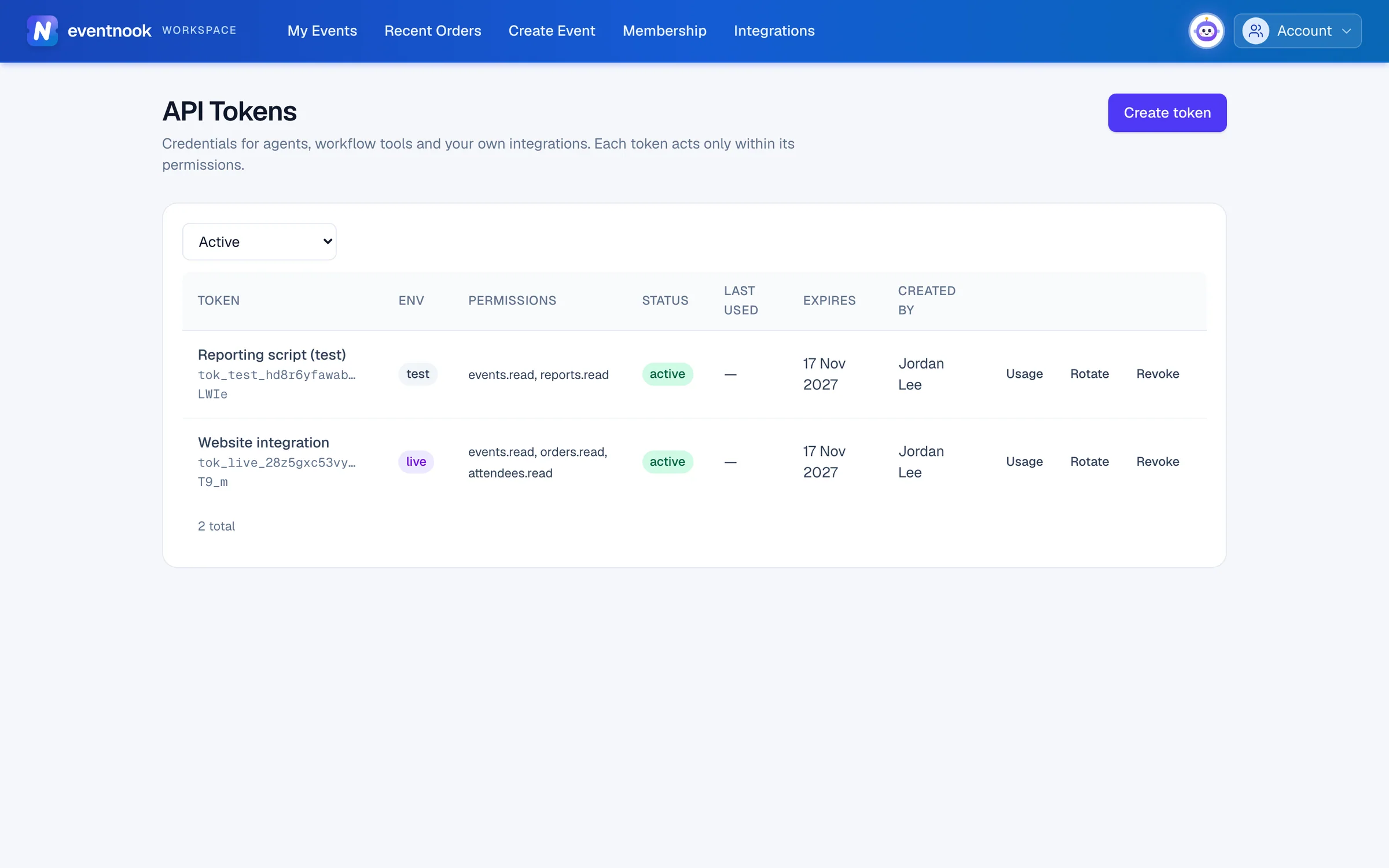
- 2Active, expired or revoked tokens
Before you start#
- You need to be an owner or admin of the organisation.
- API access is part of some plans. Open Account › Organisations, choose the organisation and check its Plan & limits tab. If creating a token says This feature is not included in your plan., contact EventNook.
Create a token#
- Click Create token.
- Type a Name, such as the name of the tool that will use it.
- Choose the Environment: Test while you build (test tokens only reach test events), Live for real events.
- Choose when it Expires. In 1 year (recommended) is the default.
- Optional: type an IP allow-list, so the token only works from those addresses. Separate them with spaces or commas.
- Under Permissions, tick only what it needs. Nothing is ticked to start with. Each area has its own permissions, such as reading and writing.
- Type Your password. A token works without your session, so creating one needs your password.
- Click Create token, then Copy secret and store it in the tool's secret settings.
Read the list#
| Column | What it tells you |
|---|---|
| Token | Its name, and the first and last characters of its secret. |
| Env | test or live. |
| Permissions | What it may do. |
| Status | active, expired or revoked, with a warning such as expires soon, unused 180 days, maker left (whoever made it is no longer a member; it still works until revoked) or rotating. |
| Last used, Expires, Created by | When it was last used, when it stops working, and who made it. |
Use the status list above the table to see Active, Expired, Revoked or All tokens.
Replace a secret without downtime#
- Click Rotate on the token's row.
- Choose the Overlap window: how long the old secret keeps working beside the new one. 24 hours (default), or from None — old secret stops now to 7 days.
- Type Your password and click Rotate.
- Copy the new secret and install it in the tool.
- Once the tool uses the new secret, click End overlap to stop the old one straight away.
Stop a token#
Click Revoke on its row and confirm with Revoke token. It stops working on its next request. This can't be undone.
See what a token did#
Click Usage on its row. You see when and from where it was last used, and the changes made with it.
If something looks wrong#
- "You do not hold …". A token can't have a permission you don't have yourself.
- A permission isn't offered. Permissions over the organisation and its members, billing, token management, inviting collaborators and deleting orders, attendees or registration data can't be given to tokens.
- "You can give access only to events you can reach yourself". You reach only some of the organisation's events, so your tokens can only reach those. Ask the owner for a token that reaches every event.
- "No token access". Only organisation owners and admins manage API tokens.
- "An organisation can hold at most 50 active tokens. Revoke one first." Revoke the tokens you no longer use.
Related guides
- Organisations and rolesSee the organisations you belong to, switch between them, create one, edit its profile, manage its members and their roles, and check its plan, activity and security log.
- Send changes to your own systems with webhooksSend registrations, attendees, payments and check-ins to your own systems as they happen, check every delivery, and send failed ones again.
- Bring registrations in from CventConnect your organisation's Cvent account, sync a Cvent event's registrations into an EventNook event, and keep the guest list current on the day.
Still stuck? In EventNook, ask HeyNook. It knows the page you're on and your event, and can take you straight to the right setting.