Invite your team
Add colleagues to your organisation so they can help with every event, or invite someone to one event only, and choose what each person can do.
Where to find it: Event admin › Account › Organisations
There are two ways to give someone access. Add them to your organisation when they work on your events in general. Invite them to one event as a collaborator when they help with that event only, such as an agency or a venue partner. Either way they get an email, and their access starts when they accept it with the invited address.
Choose how to give access#
| Organisation member | Event collaborator | |
|---|---|---|
| Reaches | Every event of the organisation, or the events you pick | One event |
| Roles | Admin or Member | Event Admin, Event Editor, Event Analyst or Custom |
| Set up in | Account › Organisations, on the organisation's Invitations tab | The event's Collaborators page |
| Good for | Your own staff | Partners, freelancers, a client who wants to see the numbers |
Add someone to your organisation#
- Click Account in the top bar and choose Organisations.
- Click your organisation, then open the Invitations tab.
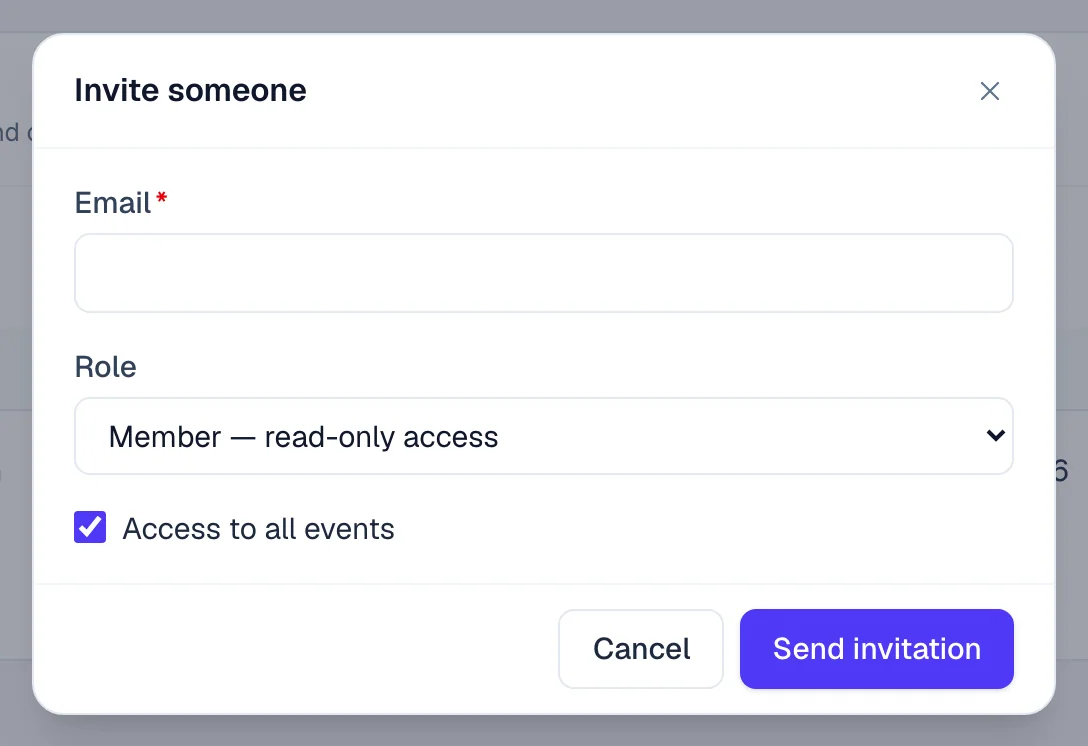
- Click Invite someone and type their Email.
- Choose a Role: Member — read-only access, or Admin — manage events and members. Only the owner can invite an admin.
- Leave Access to all events ticked, or untick it and tick the events they should reach.
- Click Send invitation. The invitation is listed as pending until they accept.
Invitations expire after 14 days. To send it again, click Resend on its row. To withdraw it, click Revoke. Once someone accepts, they appear on the Members tab, where you can change their role or the events they reach. See Organisations and roles.
Invite someone to one event#
- Open the event and go to Event setup › More settings › Event settings › Collaborators.
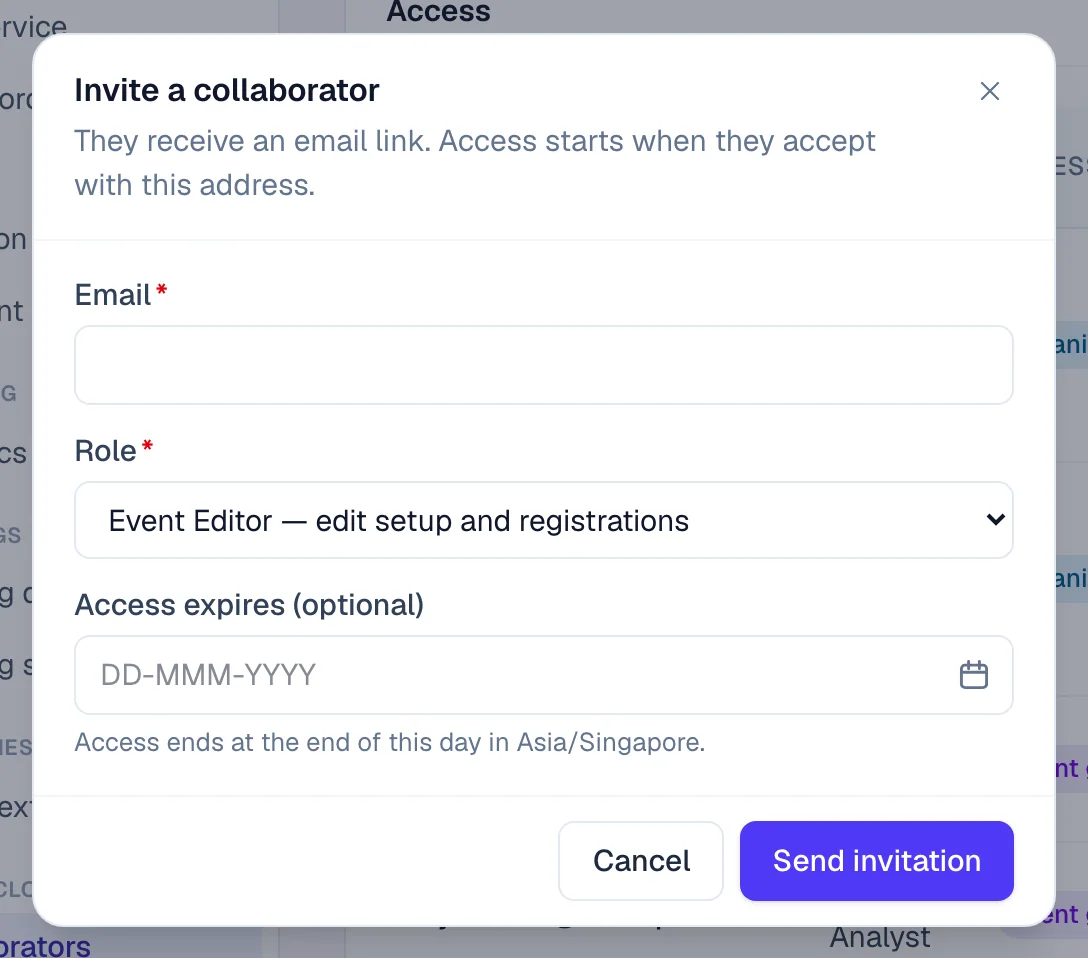
- Click Invite collaborator and type their Email.
- Choose their Role on this event.
- Optional: set Access expires, for example the day after the event. Access ends at the end of that day in the event's timezone.
- Click Send invitation.
See Collaborators for changing someone's access, custom roles and revoking access.
Roles in brief#
| Role | What they can do |
|---|---|
| Owner | Everything in the organisation, including handing it over and closing it. Each organisation has one owner. |
| Admin | Everything except handing over or closing the organisation: events, members, payment accounts, API tokens and settings. |
| Member | Read-only: see events, orders, attendees and reports. |
| Event Admin | Full control of one event, including publishing it and inviting collaborators. |
| Event Editor | Edit one event's setup and registrations. |
| Event Analyst | Read-only on one event, and can export. |
| Custom | You choose each feature of the event, and whether they can edit it. |
What the person you invited does#
They open the link in the email. If they already have an EventNook account, they sign in with the invited address and click Accept invitation. If they don't, they create one from the invitation. See Accept an invitation.
If something looks wrong#
- "This person is already a member of the organisation." They're already in. Change their role on the Members tab instead.
- "Your plan allows up to … team members." Revoke invitations nobody will accept, or remove people who no longer need access. To add more, contact EventNook.
- Admin isn't offered as a role. Only the organisation's owner can invite an admin.
- They never got the email. Ask them to check their spam folder, then click Resend on the invitation.
- "You can give access only to events you can reach yourself." You reach only some of the organisation's events, so you can only invite people to those. Ask the owner, or an admin who reaches every event.
Who can do this#
Organisation owners and admins invite people to the organisation. Organisation owners and admins, and an event's Event Admin, invite collaborators to that event.
Related guides
- Organisations and rolesSee the organisations you belong to, switch between them, create one, edit its profile, manage its members and their roles, and check its plan, activity and security log.
- Give people access to an eventInvite someone to work on one event with the role they need, choose features one by one with a custom role, change or end their access, and see who else can reach the event.
- Accept an invitationJoin an organisation or an event you were invited to, with your existing account or a new one, or decline an event invitation.
- Find your way around Event adminGet around Event admin with the top bar, the events list, the event menu and the tool finder, and know where HeyNook and your account settings are.
Still stuck? In EventNook, ask HeyNook. It knows the page you're on and your event, and can take you straight to the right setting.