Connect a payment account
Connect your organisation's Stripe or PayPal account so buyers' payments go straight to you, choose the default for new events, and see what you pay EventNook.
Where to find it: Event admin › Account › Payment Collection
Payment collection holds the Stripe and PayPal accounts your organisation takes payments into. Each paid event uses one of them, and buyers' money settles straight into your own account, never into EventNook. Connect them once here, then choose one on each event's Currency & payment page.
Open it from Account › Payment Collection in the top bar.
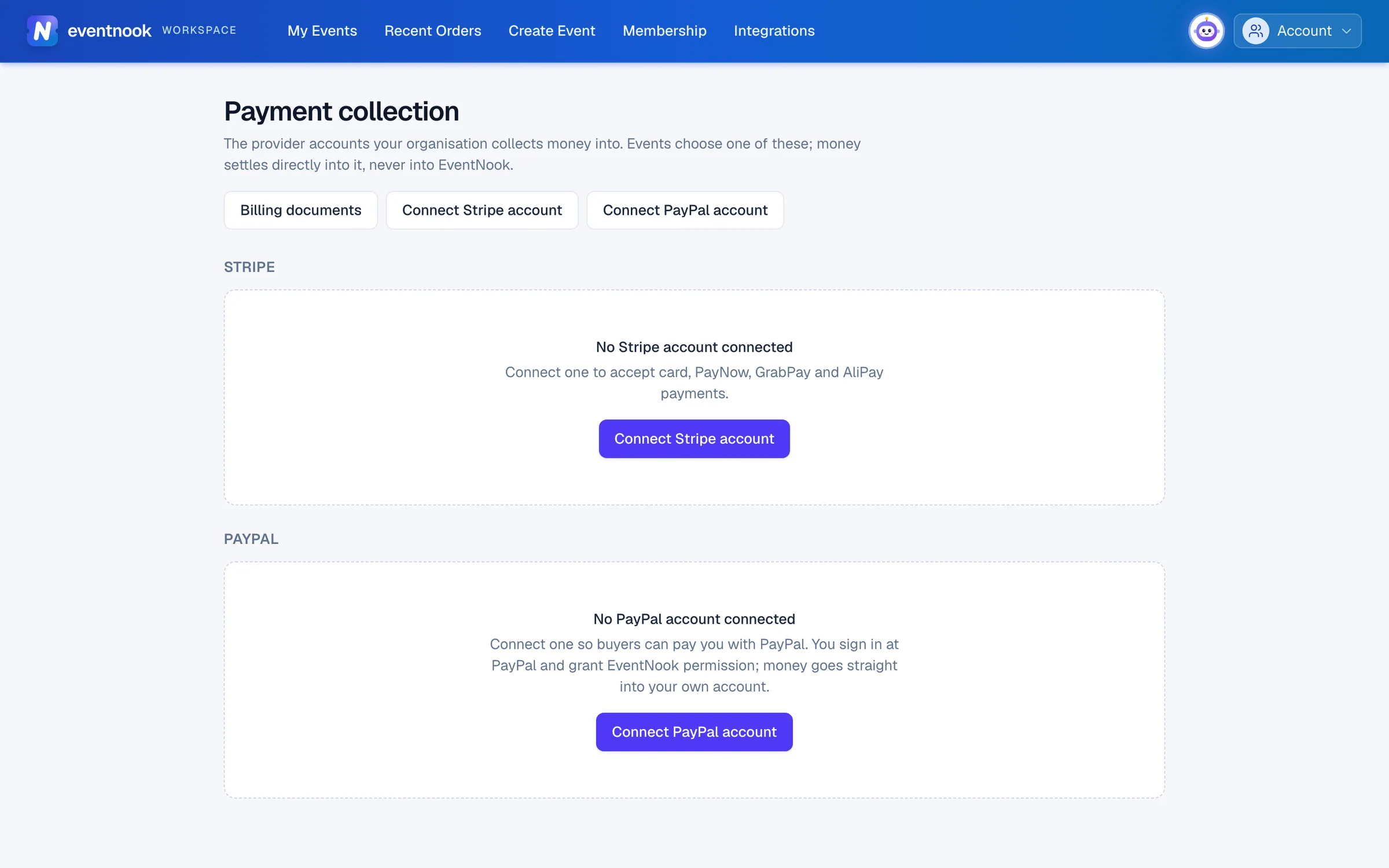
- 1Connect a Stripe account you have, or create one
- 2Let buyers pay with PayPal
- 3What your organisation pays EventNook
Before you start#
- You need to be an owner or admin of the organisation.
- Have your Stripe or PayPal sign-in ready. EventNook never sees your Stripe or PayPal password or keys: it keeps only the account's id.
Connect a Stripe account#
- Click Connect Stripe account.
Choose how:
- I already have a Stripe account: click Sign in to Stripe, sign in, pick the account and allow EventNook to connect it. Your payment history, payouts and settings stay as they are.
- Create a new Stripe account: type a Name for this account, optionally a Contact email, choose the Country, and click Continue to Stripe. Finish Stripe's steps.
- Stripe brings you back here. The page says whether the account is ready, or whether Stripe still needs information.
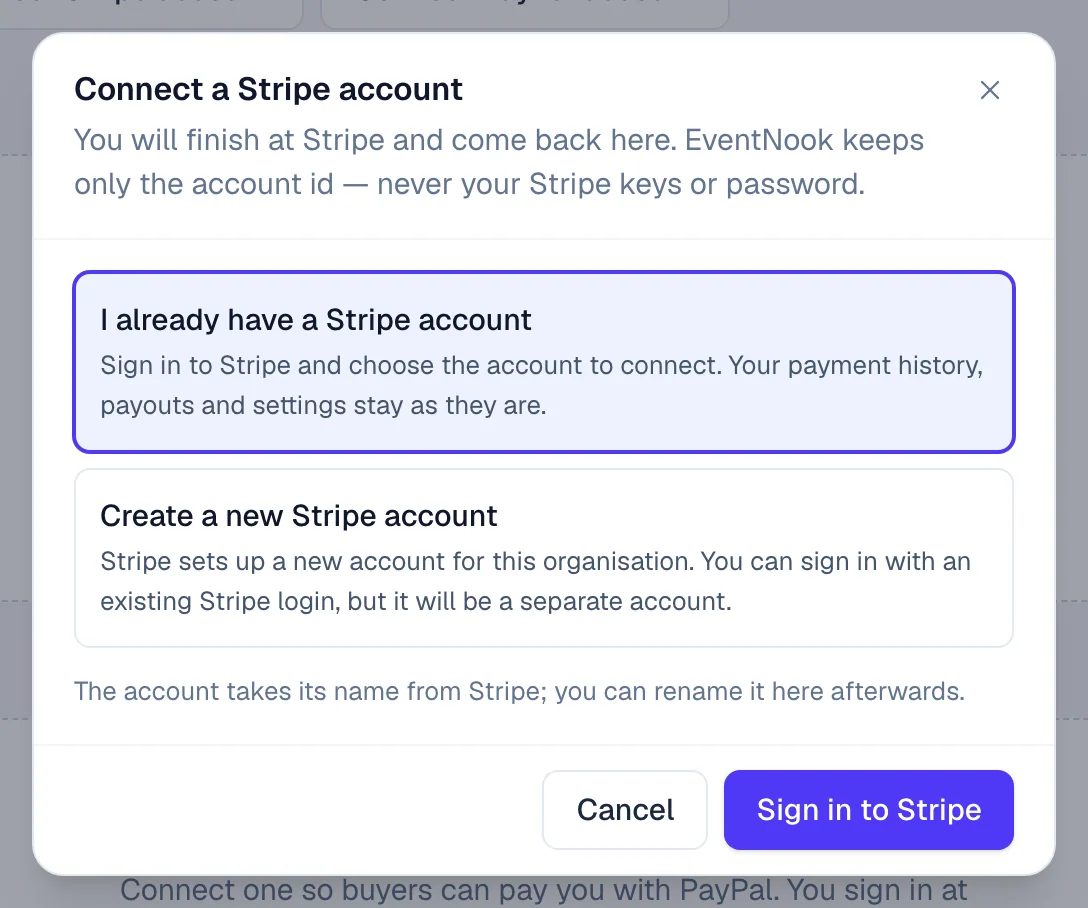
A Stripe account lets your events take card, PayNow, GrabPay and AliPay payments.
Connect a PayPal account#
- Click Connect PayPal account.
- Type a Name for this account. If you like, add a PayPal email (optional) to fill in PayPal's form for you. Leave Environment on Live — take real payments.
- Click Continue to PayPal, sign in at PayPal and grant EventNook permission to take payments for you.
- PayPal brings you back here.
To test PayPal without real money, connect a second account with Environment set to Sandbox — testing only and use it on a test event. It's marked sandbox wherever it appears.
What each account shows#
| On the card | What it tells you |
|---|---|
| Default | New events use this account. |
| Status | For example active. disabled means you turned it off for events. |
| Used by | How many events use it. |
| Charges and Payouts (Stripe) | Whether Stripe lets the account take payments and pay you out. |
| Statement descriptor (Stripe) | What buyers see on their card statement. |
| Can receive payments and Email confirmed (PayPal) | Whether PayPal lets money reach the account. |
Manage an account#
| To… | Do this |
|---|---|
| Make it the default for new events | Click Make default. Events you already have keep their account. |
| Rename it, or change the statement descriptor | Click Edit, change Name or Statement descriptor (5–22 letters, digits and spaces), and click Save. |
| Stop events using it for a while | Click Edit and untick Enabled. If events use it, the dialog lists them: click Disable anyway. |
| Check its status with Stripe or PayPal | Click Refresh. |
| Finish a sign-up you left | Click Finish on Stripe or Finish on PayPal. |
| Stop using it for good | Click Disconnect, tick I understand, type Your password and click Disconnect. |
A Stripe account that was never finished, or was disconnected, shows Remove instead. It takes the account off the list and changes nothing at Stripe.
Billing documents#
Billing documents shows what your organisation pays EventNook, kept apart from what your buyers pay you. Click Billing documents at the top of Payment collection.
- Invoices from EventNook: each invoice's number, Period, Status, Issued date and Total. Point at a total to see its tax.
- Payout statement (last 90 days): for each event and currency, the Gross sales, Refunds, Fees (the payment provider's and EventNook's) and the Net. Use it to reconcile what reached your account.
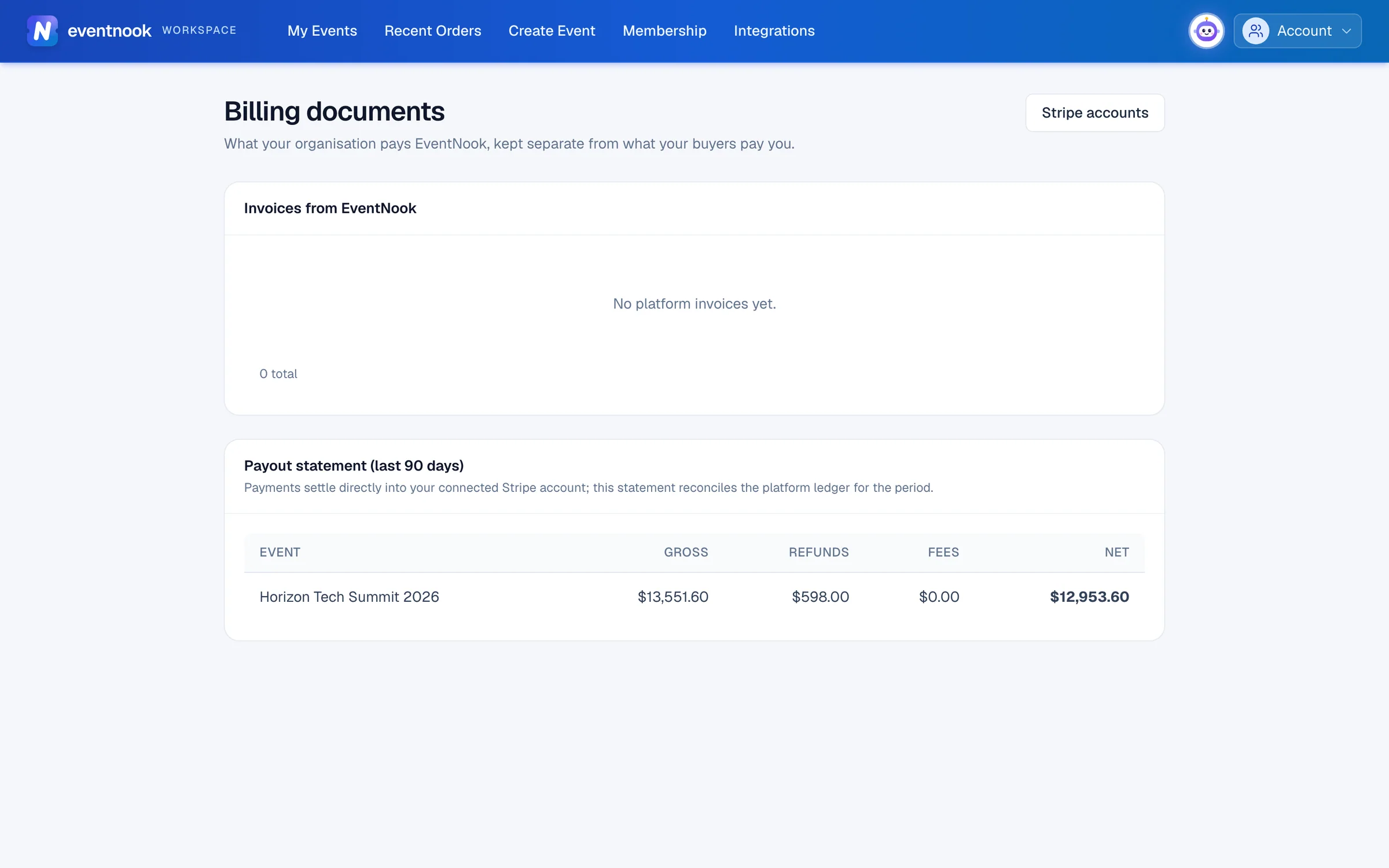
To get a copy of one invoice, contact EventNook.
If something looks wrong#
- "Stripe needs more information". Click Finish on Stripe or Open Stripe, give Stripe what it asks for, then click Refresh.
- "EventNook lost access to this account". Click Reconnect.
- "Not finished at PayPal". Click Finish on PayPal and complete every step, including granting permission.
- "PayPal needs something before this account can take payments". The card lists what's missing, often a confirmed email address. Fix it at PayPal, then click Refresh.
- "EventNook can no longer take payments for this account". Permission was withdrawn at PayPal. Click Reconnect and grant it again.
- "The connection link expired or was already used" or "…started in a different sign-in session". Start the connection again, from this browser.
- "No organisation to manage". Only organisation owners and admins manage payment collection.
Related guides
- Set the currency and how buyers payChoose the event's currency, turn on card, PayPal, bank transfer and other payment methods, and confirm, refund and export payments.
- See your credit usageSee how many email, SMS, WhatsApp and AI credits your organisation used each month, what they cost, and which events used them.
- Organisations and rolesSee the organisations you belong to, switch between them, create one, edit its profile, manage its members and their roles, and check its plan, activity and security log.
Still stuck? In EventNook, ask HeyNook. It knows the page you're on and your event, and can take you straight to the right setting.