Create your account and sign in
Sign up as an organiser, confirm your email address, sign in with your password and a code, and get back in if you forget your password.
To run events on EventNook you need an organiser account. Signing up also creates your own organisation, which you own. If a colleague invited you to their organisation or to one of their events, don't sign up here: open the link in their invitation instead. See Accept an invitation.
Create your account#
- Open the sign-up page and fill in your First name, Last name and Work email.
- Optional: type an Organisation name. Leave it blank and the organisation is named after you. You can rename it later.
- Choose a Password: at least 8 characters, with an uppercase letter, a lowercase letter and a number.
- Optional: add your mobile number in Country code and Mobile (optional).
- Type your Invitation code. EventNook is currently invite-only. If your sign-up link included a code, it's already filled in.
- Click Create account. The page says Check your email.
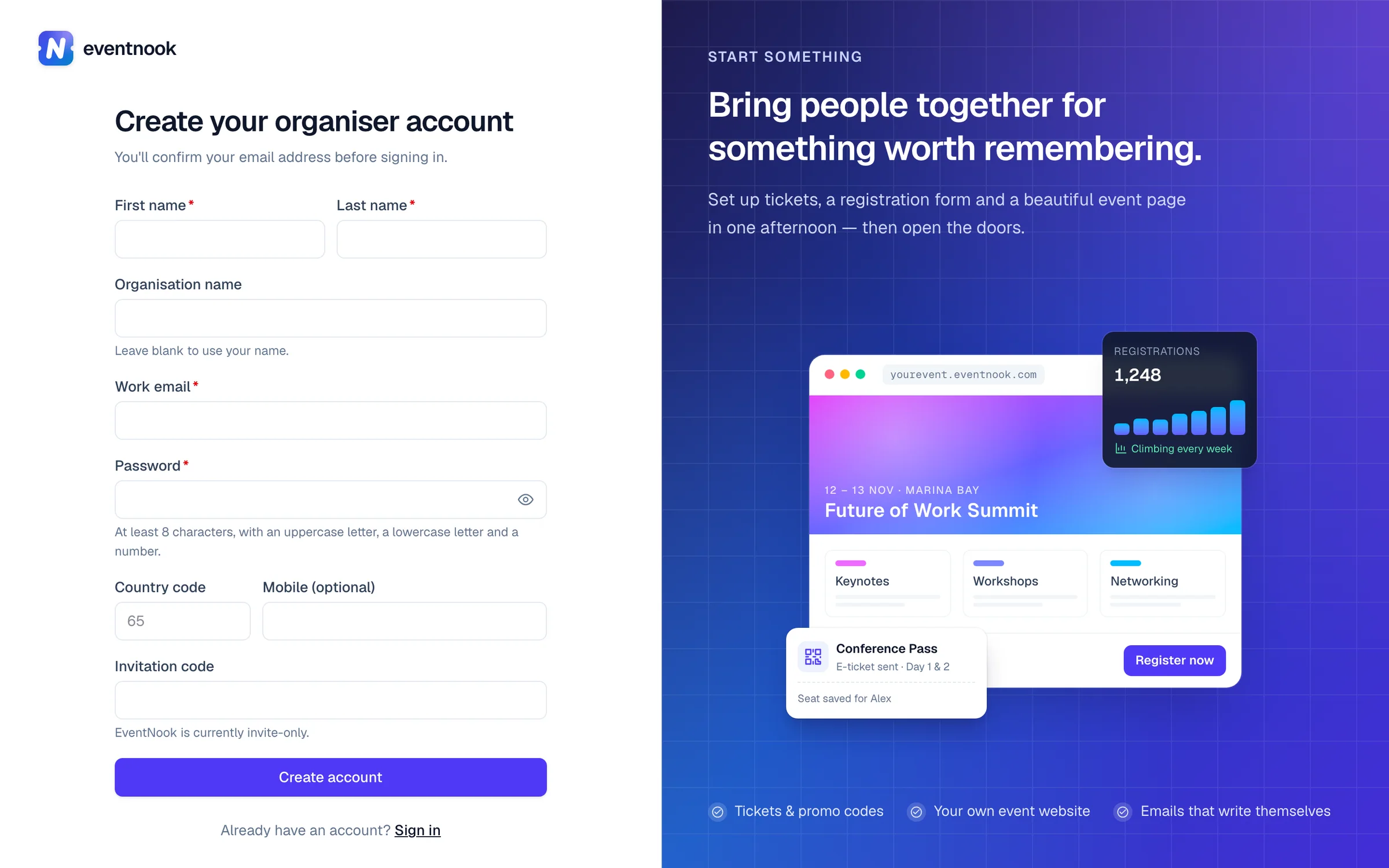
- 1Leave it blank to name the organisation after you
- 2The code EventNook gave you
- 3Sends the confirmation email
If a field is marked in red, fix what it says and click Create account again. Everything else you typed stays filled in.
Confirm your email address#
EventNook sends a confirmation email with a link and a 6-character code. You can't sign in until your address is confirmed.
- With the link: open the email and click the link. It works for 24 hours. You go straight to My Events.
- With the code: click Enter the confirmation code on the sign-up page, or open the confirmation page. Type your Email and the Confirmation code, then click Confirm email.
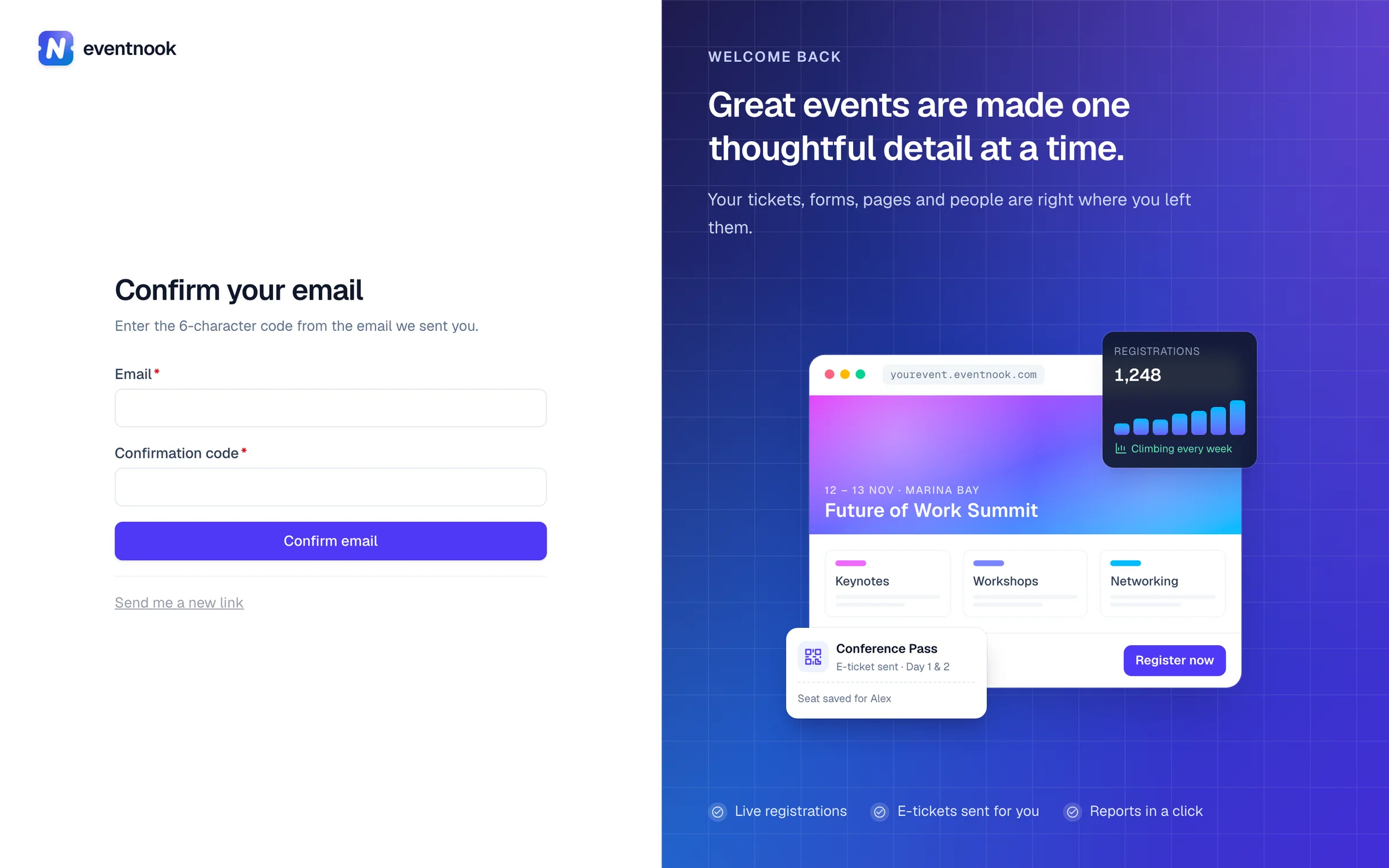
No email? Check your spam folder. Then, on the confirmation page, type your email and click Send me a new link.
Sign in#
- Open the sign-in page and type your Email and Password. The eye button in the password box shows what you typed.
- Click Sign in.
- Enter the 6-digit code EventNook asks for and click Verify. You go back to the page you were opening, or to My Events.
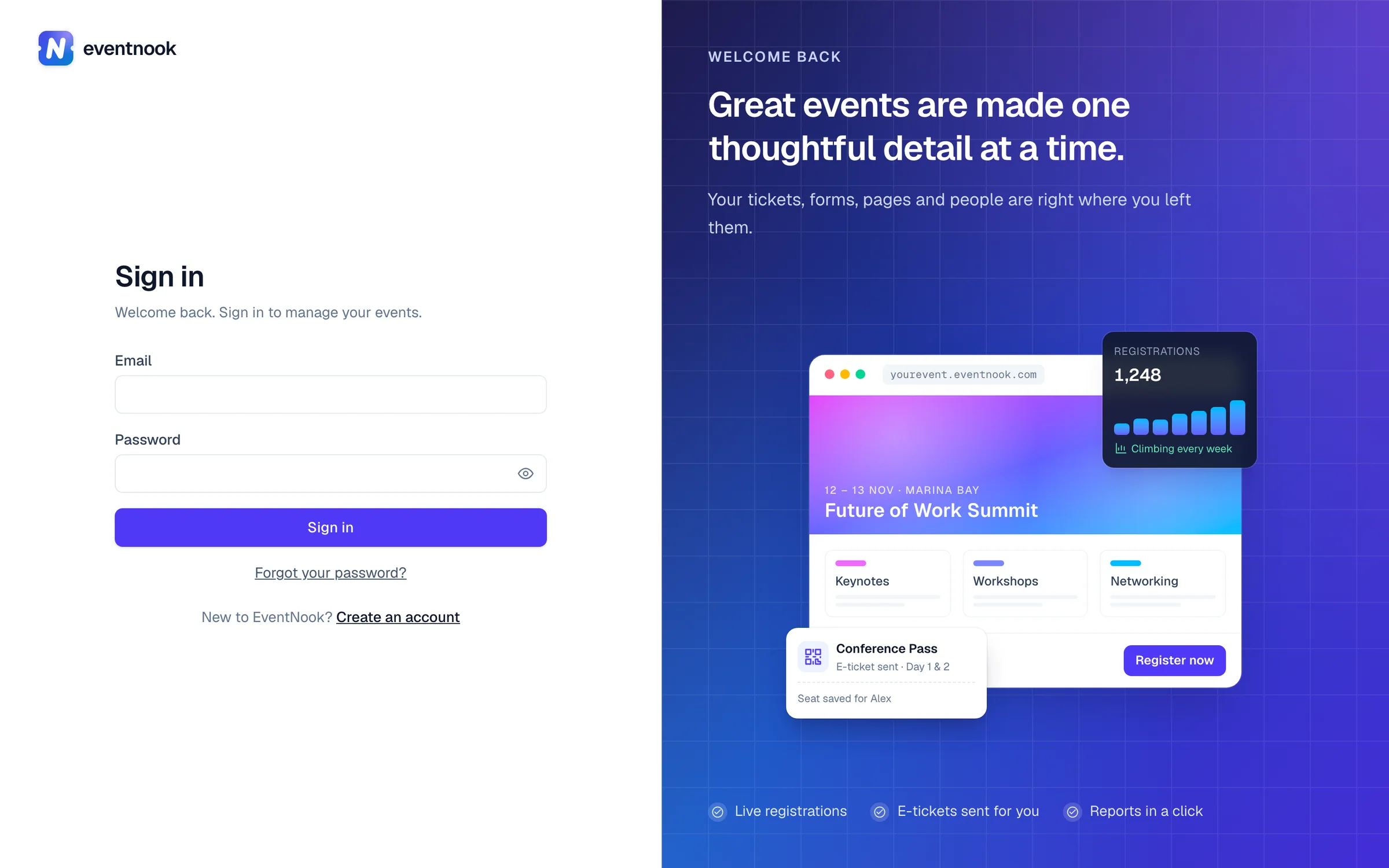
- 1Get a link to choose a new password
- 2New to EventNook
The second step: a code#
Every sign-in asks for a code as well as your password, so a stolen password isn't enough to get in. The code comes by email unless you set up an authenticator app or text messages under Two-Step Verification. See Change your password and two-step verification.
On the code page:
- The code didn't arrive. Click Send a new code (email and text only). You can ask once a minute.
- You'd rather use another method. Click Use authenticator app instead, or the method you want.
- You can't use any of your methods. Click Use a recovery code and type one of the recovery codes you saved when you set up two-step verification. Each code works once, and afterwards you're taken to Two-Step Verification to set up new ones.
The code page expires after 10 minutes or 5 wrong codes. If it says This sign-in attempt has expired, click Sign in again.
Staying signed in#
A session lasts up to 7 days in the same browser. If you haven't used EventNook in that browser for a day, you're asked for a fresh code, without your password, on a page called Verify it's you. Signing in from a browser you haven't used before sends you an email.
Forgot your password#
- On the sign-in page, click Forgot your password?.
- Type your Email and click Send reset link.
- Open the email and click the link. It works once, for 24 hours.
- Type a New password and Confirm new password, then click Reset password.
- Sign in with the new password.
Resetting your password signs you out on every device.
If something looks wrong#
- "That invitation code is not valid". The code is mistyped, expired or used up. Ask EventNook for a new one.
- "We could not create an account with this address". Use another work email, or contact EventNook support.
- "Too many attempts". After 5 wrong passwords, sign-in for that email pauses for up to 15 minutes. Wait, or reset your password: a reset ends the pause.
- Sign-in asks you to confirm your email. Click Confirm your email or send a new link, then enter the code from the confirmation email.
- Your account is locked. Click Reset your password to unlock your account, or contact EventNook support.
- "Your session has expired. Please sign in again." Sessions last up to 7 days. Sign in again.
- "The reset link is invalid, expired or has already been used". Click Request a new link and use the newest email.
- "That code is not correct". Use the newest code. Authenticator codes change every 30 seconds, so check your phone's clock is set automatically.
Related guides
- Change your password and two-step verificationChange your password, sign out other devices, add an authenticator app or text-message codes, keep recovery codes, and reset a forgotten password.
- Accept an invitationJoin an organisation or an event you were invited to, with your existing account or a new one, or decline an event invitation.
- Find your way around Event adminGet around Event admin with the top bar, the events list, the event menu and the tool finder, and know where HeyNook and your account settings are.
- Edit your profileChange your name, display name, job title and contact details, see your account's status, and choose how HeyNook looks to you.
Still stuck? In EventNook, ask HeyNook. It knows the page you're on and your event, and can take you straight to the right setting.