Bring registrations in from Cvent
Connect your organisation's Cvent account, sync a Cvent event's registrations into an EventNook event, and keep the guest list current on the day.
Where to find it: Event admin › Integrations › Overview
Data sync brings an event's registrations in from Cvent. Each Cvent attendee becomes a registration in your EventNook event, with their ticket and their answers, ready for check-in, badges and reports. Use it when registration runs in Cvent and you run the door with EventNook.
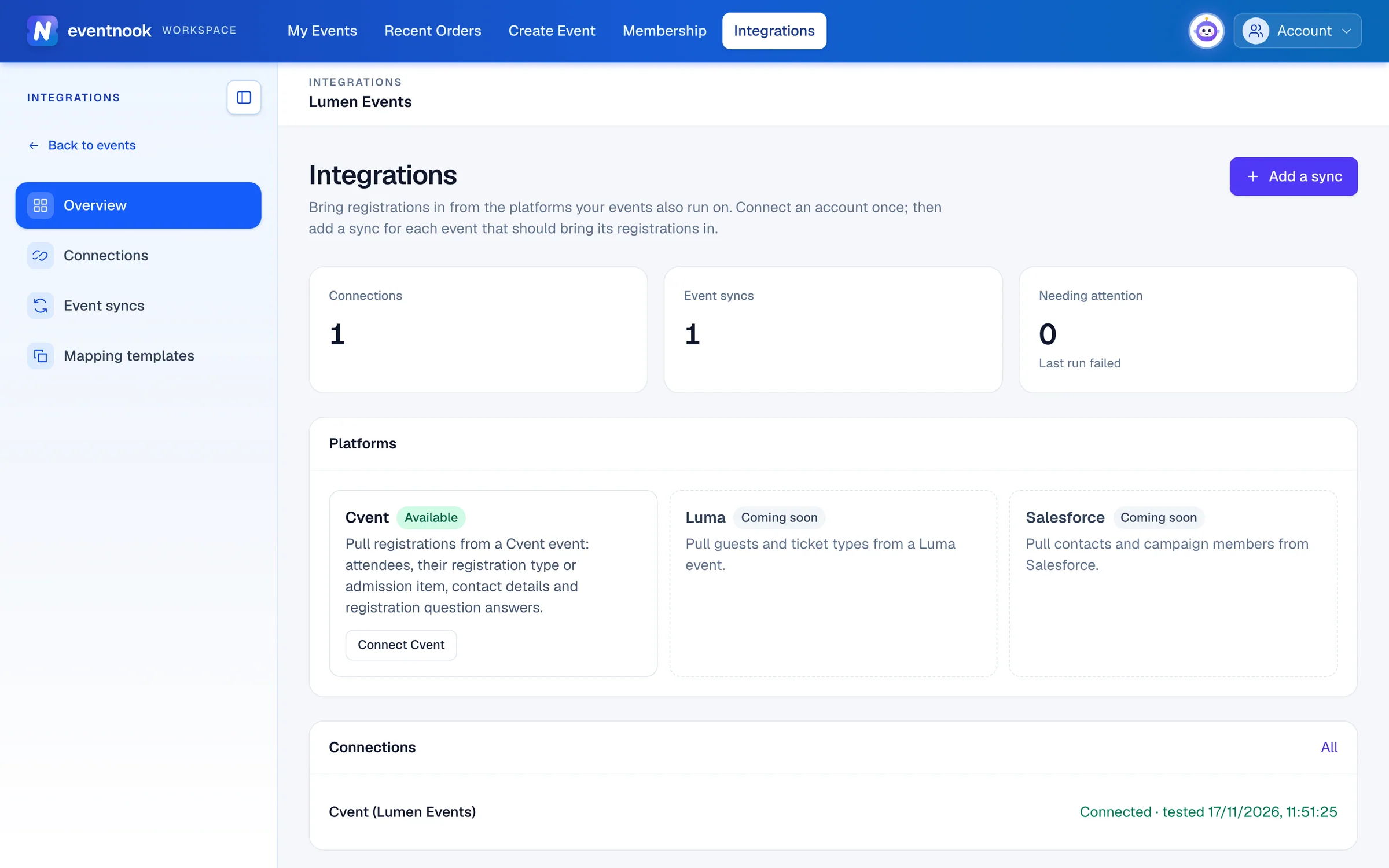
- 1Connect your Cvent account once
- 2Choose an event and start a sync for it
- 3Syncs whose last run failed
Before you start#
- Your organisation needs the Integrations add-on app. Open the event's Apps page: if Integrations shows In your plan or On this event, you have it. Otherwise ask EventNook to add it.
- An organisation owner or admin connects the Cvent account. They need a Client ID and Client secret from your Cvent administrator.
- The EventNook event exists, with the tickets and the registration form you want Cvent's attendees to have.
Add the app to your event#
Add Integrations to the event from its Apps page. See Add an app to your event. In Event admin, the app then opens the event's Data sync page. In Onsite, it gets its own Integrations page in the menu.
Connect your Cvent account#
You connect an account once, and every event can sync from it.
- Outside an event, click Integrations in the top bar, then Connections.
- Click Connect an account.
- Type a Name your team will recognise, such as "Cvent – Asia team".
- Choose the Cvent region the account is hosted in, and paste the Client ID and Client secret.
- Click Save and test. The connection opens, with the result of the test.
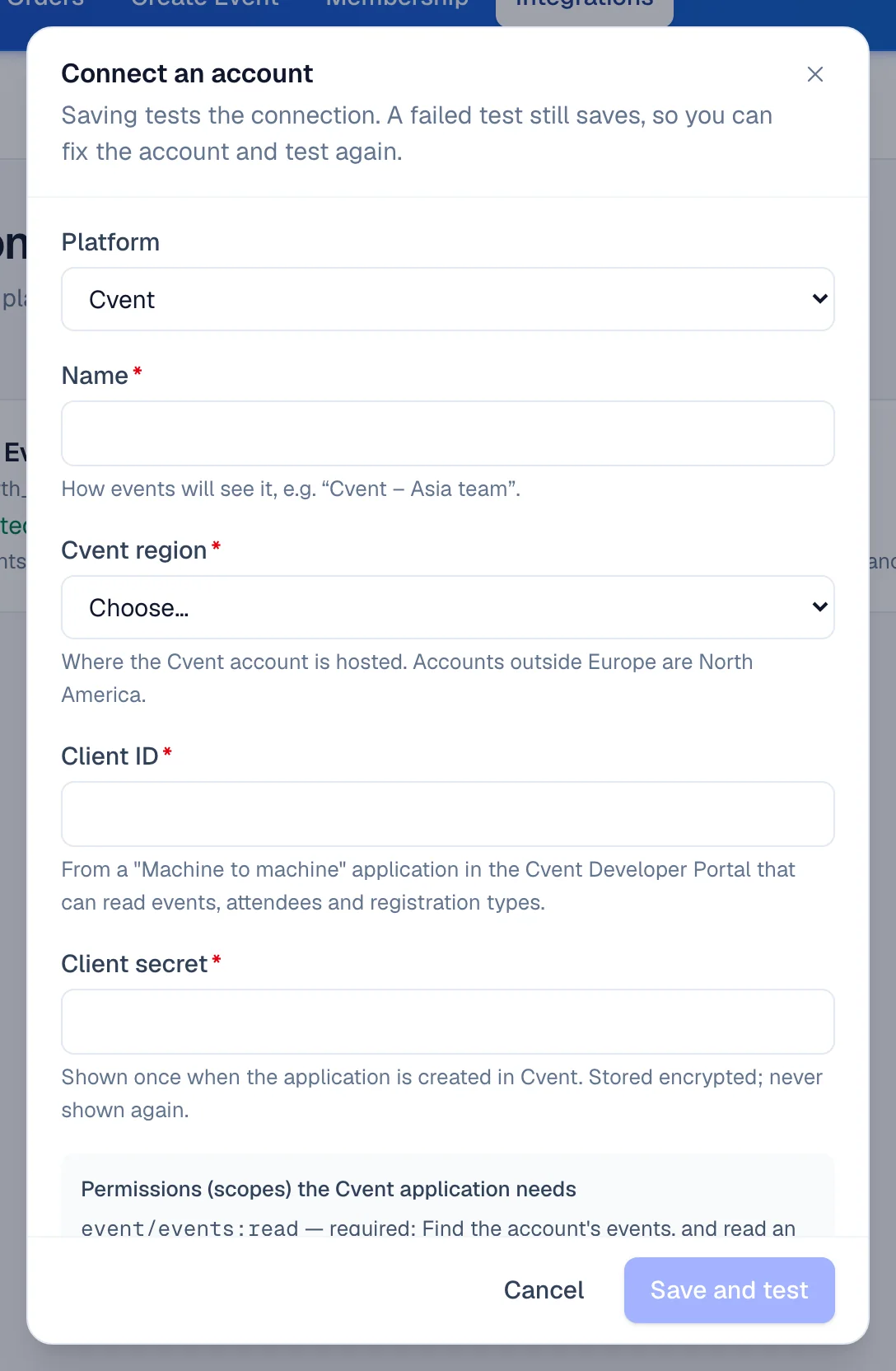
- 1Where your Cvent account is hosted
- 2Saves the connection and tests it
Your Cvent administrator creates the application these come from, with read access to events, attendees and registration types (and admission items, if your tickets follow them). EventNook only reads from Cvent; it never writes to it. The dialog lists the permissions the application needs and links to Cvent's developer guide.
The secret is stored encrypted and never shown again. A failed test still saves the connection, so you can fix it and test again.
Check what the connection may read#
Open the connection to see its Status: the last test and the account's Request allowance. Under API access, tick the Cvent APIs to check and click Test selected, or click Test all APIs. Each check uses one of the account's Cvent requests.
A sync needs the APIs marked Required. The Optional ones are used when Cvent allows them: without admission items, tickets are decided by registration type.
Add a sync to an event#
A sync links one Cvent event to one EventNook event. Several Cvent events can feed the same event, each with its own sync.
- Open the event's Data sync page and click Add a sync. From the workspace, Add a sync first asks which event.
- Choose the Account.
- Under Event in Cvent, type part of the title or the code, or paste the event's ID, and click Find.
- Choose the Cvent event in the list.
- Optional: under Start from, choose a mapping template saved from another event.
- Click Add sync. The sync opens on its Tickets tab.
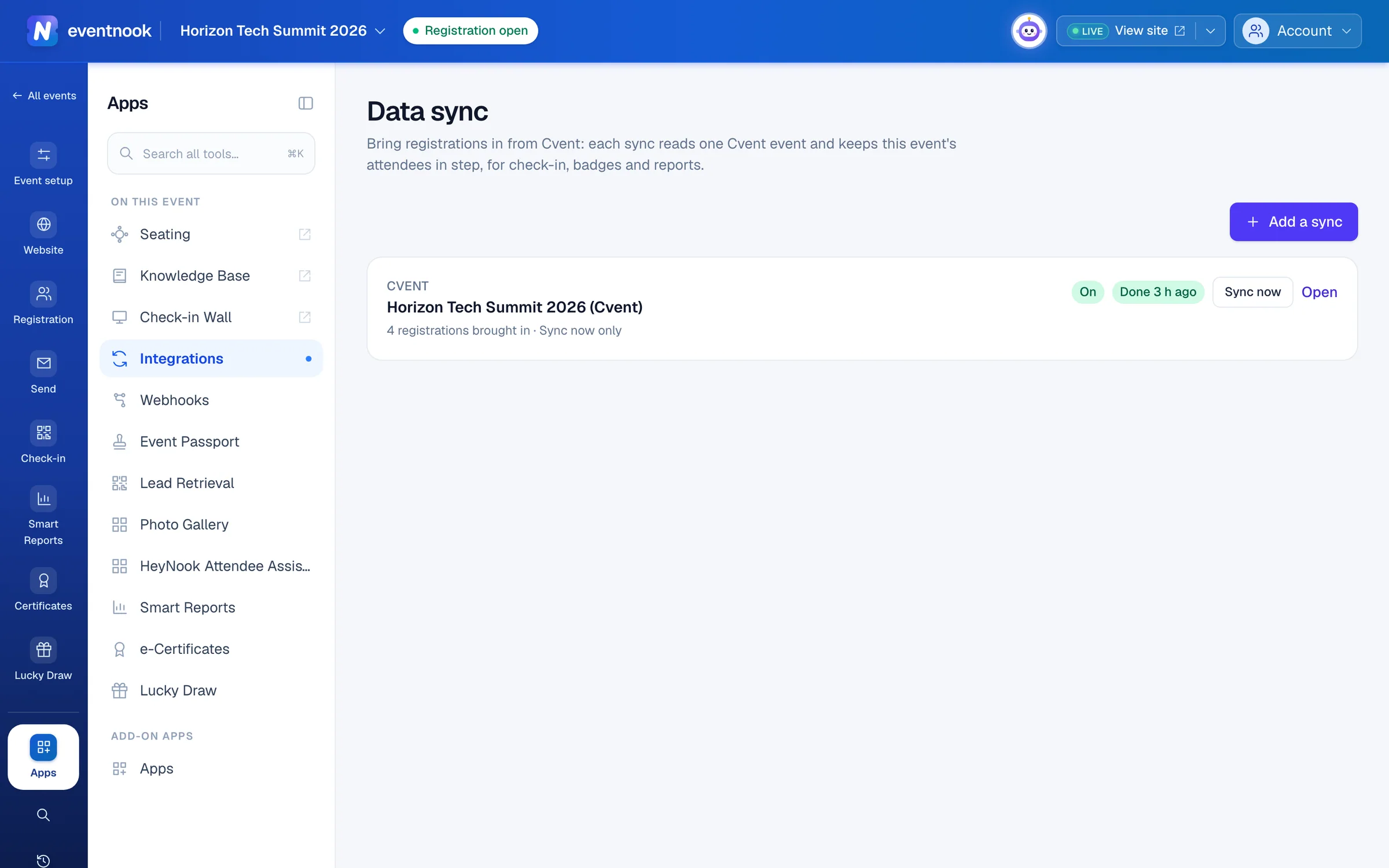
- 1Start a sync from a Cvent event
A new sync starts paused, with a proposed mapping for you to check. Nothing comes in until you switch it on.
Check the set-up before the first run#
The sync's page has five tabs. A box above them lists anything that stops a run, with a link to the tab that fixes it.
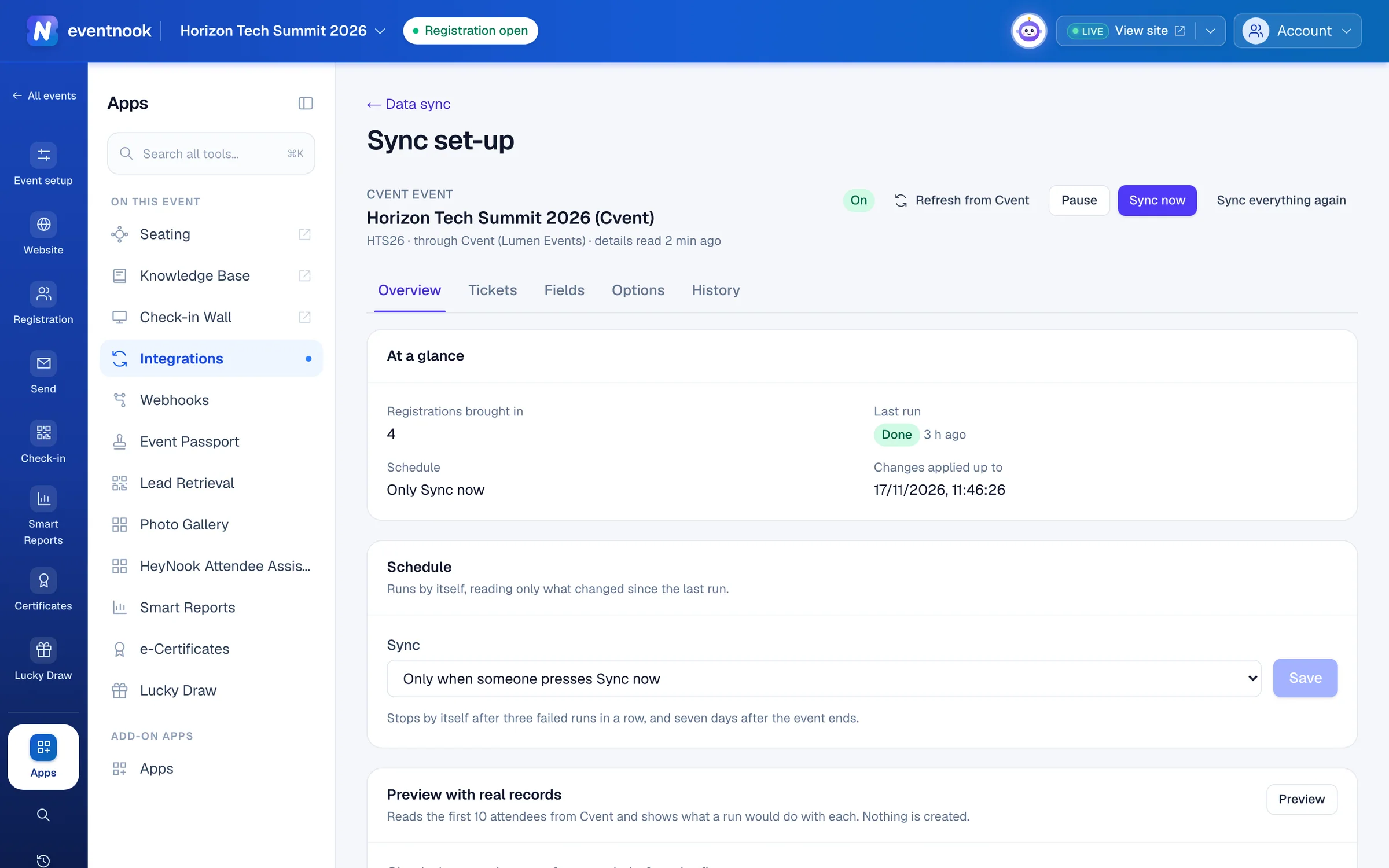
- 1Tickets, fields and options to check before the first run
- 2Sync by itself through the day
- 3See what a run would do with 10 attendees
- On Tickets, choose what Decided by means: the Registration type or the Admission item. Pair each Cvent value with a ticket of this event, or choose Don't import.
- Set Anything not paired below: a ticket for values added in Cvent later, or Skip, with the reason.
- On Fields, check what fills each field of your registration form. Every attendee needs an email address, so the email field must be mapped.
- On Options, choose what a run does (see the table below).
- Click Save on each tab you changed.
| On the Options tab | What it does |
|---|---|
| Statuses to bring in | Only Cvent attendees with these statuses become registrations here. |
| When someone's details change in Cvent | Update the registration here (Cvent wins for the mapped fields) or Leave the registration here as it is. |
| When a registration is cancelled in Cvent | Cancel it here too or Keep it here. No refund and no email: registrations brought in are complimentary here. |
| QR codes | Issue our own QR codes, or use Cvent's codes so badges sent from Cvent scan at your door. For Cvent's codes, map External QR ticket ID on the Fields tab. |
| Bring in guests | Include people registered by another attendee in Cvent. |
| Send our confirmation email to new registrations | Off by default, because they already have Cvent's. |
Reshape values on the way in#
When Cvent's wording differs from your form's options, click Transform beside the field and add a step. Map values turns Cvent's answers into your options (VEG to Vegetarian): Add the source's choices lists Cvent's answers, and you type your option beside each one. Other steps trim spaces, change case, replace text, take part of a value, join answers, add text, set a default, read a date or shorten. A field takes up to 12 steps.
To fill a field from several Cvent fields, choose Combine fields…. To give everyone the same value, choose Fixed value….
Switch it on and sync#
- On Overview, under Preview with real records, click Preview. It reads the first 10 attendees from Cvent and shows what a run would do with each. Nothing is created.
- Click Switch on. It stays unavailable while the box above the tabs lists something to fix.
- Click Sync now. The History tab shows the run as it goes.
Each run reads only what changed in Cvent since the last one. Each person is brought in once: running again updates people instead of adding them twice. To read every attendee again, click Sync everything again.
Registrations brought in are complimentary and confirmed. Payments stay in Cvent.
Keep the guest list current on the day#
- On the sync's Overview, under Schedule, choose Every 15 minutes, Every hour, Every 6 hours or Once a day.
- Click Save. The schedule shows when it runs next.
The schedule runs with your permissions. It stops by itself after three failed runs in a row, and seven days after the event ends. When Cvent reports the account's daily allowance, the schedule also shows about how many requests it uses.
At the venue, open Integrations in Onsite to see the same syncs and click Sync now before the doors open, so late registrations can check in. Connections are managed in Event admin only.
Read what a run did#
On History, each run shows how many records it Read, and how many were New, Updated, Cancelled, Skipped and Failed. Click Open on a run, then Failed or Skipped, to see each person and the reason. Fix it in Cvent, the mapping or your form, then sync again.
Reuse a set-up on other events#
- On a sync's Overview, under Reuse this set-up, click Save as template.
- Type a Template name and click Save template.
The template keeps the field mapping, what decides the ticket and the options. Ticket pairs stay with the event. Choose the template under Start from when you add the next sync, or click Apply a template on an existing one. Fields are matched to the new event's form by key, then by name; any that don't match are listed.
Integrations › Mapping templates lists the organisation's templates. Open one to see what it maps, rename it or delete it. Syncs made from it keep their own mapping.
Integrations › Event syncs lists every event's syncs, with tabs for On, Paused and Last run failed.
Change or remove a connection or a sync#
- New credentials. After rotating the secret in Cvent, open the connection, click Replace credentials, paste them and click Save. Saving tests them.
- Remove a connection. Delete or move the event syncs that use it first, then click Remove connection. The stored credentials are erased.
- Pause a sync. Click Pause on the sync. Scheduled runs stop until you click Switch on.
If something looks wrong#
- Add a sync says "No connections yet". An organisation owner or admin connects the Cvent account in Integrations › Connections first.
- "Cvent rejected the client ID and secret." Check them, and that the region matches the Cvent account. An owner or admin replaces the credentials on the connection.
- "This Cvent account has used its API requests for today." The account's daily allowance is spent. It resets at midnight UTC, and the schedule carries on by itself. Sync less often if it keeps happening.
- New registration types are skipped. They were added in Cvent after set-up. Click Refresh from Cvent, pair them on Tickets (or set a fallback), then Sync now.
- Many records failed with a field error. Cvent's answers don't match your form's options. Add Map values on Fields, save, then Sync everything again.
- Someone's ticket changed in Cvent but not here. A changed ticket is reported in the run, not applied. Change their ticket here by hand.
- A registration cancelled here came back as skipped. A sync never reinstates a registration cancelled in EventNook. Reinstate it by hand if they should come.
- The schedule shows Stopped. The reason is beside it. Fix it, then save the schedule again.
- A run stopped: the Cvent event has more than 50,000 attendees. That's the most one sync reads. Ask EventNook for help.
- There's no Sync now button. The sync is paused, or your role can't add registrations.
Who can do this#
Organisation owners and admins connect accounts and see the whole Integrations workspace. Event admins and editors set up, run and schedule syncs from the event's Data sync page.
Related guides
- Add an app to your eventSee which add-on apps your plan includes, add one to an event so it joins the menu for the whole team, and take it off again when you no longer need it.
- Send changes to your own systems with webhooksSend registrations, attendees, payments and check-ins to your own systems as they happen, check every delivery, and send failed ones again.
- Check in attendeesScan tickets or find guests by name on the Check-in screen, read the verdict, undo a mistake, and keep checking in when the venue Wi-Fi drops.
- Import attendees from a spreadsheetAdd many attendees at once from a CSV or Excel file or pasted rows, check every row before anything is created, and choose whether they are emailed.
- Build the registration formChoose the questions attendees and buyers answer when they register, set each one up, ask some only for certain tickets, and publish the form.
Still stuck? In EventNook, ask HeyNook. It knows the page you're on and your event, and can take you straight to the right setting.