Find your way around Event admin
Get around Event admin with the top bar, the events list, the event menu and the tool finder, and know where HeyNook and your account settings are.
Where to find it: Event admin › My Events
Event admin has two levels. The top bar is always there: it takes you between your events and to your account. Inside an event, the event menu on the left holds every tool for that event. When you can't find something, the tool finder and HeyNook can take you there.
The top bar and My Events#
After you sign in, you land on My Events: every event of your organisation, with search and filters. The top bar above it has:
| In the top bar | What it does |
|---|---|
| My Events | All your events. See Find and organise your events. |
| Recent Orders | The latest orders across your events. |
| Create Event | A new event. See Create your first event. |
| Membership | Your members register, if your role includes it. |
| Integrations | Connections to other systems, if your role includes them. |
| HeyNook's face | Ask HeyNook, or open your team's channels. |
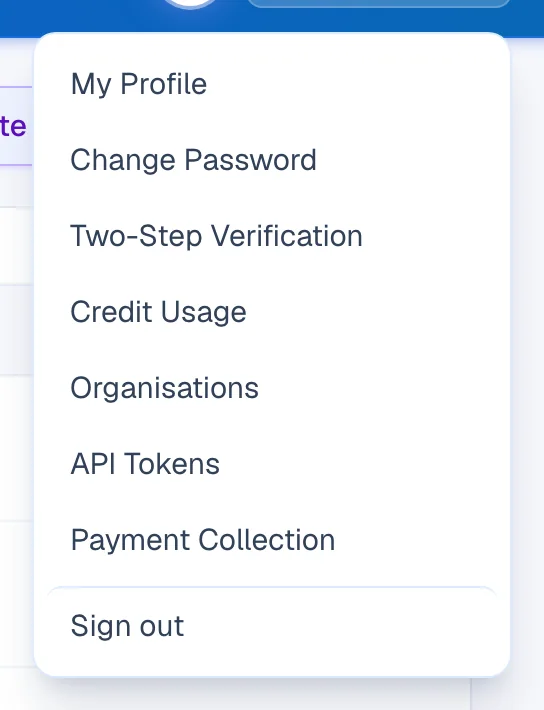
| Account | My Profile, Change Password, Two-Step Verification, Organisations and, for owners and admins, Credit Usage, API Tokens and Payment Collection. Sign out is at the bottom. |
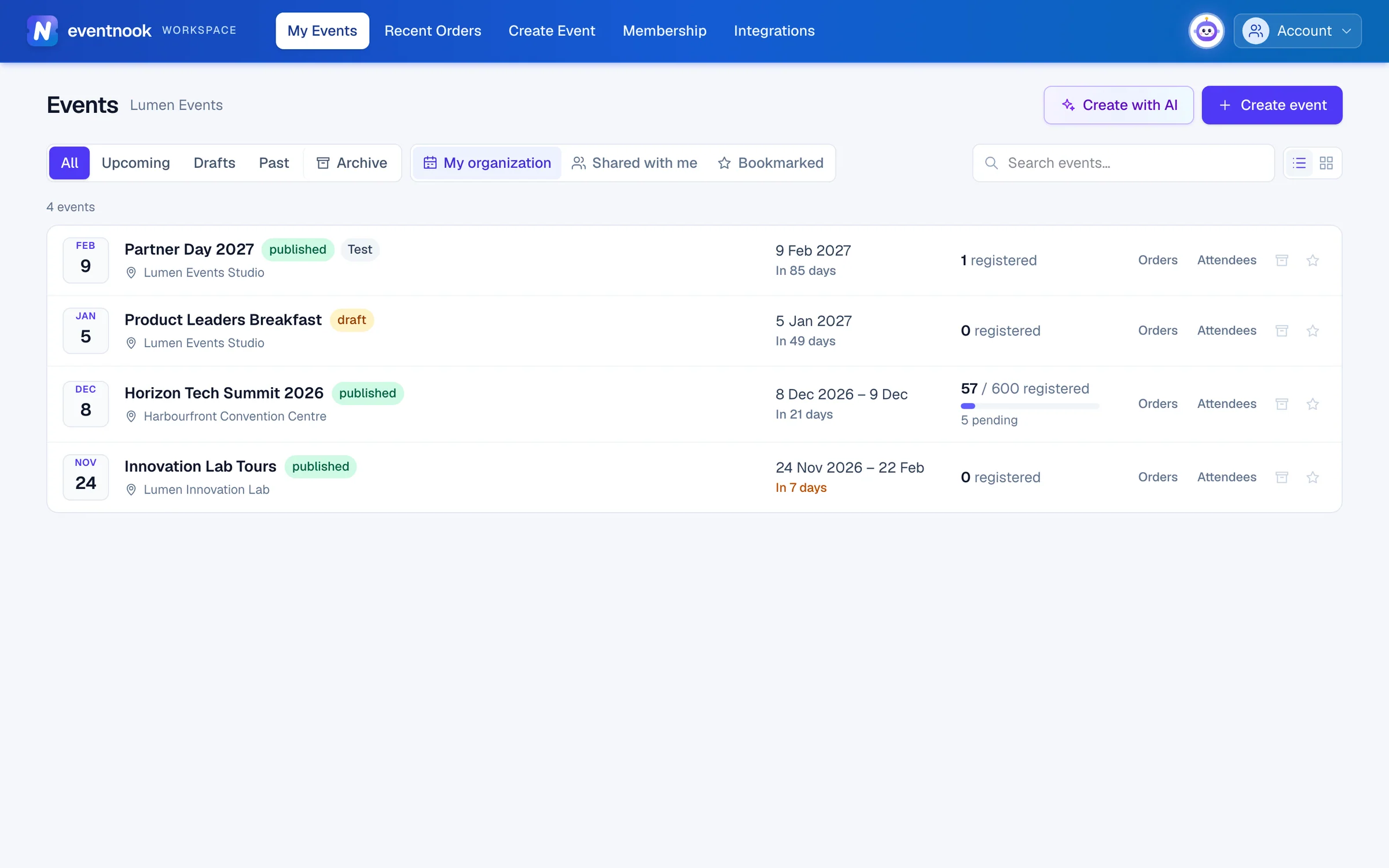
- 1My Events, Recent Orders, Create Event and Membership
- 2Ask HeyNook, or talk with your team
- 3Your profile, sign-in settings and organisations
- 4Start a new event
Some links only appear for people whose role allows them. If a colleague sees a link you don't, ask an owner or admin of your organisation.
If you belong to more than one organisation, choose which one's events to see from the organisation list beside the Events heading.
Inside an event#
Open an event, and it lands on its Dashboard. The top bar now belongs to that event: its name, its state (for example Registration open or Draft), HeyNook and View site.
The event menu on the left has two parts:
- The areas, down the side: Event setup, Website, Registration, Send, Check-in and Apps. Add-on apps you've added, such as Lucky Draw, get an area of their own.
- The tools of the area you chose, in groups. For example Event setup has At a glance, Start here, Share your event and More settings.
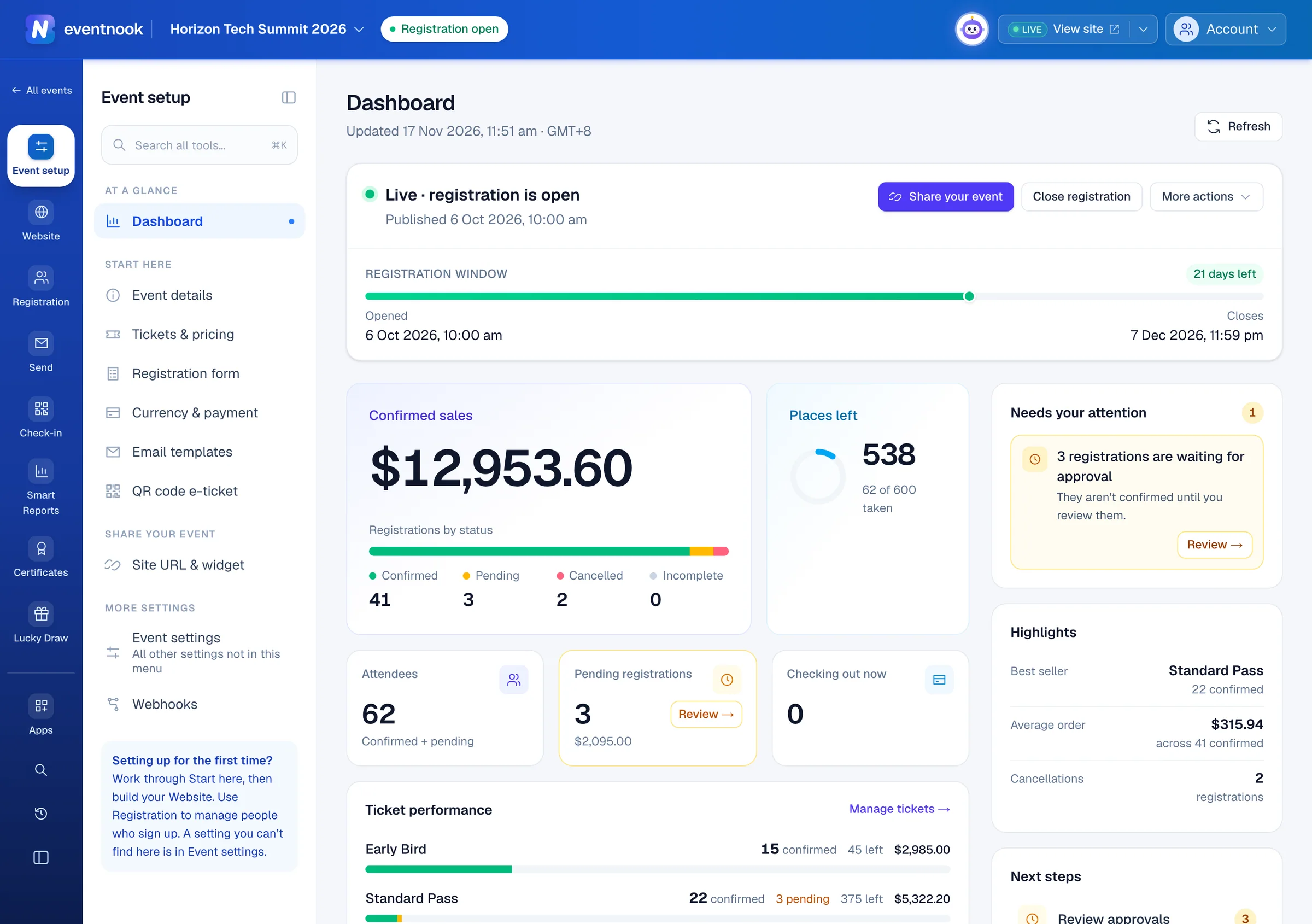
- 1The event's areas. Click one to see its tools
- 2Find a tool by name
- 3The event you're in. Open it for All events or Create event
- 4Open the event site in a new tab
| Area | What's in it |
|---|---|
| Event setup | The dashboard, event details, tickets, the registration form, payment, emails, the e-ticket, your event's link, and more settings. |
| Website | The pages attendees see: the landing page, the register and thank-you pages, extra pages and the site's design. |
| Registration | Attendees and orders, adding or importing attendees, and reports. |
| Send | Emails to attendees and order contacts. |
| Check-in | The tools for the day, which open in Onsite. |
| Apps | Add-on apps you can add to this event. |
To leave the event, click All events at the top of the event menu, or click the event's name in the top bar and choose All events or Create event.
The sidebar button at the bottom of the areas shrinks the menu to icons, to give the page more room. Click it again to bring the labels back.
Find a tool by name#
Every setting has a place in the menu, but you don't need to remember it.
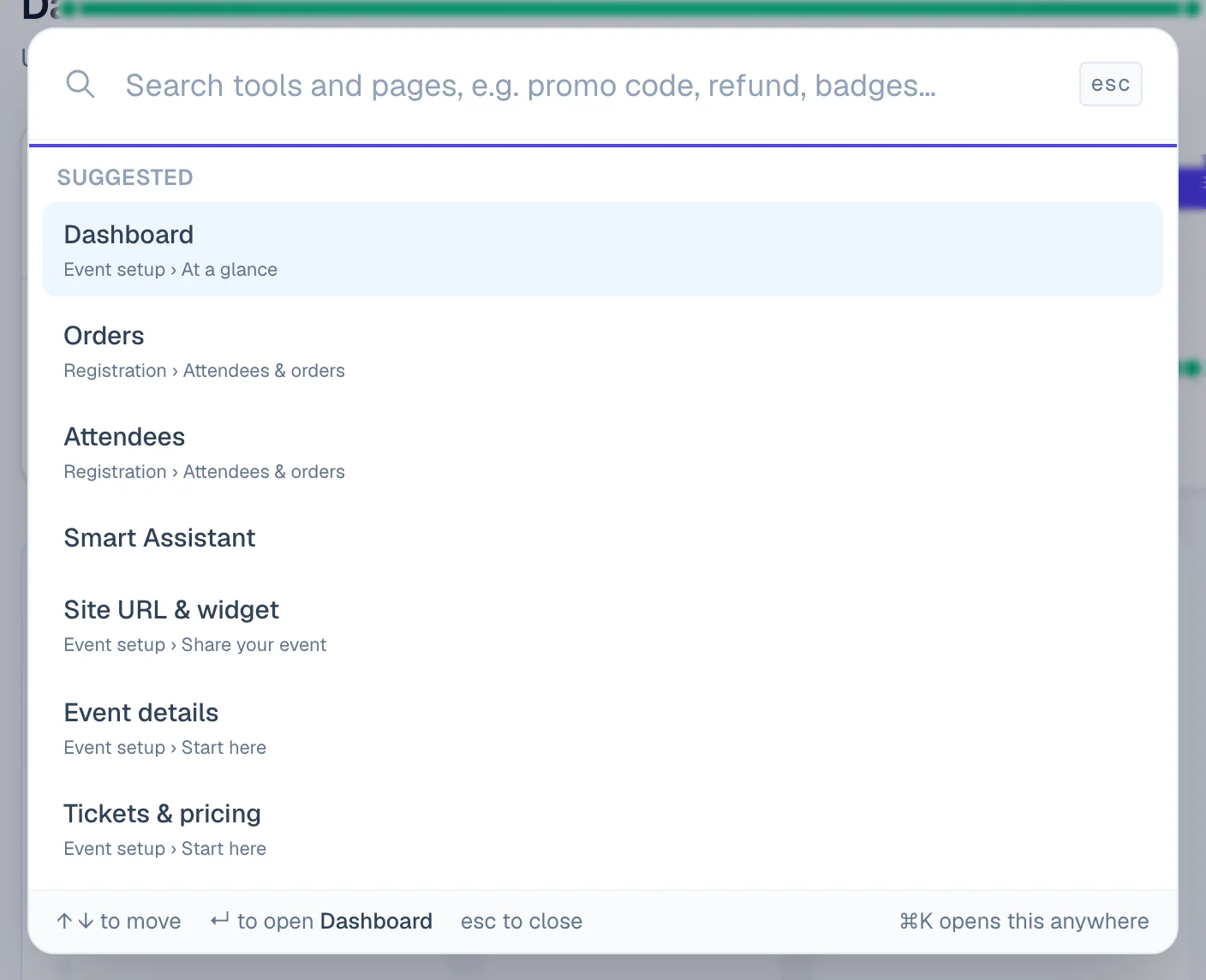
- Press
⌘ Kon a Mac orCtrl Kon Windows, or click the search button at the bottom of the event areas. - Type what you're looking for, in your own words: "promo code", "refund", "badges".
- Press
Enterto open the best match, or use the arrow keys andEnterto pick another.
Before you type, the finder lists the tools you opened recently and a few common pages. The Search all tools… box at the top of the event menu searches the same way, inside the menu.
Ask HeyNook#
Click HeyNook's face in the top bar. Ask about the page you're on ("why is this ticket sold out?"), ask it to take you somewhere ("take me to the discount codes"), or ask for a change. HeyNook proposes changes and waits for you to approve them. See Ask HeyNook.
If something looks wrong#
- A menu item or tool is missing. Your role in the organisation or the event doesn't include it, or it belongs to a paid event (currency, invoices, tax and discount codes are only on paid events). Ask an owner or admin.
- An add-on app isn't in the event menu. Add it to the event first, from Apps. See Add an app to your event.
- The tool finder finds nothing. Try another word for it, or ask HeyNook.
- The page says "No tools are available for your role". You have access to the event but no tools in that area. Ask the event's admin for access.
Related guides
- How EventNook fits togetherLearn what each part of EventNook is for, from the Event admin where you build events to the event site, Onsite, add-on apps, HeyNook and Membership.
- Find your eventsFind any event you can work on, narrow the list by status or whose event it is, bookmark the ones you use most, and bring events back from the Archive.
- Open an event and see where it standsOpen an event, read its status in the top bar, preview or view its site, find all its links, and open, close or deactivate registration.
- Ask HeyNookAsk HeyNook about your event in your own words, let it take you to the right page, bring in its specialists, and approve the changes it suggests.
- Edit your profileChange your name, display name, job title and contact details, see your account's status, and choose how HeyNook looks to you.
Still stuck? In EventNook, ask HeyNook. It knows the page you're on and your event, and can take you straight to the right setting.