How EventNook fits together
Learn what each part of EventNook is for, from the Event admin where you build events to the event site, Onsite, add-on apps, HeyNook and Membership.
EventNook is where you build an event, sell its tickets, talk to the people who registered and check them in on the day. It has a few parts, each made for one job. This guide says which part does what, so you know where to go.
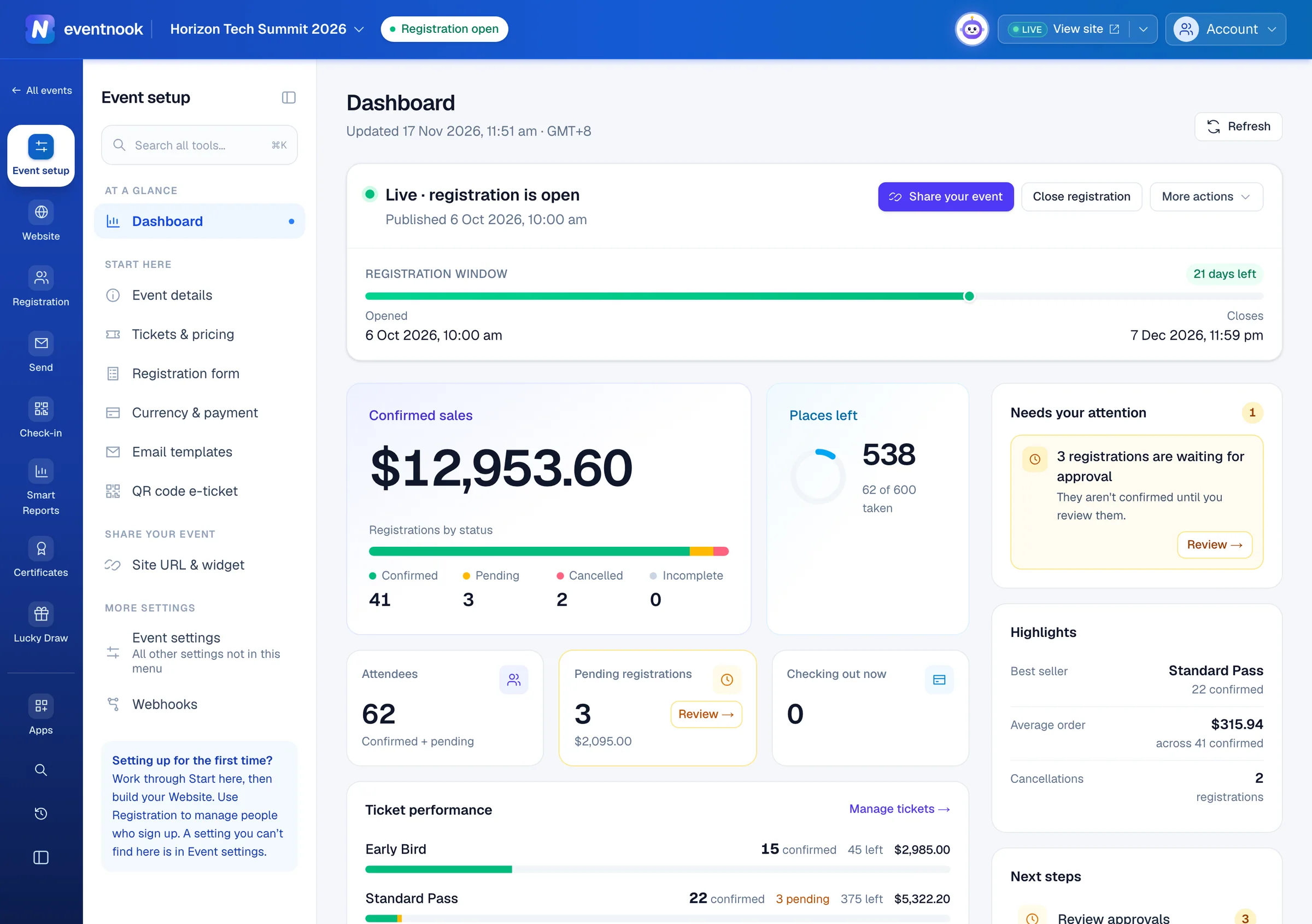
- 1Event admin, where you build the event and run registration
- 2The event site your attendees see
- 3HeyNook, the AI assistant, and your team's channels
The parts of EventNook#
| Part | Who uses it | What it is for |
|---|---|---|
| Event admin | You and your team | Create events, set up tickets, the registration form, emails and the website, and manage orders, attendees and reports. |
| Event site | Your attendees | The public pages where people read about the event, register, pay, and later view or change their registration. |
| Onsite | Your event-day staff | Check people in, print badges, run self check-in kiosks and see who has arrived. |
| Add-on apps | You, your staff and attendees | Extras you add to one event, such as a lucky draw, a photo gallery or lead retrieval for exhibitors. |
| HeyNook | You and your team | The AI assistant. Ask it a question, ask it to take you to a page, or ask it to make a change you then approve. |
| Membership | You and your team | A register of your members and member organisations, with an online application form. |
Everything you make belongs to an organisation: your company or team in EventNook. Its events, payment accounts and members are shared by everyone in it, and each person's role decides what they can do. See Organisations and roles.
Event admin#
Event admin is the organiser portal. After you sign in, My Events lists your organisation's events. Open one, and the event menu on the left takes you to everything about that event: Event setup, Website, Registration, Send, Check-in and Apps. See Find your way around.
The event site#
Each event has its own public site, with its own address. It's where people register and pay, and where they come back later to see their order, change their details or get their e-ticket. You design it in Event admin under Website. Attendees never need an EventNook account.
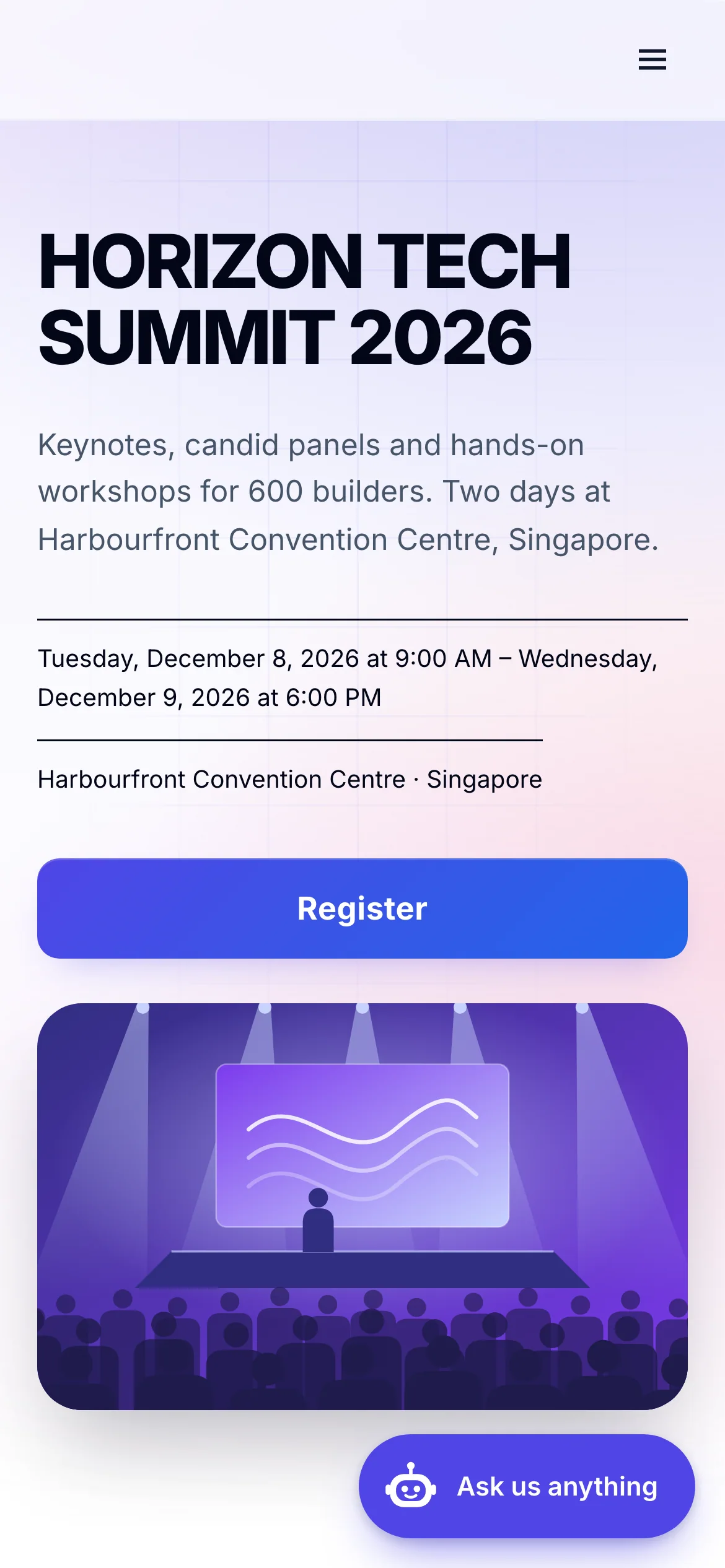
To see your own event's site, click View site in the top bar once the event is published. Before that, Preview opens your draft. See Register for an event for what attendees see.
Onsite#
Onsite is the check-in console for the day of the event. It runs in a browser on a laptop, tablet or phone, and on self check-in kiosks. In Event admin, open Check-in in the event menu: each Onsite tool listed there opens in Onsite, signed in as you. See Get started with Onsite.
Add-on apps#
Add-on apps add something to one event: a lucky draw, an event passport, seating, certificates and more. Open Apps in the event menu to see them and add one. Some depend on your plan. See Add an app to your event.
HeyNook#
HeyNook is EventNook's AI assistant. Click its face in the top bar to ask about the page you're on, find a setting, or get help with a task. When HeyNook suggests a change, nothing happens until you approve it. See Ask HeyNook.
Membership#
Membership is a register of the people and organisations who are members of your association or club, kept at the organisation level rather than in one event. Open Membership in the top bar. See Get started with Membership.
How an event comes together#
- Create your account and sign in.
- Create your first event, with the form or with AI.
- Set it up: tickets, the registration form, payment, emails and the website.
- Publish it and take it live, then share its link.
- Watch registrations arrive in Registration, and email the people who registered from Send.
- On the day, check people in with Onsite.
- Afterwards, look at the reports and export what you need.
Invite your team at any point, so others can help.
Related guides
- Create your account and sign inSign up as an organiser, confirm your email address, sign in with your password and a code, and get back in if you forget your password.
- Find your way around Event adminGet around Event admin with the top bar, the events list, the event menu and the tool finder, and know where HeyNook and your account settings are.
- Create your first eventCreate an event from a short form, or describe it to the event assistant and review the setup it proposes, then carry on setting it up.
- Publish your event and go liveFinish the pre-launch checklist, publish the event so people can see it and register, and take a test event live when you're ready for real registrations.
Still stuck? In EventNook, ask HeyNook. It knows the page you're on and your event, and can take you straight to the right setting.