Give people access to an event
Invite someone to work on one event with the role they need, choose features one by one with a custom role, change or end their access, and see who else can reach the event.
Where to find it: Event admin › Event setup › More settings › Event settings › Collaborators
Collaborators lists everyone who can reach the event: members of your organisation, and people you invited to this event only. Invite a collaborator when someone outside your organisation, such as an agency or a client, needs to work on one event.
To give someone access to every event, add them to your organisation instead. See Invite your team.
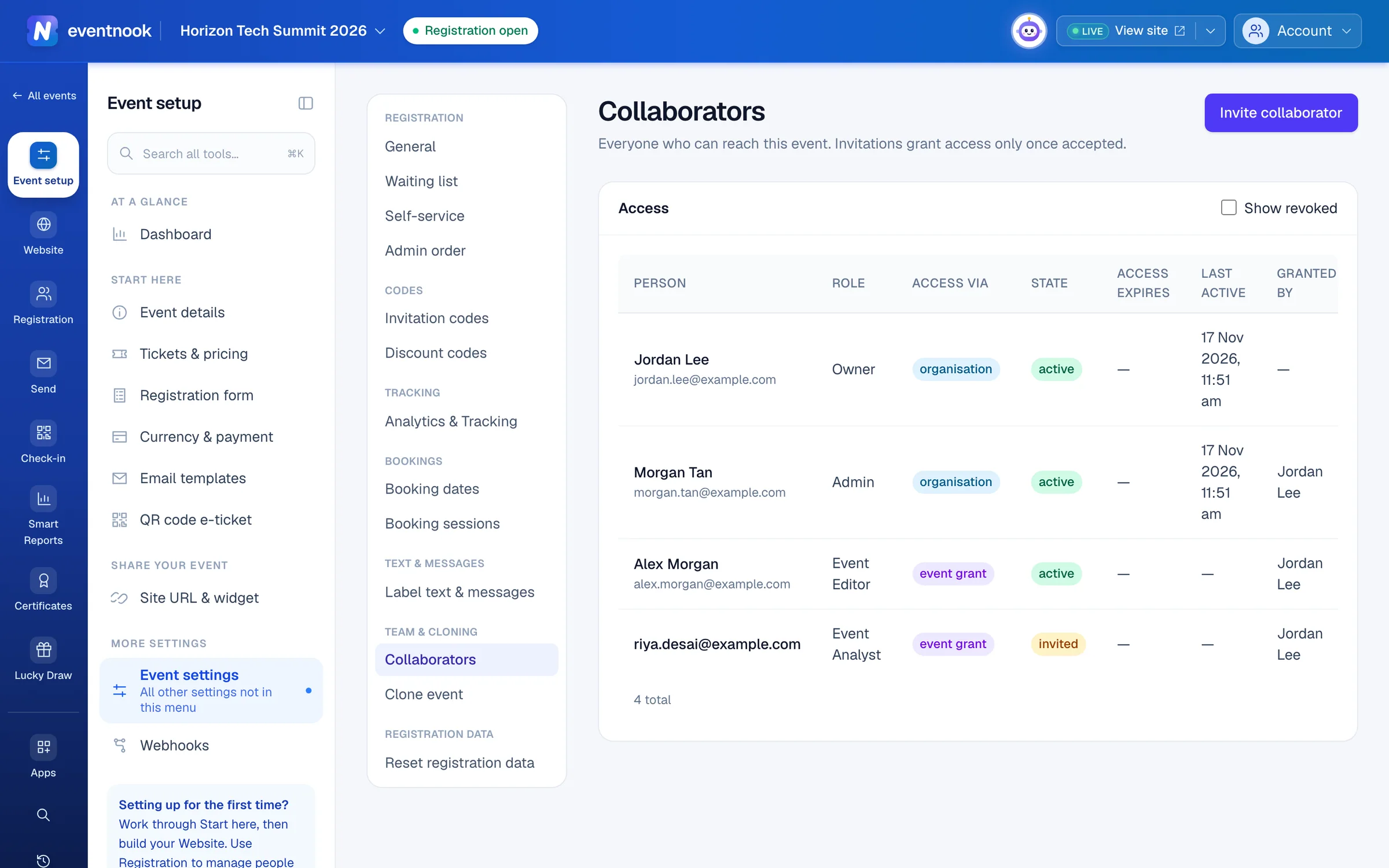
- 1Invite someone to this event only
- 2Through your organisation, or a grant for this event
- 3Include people whose access was removed
Invite someone#
- Open Event setup › More settings › Event settings, then Team & cloning › Collaborators in its menu.
- Click Invite collaborator.
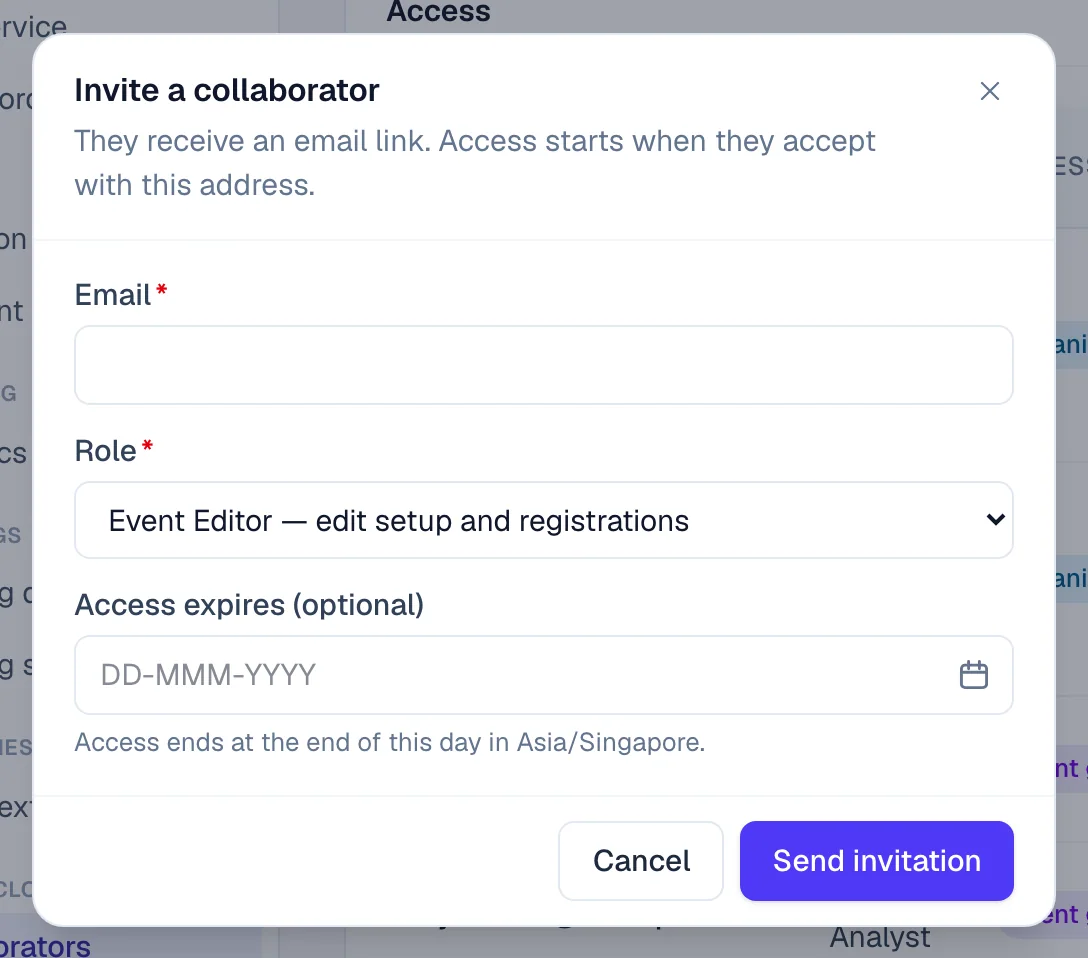
- Type their Email and choose a Role.
- Optional: set Access expires (optional). Access ends at the end of that day, in the event's time zone.
- Click Send invitation.
They get an email with a link. Their access starts when they accept with that address; until then they show as invited and can't reach the event.
Roles#
| Role | What they can do |
|---|---|
| Event Admin | Everything in the event: setup, registrations, refunds, deleting orders, publishing and inviting others. |
| Event Editor | Change the setup and the registrations: tickets, forms, the website, orders and attendees. They can't refund, delete orders or manage collaborators. |
| Event Analyst | Read everything and export, but not personal data in full. They change nothing. |
| Custom | Only the features you choose, each to view or to edit. |
Organisation members show their organisation role: Owner, Admin or Member. Their access is managed with the organisation: click Manage in organisation on their row.
Choose features one by one#
With Custom, set each area under What they can reach to:
- Off: the area isn't available to them.
- View: they can read it.
- Edit: they can change it.
The areas are event setup, tickets and fees, the registration form, the website and theme, currency and payment, promo and access codes, orders, attendees and registrations, reports and exports, emails and messaging, collaborators, webhooks, data integrations and onsite check-in.
Some powers are a separate tick under their area, because Edit alone doesn't give them: refunding payments, deleting orders or attendees, including identity columns in exports, publishing the event, cloning it and setting up onsite. Each needs its area at Edit first.
See registrations in other events, under Attendees & registrations, lets them find attendees who also registered for your organisation's other events. It shows the names of those events, so only someone who holds it themselves, such as an organisation owner or admin, can tick it.
Change or end someone's access#
- Resend: send an invitation again to someone who hasn't accepted.
- Change: change the role, the features or Access expires. Moving an expired date later gives them access again.
- Revoke: they lose access on their next request. The record is kept; tick Show revoked to see it.
You can't change your own access.
If something looks wrong#
- Someone can't see the event. If they're still invited, they need to accept the email with the same address. If their access expired, click Change and move the date.
- There's no Change button on a row. Organisation members are managed in your organisation, and you can't change your own access.
- The invitation says they already have access. Change their existing access instead.
- "This gives more access than you hold yourself". You can give only access you have. Choose less, or ask an organisation owner or admin.
- A custom role with everything Off is refused. Turn on at least one feature.
Who can do this#
Organisation owners and admins, event admins and event editors can see this list. Owners, admins and event admins can invite, change and revoke, as can a custom role with Collaborators at Edit. Nobody can give more access than they hold. Resetting registration data is never part of an event role.
Related guides
- Invite your teamAdd colleagues to your organisation so they can help with every event, or invite someone to one event only, and choose what each person can do.
- Organisations and rolesSee the organisations you belong to, switch between them, create one, edit its profile, manage its members and their roles, and check its plan, activity and security log.
- Accept an invitationJoin an organisation or an event you were invited to, with your existing account or a new one, or decline an event invitation.
- See who changed whatLook up every change made in the event, who made it and when, open one to see exactly what changed and where it came from, and follow a bulk change row by row.
- Work with your team in ChannelsTalk with your event team in channels and threads, ask HeyNook in front of everyone, catch up with a summary, and keep shared notes and to-dos, in the admin and in Onsite.
Still stuck? In EventNook, ask HeyNook. It knows the page you're on and your event, and can take you straight to the right setting.