Let staff check in on their own devices
Give your team and volunteers an access code so they can check people in on their own phones, tablets or laptops without an EventNook account, and stop any device at any time.
Where to find it: Onsite › Check-in › Devices & access › Staff Access
A staff access is an access code for a door or a team. Anyone you give the code to opens Onsite on their own phone, tablet or laptop, types the code and their name, and is checking people in a moment later. Nobody needs an EventNook account, and you can stop any device from Onsite.
Staff who sign in to EventNook don't need an access code: they open Check-in with their own account.
Add a staff access#
- Open Staff Access (in the Check-in menu, under Devices & access), or click Staff Access on the check-in screen.
- Click Add staff access.
- Type a Name, such as "Main entrance team" or "Hall 2 door".
- Optional: open More settings to change what it may do (see the table below).
- Click Create access. Its access code, QR code and link appear, ready to share.
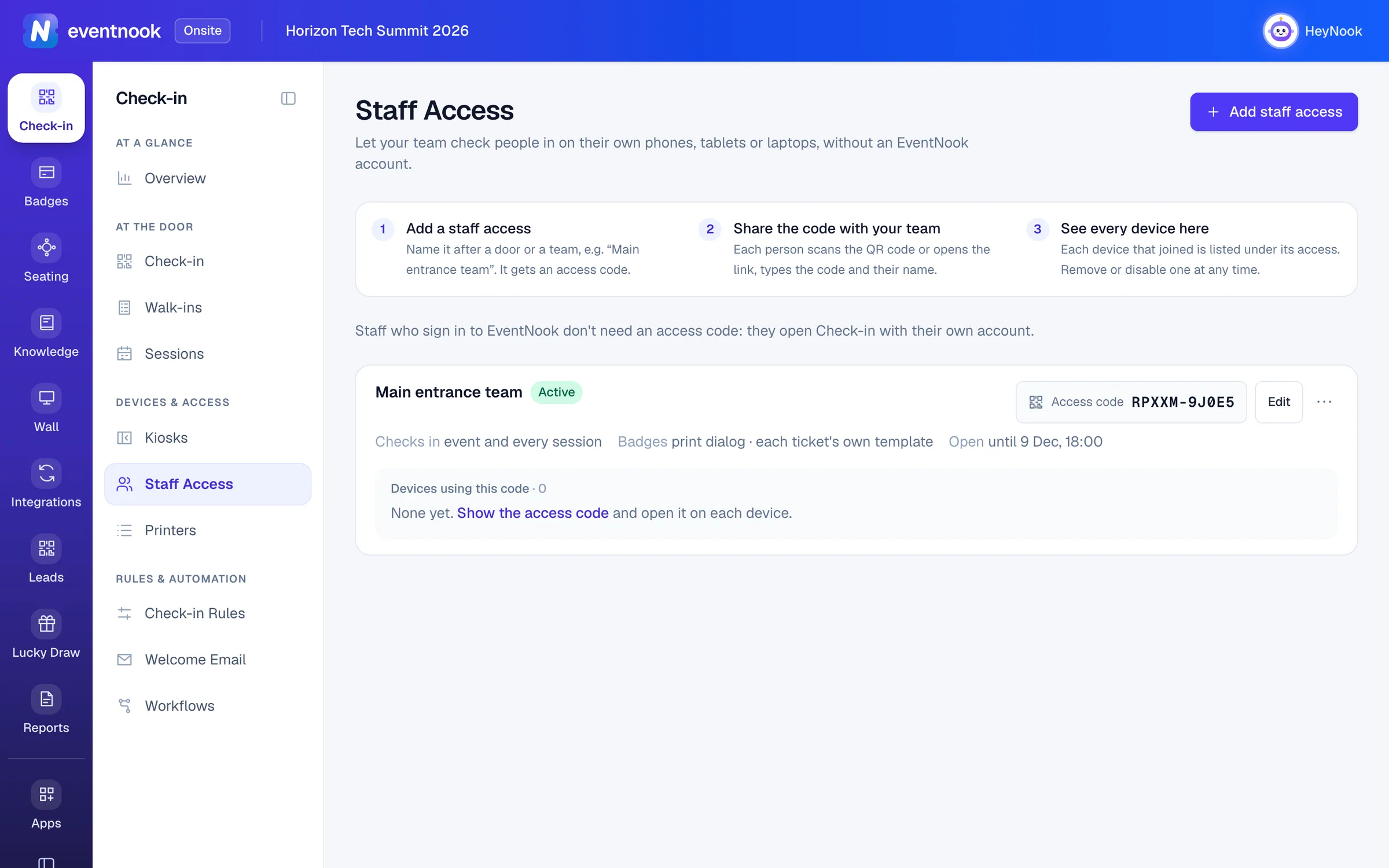
- 1Make an access for a door or a team
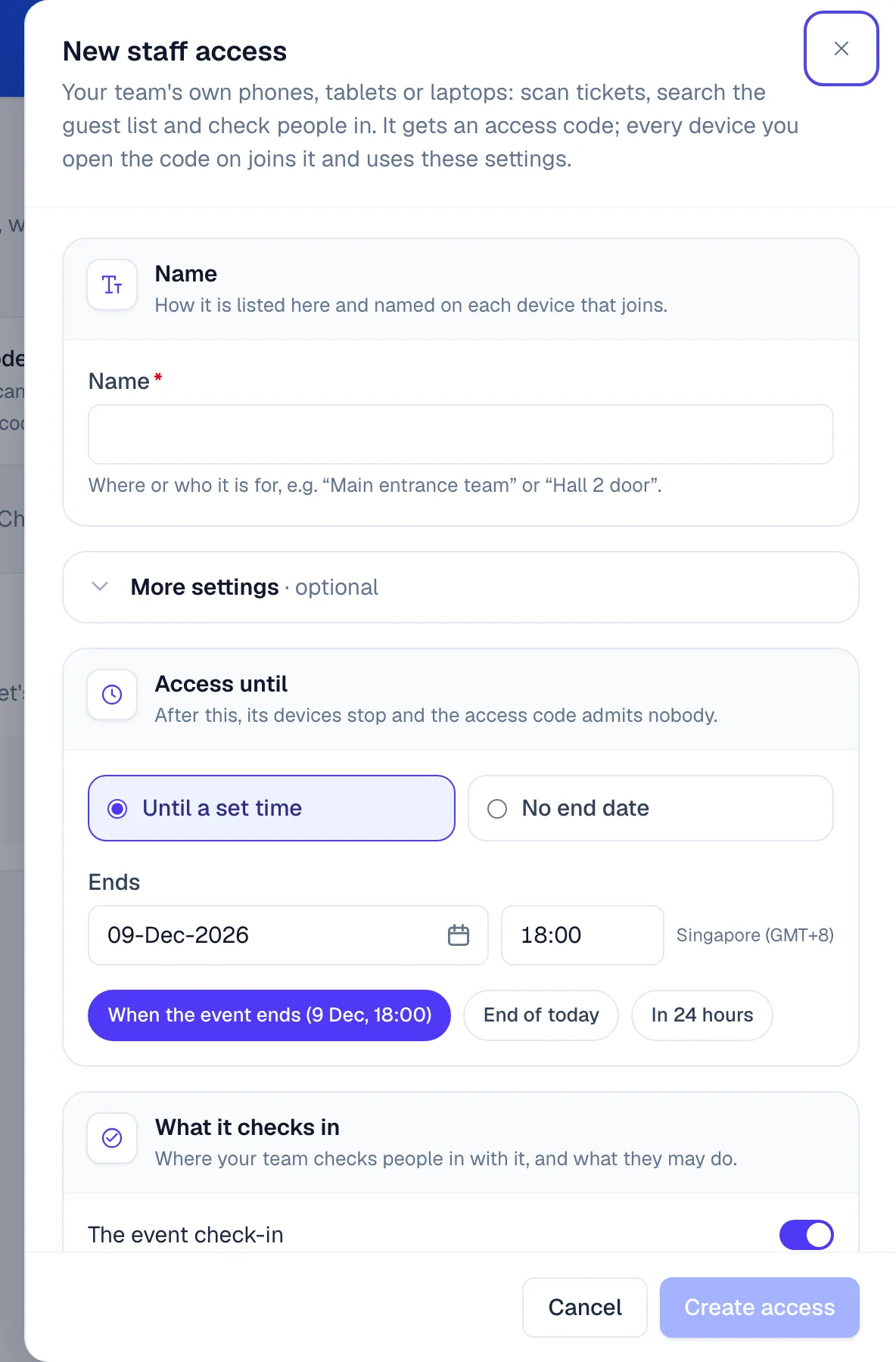
- 1When its devices stop working
- 2The event, sessions, and whether staff may undo
| Setting | What it does |
|---|---|
| Access until | Until a set time or No end date. After it ends, its devices stop and the code admits nobody. A new access ends with the event, when the event's end is still to come. Quick choices: when the event ends, End of today, In 24 hours. |
| What it checks in | The event check-in, and which Sessions. None ticked means every session. Turn on the event check-in or tick at least one session. |
| Staff may undo a check-in | Lets devices on this access undo a check-in. Off by default. |
| Badges | Print badges (on by default), how they print (Printing) and the Badge template. Automatic uses each ticket's own template. With Print agent, tick the printers to use, in order. See Printers. |
To change these later, click Edit on the access.
Share the code with your team#
- Click the Access code on the access. A dialog shows the code, a QR code and a link.
- Show the QR code, or send the link or the code to the people checking guests in.
- Click Done.
Any number of people can use one code, up to 50 devices signed in at a time.
Join check-in on a phone or tablet#
This is what each person on your team does.
- Scan the QR code with the phone's camera, or open the link. Or open the address shown with the code and type the Access code.
- Type Your name, or the device's, such as "Welcome desk iPad".
- Tap Join. The attendee list downloads and the check-in screen opens.
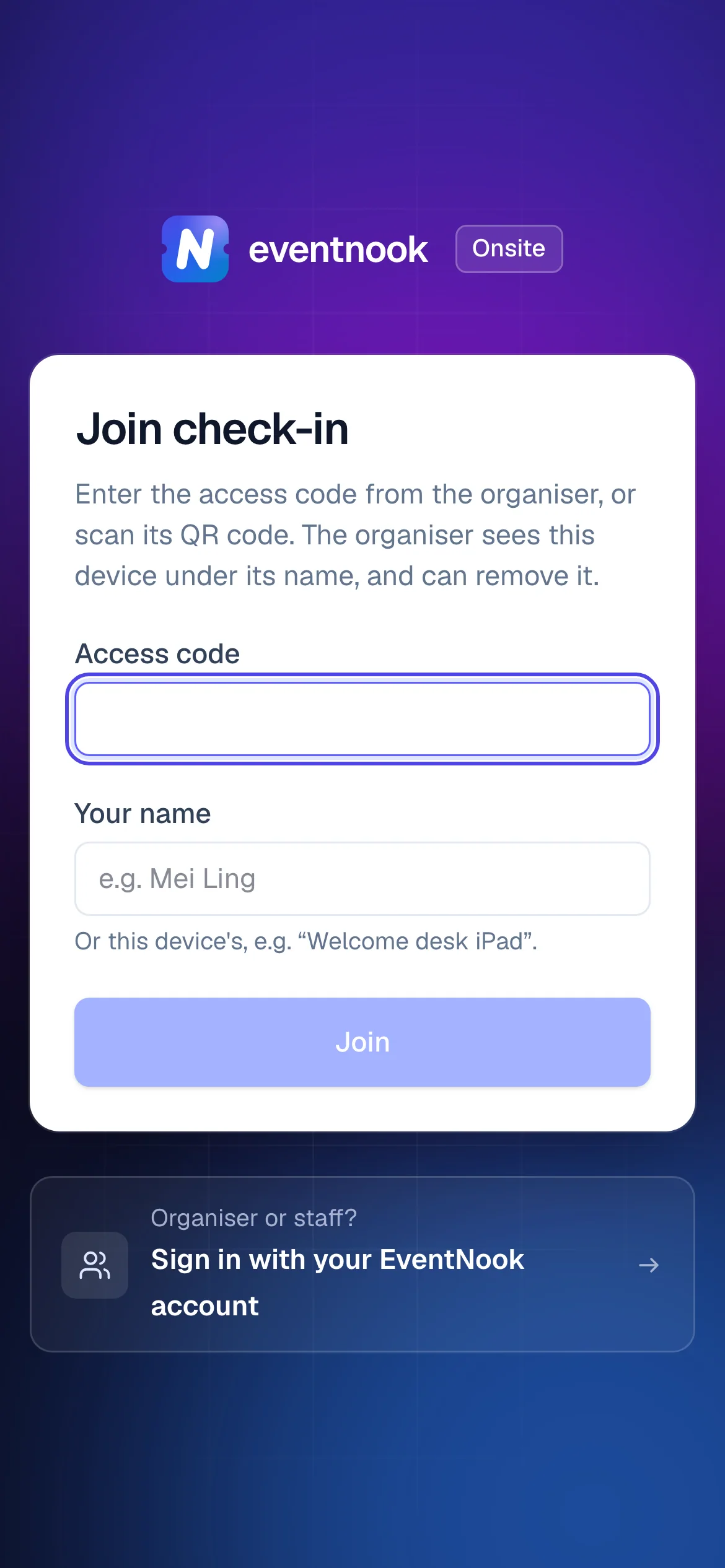
The device shows the access's name at the top of the check-in screen. It checks people in only where the access allows, and keeps working through a patchy connection. See Check in attendees.
To leave, tap Unpair. The attendee list is erased from the device. If it still holds scans the server hasn't received, it says how many first: tap Send them now, or Discard and unpair on purpose.
See who is checking in#
Each access lists the devices that joined it, by the name they typed, with their browser and system and when they were last seen. The list refreshes on its own.
Each access also shows what it checks in, how it prints badges and until when it is open, with its state: Active, Off or Expired.
Remove, disable or turn off#
| Action | Where | What happens |
|---|---|---|
| Rename | A device's ⋯ menu | Changes the name shown in this list. |
| Remove | A device's ⋯ menu | It is signed out within a few seconds. With the access code it can join again. |
| Disable | A device's ⋯ menu | It stops within a few seconds and can't join this event again, even with the code, until you Enable it. |
| Turn off | The access's ⋯ menu | Every device on it stops within a few seconds, and the code admits nobody, until you click Turn on. |
| Delete | The access's ⋯ menu | Every device on it stops. Check-ins already recorded are kept. |
| New code… | The access code dialog | The current code and QR code stop working for new devices. Devices already in stay in. |
A device that is removed, disabled or turned off shows This device can no longer check in and erases its attendee list at once. Scans it never sent are kept on it: Pair again with the same event sends them.
Approve a screen from your phone#
A kiosk screen, a computer running Nook Check-in or one running the Nook Printing Agent can ask to be set up instead of being given a code. It shows a code and a QR code, which last 10 minutes and work once.
- Scan the QR code with your phone's camera. Sign in to EventNook if asked.
- Choose the Event.
- Under Kiosk access (or Staff access, for Nook Check-in), choose an existing one, or New kiosk access with a Name.
- Tap Approve. The screen starts by itself in a few seconds.
A computer running the Nook Printing Agent asks for the Event and a Name instead, and its printers then appear on Printers. For Nook Check-in, see the Nook Check-in desktop app.
If something looks wrong#
- "That access code is not valid, or this station's access has ended". The code was changed, the access is turned off, or its Access until has passed. Check the access on Staff Access, and share the current code.
- "This device has been disabled for this event". Someone disabled the device. Click Enable in its ⋯ menu.
- "A station can have up to 50 devices signed in". Remove devices that are no longer used, or add a second access.
- "Too many attempts. Wait a few minutes and try again". Too many wrong codes were typed from this network. Wait, then type the code carefully, or scan the QR code instead.
- "This code has expired" when approving. The screen's code lasts 10 minutes. Reload the screen and scan the new code.
- A device can't check in to a session. The access doesn't include it. Edit the access and tick the session, or untick every session to allow all of them.
Who can do this#
Everyone with onsite access to the event can see Staff Access and its devices. Adding, changing and stopping accesses, seeing their codes, and approving screens needs a role that manages onsite: Owner, Admin, Event Admin or Event Editor. The people who join with a code need no account at all.
Related guides
Still stuck? In EventNook, ask HeyNook. It knows the page you're on and your event, and can take you straight to the right setting.