Set the check-in rules
Decide which tickets get in at the event check-in, whether pending registrations are admitted, badges and photos at the door, how long staff may undo, and what staff devices hold.
Where to find it: Onsite › Check-in › Rules & automation › Check-in Rules
The check-in rules decide who is admitted at the event check-in, and what happens at the door. Every check-in screen follows them, and devices pick up a change within a few seconds. Sessions add their own rules on top.
Open Check-in › Rules & automation › Check-in Rules in Onsite.
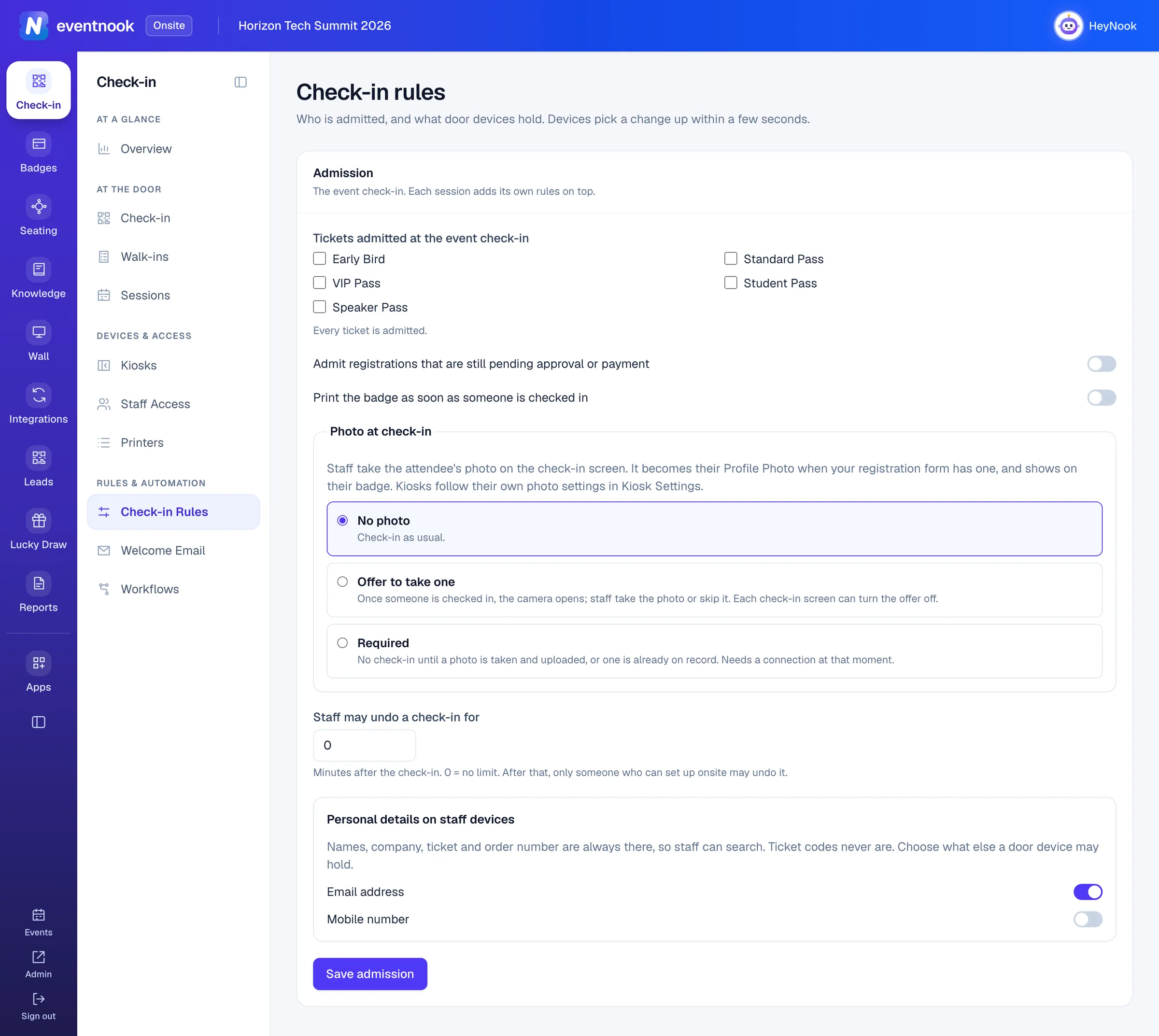
- 1Admit every ticket, or only the ones you tick
- 2Let in guests whose registration isn't approved yet
- 3No photo, offer one, or require one
- 4How long staff can undo a check-in
- 5Save the rules for every door
Change the rules#
- Open Check-in Rules. The Admission card holds every rule.
- Change the settings you need (see the table below).
- Click Save admission. Saved appears beside the button.
| Setting | What it does |
|---|---|
| Tickets admitted at the event check-in | Tick the tickets that get in. With none ticked, Every ticket is admitted. A guest with another ticket sees This ticket type is not admitted at this check-in. Default: every ticket. |
| Admit registrations that are still pending approval or payment | On: guests whose registration or order waits for approval or payment are checked in too. Off: they are refused with This registration is not approved yet. or This order is not approved yet. Cancelled registrations are never admitted. Default: off. |
| Print the badge as soon as someone is checked in | Each check-in screen starts with Auto-print on, so the badge prints as the guest is checked in. Staff can turn it off on their own device under Tools. Default: off. |
| Photo at check-in | No photo, Offer to take one or Required (see below). Default: No photo. |
| Staff may undo a check-in for | Minutes after a check-in during which staff can undo it. 0 means no limit. After that, only someone who can set up Onsite for the event may undo it. Default: 0. |
| Personal details on staff devices | Whether the attendee list on door devices holds each guest's Email address and Mobile number. Default: email on, mobile off. |
Take attendee photos at the door#
Under Photo at check-in, choose how staff take photos on the check-in screen:
| Choice | What happens |
|---|---|
| No photo | Check-in as usual. |
| Offer to take one | Once someone is checked in, the camera opens; staff take the photo or skip it. Each check-in screen can turn the offer off. |
| Required | No check-in until a photo is taken and uploaded, or one is already on record. Needs a connection at that moment. |
The photo becomes the attendee's Profile Photo when your registration form has a Profile Photo field, and it shows on their badge. Without that field, the photo is kept for check-in only. Kiosks follow their own photo settings: see Set up self check-in kiosks.
What staff devices hold#
The check-in screen keeps the attendee list on the device, so it is fast and works offline. Names, company, ticket and order number are always on it, so staff can search. Ticket codes never are. Under Personal details on staff devices, choose whether the list also holds the email address and the mobile number.
Rules set elsewhere#
| To change | Go to |
|---|---|
| Who gets into a session, its capacity and repeat entries | Sessions: see Check people in to sessions |
| What one staff access may check in, undo or print | Staff Access: see Staff access |
| How kiosks check people in, their photo and badge | Kiosks › Settings: see Set up self check-in kiosks |
| The email guests get as they are checked in | Welcome Email: see Send a welcome email on check-in |
If something looks wrong#
- The settings are greyed out with "You can see these settings but not change them." Your role can view Onsite but not set it up. Ask the event's owner.
- Your change disappeared after saving. Someone else saved the rules a moment before you. The page now shows their version: make your change again and save.
- There are no tickets to tick. The page says This event has no tickets yet. Add tickets in Event admin first: see Create tickets and set prices.
- A door still refuses a ticket you have allowed. Devices pick up a change within a few seconds while they are online. A device that is offline uses the old rules until it reconnects.
Who can do this#
Everyone who can open Onsite for the event can see the rules. Owners, Admins, Event Admins and Event Editors can change them. A Custom role can if its grid lets it edit Onsite.
Related guides
- Check in attendeesScan tickets or find guests by name on the Check-in screen, read the verdict, undo a mistake, and keep checking in when the venue Wi-Fi drops.
- Send a welcome email on check-inSwitch on the email each guest gets as they are checked in, write and design it with or without AI, and send yourself a test.
- Set up self check-in kiosksTurn a tablet or touch screen into a kiosk where attendees check themselves in and print their badge, then choose how it behaves and looks.
Still stuck? In EventNook, ask HeyNook. It knows the page you're on and your event, and can take you straight to the right setting.