Check people in to sessions
Set up the talks, workshops, meals and booths you check in separately from the event, decide who may enter and how entries count, and check people in at the room.
Where to find it: Onsite › Check-in › At the door › Sessions
A session is anything you check in separately from the event: a talk, a workshop, a meal or a booth. The event check-in works without any. Add a session when you need to know who entered a room, collected a meal or visited a booth.
Sessions are set up in Onsite, and every check-in screen, staff device and kiosk can check people in to them.
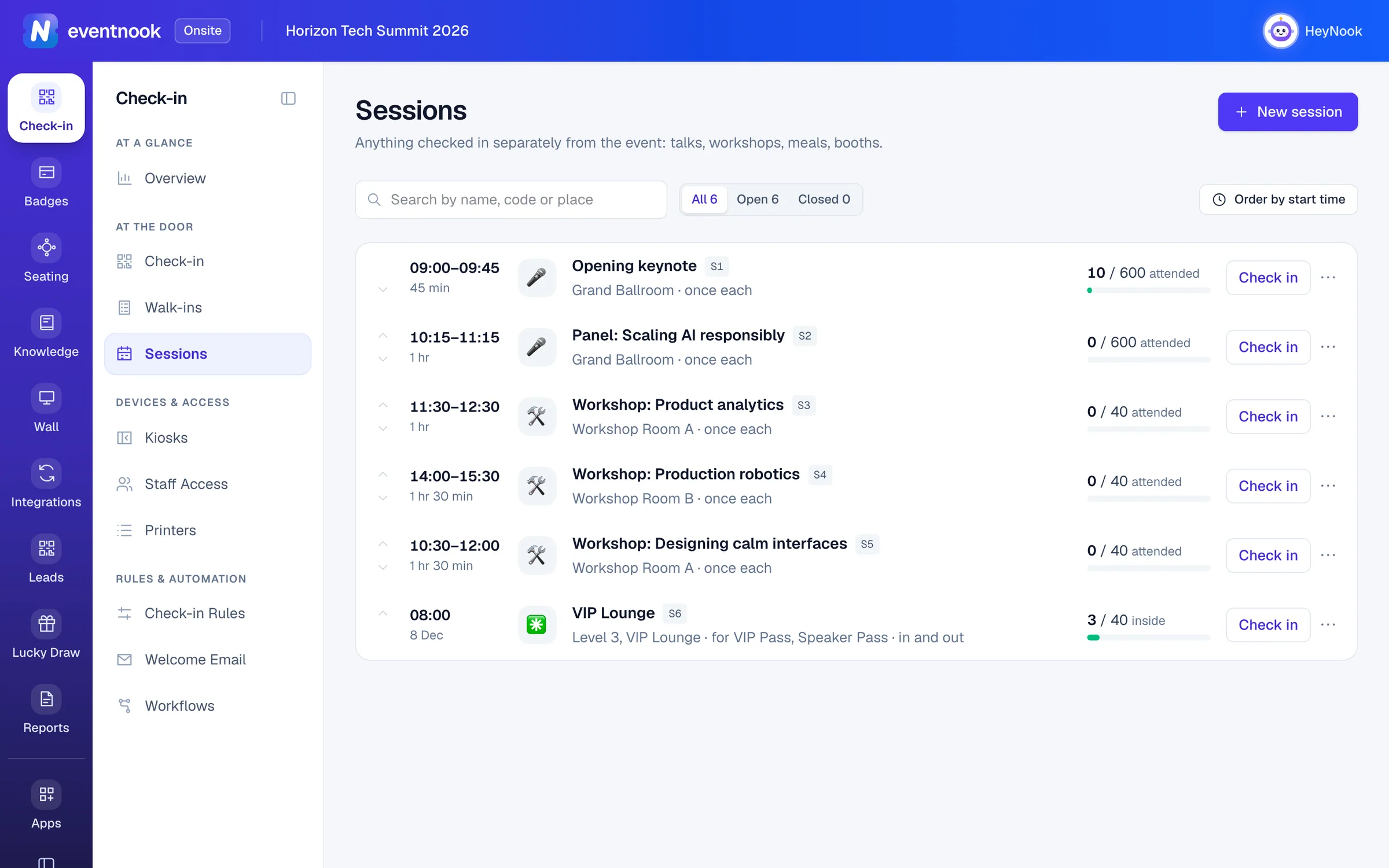
- 1Add a talk, workshop, meal, booth or anything else you count
- 2Show every session, or only the open or closed ones
- 3Start checking people in to this session
- 4Edit, duplicate, close or delete the session
Add a session#
- Open Sessions (Check-in › At the door › Sessions) and click New session.
- Choose what it is: Session, Workshop, Meal, Booth or Other.
- Type its Name.
- Optional: type a Code staff can say out loud, such as
WS1. Left blank, sessions are numbered S1, S2 and so on. - Optional: type the Location, such as
Hall B, Level 2. Staff devices show it. - Under When, choose the Day, then From and To. Times are in the event's time zone. Tick Ends on another day for one that runs past midnight. Leave When empty for a booth that is open all day.
- Choose Who may enter and how Entries and places work (below).
- Click Create session.
The line beside Create session sums the session up as you set it, for example "Workshop · Hall B · everyone · once each · 40 places". Check it before you save.
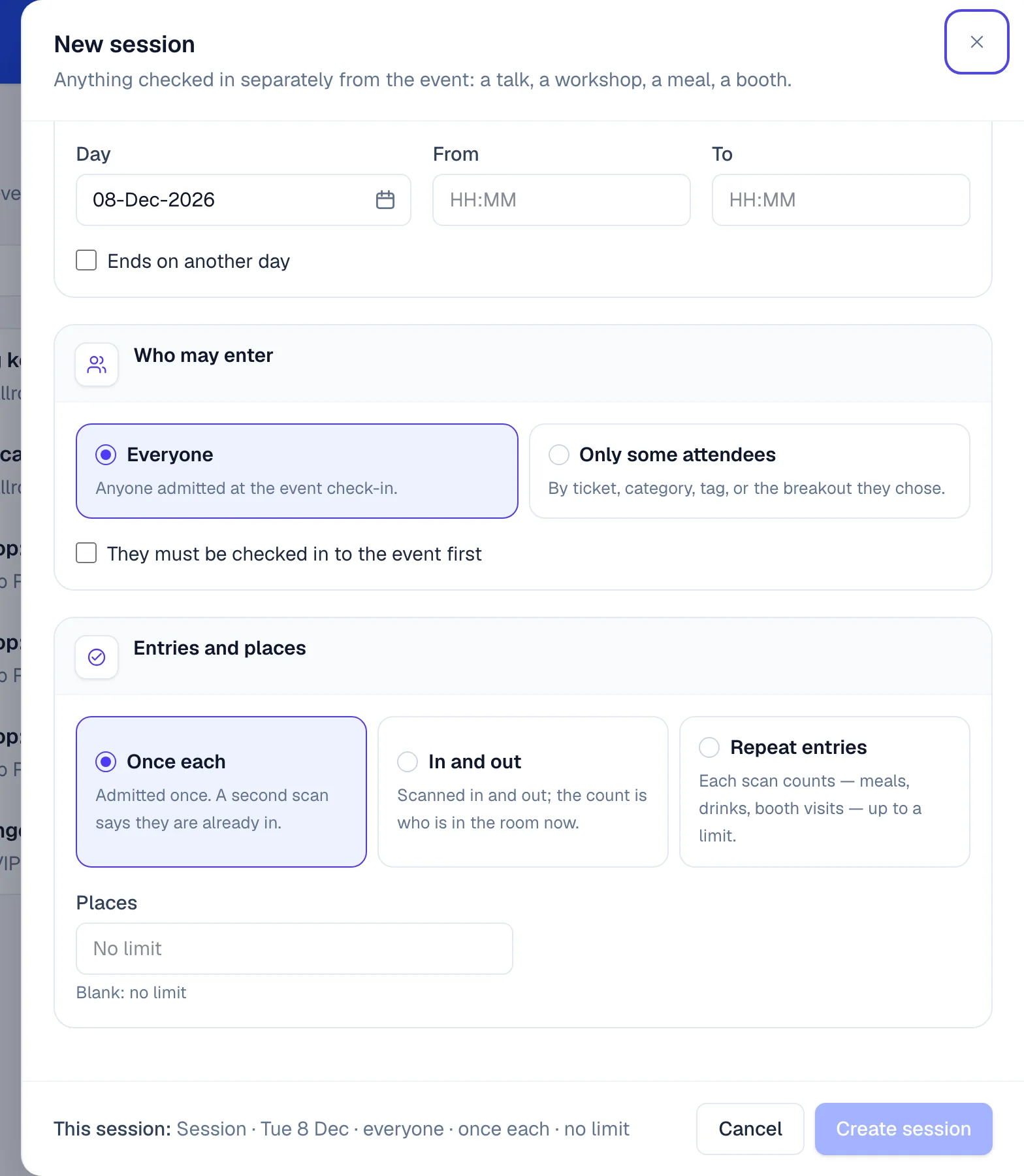
- 1Everyone, or only attendees who match your rules
- 2Once each, in and out, or repeat entries
- 3The session summed up as you set it
Who may enter#
| Choice | Who gets in |
|---|---|
| Everyone | Anyone admitted at the event check-in. |
| Only some attendees | Attendees who match the rules you fill in: Tickets, Categories, Tags, or Breakout codes, the breakout sessions people chose on the registration form. Choose whether an attendee needs any rule or every rule of those filled in. |
Type a category, tag or breakout code and press Enter or a comma to add it. Capitals don't matter.
Tick They must be checked in to the event first to turn away anyone who hasn't come through the event check-in yet.
Entries and places#
| How entries count | What it means |
|---|---|
| Once each | Admitted once. A second scan says they are already in. |
| In and out | Scanned in and out. The count is who is in the room now. |
| Repeat entries | Each scan counts, for meals, drinks or booth visits. Set Entries each (blank: no limit) and Ignore a second scan within a number of seconds, so a double read doesn't count twice. Default: 30 seconds. |
Set Places to limit how many can enter; leave it blank for no limit. With places set, choose what happens When it is full:
- warn staff, still admit: the guest gets in, and the verdict adds This session is now over its capacity.
- refuse entry: the next guest is refused with This session is full.
Check people in at a session#
- On Sessions, click Check in on the session's row. The check-in screen opens on that session.
- Scan tickets or search by name, the same way as at the event check-in. See Check in attendees.
- For an In and out session, choose Check in or Check out in the toolbar before you scan.
To switch on the check-in screen itself, choose the session in the list at the left of the toolbar. It lists Event check-in and each open session by its code and name.
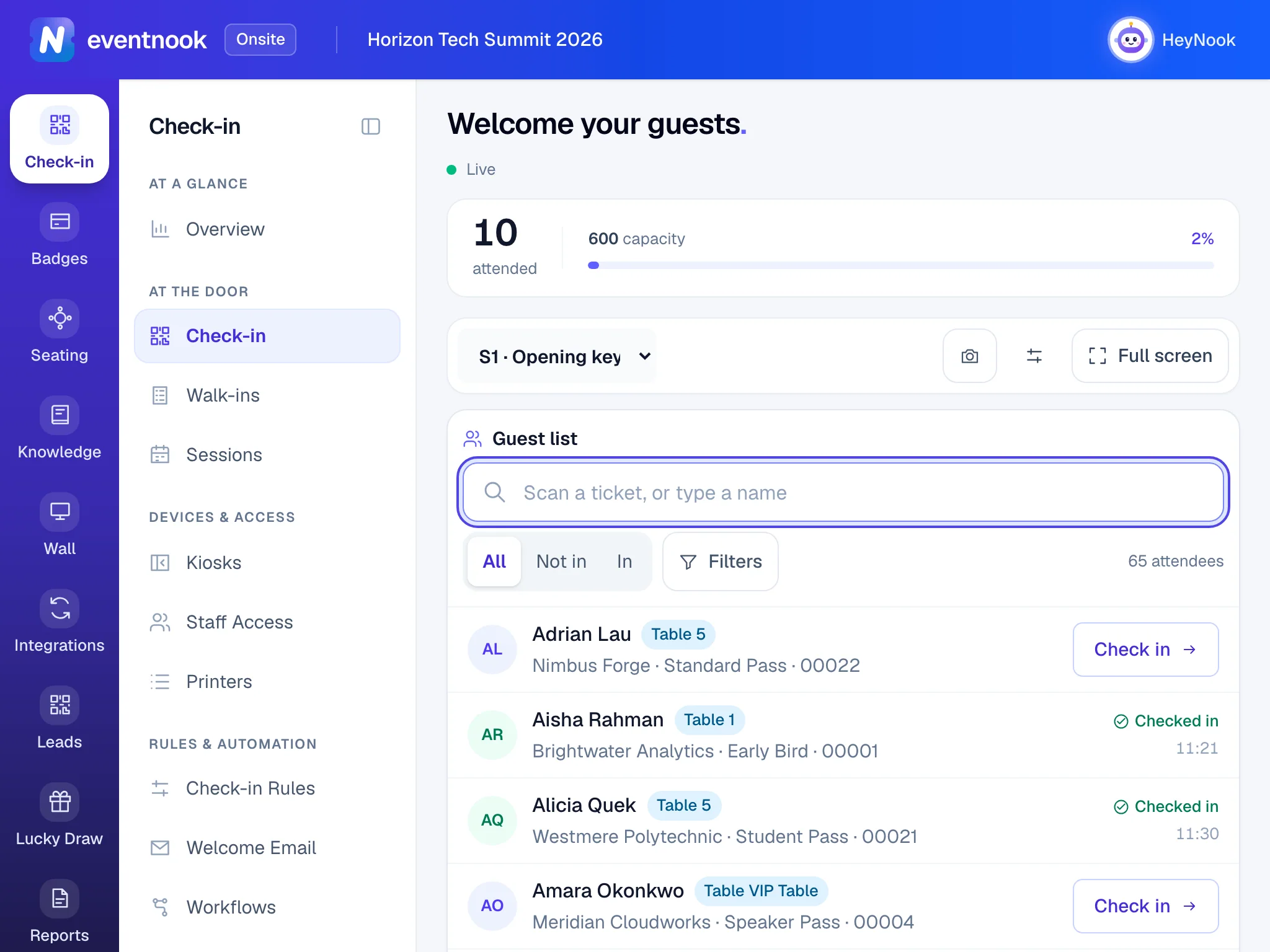
- 1Switch between the event check-in and each session
At a session, the count at the top shows how many attended, or how many are in the room for an In and out session, against its places. The guest list filters read All, Not in and In. In a Repeat entries session, a guest who is already in has a button for their next entry, such as Entry 2.
Why a guest is not admitted to a session#
| The verdict says | Why |
|---|---|
| Not registered for this session. | They don't match Who may enter. A guest who doesn't qualify shows Not registered in the list. |
| Check in to the event first. | The session needs an event check-in first. |
| This session is full. | Every place is taken and the session refuses entry when full. |
| No entries left for this session. | They have used all their Entries each. |
| This session is closed. | Someone closed the session. Reopen it to check people in again. |
In a Repeat entries session, a ticket scanned again within the Ignore a second scan within time gets an amber verdict saying when it was first scanned. The second read isn't counted.
Change, close or delete a session#
Use the session's More menu (⋯) on its row:
- Edit: change anything. Clicking the session's name does the same.
- Duplicate: a new session filled in from this one, named "… (copy)".
- Close: staff devices stop offering it. Its attendance is kept. Reopen brings it back.
- Delete: stations stop offering it. The scans already recorded for it are kept.
To find a session in a long programme, type in Search by name, code or place, or choose Open or Closed.
Change the order of sessions#
Every check-in device lists sessions in the same order as this page.
- Click Order by start time to put them in running order. Sessions without a time go last. A list in running order is grouped by day.
- Use the ↑ and ↓ buttons on a row to move one session. They show when you aren't searching or filtering.
See who attended#
- Sessions shows each session's count against its places. The bar turns amber at 80% and red when it is full.
- The Overview in Onsite and the Check-in page in Event admin list each session's attendance.
- The check-in & printing log has every session scan. Choose the session under Where.
If something looks wrong#
- A session doesn't appear on a staff device or kiosk. It is closed, or the device's access doesn't include it. Reopen the session, or edit the staff access or kiosk and tick the session. See Let staff check in on their own devices.
- Everyone is refused with "Not registered for this session." Check Who may enter: with every rule chosen, an attendee must match all the rules filled in. Switch to any rule, or remove a rule.
- "Another session in this event already uses that code". Each session needs its own code. Choose another, or leave Code blank.
- "An event can hold up to 300 check-in sessions". Delete sessions you no longer use, or count similar ones as one.
- There is no New session button. Your role can check people in but not change Onsite's set-up. Ask the event's owner.
Who can do this#
Everyone with access to the event can see the sessions. The Owner, Admin, Event Admin and Event Editor roles can add, change and delete them and check people in. Staff on their own devices check people in to the sessions their staff access allows.
Related guides
- Check in attendeesScan tickets or find guests by name on the Check-in screen, read the verdict, undo a mistake, and keep checking in when the venue Wi-Fi drops.
- Let staff check in on their own devicesGive your team and volunteers an access code so they can check people in on their own phones, tablets or laptops without an EventNook account, and stop any device at any time.
- Set up self check-in kiosksTurn a tablet or touch screen into a kiosk where attendees check themselves in and print their badge, then choose how it behaves and looks.
- Follow arrivals and review the check-in logArrange the live check-in dashboard, share it with your crew by link, and look back at every check-in, refusal and badge print in the check-in & printing log.
Still stuck? In EventNook, ask HeyNook. It knows the page you're on and your event, and can take you straight to the right setting.