Find your events
Find any event you can work on, narrow the list by status or whose event it is, bookmark the ones you use most, and bring events back from the Archive.
Where to find it: Event admin › My Events
My Events lists every event you can work on: your organisation's events, events other organisers shared with you, and the ones you bookmarked. Open it from the top bar. Inside an event, click the event's name and then All events.
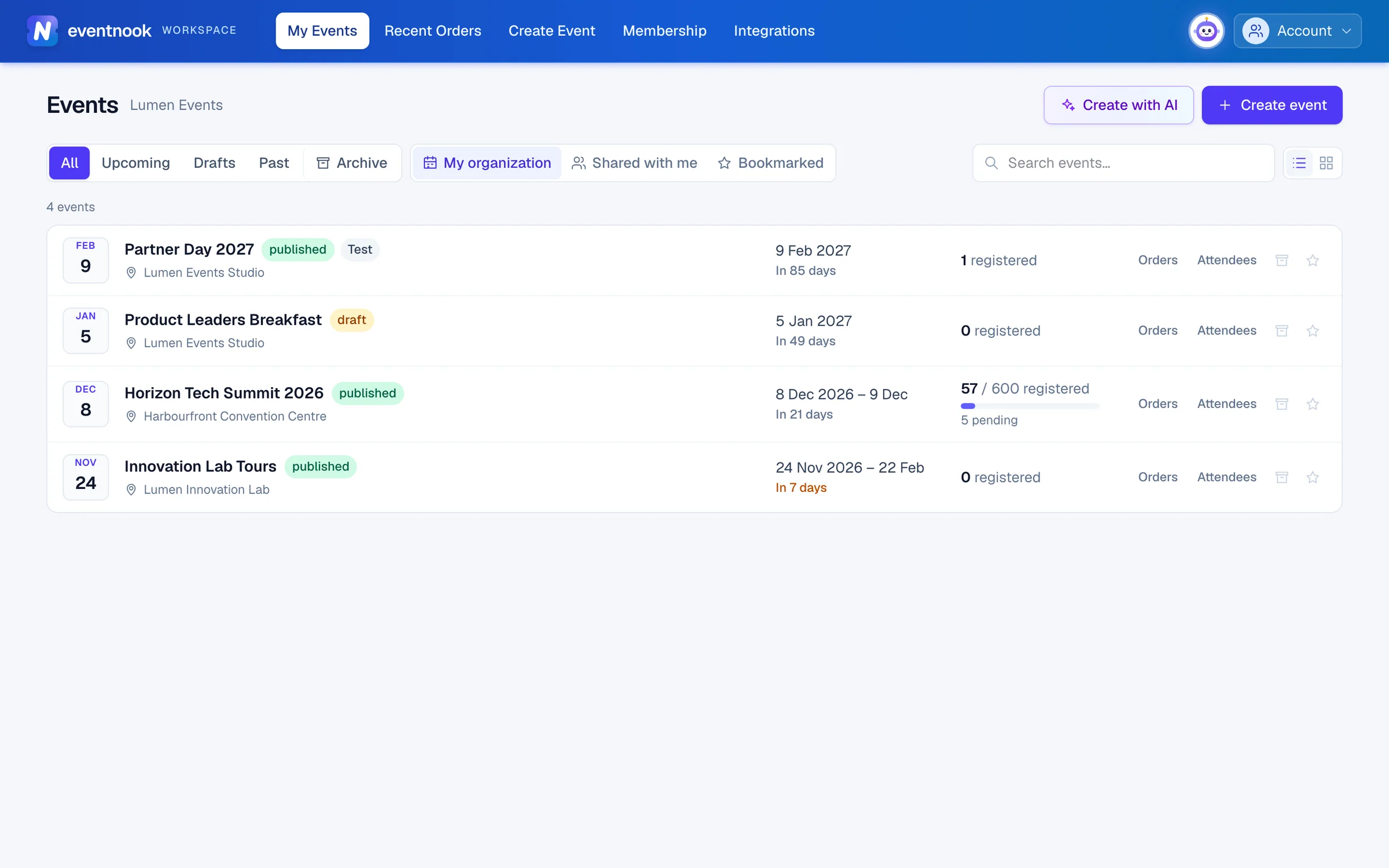
- 1Upcoming, draft and past events, and the Archive
- 2Your organisation's events, events shared with you, or your bookmarks
- 3Find an event by name, whatever its date or status
- 4Show events as a list or as cards
Find an event#
- Open My Events. The page is titled Events, with your organisation's name beside it.
- Choose a status: All, Upcoming, Drafts or Past.
- Choose whose events to show: My organization, Shared with me or Bookmarked.
- Optional: type part of the event's name in Search events…. Search looks across every date and status, so the tab you chose never hides a match.
| Status | What it lists |
|---|---|
| All | Every event except those in the Archive. |
| Upcoming | Events that aren't drafts and haven't ended yet. |
| Drafts | Events that have never been published. |
| Past | Events that have ended, except drafts. |
| Archive | Events you moved to the Archive. They show nowhere else, search included, until you restore them. |
| Whose events | What it lists |
|---|---|
| My organization | The events of the organisation named beside the title. If you belong to more than one, choose another in the list beside the title. |
| Shared with me | Events you were added to as a collaborator. Each shows the organisation it belongs to, your role and, if your access ends, when. |
| Bookmarked | Events you starred, from any organisation you can reach. |
The list shows 20 events at a time, with pages below it.
What each event shows#
- The date and how far off it is: In 12 days, Tomorrow, Today, Happening now or Ended. Dates are in the event's own time zone.
- The venue, or Venue to be announced.
- Its status (published, draft or deactivated), and Test on a test event.
- How many people registered against its capacity, and how many are pending. Only when your role can see the numbers.
Click anywhere on an event to open it. A published or deactivated event opens on its Dashboard; a draft opens on Event details. The Orders and Attendees links on an event go straight to those lists.
Bookmark an event#
Click the star on the event. The star fills in, and the event shows under Bookmarked. Click it again to remove the bookmark. Bookmarks are yours only; nobody else sees them.
Switch between a list and cards#
Use the two buttons beside search: the first shows one row per event, the second shows cards. This browser remembers your choice.
Find an event in the Archive#
- Click Archive. Archived events are listed with the one archived most recently first, each with the date it was archived.
- Optional: search by name. In the Archive, search only looks in the Archive.
Events in the Archive keep everything: orders, attendees and reports. You can still open them. To move an event there, see Archive, reset or delete an event.
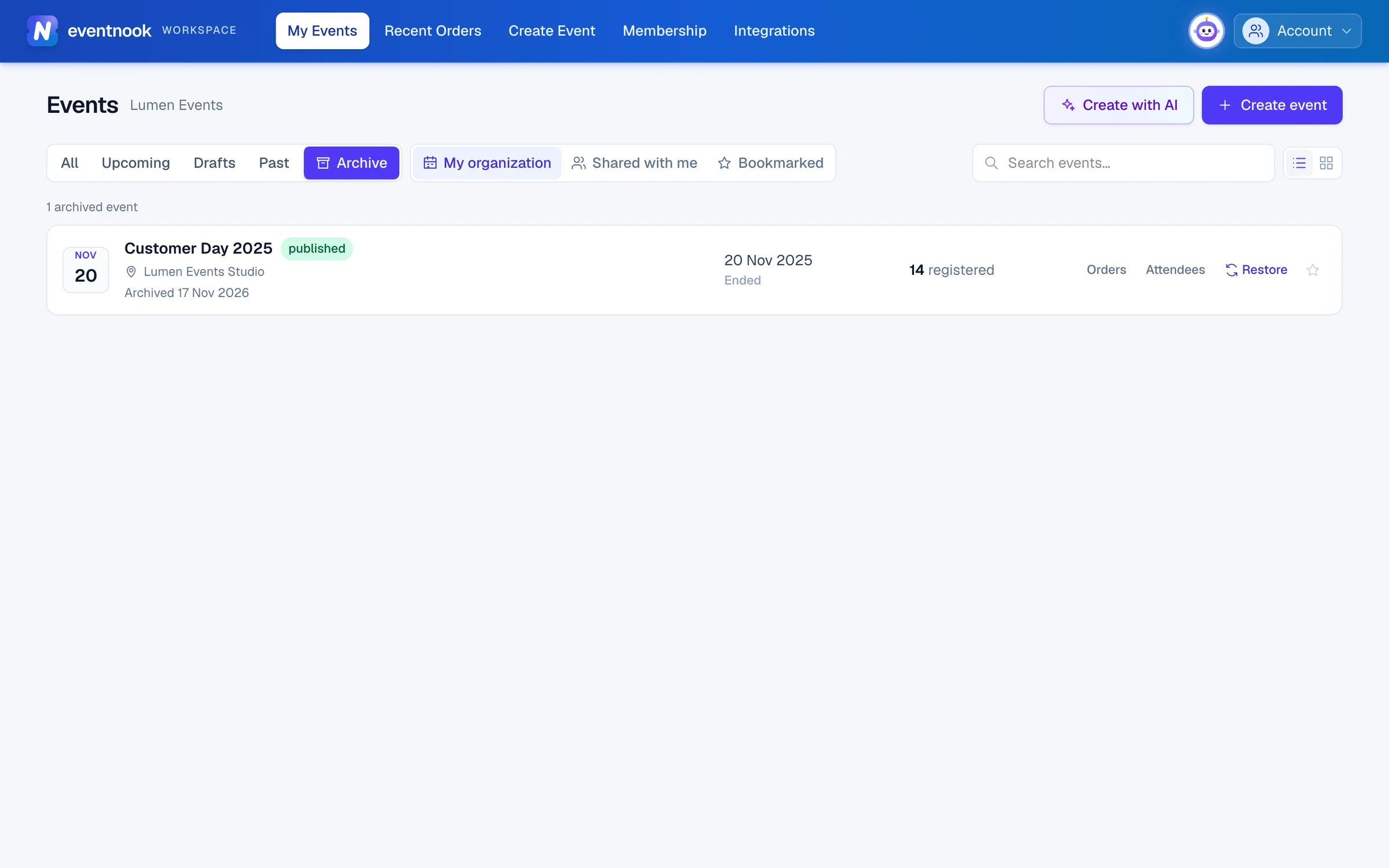
- 1Put the event back in your events list
Restore an event from the Archive#
- In Archive, click Restore on the event. There is nothing to confirm.
- The event is back in your events list, and a message says so.
Restoring changes nothing else. If the event's site was deactivated, it stays off: open the event and click Make live again when you want it back.
If something looks wrong#
- An event is missing. Check the Archive, then Shared with me, and the organisation beside the title. If it still isn't there, ask its organiser to add you to the event. See Add collaborators to an event.
- Search finds an event you know is there. Search outside the Archive never shows archived events, and search in the Archive shows only them. Switch tabs and search again.
- An event shows no registration numbers. Your role on that event can't see them.
- The list is empty. If you have archived every event, click Open the Archive on the empty page.
- There is no Create event button. Only an organisation's Owner and Admins can create events.
Who can do this#
Everyone sees the events they have access to. Moving an event to the Archive and restoring it needs the Owner, Admin, Event Admin or Event Editor role on that event; without it, the event has no archive or Restore button.
Related guides
- Open an event and see where it standsOpen an event, read its status in the top bar, preview or view its site, find all its links, and open, close or deactivate registration.
- Archive, reset or delete an eventMove an event you've finished with to the Archive, clear the registrations made while testing, or delete an event you no longer need.
- Clone an eventStart next year's edition, or a similar event, as a new draft with this event's setup, new dates and only the parts you choose to copy.
- Create your first eventCreate an event from a short form, or describe it to the event assistant and review the setup it proposes, then carry on setting it up.
Still stuck? In EventNook, ask HeyNook. It knows the page you're on and your event, and can take you straight to the right setting.