Add an app to your event
See which add-on apps your plan includes, add one to an event so it joins the menu for the whole team, and take it off again when you no longer need it.
Where to find it: Event admin › Apps
Add-on apps are extra tools for an event, such as a lucky draw, a seating plan or lead retrieval for exhibitors. Your organisation's plan decides which apps you can use. Each event then adds the ones it needs, and they join that event's menu for everyone on its team.
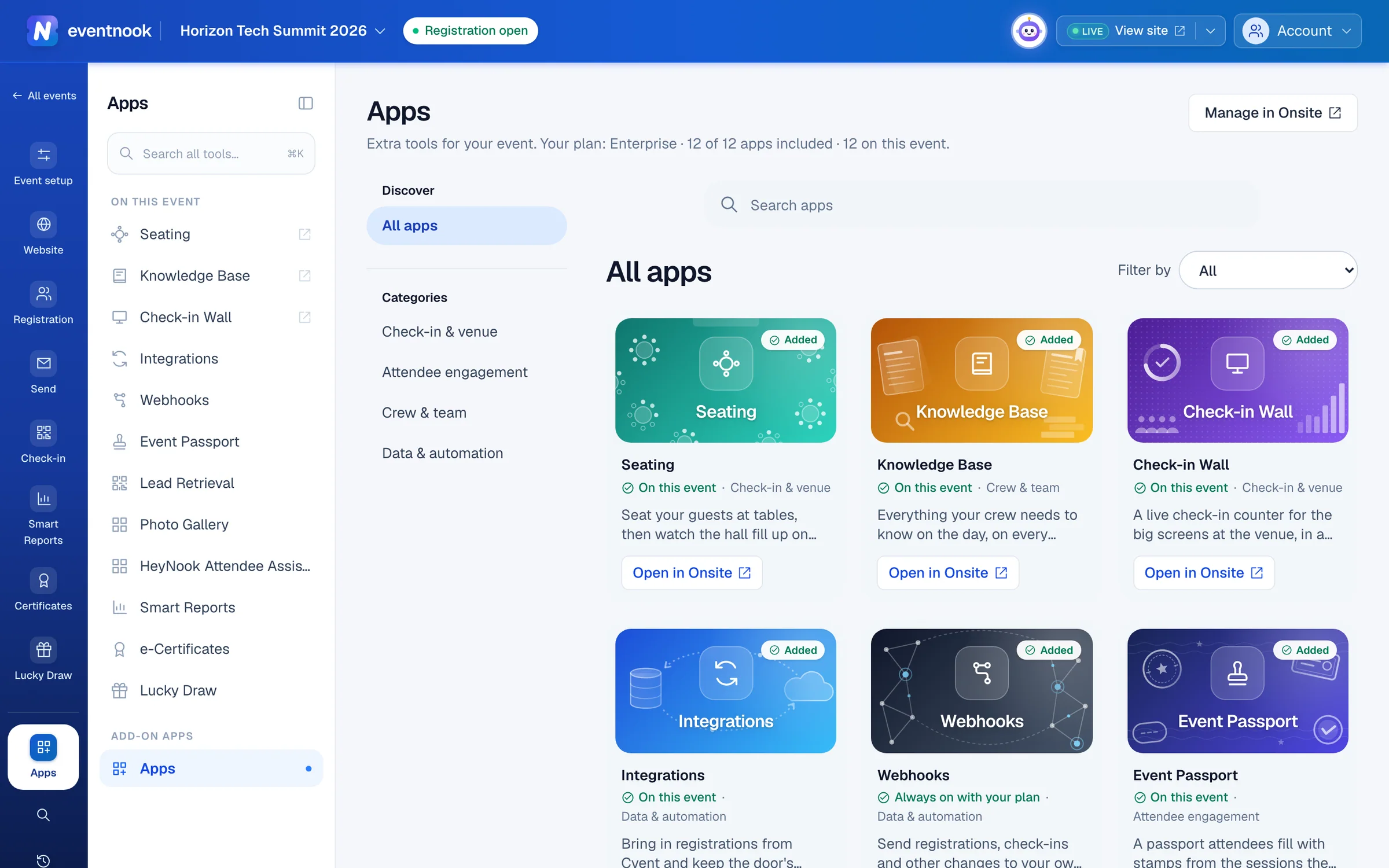
- 1Find an app by name or by what it does
- 2One shelf for each kind of app
- 3Only the apps on this event, ready to add, or not in your plan
- 4Remove an app, or hide it on one device
The apps#
| App | What it does | Where you use it |
|---|---|---|
| Seating | Seat guests at tables, then follow the hall filling up on the day. | Onsite |
| Knowledge Base | Run sheets, contacts and instructions for your crew, on every phone. | Onsite |
| Check-in Wall | A live check-in counter for the big screens at the venue. | Onsite |
| Integrations | Bring in registrations from Cvent and keep the door's guest list current. | Onsite and Event admin |
| Webhooks | Send registrations, check-ins and other changes to your own systems. | Event admin |
| Event Passport | Stamps from sessions and exhibitor booths, on the way to a reward. | Event admin |
| Lead Retrieval | Exhibitors scan the badges of booth visitors and keep them as leads. | Onsite and Event admin |
| Photo Gallery | Albums of your event's photos on your event site. | Event admin |
| HeyNook Attendee Assistant | A chat on your event site that answers visitors and can register them. | Event admin |
| Smart Reports | Slides of your attendee and order figures, ready to present. | Event admin |
| e-Certificates | A certificate with each attendee's name on it, opened online. | Event admin |
| Lucky Draw | Lucky numbers for attendees, and prize winners drawn live on the big screen. | Onsite and Event admin |
See which apps you have#
Open Apps in the event's menu. The line under the title says which plan your organisation is on, how many apps it includes and how many are on this event.
Each tile says where the app stands:
| On the tile | What it means |
|---|---|
| Added and On this event | The event has the app. It's in the menu for the event's team. |
| Always on with your plan | The app is on every event while your plan includes it. Webhooks works this way. |
| In your plan | Your plan includes it, and this event can add it. |
| A plan's name, followed by plan | A higher plan includes it. |
| On request | EventNook adds it to your organisation's subscription. |
To narrow the list, choose a shelf on the left (Check-in & venue, Attendee engagement, Crew & team or Data & automation), type in Search apps, or use Filter by: On this event, Ready to add or Not in your plan.
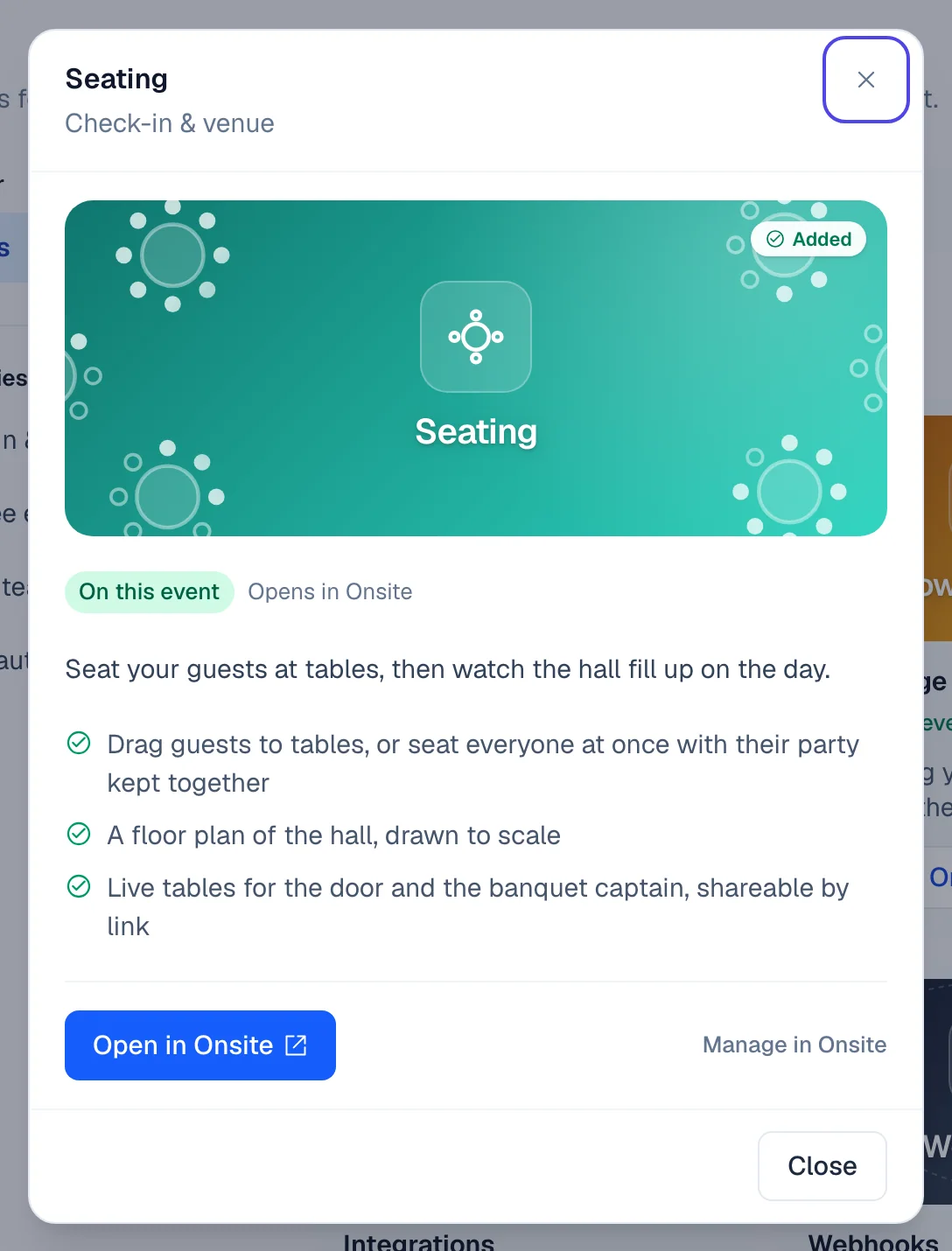
Click a tile to see everything the app does, whether it opens in Onsite or in Event admin, and what to do next.
Add an app to an event#
- Open Apps and find the app.
- Click Add on its tile, or open the tile and click Add to this event. The tile shows Added.
- Click Open or Open in Onsite to start setting it up.
The app is now in the event's menu for everyone on the team:
- In Event admin, open Apps in the event's menu: the apps are listed under On this event. Smart Reports, Certificates and Lucky Draw also get a tab of their own in the event's menu.
- In Onsite, an app you use there gets its own icon on the rail, such as Seating, Leads or Lucky Draw.
You can also add an app from Onsite. Open Apps on the rail: under Ready to add, click Add to this event. Click Take a look to see an app's page before you add it.
Remove an app or hide it on one device#
Removing and hiding are done on Onsite's Apps page. In Event admin, click Manage in Onsite to get there.
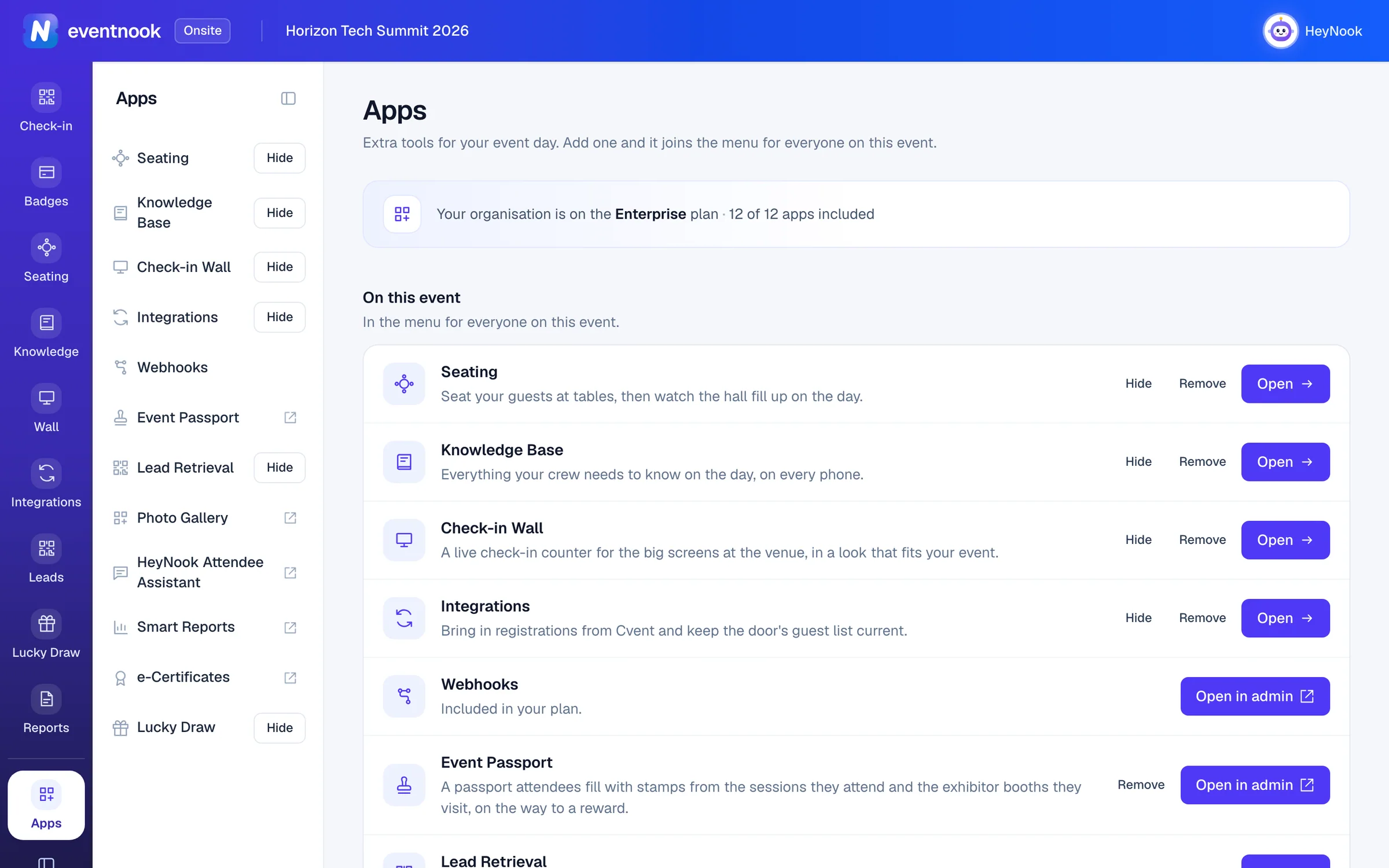
- 1Leave the app off this device's menu only
- 2Take the app off the event for the whole team
- Remove takes the app off the event's menu for everyone. Confirm with Remove. Nothing is deleted: add the app again and everything is where you left it.
- Hide leaves the app off the rail on this device only, for example on a check-in tablet that needs nothing else. Everyone else still sees it. Click Show to bring it back.
Apps that open in Event admin, such as the Event Passport, have no icon on Onsite's rail, so they have no Hide.
Get an app your plan doesn't include#
Apps your plan doesn't include are on the Not in your plan filter in Event admin, and under More apps in Onsite. Once an app is added to your organisation's subscription, it's ready for every event in the organisation.
- Check your plan on your organisation's Plan & limits tab. See Organisations and members.
- Ask EventNook to add the app to your subscription.
- When EventNook confirms, open Apps on your event and add it.
Owners and admins of the organisation also see Add to subscription or Ask to add it on the app. Everyone else sees "Ask your organisation's owner to add it to the subscription."
If something looks wrong#
- There is no Add button. Adding an app needs the right to manage onsite. The app's details say "Ask someone who manages onsite to add it."
- The page says Apps access is limited. Your event role doesn't include onsite tools. Ask the event's owner for access.
- An app on the event says "Your role can't open it." Your role covers the Apps page but not that app. Ask the event's owner.
- An app you added isn't on your Onsite rail. It's hidden on this device. On Onsite's Apps page, click Show on its row.
- Webhooks has no Add button. Webhooks isn't added event by event: when your plan includes it, every event has it. See Send changes to your own systems with webhooks.
- The Session Passport or the Exhibitor Passport is gone. They are one app now, the Event Passport, on the Attendee engagement shelf. An event that used either already has it.
Who can do this#
Everyone on the event's team whose role includes onsite tools can see the Apps page and open the apps on the event. Adding and removing apps needs the Event Admin or Event Editor role, or an organisation owner or admin. Only organisation owners and admins see the subscription buttons.
Related guides
- Organisations and rolesSee the organisations you belong to, switch between them, create one, edit its profile, manage its members and their roles, and check its plan, activity and security log.
- Run a lucky draw on the big screenAdd prizes, choose who can win, and draw winners live on the projector from your phone, then hand the prizes out at the desk.
- Run Lead Retrieval for your exhibitorsGive each exhibitor a team that scans visitors' badges at their booth, choose what they see and record about each lead, and hand them their leads after the event.
- Send changes to your own systems with webhooksSend registrations, attendees, payments and check-ins to your own systems as they happen, check every delivery, and send failed ones again.
Still stuck? In EventNook, ask HeyNook. It knows the page you're on and your event, and can take you straight to the right setting.