Ask HeyNook
Ask HeyNook about your event in your own words, let it take you to the right page, bring in its specialists, and approve the changes it suggests.
Where to find it: Event admin › Top bar › Smart Assistant
HeyNook is EventNook's AI assistant. Ask it about your event in your own words: how registrations are going, how to set something up, or why something isn't working. It answers for the event you are in, and when your request could mean different things it asks you back first.
HeyNook never changes anything by itself. When it suggests a change, you check it and save it.
Before you start#
- AI features must be on for your organisation. If HeyNook says they're off, an organisation owner can turn them on in the organisation's AI settings.
- What HeyNook can tell you follows your role: it answers with your own access. Figures need a role that includes reports.
Ask HeyNook#
- In an event, press
⌘ J(Ctrl Jon Windows). The HeyNook window opens on Ask HeyNook: your private conversations, which only you see. - Type your question and press
Enter. HeyNook shows what it's doing while it works.
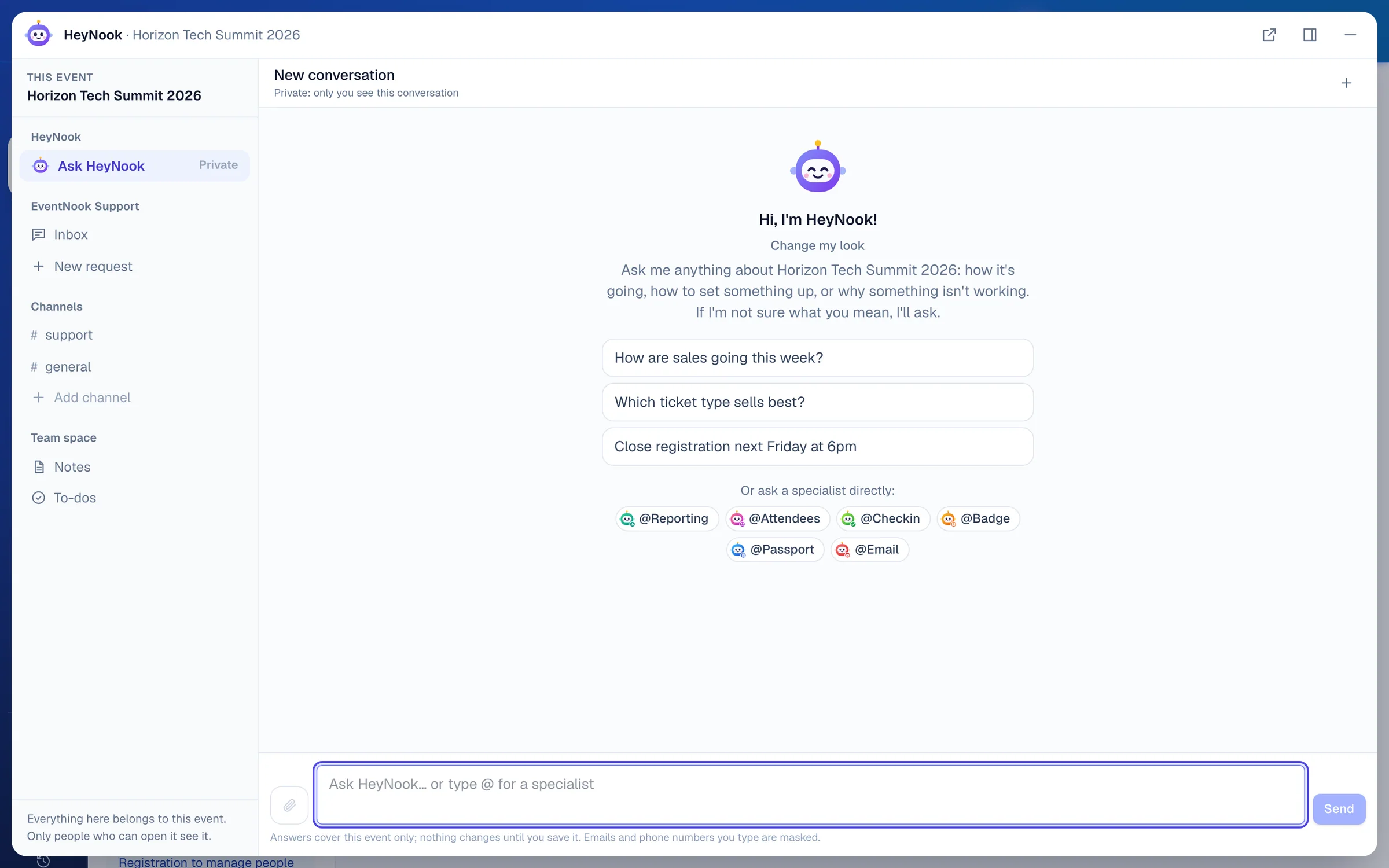
- 1Your private conversations with HeyNook
- 2Tag a specialist to ask it yourself
- 3Ask in your own words; type @ for a specialist
HeyNook's face in the top bar, left of View site, opens the same window. On a page with its own specialist, such as the reports, the check-in pages or the email templates, it opens the team's #support channel beside the page instead, where HeyNook answers in front of your team. To ask privately from there, choose Ask HeyNook in the window's list.
Some things to ask:
- "How are sales going this week?"
- "How many places are left on the VIP Pass?"
- "How do I change the confirmation email?"
- "Why can't people see the Student Pass?"
If HeyNook asks back, click one of its suggested answers or type your own.
The window docks beside the page or fills the screen, and Open in a new window moves it into a browser window of its own. ⌘ ⇧ K (Ctrl Shift K) opens and closes it. The window also holds the team's channels; see Work with your team in Channels.
Let it take you to the right page#
When the answer is something you do on a page, it comes with a button to that page, such as the email templates or the registration settings. Click it and the page opens with the window beside it, so you can follow the steps. The button then says You're here.
Its specialists#
HeyNook has specialists trained for one area each. It brings one in by itself when your question is theirs, so you don't need to know who to ask. To ask one yourself, type @ and pick it, or click it under Or ask a specialist directly:.
| Specialist | What it knows |
|---|---|
| @Reporting | The event's figures and reports: trends, comparisons, forecasts, and the people you describe, as tables and charts. |
| @Attendees | The attendee list: finding people, shaping the list and preparing actions on it. See Ask AI beside the attendee list. |
| @Checkin | The doors on the day: arrivals, stations, kiosks, scanners, badge printers and refused scans. |
| @Badge | Designing and changing the event's badges. |
| @Passport | The event passport: its look, its stamps, the goal and the reward. |
| Every email the event sends: what it says, when it goes, and whether it arrived. |
You see only the specialists your role allows. In the team's channels you can also tag @Wall, which designs the Check-in Wall on the venue's screens.
Approve what it suggests#
HeyNook doesn't change your event. What it can do is put the change in front of you:
- A setting card. For a small registration setting, such as the registration closing date, the event capacity or approving free registrations manually, the answer holds the setting itself, filled in with what HeyNook suggests. Check it and click Save, or Not now.
- A designer change. When @Badge or @Passport prepares a design, the answer has a button that opens it in the designer, where you check it and save. A change @Email prepares opens in the email copilot on that email's page.
- A page to go to. Emails, the website, forms and tickets are always changed on their own pages. HeyNook gives you the button and the steps.
Show it a screenshot#
Click the paperclip to upload a picture or capture your screen, or paste or drop one into the message box: up to 4 with a question. Screenshots go to the AI as they are, so crop out personal details first. They're off until an organisation owner turns them on in Organisation › AI.
The Smart Assistant page#
The same conversations are on a page of their own, Smart Assistant. Search for it with Search all tools… in the event menu.
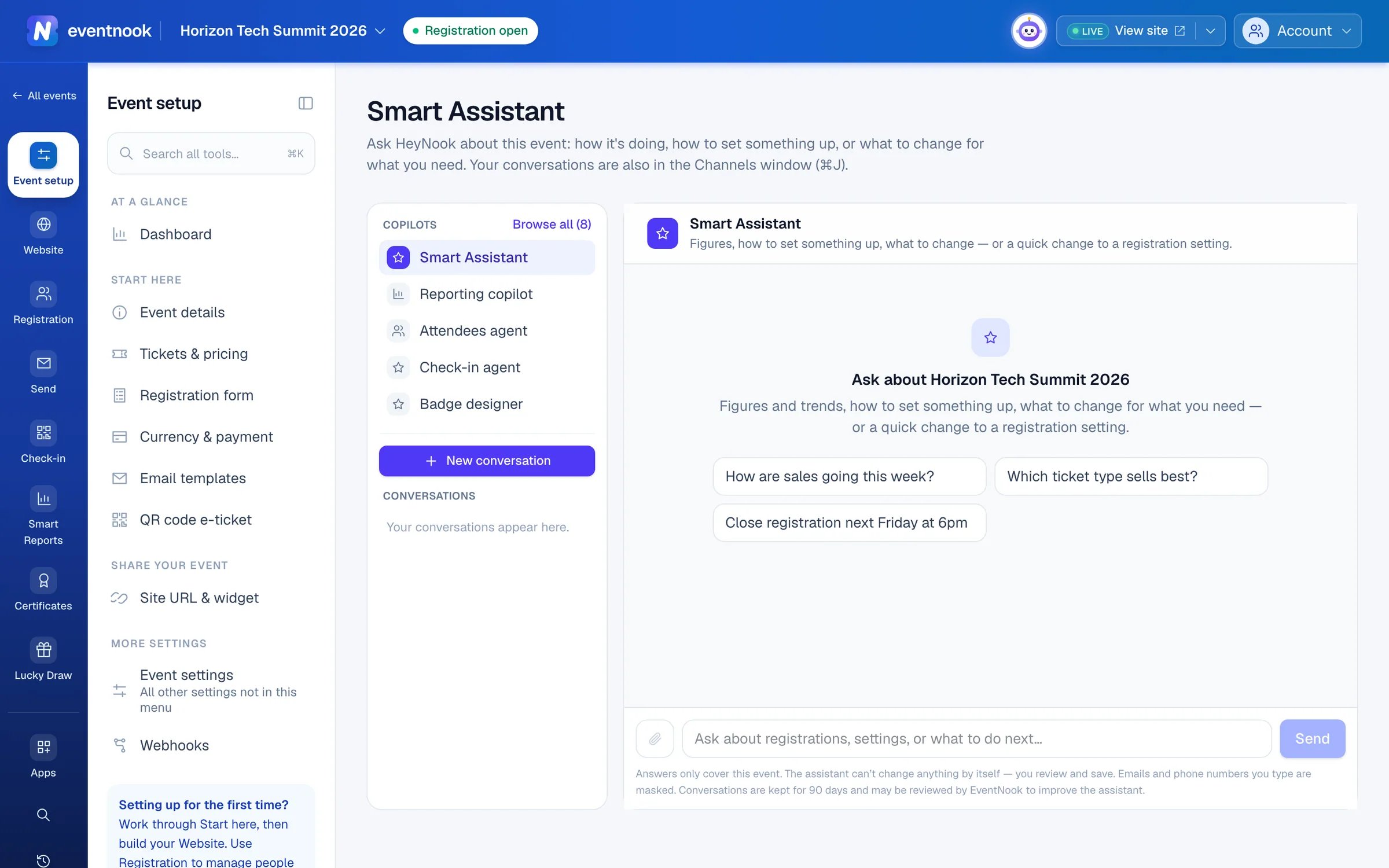
- 1HeyNook and its specialists, each with its own conversations
- 2Every specialist and its skills, searchable
- 3Start a fresh conversation
- 4Ask about this event
- Copilots lists HeyNook (as Smart Assistant) and its specialists. Browse all shows every one with its skills. Each keeps its own conversations.
- Under the Reporting copilot, skill cards such as a summary or a forecast start a full report.
- New conversation starts afresh. Open a conversation and click Delete this conversation to remove it.
Your conversations and your data#
- Emails and phone numbers you type are masked before they are sent or saved. Names aren't, so avoid typing them.
- Conversations are kept for your organisation's chosen period and may be reviewed by EventNook to improve the assistant.
- Under each answer, Helpful? Yes or No tells us how it did. Say why adds a reason.
- Stuck? Click Talk to a person at the top of a private conversation to pass it to EventNook Support. You check what is sent first.
If something looks wrong#
- "AI features are turned off for this organisation". An organisation owner can turn them on in the organisation's AI settings.
- "HeyNook isn't included in your plan, or isn't available to this account". Ask EventNook to add it.
- "Your organisation has used this month's AI allowance." HeyNook answers again when the allowance resets. Check it in your credit usage, or ask EventNook about more.
- "Charts in this answer are hidden". Your role on this event no longer includes reports.
- There's no Ask HeyNook in the window. Private conversations are on an event's pages. Open an event first.
- A setting card says someone else changed this setting. Click Reload and check the card again.
Who can do this#
Everyone with access to the event can ask HeyNook. What it shows and can suggest follows your role: a setting card is only offered for a setting you can change.
Related guides
- Ask AI beside the attendee listOpen the Attendees agent beside the attendee list, ask for the people you need in plain words, and review and run the actions it prepares.
- Work with your team in ChannelsTalk with your event team in channels and threads, ask HeyNook in front of everyone, catch up with a summary, and keep shared notes and to-dos, in the admin and in Onsite.
- Read the event dashboardSee confirmed sales or registrations, places left, pending approvals and how each ticket is selling, and what needs your attention next.
- See your credit usageSee how many email, SMS, WhatsApp and AI credits your organisation used each month, what they cost, and which events used them.
Still stuck? In EventNook, ask HeyNook. It knows the page you're on and your event, and can take you straight to the right setting.