Create tickets and set prices
Add the tickets people choose when they register, set their prices and limits, and stop selling one when you need to.
Where to find it: Event admin › Event setup › Start here › Tickets & pricing
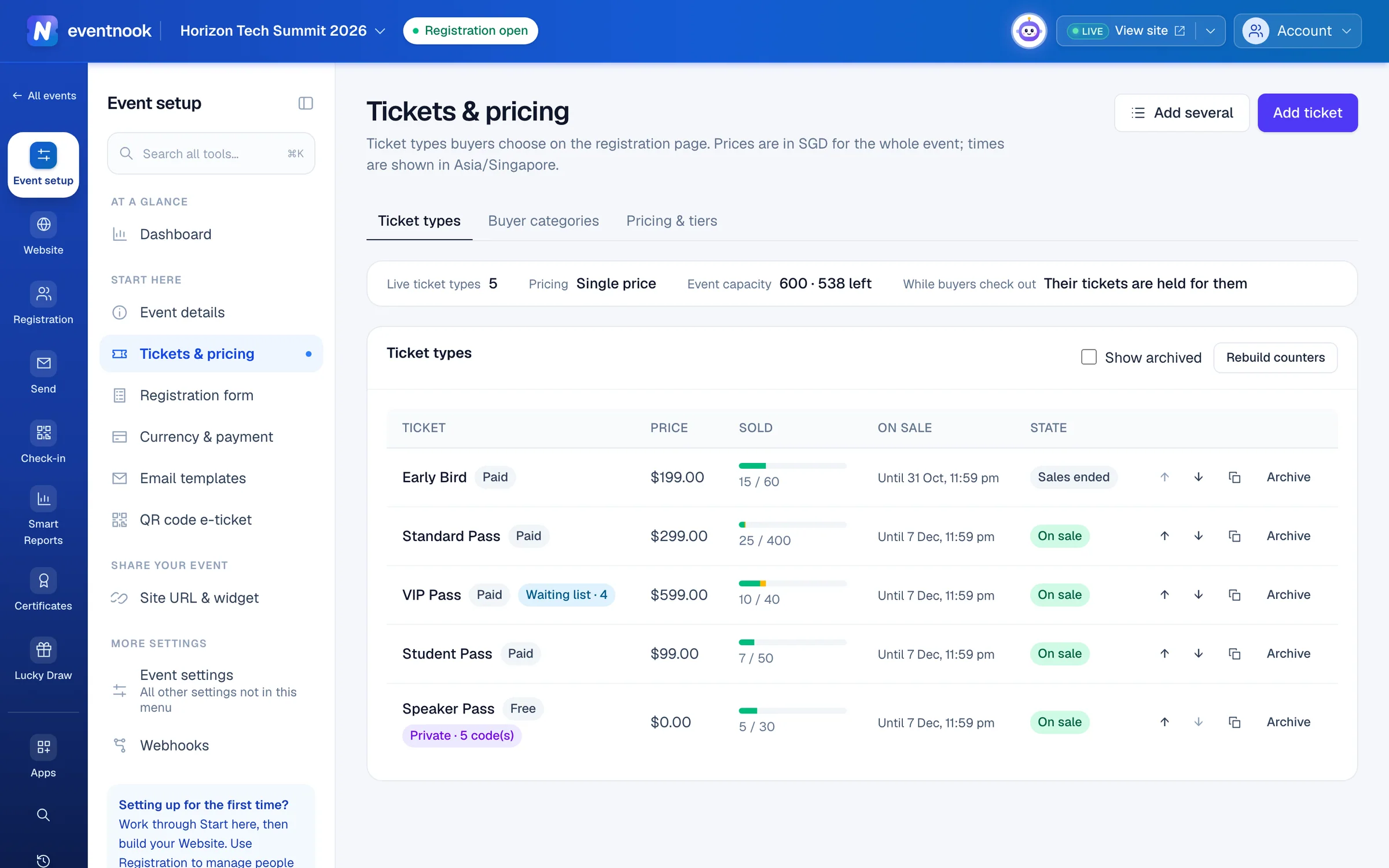
Tickets are what people choose on your registration page: a Standard Pass, a VIP Pass, a free Speaker Pass. Each ticket has its own price, how many can be sold, and when it's on sale.
- 1Add one ticket with every setting
- 2Add a list of tickets at once
- 3Show tickets you've stopped selling
Add a ticket#
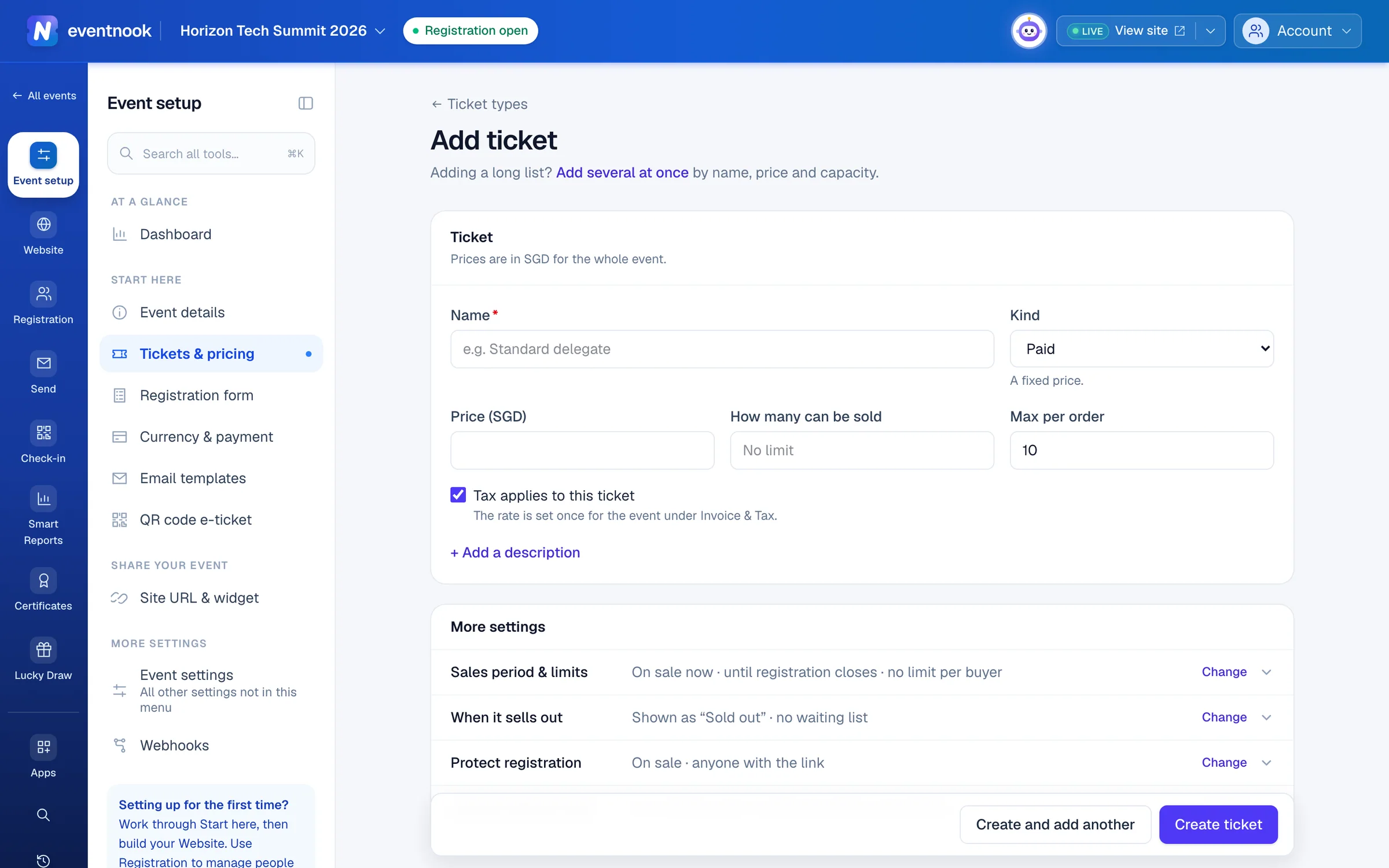
- Open Tickets & pricing and click Add ticket.
- Type the Name buyers see and choose its Kind.
- Set the Price. On a free event there is no price to set.
- Optional: set How many can be sold. Leave it empty for no limit.
- Click Create ticket. The ticket is on sale straight away, unless you set a later Sales start.
To add a similar ticket next, click Create and add another. The form keeps every setting except the name and description.
- 1Paid, free, donation, add-on or group
- 2Sales dates, limits, sold-out behaviour and access
Kinds of ticket#
| Kind | Use it for |
|---|---|
| Paid | A fixed price. |
| Free | No charge. People still register and get a ticket. |
| Donation | Buyers choose an amount, at least your Minimum. You can suggest amounts. |
| Add-on | Something bought with a main ticket, such as a workshop or a dinner. Choose which main tickets qualify. |
| Group | One purchase admits a whole group at one price, such as a table of ten. |
More settings#
Every optional group starts folded and shows its current answer, so you can see what's set without opening it.
| Group | What you set |
|---|---|
| Sales period & limits | Sales start and Sales end (empty means on sale now, until registration closes), Min per order, Max per order and Max per buyer across all their orders. Times are in the event's time zone. |
| When it sells out | Hide the ticket when sold out, the Sold-out label shown instead of the quantity picker, and Offer a waiting list. |
| Protect registration | Requires an invitation code. While you add a ticket, also its Status (On sale, Closed or Hidden) and which buyer categories may buy it. |
| Internal name & code | An Internal name only your team sees in lists, exports and reports, and a Ticket code used in links and imports. The code can't be changed later. |
Add many tickets at once#
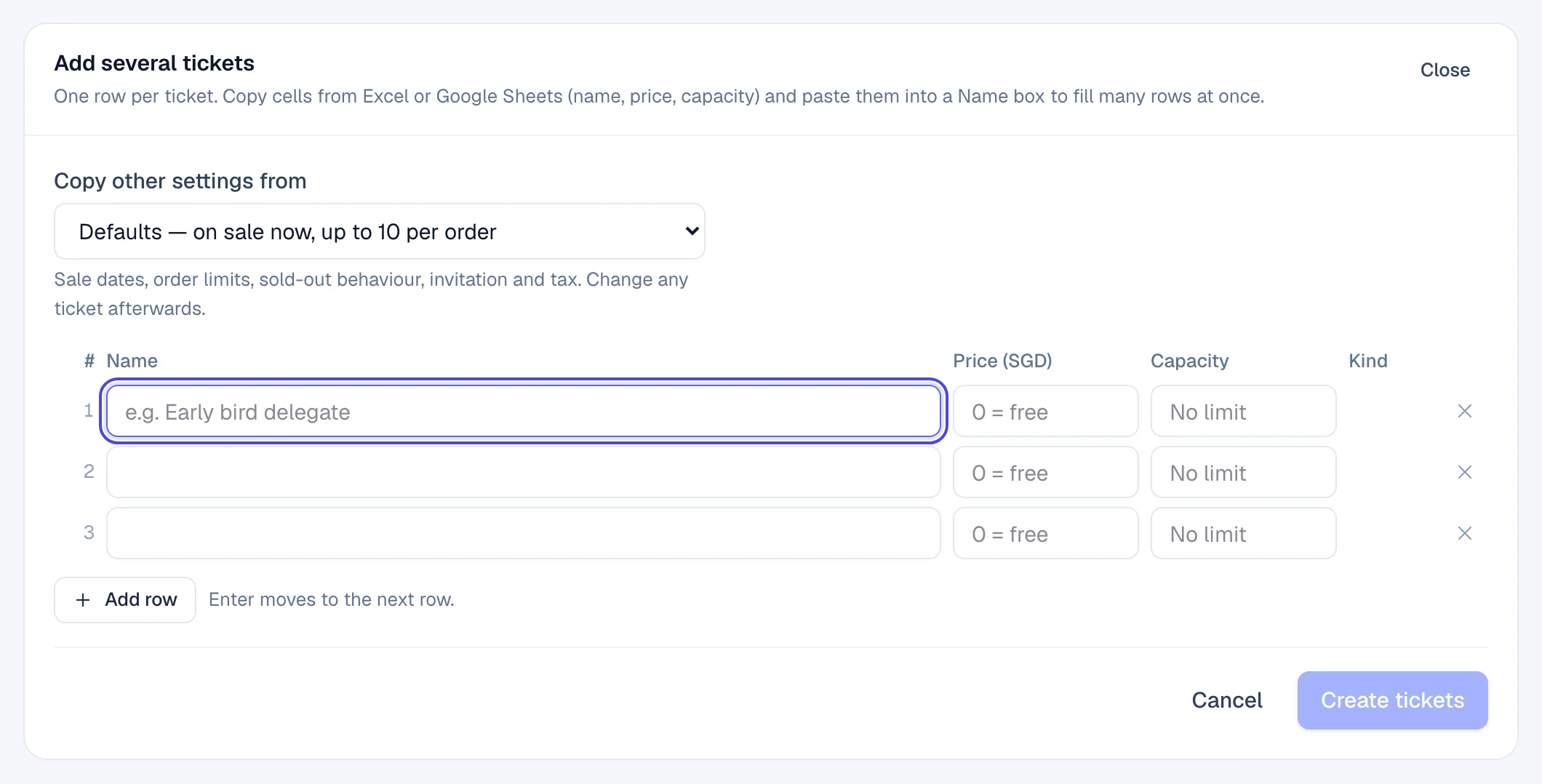
- On Tickets & pricing, click Add several.
- Optional: under Copy other settings from, pick a ticket whose sales dates and limits the new ones should share.
- Type one ticket per row: name, price and capacity.
Entermoves to the next row. - Click Create tickets. Every row is created together, or none if a row needs fixing.
Change the order buyers see#
Use the ↑ and ↓ buttons on a ticket's row. The registration page shows tickets in the same order as this list.
Copy a ticket#
Click the copy button on its row. The copy is called "… (copy)", has every setting of the original, and stays hidden until you rename it and put it on sale.
Stop selling a ticket#
- Click Archive on the ticket's row.
- Read what the dialog says about orders and carts using the ticket, then click Archive ticket. If the ticket already has orders, you confirm with your password.
Buyers no longer see an archived ticket. Every order that used it is kept, with the ticket on it. To bring a ticket back, tick Show archived and click Restore on its row.
Early-bird and member prices#
On a paid event, Tickets & pricing has two more tabs. Buyer categories gives groups such as Members or Students their own price. Pricing & tiers changes prices over time, such as an early-bird price until a date. See Set early-bird and category prices.
If something looks wrong#
- A ticket shows Sold out before its sold count reaches its capacity. Orders awaiting payment and buyers still checking out hold places too. Places held in carts come back when those carts expire.
- Archive says carts are holding the ticket. People are checking out with it right now. Wait for the time shown in the dialog, or tick the option to release their holds.
- Archive lists add-on tickets. Those add-ons can only be bought with this ticket. Change or archive them first.
- Sold counts don't match the orders list. An event admin can click Rebuild counters below the list. The notice says which counts it corrected.
- There is no price field. The event is free. To charge for tickets, click Convert to paid event on the banner or in Event details.
Who can do this#
Everyone with access to the event can see the tickets. Editors can add, change and reorder them. Only event admins can archive, restore or rebuild counters.
Related guides
- Set early-bird and category pricesChange ticket prices on dates you choose, such as an early-bird price, and give groups of buyers such as Members or Students their own price.
- Invite guests with invitation codesMake tickets invitation-only, give each guest a code or a personal link, import a guest list and see who has registered.
- Offer discount codesCreate codes that lower ticket prices, limit how often and when they work, and see how much discount each one gave.
Still stuck? In EventNook, ask HeyNook. It knows the page you're on and your event, and can take you straight to the right setting.