Your e-ticket and QR code
Find your e-ticket in your email or in My Order, print or save it, and show its QR code at check-in.
Your e-ticket is the pass you show at the door. Its QR code is scanned at check-in, and it carries your name, your ticket and the event's date and venue. It arrives in your confirmation email once your registration is confirmed, and you can open it again at any time.
Find your e-ticket#
- In your confirmation email: under Your tickets, each attendee's QR code with a View e-ticket button.
- On the confirmation page: Your ticket is ready with Download ticket, straight after registering.
- In My Order: each ticket's card shows its QR code, with View e-ticket. See Manage your registration to sign in.
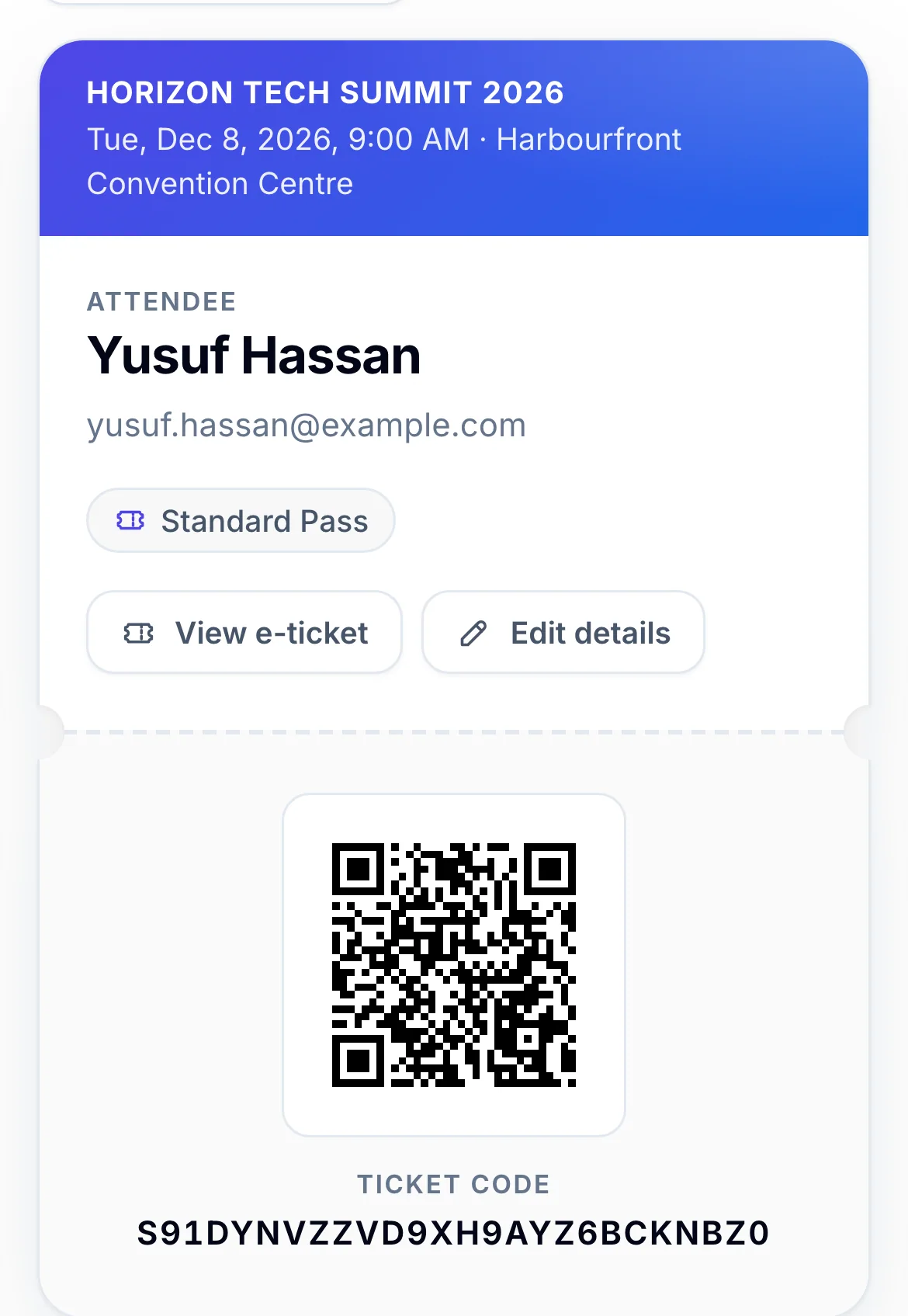
- 1Show this at check-in
- 2Open the full e-ticket, to print or save
- 3The ticket code under the QR code
Open, print or save it#
- Click View e-ticket (or Download ticket). The e-ticket opens in a new tab.
- To print it, use your browser's print command. Each ticket prints on a page of its own.
- To keep a file, choose Save as PDF as the printer.
The e-ticket shows the event, its date and venue, the attendee's name, the ticket, the order number and the QR code with Present this QR code at the entrance. Some events also print a Manual entry code, or answers from your registration such as your company.
If you bought several tickets, click View all e-tickets in My Order to open every ticket on the order on one page.
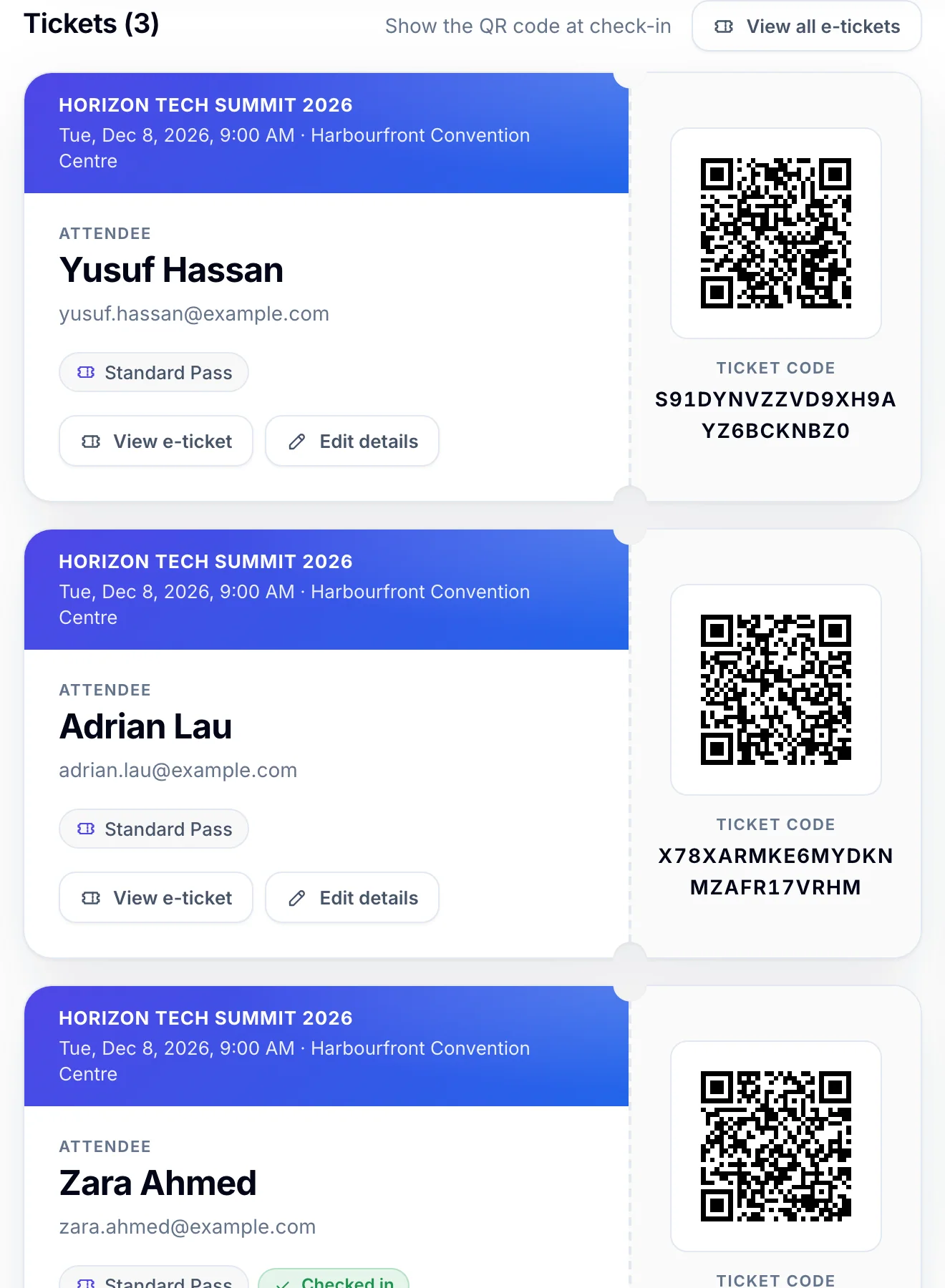
- 1Every ticket on the order on one page, to print together
At check-in#
Show the QR code on your phone, or bring it printed. If it won't scan, staff can type the manual entry code printed on some tickets, or look you up by name. When the event doesn't issue e-tickets, My Order says Give your name at check‑in.
If something looks wrong#
- Your QR code appears here once the registration is confirmed. Your registration is still waiting for payment or the organiser's approval. The e-ticket link says Ticket not available until then.
- This ticket was cancelled. The ticket, or the whole registration, was cancelled and no longer works.
- The organiser does not issue tickets for this event. Your confirmation email is your proof of registration.
- Document not found. The link is incomplete, or the ticket was replaced with a new one, which stops the old link and QR code. Click Sign in to My Order to find your ticket to open the current one.
- The QR code doesn't show in the email. Your email app may be blocking pictures. Allow them, or click View e-ticket.
- You've lost the email. Open the ticket from My Order, or send the email again: see Get your confirmation email again.
For organisers#
- Whether e-tickets are issued, how they look and what they show: Design the QR code e-ticket.
- Whether My Order and the confirmation page offer the e-ticket: the switch Offer the QR e-ticket on the confirmation and order pages on the same page.
- The QR codes in the confirmation email, and sending each attendee their own ticket: Email templates.
Related guides
- Manage your registrationSign in to My Order with a code sent to your email, see your registration and tickets, change your details and cancel if the organiser allows it.
- Get your confirmation email againSend your confirmation email again from My Order when you can't find it, to the address on your registration.
- Pay and get your confirmationPay for your tickets, see your confirmation, and find the confirmation email, invoice and receipt that follow.
Still stuck? In EventNook, ask HeyNook. It knows the page you're on and your event, and can take you straight to the right setting.