Add the event to your calendar
Save the event, or the sessions you want to attend, in Google Calendar, Outlook, Microsoft 365, Yahoo or Apple Calendar.
Attendees Updated 17 November 2026
Save the event's date, time and venue in the calendar you use, so it's there when the day comes. You can do it from the organiser's Add to calendar link, after you register, or session by session from the agenda.
Use the Add to calendar link#
- Open the Add to calendar link from the organiser, on the event's site or in an email.
- Under Choose your calendar:, click the one you use.
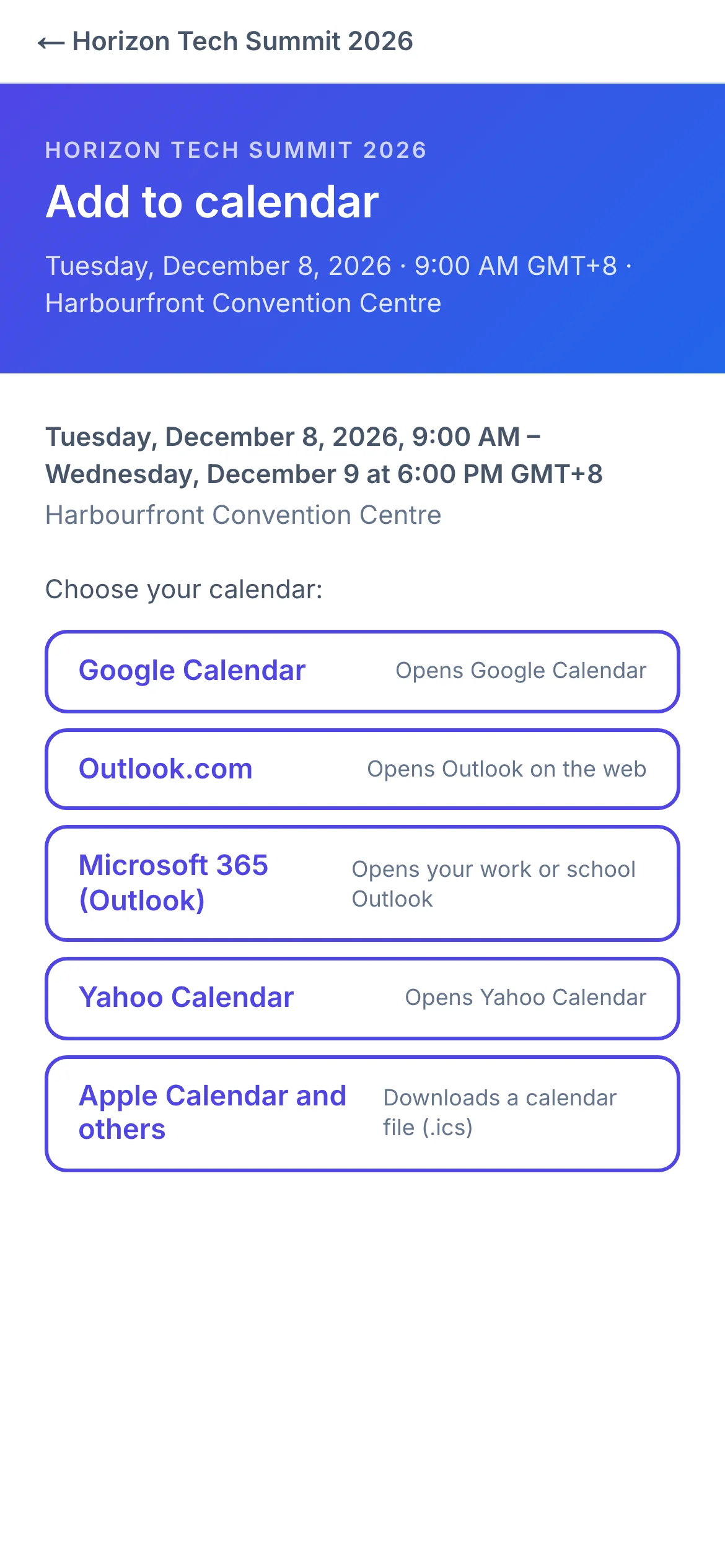
- 1Opens your calendar with the event filled in
- 2Downloads a calendar file that most calendar apps open
| Choice | What happens |
|---|---|
| Google Calendar, Outlook.com, Microsoft 365 (Outlook), Yahoo Calendar | Your calendar opens in a new tab with the event filled in. Check it and save it there. |
| Apple Calendar and others | A calendar file (.ics) downloads. Open it to add the event to Apple Calendar, or to any calendar app that opens these files. |
After you register#
- On the confirmation page: click Add to calendar and choose your calendar.
- In your confirmation email: click Add to calendar under the event's details. It downloads a calendar file.
- In My Order: in Manage, under Add to calendar, click Add to calendar and choose your calendar. See Manage your registration.
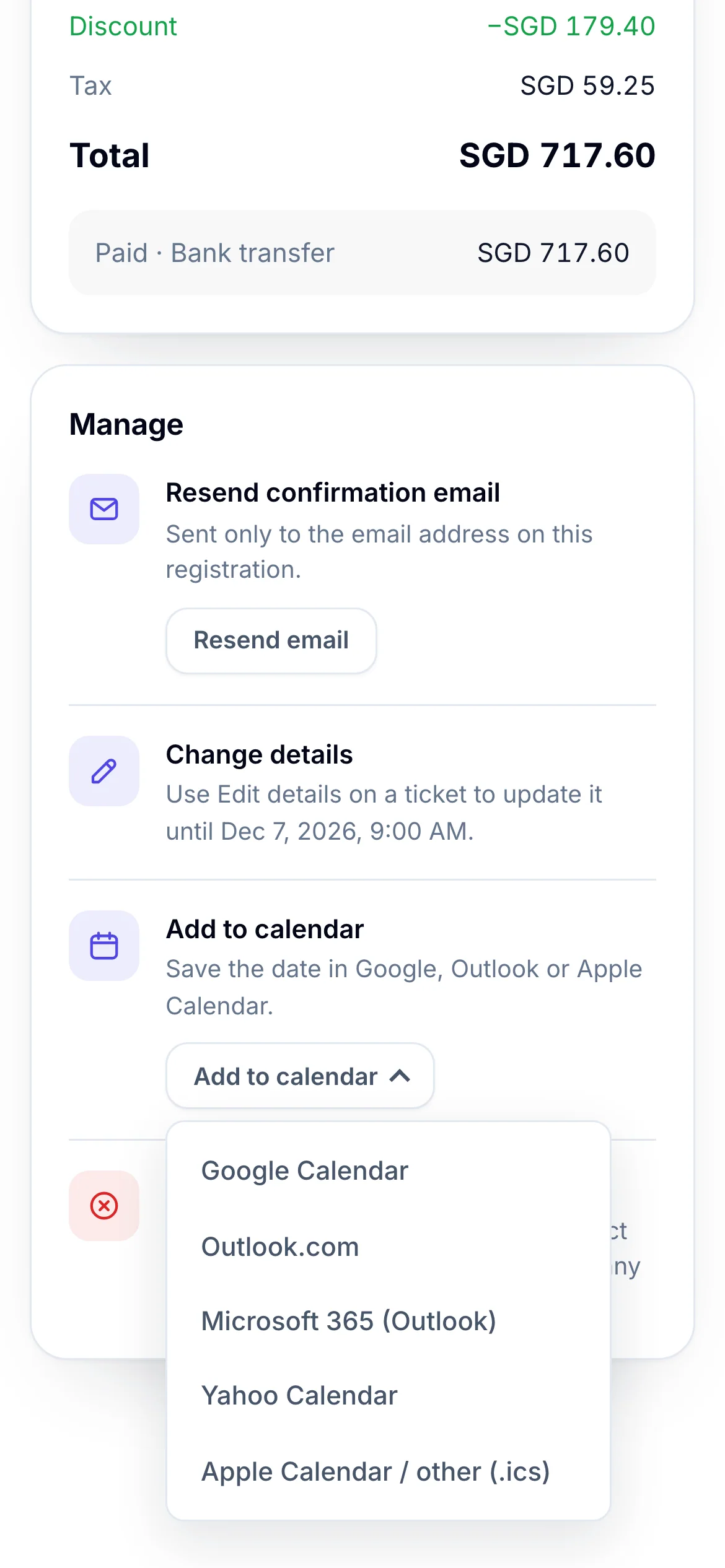
- 1Choose the calendar you use
Add sessions from the agenda#
When the event's site has an agenda:
- Click a session, then under Add to calendar choose Google Calendar or Calendar file (.ics).
- Click Download the agenda (.ics) to add every session at once.
- Where the agenda lets you save sessions, click the bookmark on each one you want (Save to my agenda), then Add my agenda to calendar to add only those. My agenda is kept in the browser you saved it in.
If something looks wrong#
- There's no Add to calendar. The event has no date yet, or isn't published. Check back later.
- The file opens the wrong app. Open the downloaded file from your calendar app instead, or choose your online calendar on the Add to calendar page.
- My agenda is empty on another device. Saved sessions stay in the browser you saved them in. Save them again there.
For organisers#
- The Add to calendar link to share, and its QR code: Share your event's links.
- An Add to calendar section on the event's site: Build the event website.
- The calendar button and attachment in the confirmation email: Email templates.
- The agenda and its sessions: Website pages.
Related guides
- Manage your registrationSign in to My Order with a code sent to your email, see your registration and tickets, change your details and cancel if the organiser allows it.
- Pay and get your confirmationPay for your tickets, see your confirmation, and find the confirmation email, invoice and receipt that follow.
Still stuck? In EventNook, ask HeyNook. It knows the page you're on and your event, and can take you straight to the right setting.