Share your event
Choose the right link for each place you promote your event, print its QR code, put registration on your website and point registrants to their own pages.
Where to find it: Event admin › Event setup › Share your event › Site URL & widget
Once your event is live, its site is ready to share. Send people the link that takes them where they need to go, put a QR code on your posters and slides, or show registration inside your own website. Most of what you need is on Site URL & widget.
Choose the link to share#
Open Site URL & widget, or from any event page click the arrow beside View site at the top and choose All event links. Under Public links, click Copy beside the link you want.
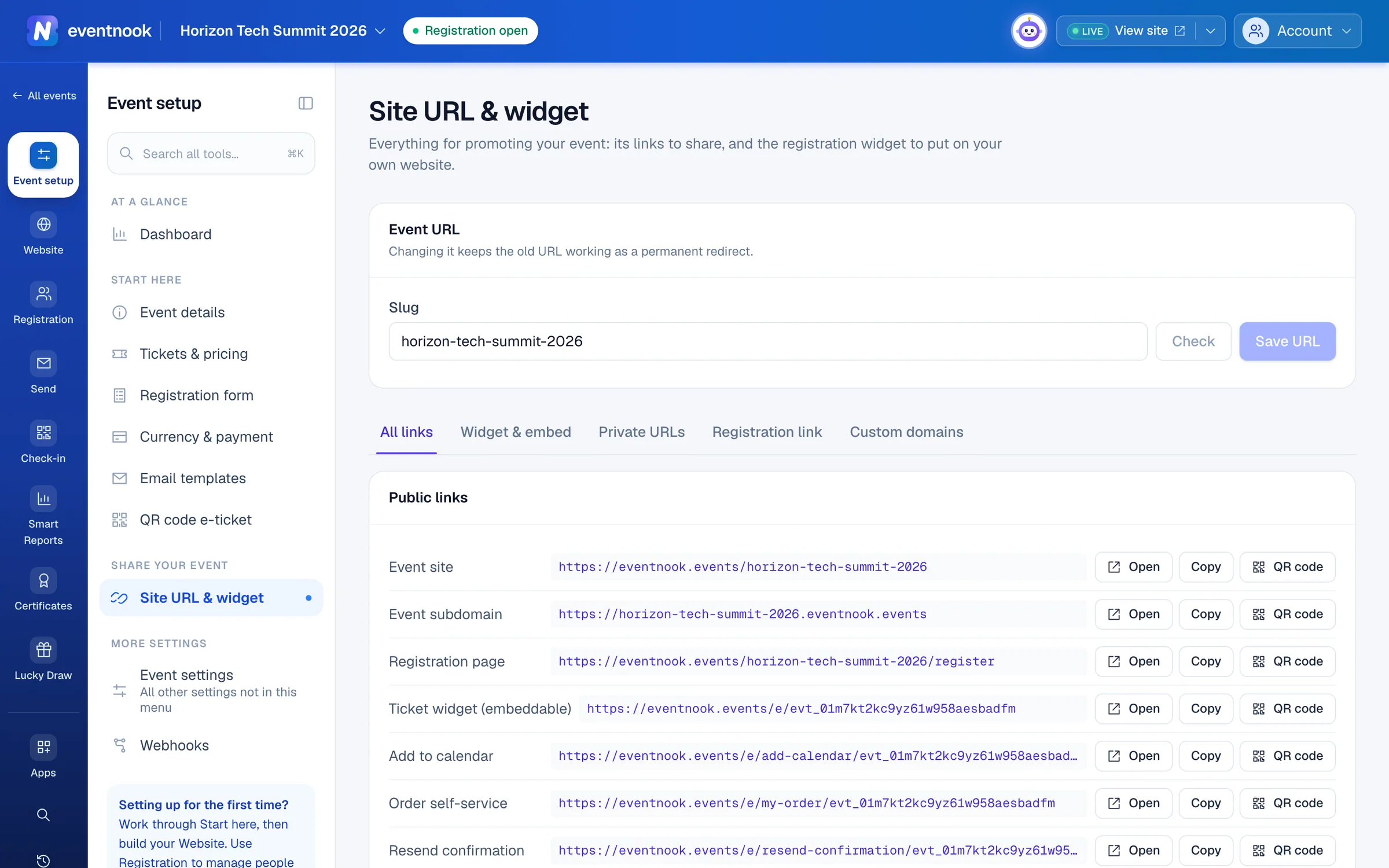
- 1The part of the address that names your event
- 2See whether a new address is free before you save it
- 3Links, the widget, private URLs, pre-filled links and your own domains
- 4A QR code for any link, to download for print or a slide
| To | Share |
|---|---|
| Tell people about the event | Event site, the event's home page at eventnook.events/your-slug. Event subdomain is the same site at your-slug.eventnook.events. |
| Take people straight to the tickets | Registration page. |
| Help people save the date | Add to calendar, a page where they choose Google, Outlook, Microsoft 365, Yahoo or Apple Calendar. |
| Let people who registered manage it | Order self-service: they sign in with an email code to see their registration and tickets. |
| Help people who lost their email | Resend confirmation: it opens the same sign-in, then they send the email again. |
| Use your own address | Custom domain …, once your domain is verified. |
Visitors can open the links once the event is published. If you change the event's address, the old one keeps redirecting. The links that carry the event's id (Add to calendar, Order self-service, Resend confirmation and the widget) don't change at all.
Print or show a QR code#
- Click QR code beside the link.
- Click Download SVG for print, or Download PNG for a screen or a slide.
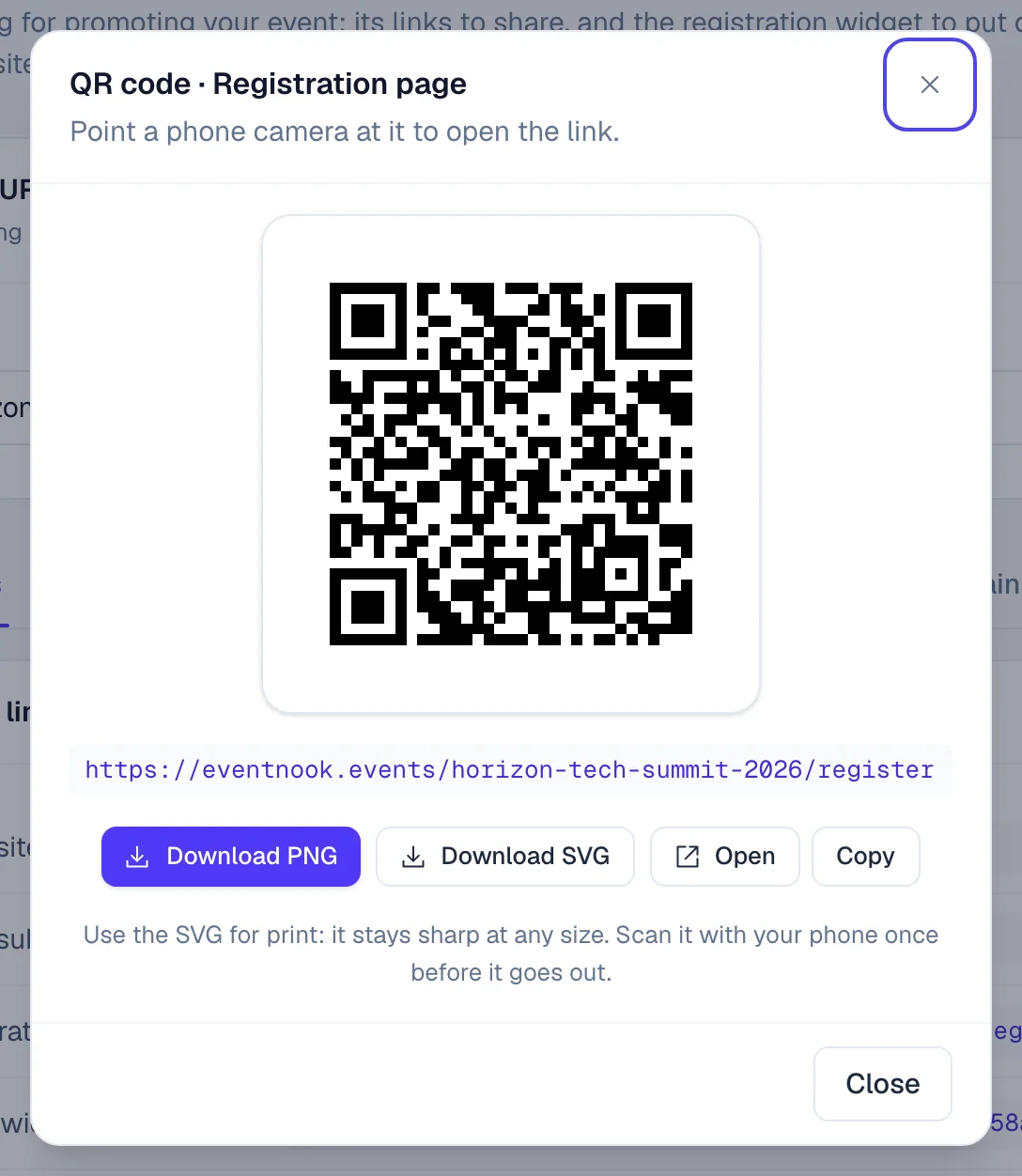
- 1For a screen or a slide
- 2For print; it stays sharp at any size
Put registration on your own website#
The registration widget is the ticket list and form, shown inside a page of your website. Visitors choose tickets and register without leaving it; to pay by card they go to the secure payment page and come back. Make one widget for each website, then paste its code once: changes you make later show without new code. See Share your event's links and embed the registration widget.
Give some people their own link#
- Private URLs, on Site URL & widget, show only the tickets you choose for a group, hidden tickets included.
- A Registration link, on the same page, picks a ticket, applies a discount code and records where the buyer came from, such as
newsletter. - A ticket's Registration form link, on the ticket's page in Tickets & pricing, opens its registration form straight away, with no ticket to choose.
For any other link attendees use, such as Manage my order, the can't-attend form or My certificate, ask HeyNook: it gives the address to paste.
Point registrants to the right help#
Send people these guides when they ask:
- Registering: Register for an event and Use an invitation or discount code.
- Their registration, tickets and emails: Manage your registration, Your e-ticket and QR code and Get your confirmation email again.
- Saying they can't come: Tell the organiser you can't attend.
If something looks wrong#
- Visitors see a page not found. The event isn't published yet. Before that, only you can see it, with Preview.
- A QR code opens the wrong page. Each link has its own code. Download it again from the row of the link you want, and scan it to check.
- The widget doesn't show on your website. Some website builders remove pasted scripts: use the widget's code meant for those builders. See Share your event's links and embed the registration widget.
Who can do this#
Everyone with access to the event can copy its links and download their QR codes. Making widgets and private URLs needs editing rights.
Related guides
- Share your event's links and embed the registration widgetChange the event's web address, copy its links and QR codes, put the registration widget on your own website, and make private, pre-filled and custom-domain links.
- Register for an eventChoose your tickets on the event's site, fill in your details and finish registering, on a phone or a computer.
- Manage your registrationSign in to My Order with a code sent to your email, see your registration and tickets, change your details and cancel if the organiser allows it.
- Publish your event and go liveFinish the pre-launch checklist, publish the event so people can see it and register, and take a test event live when you're ready for real registrations.
Still stuck? In EventNook, ask HeyNook. It knows the page you're on and your event, and can take you straight to the right setting.