Pay and get your confirmation
Pay for your tickets, see your confirmation, and find the confirmation email, invoice and receipt that follow.
On a paid ticket, the last step of registering is payment. When it's done you see a confirmation page, and an email follows with your tickets.
Pay for your tickets#
- Under Choose how to pay, check the Total and choose a way to pay.
- Optional: open Billing details to give the company name, address, tax number or purchase order number for your invoice or receipt. Some events require them: they are then marked *.
- Click the button at the bottom. Its words depend on the way you pay (see below).
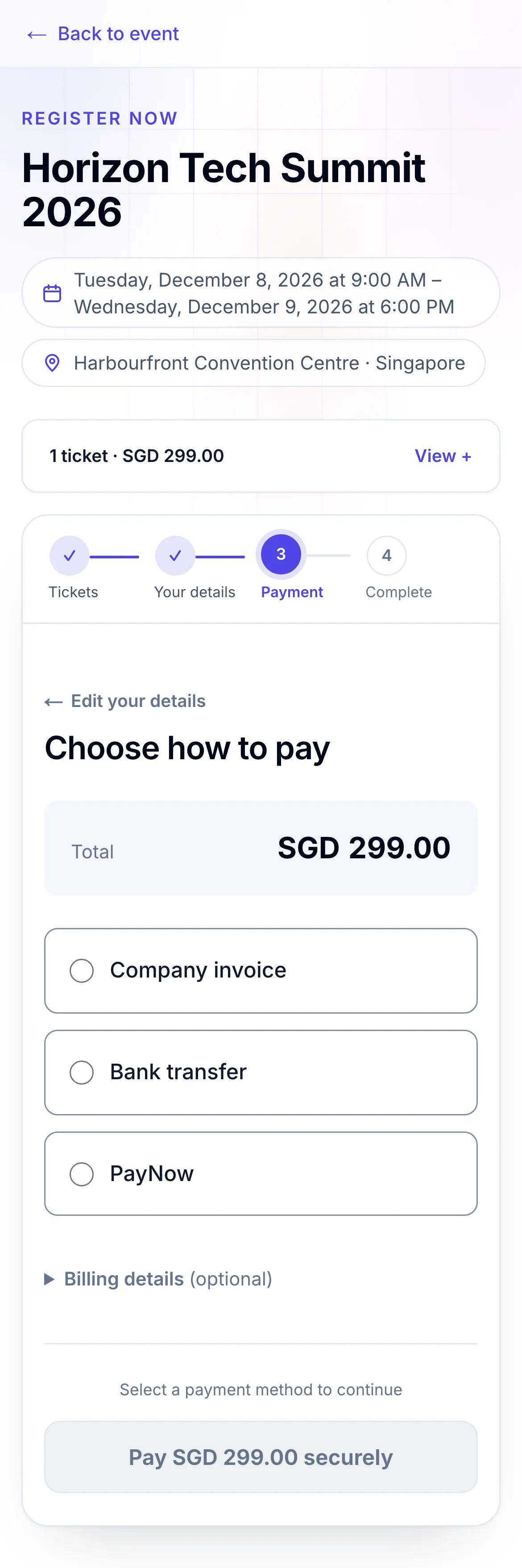
- 1What you pay
- 2Choose how to pay
- 3Its words change with the way you pay
The ways to pay are the organiser's choice, and they name them. These are the usual ones:
| Way to pay | What happens |
|---|---|
| Card | Click Pay … securely. You go to a secure payment page, pay there, and come back to the confirmation. |
| PayPal | Click Continue to PayPal, then approve the payment with the PayPal button that appears on the page. |
| PayNow QR that confirms itself | A QR code for the exact amount appears under Scan to pay with PayNow. Scan it with your banking app and keep the page open: it moves on by itself once your payment arrives. The code expires after the time shown; Choose another way to pay goes back. |
| PayNow QR you confirm | Scan the QR code, keep the amount and reference unchanged, then tick I have paid … by PayNow. You can add a Payment screenshot to help the organiser. Click I’ve paid — submit registration. On a phone, tap Save the QR image and open it from your banking app's gallery. |
| Bank transfer, cheque, invoice, pay at the event | Click Submit registration. Follow the payment instructions on the next page and in your email. Payment will be verified by the organiser. You can leave a Payment note for them. |
| SkillsFuture | Enter the Amount you will claim from SkillsFuture, up to the limit shown, and accept the SkillsFuture terms if asked. The page shows what's left for you to pay. |
To change your details before paying, click Edit your details at the top.
What you see when you're done#
The confirmation page replaces the form. The organiser designs it, but by default it shows:
- You’re registered! when your registration is confirmed, or Registration received when it still waits for payment or the organiser's approval.
- Your Order reference, with where your Registration and Payment stand.
- Your ticket is ready and Download ticket, once confirmed. See Your e-ticket and QR code.
- Next step: payment, with the organiser's instructions, while payment is due.
- The event's details, Add to calendar, and what you registered for.
- View invoice, View receipt and Manage my order.
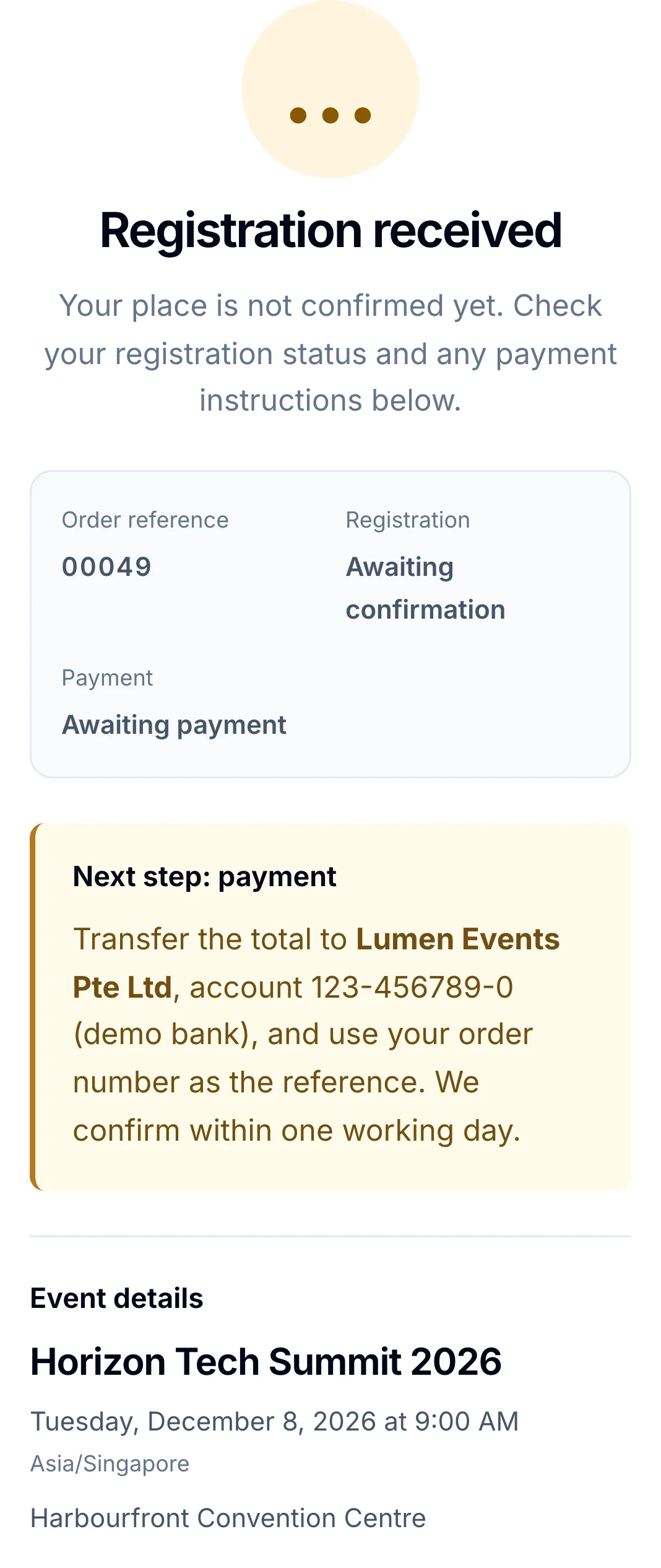
- 1Your order reference, to quote to the organiser
- 2How to pay, from the organiser
Some organisers move you on to a page of their own after a few seconds: the page says Taking you onward in 5s…, with Continue now to go at once.
Your confirmation email#
Within a few minutes you get an email at the booking contact's address:
- Confirmed: your confirmation, with each attendee's QR code under Your tickets and a View e-ticket button when the event issues e-tickets, the event's details with Add to calendar, and View order, View invoice and View receipt.
- Waiting for payment or approval: an acknowledgement that your registration was received, with any payment instructions. The confirmation with your tickets follows once it's confirmed.
Some organisers also email each attendee their own ticket.
Get your invoice or receipt#
Click View invoice or View receipt in your confirmation email or on the confirmation page. The document opens in your browser. To keep a copy, print it, or choose Save as PDF in the print dialog.
An invoice is there when the organiser issues one for your order. A receipt is issued once the order is paid. Until then, the link says Invoice not available or Receipt not available and why.
If something looks wrong#
- Checking your registration stays on screen. The payment is being confirmed. Keep the page open and click Check status. To pay another way, click Return to payment options.
- Thank you. Your payment is being confirmed. You came back from the payment page in a different window. You don't need to pay again: your confirmation is emailed once the payment is confirmed.
- Your payment was cancelled, or could not be completed. Your registration isn't paid yet. Try again, or choose another way to pay.
- A way to pay says Currently unavailable. Choose another one.
- No payment methods available. The event can't take payments online right now. Click Contact organiser, where shown, to ask them how to pay.
- Registration needs attention. Click Check status before you start another registration, so you don't register twice.
- No email arrived. Check your spam folder and the address you gave. To get it again, see Get your confirmation email again.
For organisers#
- The ways to pay and their instructions: Set the currency and how buyers pay.
- Invoices, receipts, billing details and tax: Set up invoices, receipts and tax.
- The confirmation page and where it sends people next: Design the register and thank-you pages.
- The confirmation and acknowledgement emails: Email templates.
- Registrations that wait for your approval: Approve orders.
Related guides
- Register for an eventChoose your tickets on the event's site, fill in your details and finish registering, on a phone or a computer.
- Your e-ticket and QR codeFind your e-ticket in your email or in My Order, print or save it, and show its QR code at check-in.
- Manage your registrationSign in to My Order with a code sent to your email, see your registration and tickets, change your details and cancel if the organiser allows it.
- Get your confirmation email againSend your confirmation email again from My Order when you can't find it, to the address on your registration.
Still stuck? In EventNook, ask HeyNook. It knows the page you're on and your event, and can take you straight to the right setting.