Manage your registration
Sign in to My Order with a code sent to your email, see your registration and tickets, change your details and cancel if the organiser allows it.
My Order is your own page for a registration you've made: your tickets, where the registration stands, and what you can change. Links to it say Manage my order or View order, in your confirmation email and on the confirmation page. You sign in with a code sent to your email: there is no password.
Sign in#
- Open Manage my order or View order from your confirmation email, or the link on the event's site.
- Under Manage My Registration, type the email you registered with, or the one on your ticket, and click Email me a code.
- Open the email with your 6-digit code and type it, or paste it, under Verification code. It checks itself once all six digits are in; you can also click Continue.
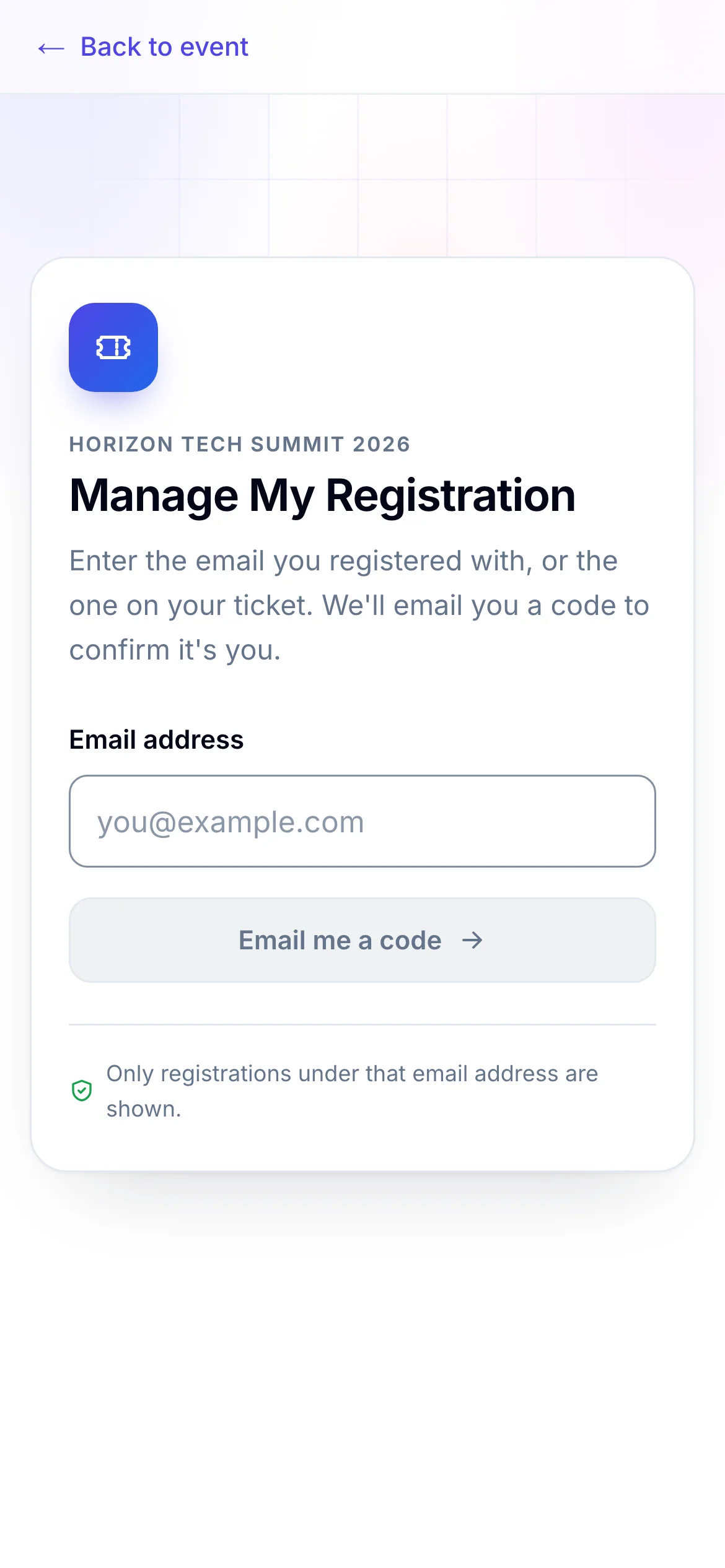
- 1The email you registered with, or the one on your ticket
- 2Sends a 6-digit code to that address
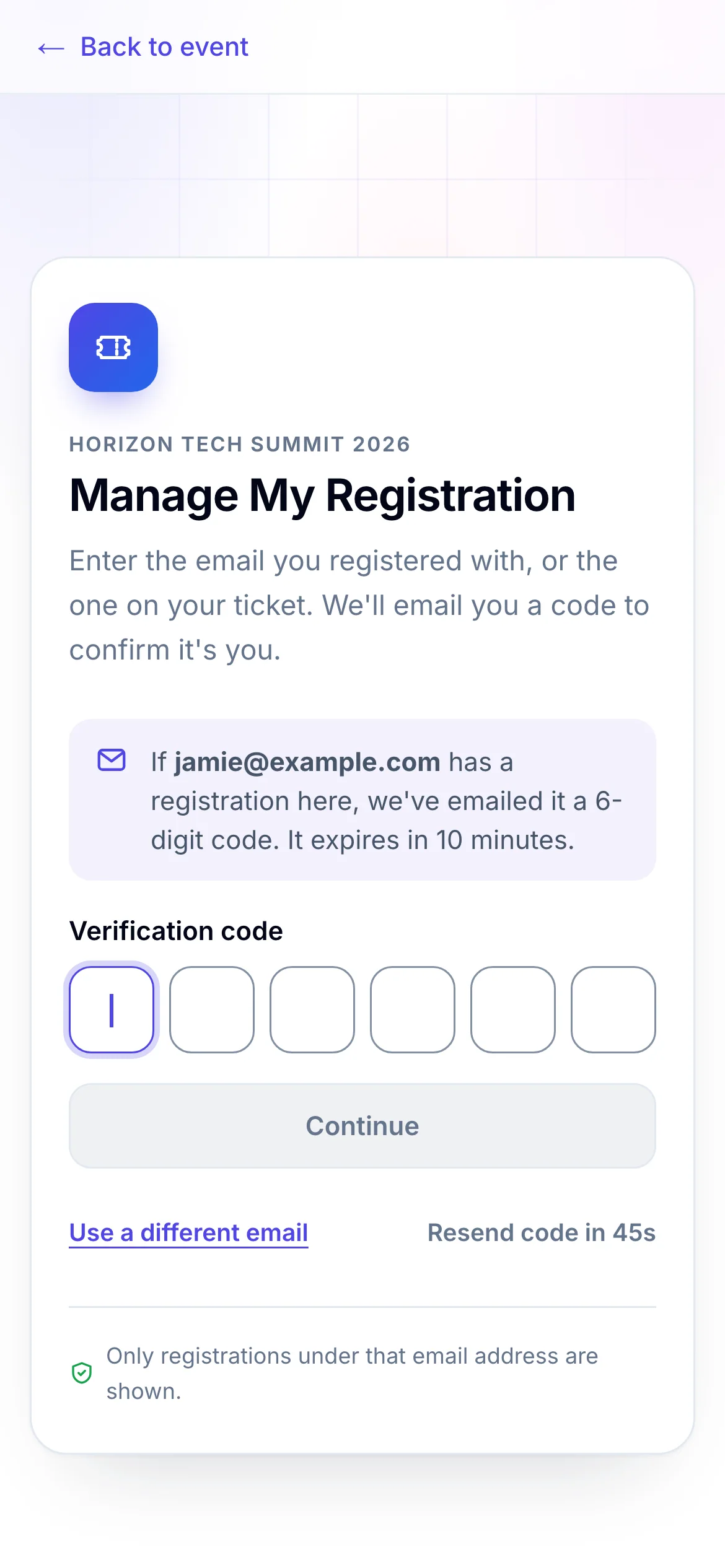
- 1Type or paste the code; it checks itself on the sixth digit
- 2Ask for a new code
The code expires in 10 minutes and works once. The page says the same thing whatever address you type, so check the spelling: a code is only sent when that address has a registration for this event.
You stay signed in on this browser while you use the page. Click Sign out, beside your email at the top, when you're done on a shared computer.
See your registration#
After signing in you see Your registration, or Your registrations if your address has several. Each shows its Reference, its status, the tickets on it and the total. Click one to open it.
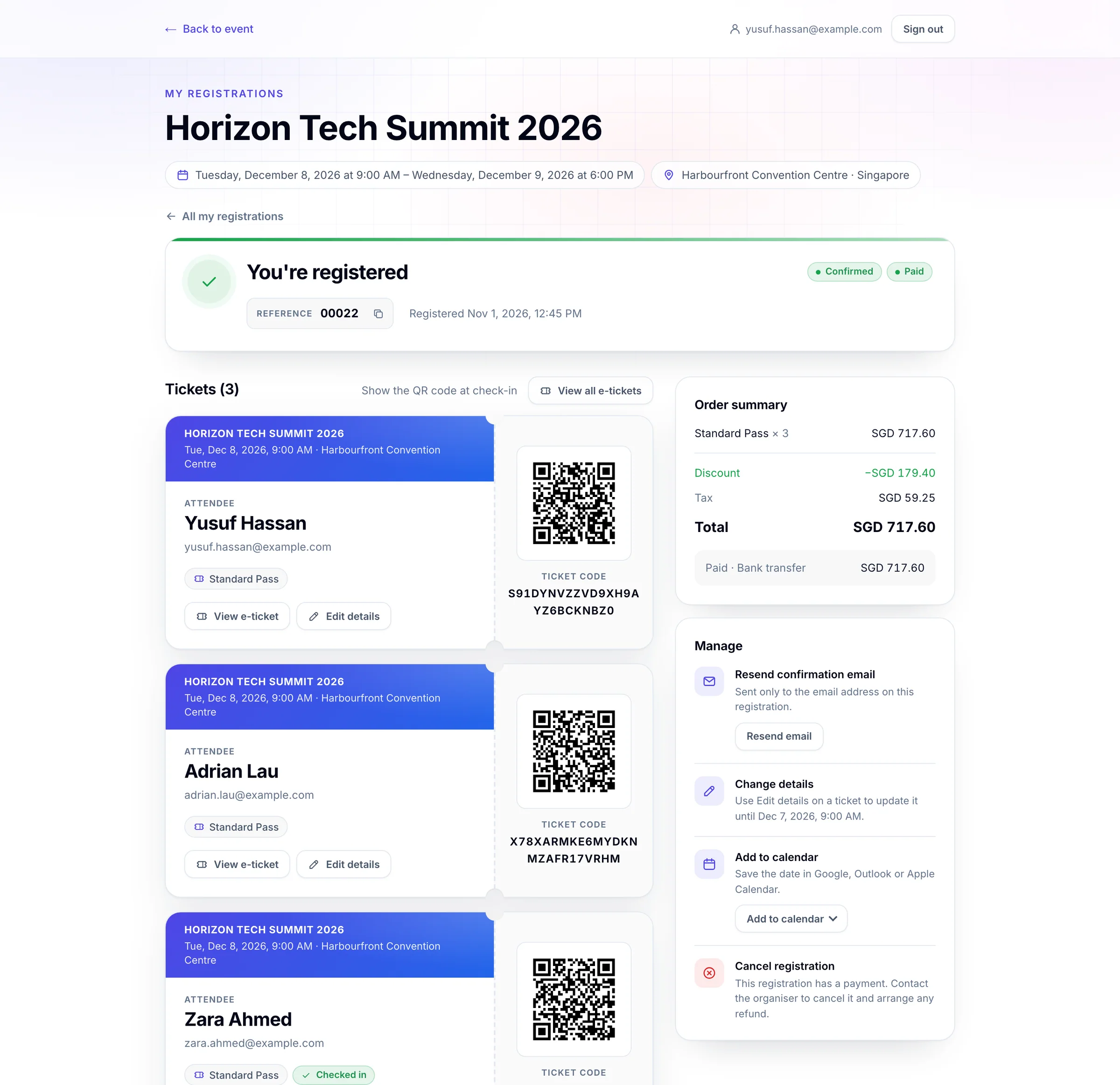
- 1Where your registration stands, and its reference
- 2One card for each ticket, with its QR code once confirmed
- 3What you paid
- 4What you can do, as the organiser allows
| At the top it says | What it means |
|---|---|
| You're registered | Confirmed. Your tickets work. If it adds that payment is still due, pay as the organiser asked. |
| Waiting for payment | The organiser hasn't received your payment yet. |
| Waiting for confirmation | The organiser is reviewing your registration. You get an email once it's confirmed. |
| Registration cancelled | The tickets on it no longer work. |
Under it, each ticket has its own card: the attendee, the ticket, its QR code and Ticket code once confirmed, and Checked in after check-in. The Order summary lists what you bought, any Discount, Tax and Fees, the Total, what was Paid and any Balance due. Click Copy reference beside the reference to quote it to the organiser.
If you signed in with an attendee's own email rather than the buyer's, you see Your ticket only: that attendee's ticket, without the rest of the order or its payment.
Change your details#
- Click Edit details on the ticket, or in Manage under Change details.
- Change what you need. Greyed-out details are shown but can't be changed here.
- Click Save changes. You're taken back to the registration, which says Your changes are saved.
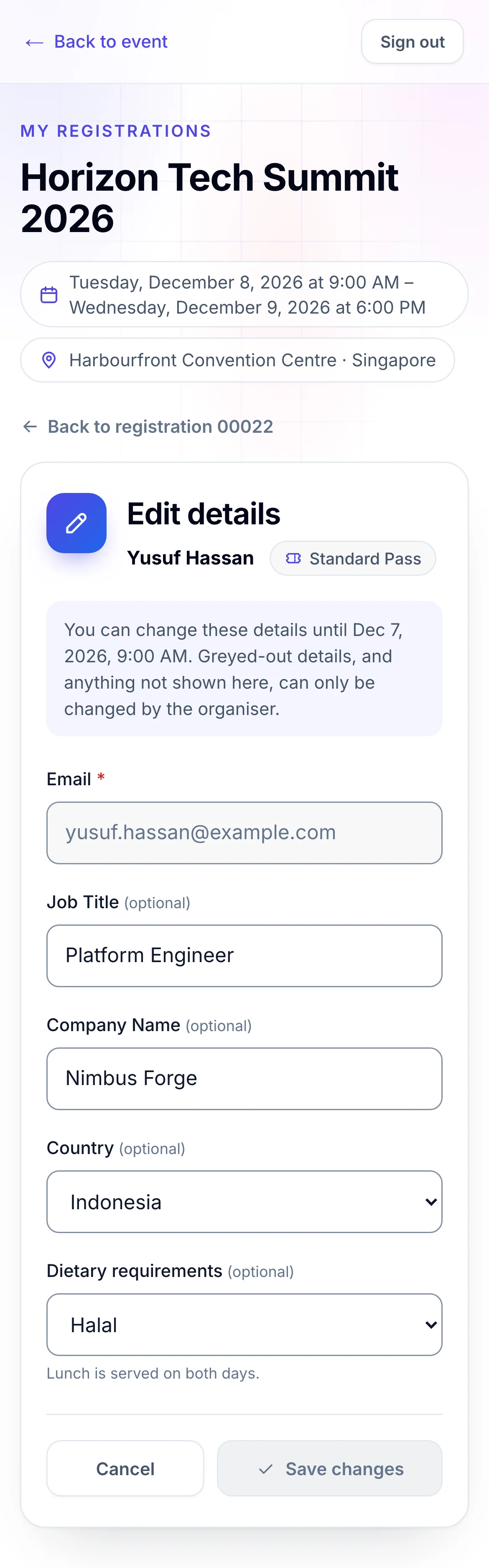
- 1Until when you can change them
- 2Saves; it wakes up once you change something
The buyer can change any attendee on the order; an attendee can change their own details. Your email address, and anything not on the page, can only be changed by the organiser. If there's a deadline, the page says until when.
Cancel your registration#
- In Manage, under Cancel registration, click Cancel registration.
- Read Cancel registration …? and click Yes, cancel it, or Keep it to stop.
- If the page asks you to Confirm it's you, click Email me a code and type the new code from your email. The cancellation then goes through.
The registration shows Registration cancelled and a cancellation email is sent.
Only the person who made the registration can cancel it. A registration with a payment can't be cancelled here: the page says This registration has a payment. Contact the organiser to cancel it and arrange any refund. If the organiser set a deadline, the page says until when you can cancel, and The deadline for cancelling has passed. after it.
More in Manage#
- Resend confirmation email: see Get your confirmation email again.
- Add to calendar: see Add the event to your calendar.
- Your e-tickets: see Your e-ticket and QR code.
If something looks wrong#
- No code arrives. Check your spam folder, and that you typed the address you registered with. Wait for Resend code to become available, or click Use a different email.
- This code is invalid or has expired. Request a new code. Codes last 10 minutes, and a newer code replaces an older one. Click Resend code and use the latest email.
- Too many attempts. Wait a few minutes, then request a new code.
- No registrations found. There's no registration for this event under that email. Try the address your confirmation email was sent to.
- Manage isn't there, or an action is missing. The organiser decides what you can do yourself. Contact them for anything else.
- The deadline for changing details has passed. Contact the organiser to make the change.
- These details were changed since you opened them. Someone else saved a change first. Click Reload, then make your change again.
- You're asked to sign in again. Sessions end after a while, or when you sign out. Request a new code.
For organisers#
- What registrants can do in My Order, which details they can change, and the deadlines: Set when and how people register.
- Whether My Order offers the e-ticket: Design the QR code e-ticket.
- How My Order looks, its bar and your content around it: Attendee portal.
- The email with the sign-in code, and the cancellation email: Email templates.
Related guides
- Your e-ticket and QR codeFind your e-ticket in your email or in My Order, print or save it, and show its QR code at check-in.
- Get your confirmation email againSend your confirmation email again from My Order when you can't find it, to the address on your registration.
- Add the event to your calendarSave the event, or the sessions you want to attend, in Google Calendar, Outlook, Microsoft 365, Yahoo or Apple Calendar.
- Pay and get your confirmationPay for your tickets, see your confirmation, and find the confirmation email, invoice and receipt that follow.
Still stuck? In EventNook, ask HeyNook. It knows the page you're on and your event, and can take you straight to the right setting.