Scan leads at your booth
Sign in to Lead Retrieval on your phone, scan the badges of the people who visit your booth, add notes and a rating to each lead, and export your leads.
Lead Retrieval turns your phone into a badge scanner for your booth. Scan the badge of each person who visits, and they become one of your team's leads, with their details and your notes on what you talked about.
Before you start#
- The event's organiser adds you to your company's team at the event. You then get an email called "Scan leads for … at …" with a link to Lead Retrieval. You don't need a password or an EventNook account.
- Use a phone with a camera and a web browser. Lead Retrieval opens in the browser: there is nothing to install.
- No invitation? Ask the organiser to add you, or to send the invitation again.
Sign in#
- Open the link in your invitation email on your phone. Lead Retrieval opens for your event, with your address filled in.
- Check the Email address is the one your invitation was sent to, and tap Email me a code.
- Open the email "Your Lead Retrieval sign-in code". The code has six digits and works for 10 minutes.
- Type the Code and tap Sign in. Your home screen opens, with your company's name, your booth and the event.
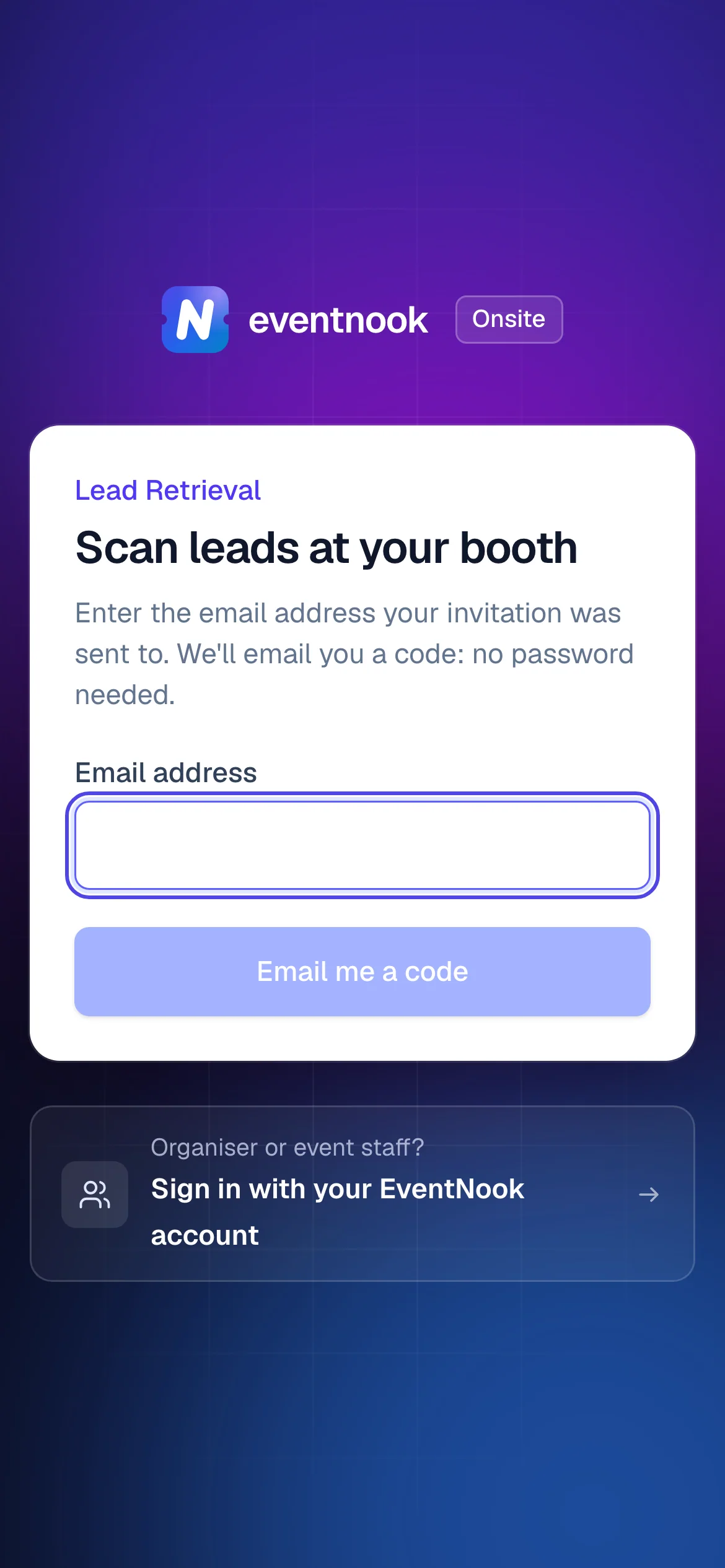
- 1The address your invitation was sent to
- 2Get a six-digit code by email
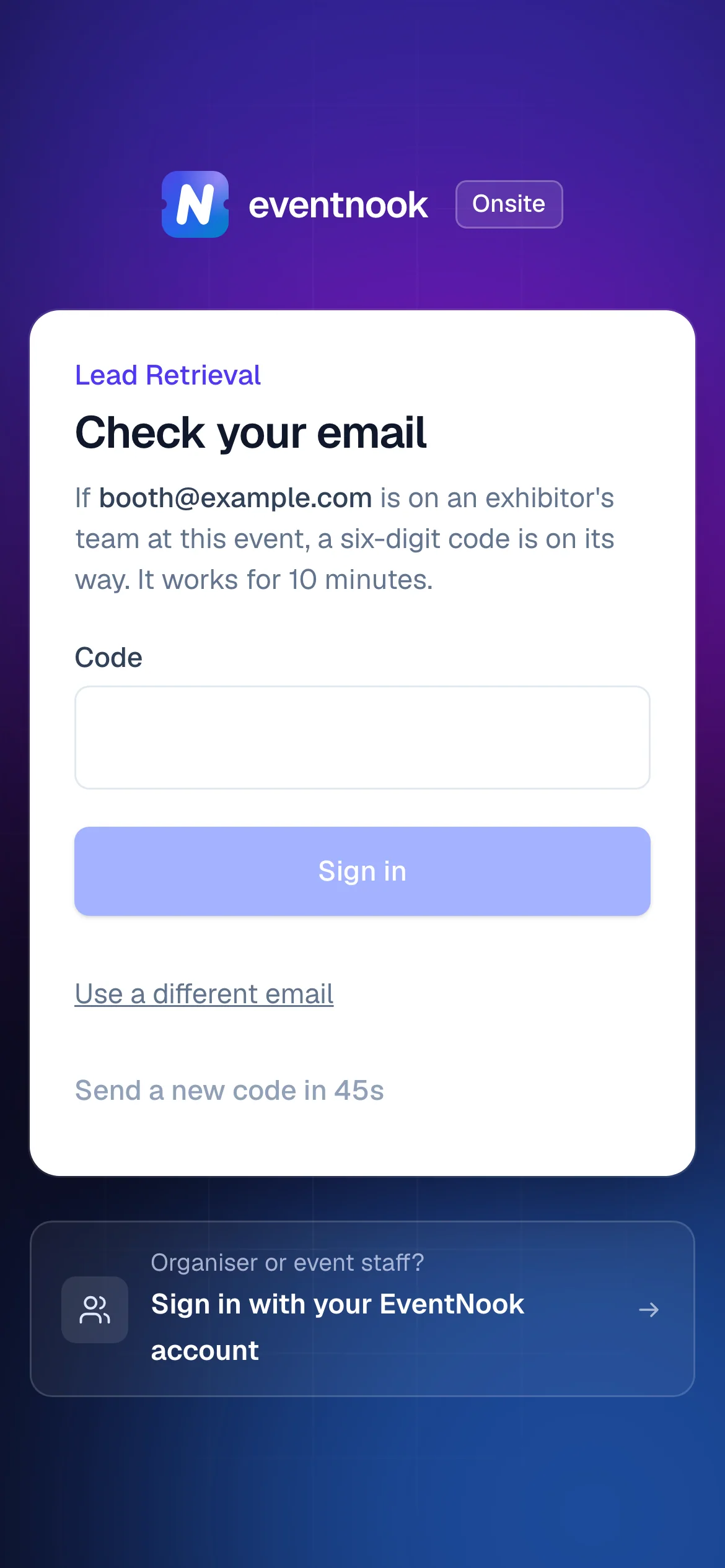
- 1Type the code from the email
- 2Ask for another code if it doesn't arrive
Your phone stays signed in, so you don't need a code each time you open Lead Retrieval. Keep the invitation email: its link brings you back to the right event.
Scan a badge#
- On Home, tap Scan a badge, or tap Scan in the bar along the bottom.
- Allow the camera when your phone asks.
- Hold the QR code on the visitor's badge or e-ticket inside the frame.
What the screen shows next:
| You see | What it means |
|---|---|
| New lead saved | The person is now one of your team's leads. Tap Add notes to qualify them. |
| Already one of your leads | Someone on your team scanned them before. A person is one lead, however many of you scan them. Tap Open the lead. |
| Not a lead | The code can't become a lead. The message says why, such as "That badge is for a different event." |
The camera stays open, so you can scan the next visitor straight away.
If the camera can't be used, type the code printed under the badge's QR code in Type a code and tap Add. A hand scanner paired with your phone can scan into the same box.
Scanning without a connection#
Exhibition halls often lose Wi-Fi. If there's no connection, the scan shows Saved offline: it's kept on your phone and sent when you're back online. A clock with a number in the top bar shows how many scans are waiting. The person's details appear once the scan is sent.
Qualify a lead#
- Open the lead: tap Add notes after a scan, or tap the lead in Leads.
- Tap a Rating and a Lead type, if your event uses them. Tap a chosen one again to clear it.
- Fill in your company's own fields, if it has any.
- Type a Note: what you talked about and what happens next.
- Tap Save. The bar above the bottom menu says Saved.
The organiser decides which of these your event uses and what the options are called, so your screen may differ. The top of the lead shows the visitor's details the organiser shares with exhibitors, and when and by whom they were scanned.
To remove a lead, tap Delete this lead, then Delete lead. It leaves your team's list and export. Scanning the person's badge again starts a new lead.
Find and export your leads#
- Tap Leads in the bottom bar. Your team's leads are listed, newest first.
- Optional: type in Search name, company…, or choose a rating to narrow the list.
- Managers: tap Export CSV to download the leads as a spreadsheet.
Home shows how many leads your team has and the latest five. Everyone on your team sees every lead the team scanned. Other exhibitors never see your leads.
For managers: your own fields and your team#
The organiser makes each person on your team a Manager or Staff. Staff scan and qualify leads. Managers can also do the following, when the organiser allows it.
Add your own fields. Tap Fields in the bottom bar. Tap Add a field, name it (such as "Products of interest") and choose its type: Short text, Long text, One choice, Several choices or Yes or no. A choice needs at least two options. Tap Save. Everyone on your team fills these in on each lead. The organiser sets how many fields you can have.
Manage your team. Tap Team. Tap Add someone, type their Name and Email address, choose a Role and tap Add and invite. They get the invitation email straight away. On a person's row you can change their role, tap Send invitation again or tap Remove. Someone you remove is signed out at once, and the leads they scanned stay with your team. You can't remove yourself or make yourself staff: ask another manager or the organiser.
Sign out#
On Home, tap Sign out, then Sign out again. To sign in again you need a new code from your email. If scans are still waiting on the phone, they stay on it and are sent when you sign in again on that phone.
After the event#
You can keep signing in to see and export your leads for a while after the event. Home says until when: "You can see your leads until …". After that, Lead Retrieval shows Lead Retrieval is closed. Export your leads before then.
If something looks wrong#
- The code email doesn't arrive. Check your spam folder. Make sure you typed the address your invitation was sent to: a code is only sent to an address on an exhibitor's team. Tap Send a new code when the countdown ends, or Use a different email.
- "This code is invalid or has expired. Request a new code." The code is more than 10 minutes old, was already used, or a newer one was sent. Tap Send a new code and use the latest email.
- "Open your invitation link". Lead Retrieval doesn't know which event you're at. Open the link in your invitation email.
- "This phone is signed in as …". The phone is signed in as someone else on a team. Tap Sign out, then open your own invitation link.
- "That badge isn't a current registration at this event." The visitor's registration is cancelled or not yet approved. Send them to the registration desk.
- "That isn't a badge or ticket code for this event." The code isn't from this event's badges or e-tickets. Scan the QR code on the badge itself.
- "That's a lot of scans in an hour. Wait a little and scan again." Wait a few minutes, then carry on.
- A lead shows Registration removed. The organiser cancelled or removed the visitor's registration after you scanned it, so their details are hidden. Your notes stay.
- "A teammate changed this lead". Someone on your team saved the same lead while you were editing. Tap Load their version, then make your change again.
- There's no Export CSV or Add someone. Only managers have them, and only when the organiser allows it. Ask a manager on your team or the organiser.
- The camera doesn't start. Allow camera access for the browser in your phone's settings, then reload the page. Or type the code under the badge's QR code.
For organisers#
You set up the teams, choose what exhibitors see and record, and decide how long they keep access. See Run Lead Retrieval for your exhibitors.
Related guides
Still stuck? In EventNook, ask HeyNook. It knows the page you're on and your event, and can take you straight to the right setting.