Keep a crew handbook in the Knowledge Base
Write the notes your crew needs on the day, choose who reads each one, and share a note or the whole handbook with crew who have no account.
Where to find it: Onsite › Knowledge › Knowledge Base
The Knowledge Base holds what your crew asks on the day: parking, VIP arrivals, lanyard colours, who to call. Your team reads it in Onsite, and crew without an account read it through a share link or a help site of its own.
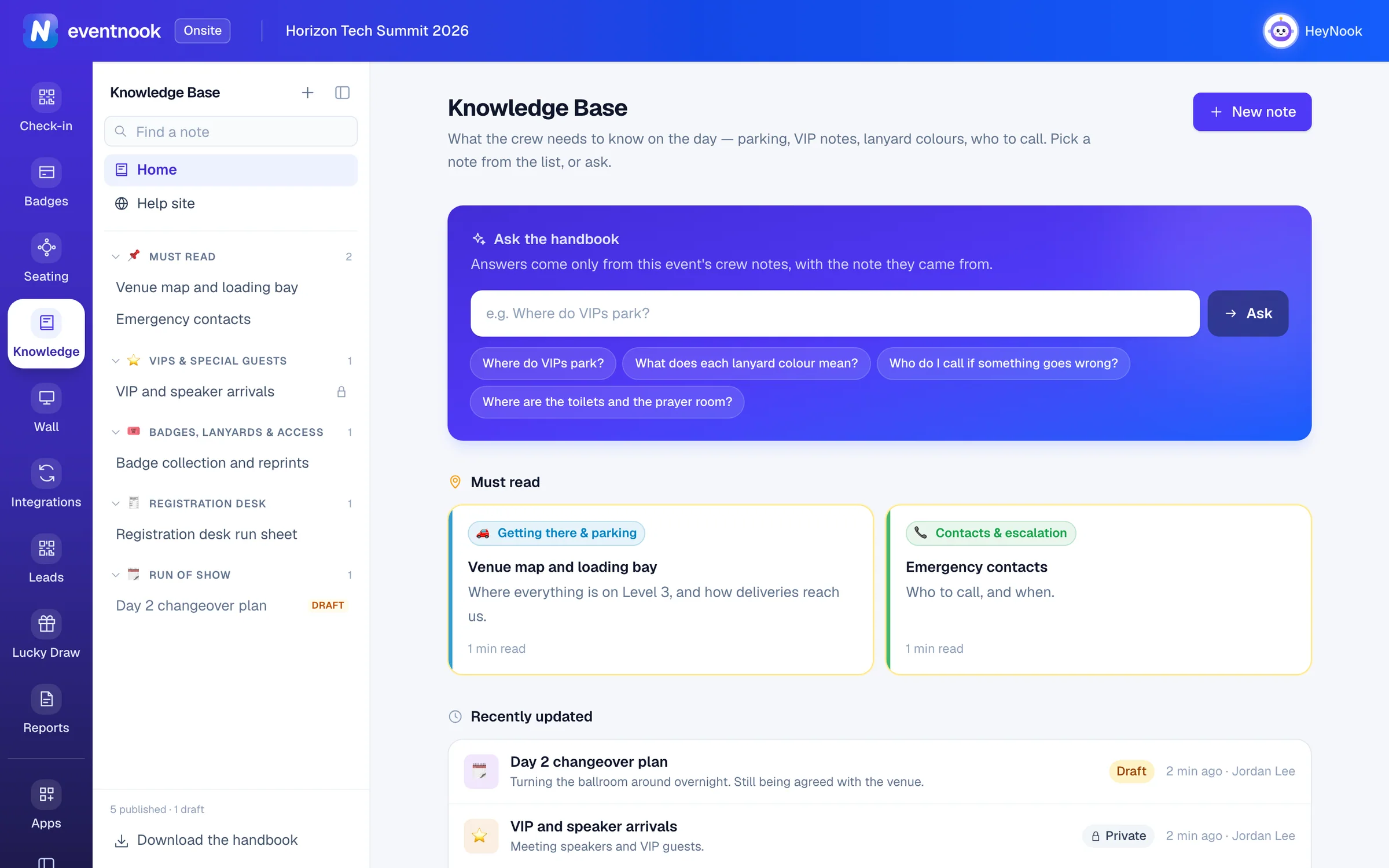
- 1Start a note with AI, from a template or blank
- 2Narrow the list of notes
- 3Publish the notes as a site for crew without an account
Add the app to your event#
The Knowledge Base is an add-on app. Open Apps in Onsite or in Event admin, find Knowledge Base and click Add to this event. Knowledge then appears in Onsite's menu for everyone on the event.
If Knowledge Base shows as not in your plan, ask EventNook to add it. See Add an app to your event.
Write a note#
- In Onsite, open Knowledge and click New note, or + at the top of the list of notes.
In New crew note, choose how to start:
- Type rough notes, a pasted email or a few bullet points in Tell the AI what the crew needs to know, and click Write it with AI.
- Pick a template: Parking & drop-off, VIP arrival notes, Lanyard & badge colours, Venue guide, Run of show, Registration desk guide, Contacts & escalation, Emergency procedures or Attendee FAQ.
- Click Blank note to write it yourself.
- The note opens in the editor as a draft. Type its title, a one-line summary and the note.
- Click Save draft to keep working on it, or Publish to show it to the crew.
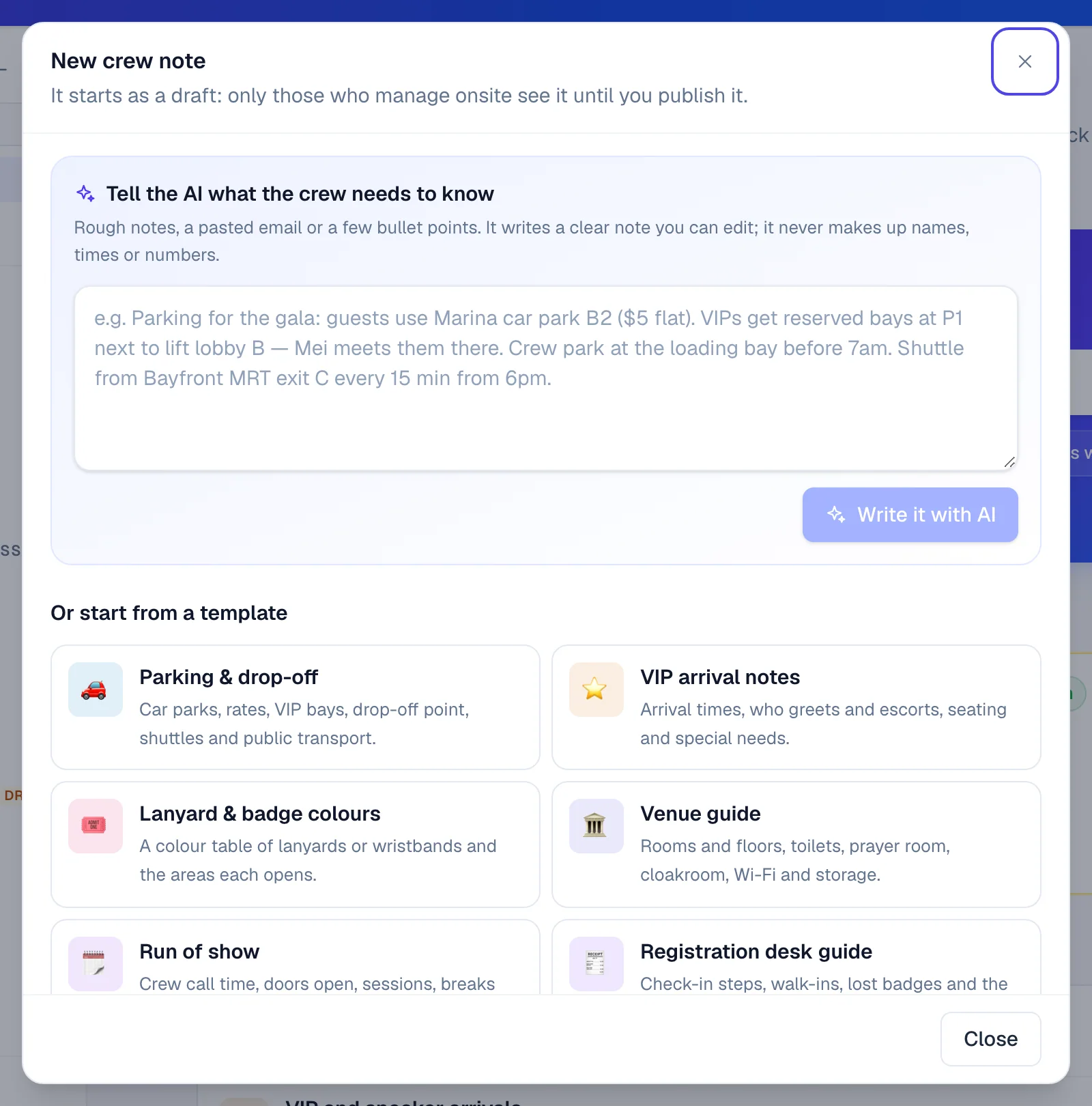
The AI writes from what you give it and never makes up names, times or numbers. Write it with AI shows only when AI is available for your organisation.
Templates and the AI leave [square-bracket] gaps for what they don't know. The editor's top bar counts them (… gaps to fill), and publishing a note that still has one asks first.
Choose who reads a note#
At the top of the editor, set three things for each note:
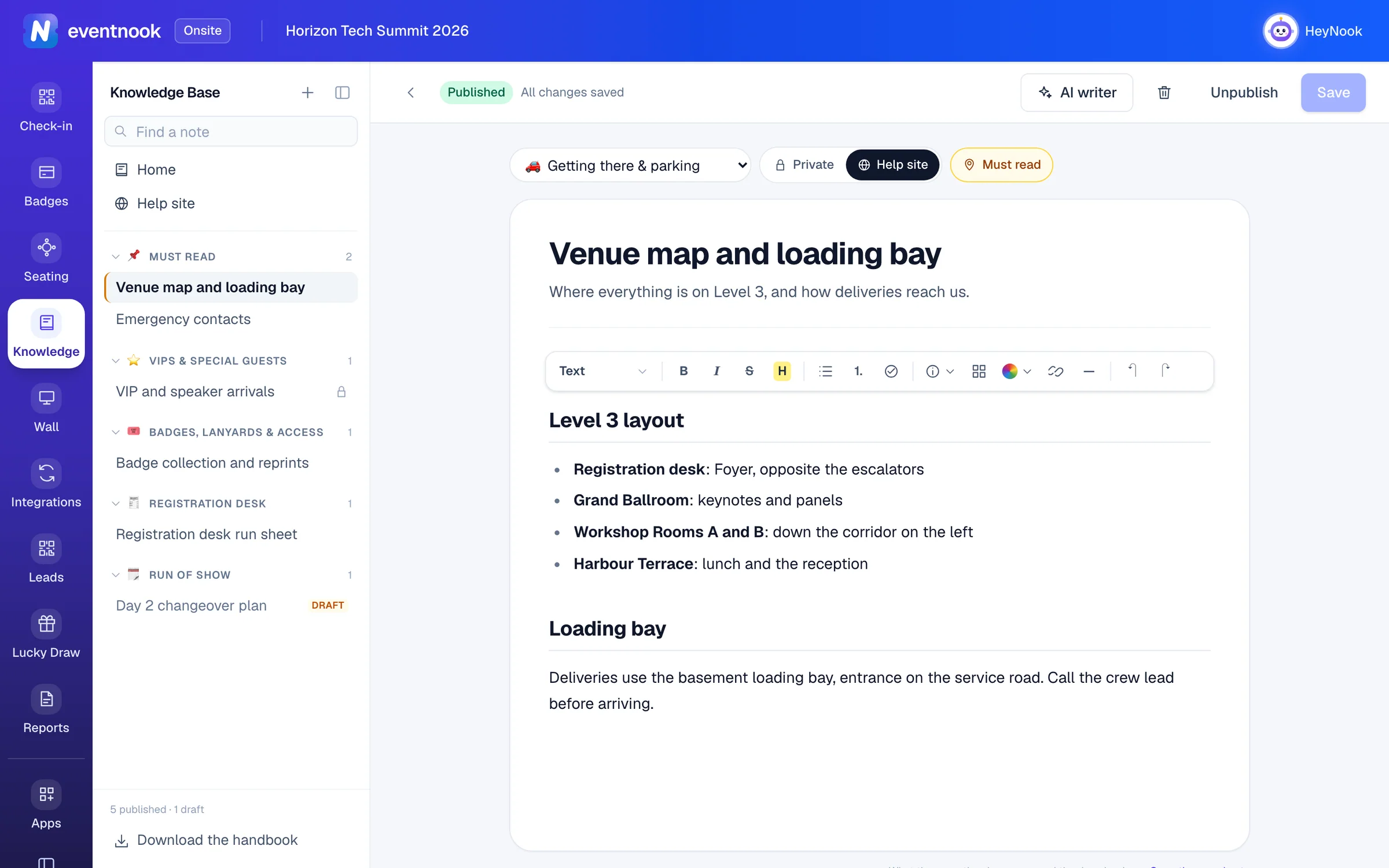
- 1What the note is about, which decides where it is listed
- 2Private, or on the help site
- 3Pin it to the top as Must read
- 4Ask the AI to write or change the note
- 5Show it to the crew, or take it back to draft
| Setting | What it does |
|---|---|
| Category | What the note is about, such as Getting there & parking or Contacts & escalation. The list and the help site group notes by it. |
| Private or Help site | Private: only those who manage Onsite read it, and it is never on the help site. Help site: everyone on the event reads it in Onsite once published, and it is on the help site. Default: Help site. |
| Mark as must read | Puts the note in Must read, at the top of Home, the list and the help site. |
A draft is only seen by those who manage Onsite, whichever you choose. Click Unpublish to take a published note back to draft: the crew stops seeing it and its share link stops working until you publish it again.
Change a note with the AI writer#
- In the editor, click AI writer.
- Paste notes or describe the change, such as "Add that the shuttle stops at 11 pm", and send it.
- Read what it changed in the note. Click Undo this change, or Restore this version on an earlier answer, if you don't want it.
- Click Save or Publish. The AI writer never saves or publishes for you.
If someone else saved first#
When another person saved the note while you were editing, the editor says who. Click Keep my version to save yours over theirs, or Load theirs (lose my changes).
Read and ask on the day#
Home shows the Must read notes and what was Recently updated, with who changed it. A note opens with On this page beside it for long notes, and Download and Print. Download the handbook, at the foot of the list, saves every published note as one file.
When AI is available for your organisation, Ask the handbook on Home answers a question from this event's notes and links the notes it came from. A question the notes don't answer is kept for you in Unanswered questions (below).
Share one note by link#
For crew with no account, such as volunteers, drivers or the venue's security:
- Open a published note and click Share.
- Click Create share link.
- Click Copy link to send it, or print the QR code on a briefing sheet.
The page always shows the latest published version, and anyone with the link can read it. New link replaces the address and QR code at once; Stop sharing ends it. A draft can't be shared.
Publish the help site#
The help site is every note that is on it, as one site with search, a list of notes and, if you switch it on, an AI chat that answers from the notes. Crew open it from one link or QR code, with no account.
- Open Knowledge and click Help site in the list of notes.
- On Overview, read Before you share: notes with gaps to fill or no summary, drafts that aren't on the site, and whether there is a contacts note and an emergency procedure.
- Click Preview to see the site as the crew will.
- Click Publish the site. The link and QR code appear, with Copy link.
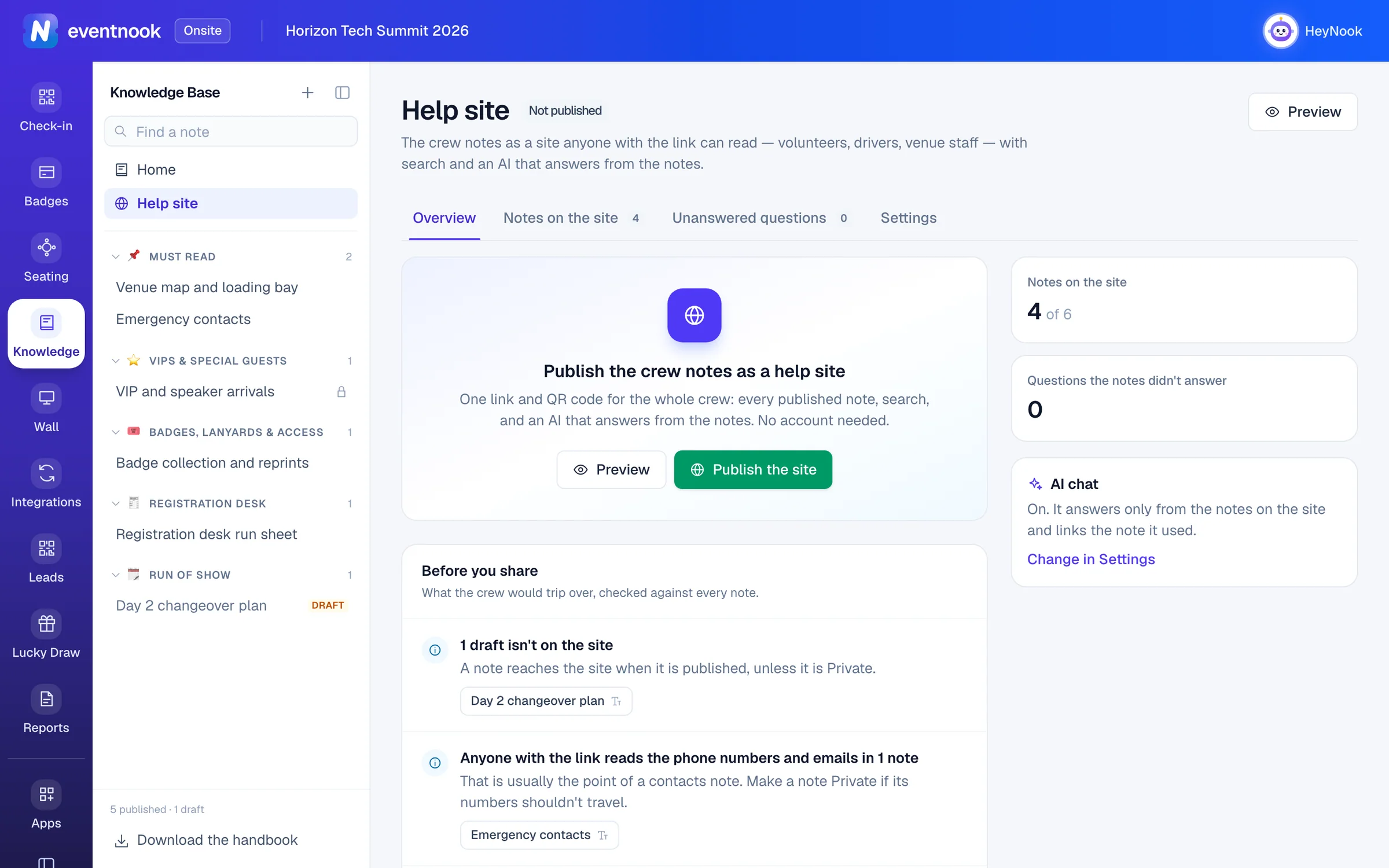
- 1See the site as the crew will
- 2Which notes are on the site, and their order
- 3What the crew asked that the notes didn't answer
- 4The site's title, welcome message and AI chat
| Tab | What you do there |
|---|---|
| Overview | Publish, copy the link, show the QR code, New link and Unpublish. |
| Notes on the site | Move a note up or down within its group. Switch Help site off to make a note Private. A draft joins the site once it is published. |
| Unanswered questions | Questions the AI couldn't answer from the notes, most asked first. Write a note starts a note from the question; Dismiss sets it aside. Who asked is never kept. |
| Settings | The Site title (default: Crew help), a Welcome message for the front page, and AI chat on the site. Each question uses your organisation's AI allowance. |
Unpublish closes the site but keeps its link: the same link and QR code work again when you publish again. New link replaces them, and the old ones stop working at once.
If something looks wrong#
- Publish the site is greyed out. No published note is on the help site yet. Publish a note that isn't Private.
- The crew can't see a note. It is still a draft, or it is Private. Publish it, and choose Help site if the crew should read it.
- A shared note says "This note isn't available". The link was replaced or stopped, or the note was unpublished or deleted. Send the current link from Share.
- The help site says "This help site isn't available". The site was unpublished or its link was replaced. Publish it again, or send the new link.
- There is no Ask the handbook, Write it with AI or AI chat. AI or the Smart Assistant is off for your organisation. Notes, search and sharing work without it.
- "This note is too long — split it into two notes." Move part of it into a new note.
Who can do this#
Everyone with access to the event in Onsite reads the published notes that aren't Private. Writing, publishing, sharing, the Private notes and the help site need permission to manage Onsite, which Event Admin and Event Editor have.
Related guides
- Add an app to your eventSee which add-on apps your plan includes, add one to an event so it joins the menu for the whole team, and take it off again when you no longer need it.
- Let staff check in on their own devicesGive your team and volunteers an access code so they can check people in on their own phones, tablets or laptops without an EventNook account, and stop any device at any time.
- Work with your team in ChannelsTalk with your event team in channels and threads, ask HeyNook in front of everyone, catch up with a summary, and keep shared notes and to-dos, in the admin and in Onsite.
Still stuck? In EventNook, ask HeyNook. It knows the page you're on and your event, and can take you straight to the right setting.