Run a lucky draw on the big screen
Add prizes, choose who can win, and draw winners live on the projector from your phone, then hand the prizes out at the desk.
Where to find it: Event admin › Lucky Draw
The Lucky Draw gives everyone who can win a lucky number, then draws prize winners live: you press a button on your phone, and the number rolls on the projector and lands on the winner.
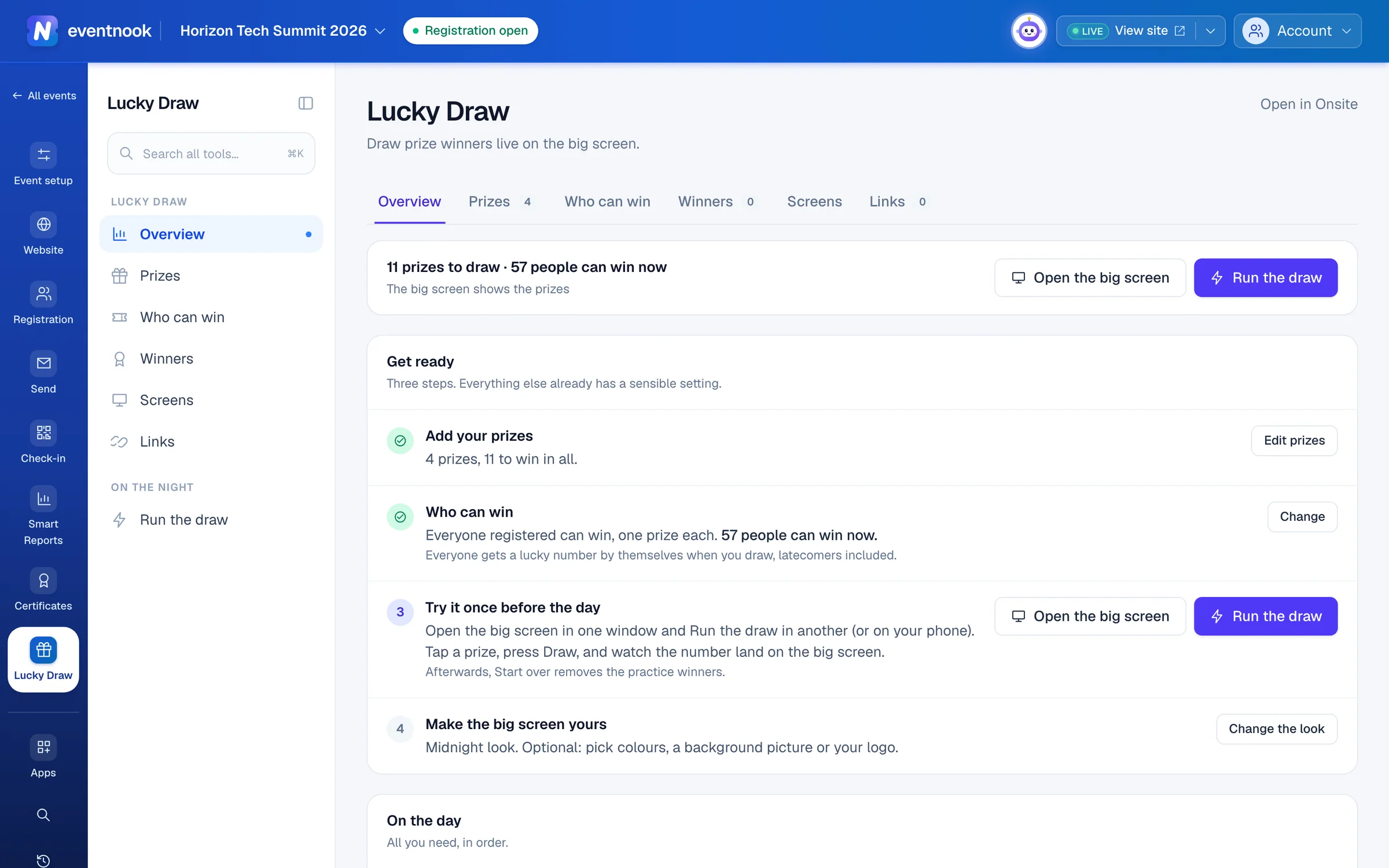
- 1The only step that needs doing
- 2Practise with the big screen and the console, then start over
- 3Change how the big screen and the winners board look
- 4Links for a foyer TV, or a host with no login
Add the app to your event#
The Lucky Draw is an add-on app. Add it to the event from the Apps page: see Add an app to your event. Once added, Lucky Draw is in the event's menu in Event admin and on the rail in Onsite, for the event's whole team. Both show the same tabs: Overview, Prizes, Who can win, Winners, Screens and Links.
Overview starts with Get ready. Only the first step needs doing: everything else already has a sensible setting.
Add your prizes#
- Open Lucky Draw and click Add a prize (or, on Prizes, Add prize).
- Type the Name. It is read aloud and shown on screen exactly as typed.
- Set How many. Three pairs of headphones is one prize with How many 3.
- Optional: add a Description and a Picture.
- Click Add prize. The prize joins the list, and the console, the big screen and the winners board show it.
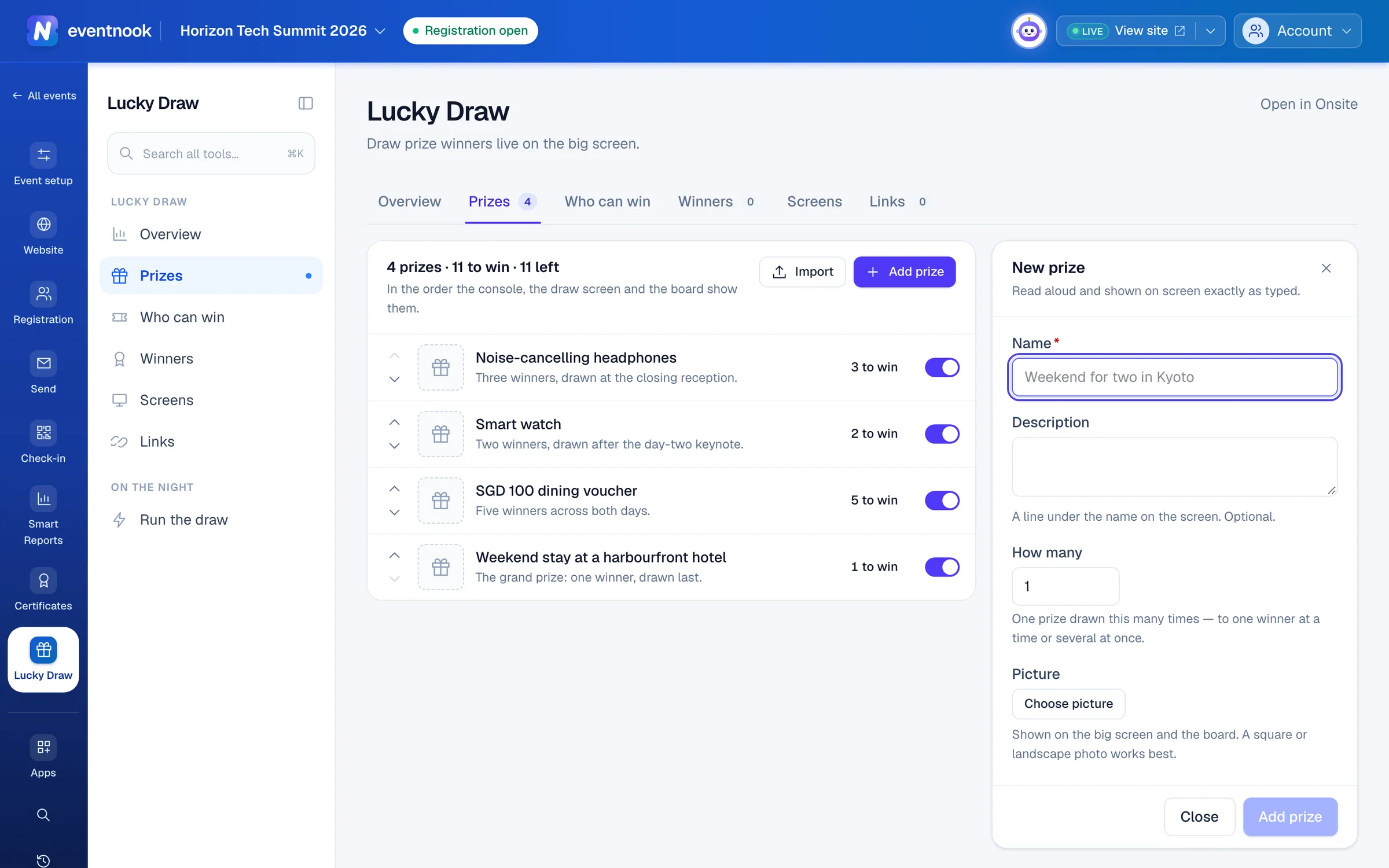
- 1Add a long list from a spreadsheet
- 2One prize drawn this many times
- 3A picture for the big screen and the board
| Setting | What it does |
|---|---|
| Name | What the room sees and the host reads out. |
| Description | A line under the name on the screen. |
| How many | How many times the prize is drawn, 1 to 1,000. Winners can be drawn one at a time or several at once. |
| Picture | Shown on the big screen and the winners board. In Event admin, Choose picture opens the event's media library. In Onsite, follow Choose pictures in the admin portal. |
The console, the big screen and the board show prizes in the order of this list. Use the arrows on a row to move a prize up or down, and its switch to take it off the draw. A prize somebody has won can't be deleted: switch it off instead, and the wins already drawn stand.
To add many prizes at once, click Import. Choose a .csv file or paste rows from a spreadsheet: one row per prize, with name, description and quantity. The dialog shows what it will add before you click Add … prizes. An import always adds, so a prize already on the list would be there twice; the dialog warns you.
Choose who can win#
The default suits most events: everyone registered, one prize each. Change it on Who can win only if your event needs something else, then click Save.
| Setting | What it does |
|---|---|
| Who can win | Everyone registered, or Only people who checked in, for a prize that must be collected in the room. People who check in late can win as soon as they do. |
| Can someone win more than one prize? | No, one prize each, or Yes. Nobody wins the same prize twice. |
| Only people with certain tickets | Tick the tickets whose holders can win. Shown when the event has more than one ticket. |
| Include test registrations | Shown when registrations made in test mode are left out. Turn it on to practise with test data. |
The rules are read each time you press Draw, so changing them never takes a number away from anyone.
Everyone gets a lucky number by themselves when you draw, latecomers included. You don't need to hand numbers out. If you print numbers on coupons, click Hand out … numbers now on the numbers list, then Download CSV. To use a number already printed on a coupon, click Edit on the person's row and type it.
On the numbers list you can also Suspend someone, so they can't be drawn, and Reinstate them later. Lucky number style sets digits or letters and digits, the length and a prefix such as NK-. Numbers already given keep theirs, and new numbers get a character longer by themselves if more people need one than the length fits.
Make the big screen yours#
On Screens, design the Big screen (the projector) and the Winners board (a foyer TV or a phone) separately. This step is optional.
- Under Pick a look, choose a ready-made look: Midnight, Gala gold, Aurora, Sunset, Emerald or Daylight.
- Under Winners' names, choose the full name, the first name and initial, or Number only.
- Optional: add Your logo. Without one, the event's name is shown.
- Click Save the big screen (or Save the winners board).
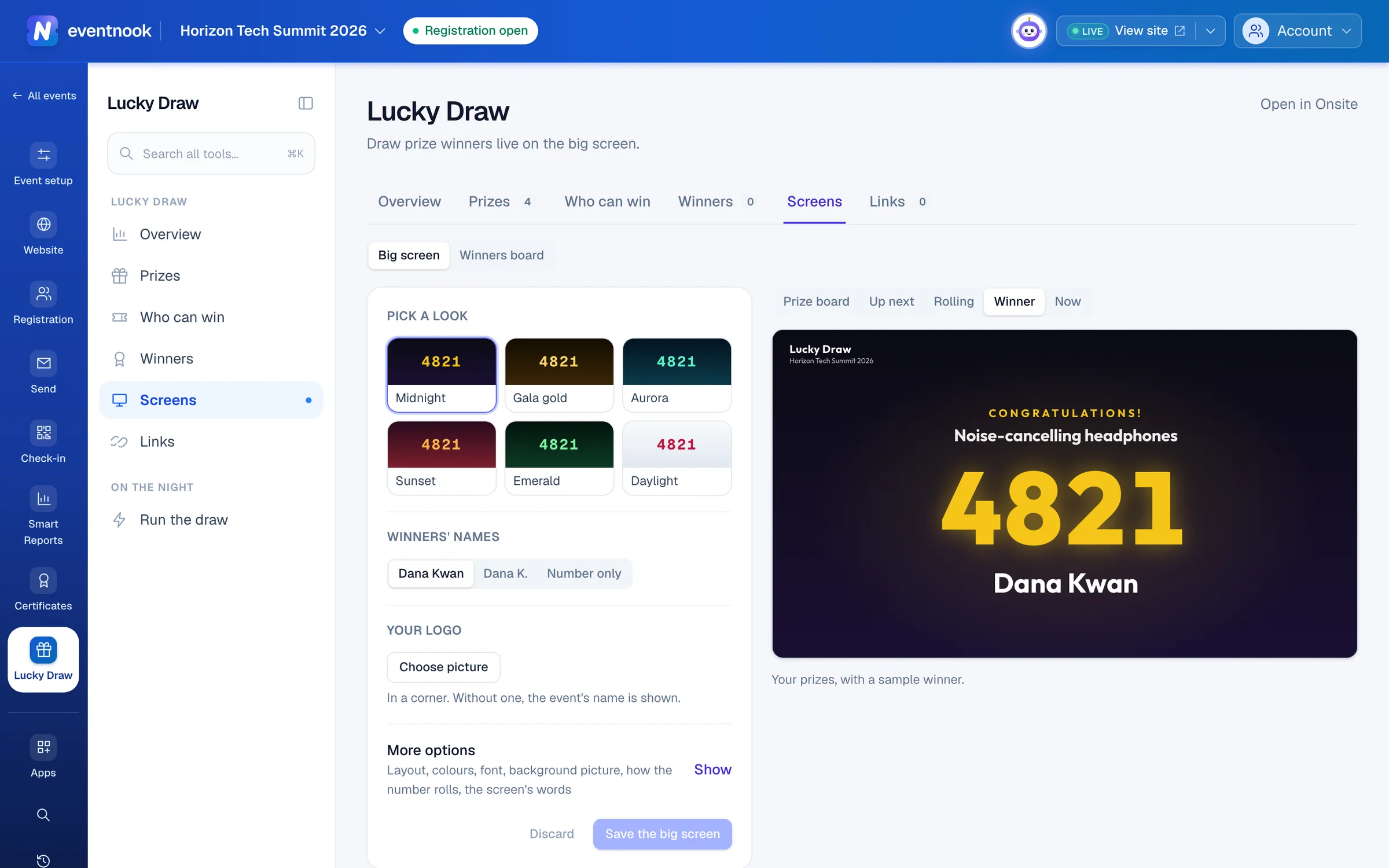
- 1Design the big screen and the winners board separately
- 2Ready-made colours and font
- 3Full name, first name and initial, or the number only
- 4See each moment of the draw before the day
More options holds the layout, colours, font, a background picture, how long the number rolls and how it lands, what else is on the screen (the prize's picture, how many are in the draw, confetti) and every word the screen says. The preview is the real screen: choose Prize board, Up next, Rolling, Winner or Now to see each moment.
Try it once before the day#
- On Overview, click Open the big screen. The first time, this makes the big screen's link for you.
- In another window, or on your phone, click Run the draw.
- In the console, tap a prize and press Draw a winner. Watch the number land on the big screen.
- Back on Overview, click Start over and confirm Remove all winners. Every winner is removed and every prize goes back in the draw.
Run the draw on the day#
- On the laptop connected to the projector, click Open the big screen and press
Ffor full screen. - On your phone or laptop, click Run the draw. The console opens over the whole window.
- Tap a prize in Prizes. It goes up next on the big screen.
- Press Draw a winner. To draw several winners of the same prize at once, set how many with − and + first; the button then says Draw 3 winners.
- If a winner isn't in the room, press Not here — draw again on their row, then tap it again. Their number is marked not here, and the prize is drawn again.
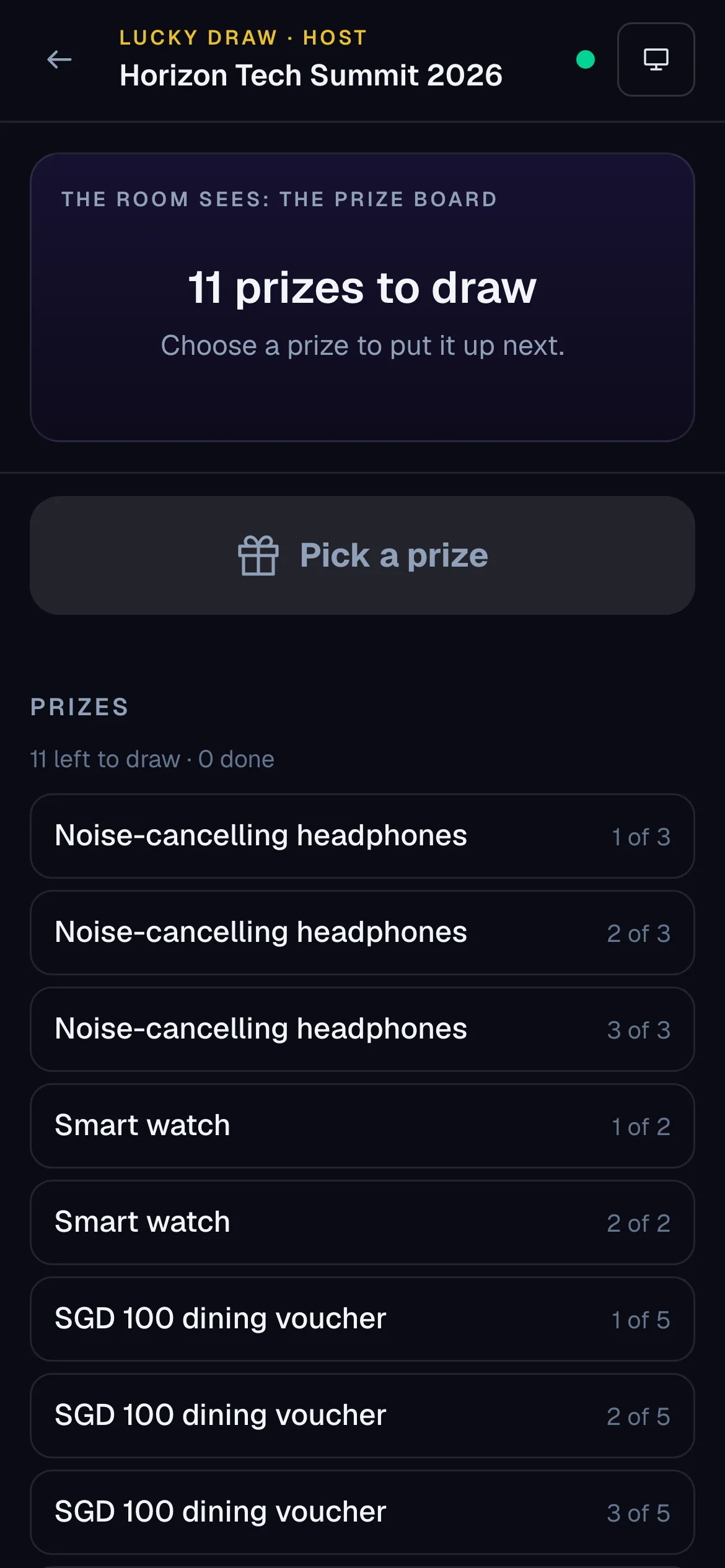
- 1What the projector shows right now
- 2Tap a prize to put it up next
The top of the console mirrors what the room sees, on the same clock as the projector. Show now skips the rest of the roll, and Back to prizes puts the prize board back on the screen. On a laptop: Space draws, R draws again, S shows now and B goes back to prizes.
The winner is recorded before the number starts to roll, so a reload or a lost connection can't change who won. If the console shows Reconnecting, your last press is safe to repeat: the same press never draws twice.
Give someone else a screen or the console#
On Links, make a link for each device. A link opens with no EventNook login.
| Link | Use it for |
|---|---|
| Big screen | The laptop connected to the projector. It only shows the draw. |
| Winners board | A TV in the foyer, or to share with attendees so they can look up their number. |
| Host console for someone without a login | A hired MC who runs the draw from their own phone. Signed in, use Run the draw instead. |
- Click New link on the kind you need.
- Type who it is For, such as "Ballroom projector". Only your team sees this name.
- Choose when it Ends, then click Make the link.
- Copy the address, Open it, or show its QR code to the device.
Replace gives a link a new address and shuts out the old one within a few seconds. Stop ends it for good. An event can have up to 20 Lucky Draw links.
Hand out the prizes#
- On Winners, search the lucky number or name the winner gives you.
- Click their row. The winner opens beside the list, with the prize, their ticket and how to reach them.
- Click Collected. If they never come, click Not collected.
Neither puts the prize back. To put a prize back in the draw, click Void and say why: They were not here when called (their number is marked not here) or It should not have been drawn. A collected prize can't be voided until it is marked not collected.
After the event, Download CSV on Winners keeps the record, and Download CSV on Who can win lists the lucky numbers.
If something looks wrong#
- The console says nobody can win this prize. If only people who checked in can win, nobody has checked in yet. Otherwise everyone who can win already has a prize: on Who can win, allow more than one prize each, or reinstate people marked not here.
- Practising found nobody to draw. Registrations made in test mode are left out. Turn on Include test registrations on Who can win.
- A host link opens "This is a screen link". It is a big screen or winners board link, which can't run the draw. Ask for a host console link.
- A link says it isn't available or has ended. It was stopped, replaced or reached its end. Make a new one on Links.
- A winner's full name on the screen upset someone. On Screens, show the first name and initial, or the number only.
- Emails and mobiles are partly hidden. Your role can see attendees but can't export personal data. Someone who can sees them in full and can download the lists.
Who can do this#
Everyone with access to the event can see the Lucky Draw; names need access to the event's attendees. Setting it up, running the draw, voiding a win and the Links tab need someone who manages onsite for the event, such as an Event Admin or Event Editor. Marking prizes collected needs check-in access. Downloads need permission to export personal data.
Related guides
- Add an app to your eventSee which add-on apps your plan includes, add one to an event so it joins the menu for the whole team, and take it off again when you no longer need it.
- Show live check-ins on the venue's screensDesign a live check-in counter in your event's look, and put it on a TV, a projector or a signage player with a link or a code.
- Check in attendeesScan tickets or find guests by name on the Check-in screen, read the verdict, undo a mistake, and keep checking in when the venue Wi-Fi drops.
Still stuck? In EventNook, ask HeyNook. It knows the page you're on and your event, and can take you straight to the right setting.