Answer visitors with the Attendee Assistant
Put a HeyNook chat on your event website that answers visitors from your site and can register them in the chat, then see what they asked.
Where to find it: Event admin › Apps › Attendee Assistant
The Attendee Assistant is HeyNook on your event website: a chat button that answers visitors' questions from your site, and can register them in the chat. It answers only from your website's public content and your own notes, never from registrations or attendees.
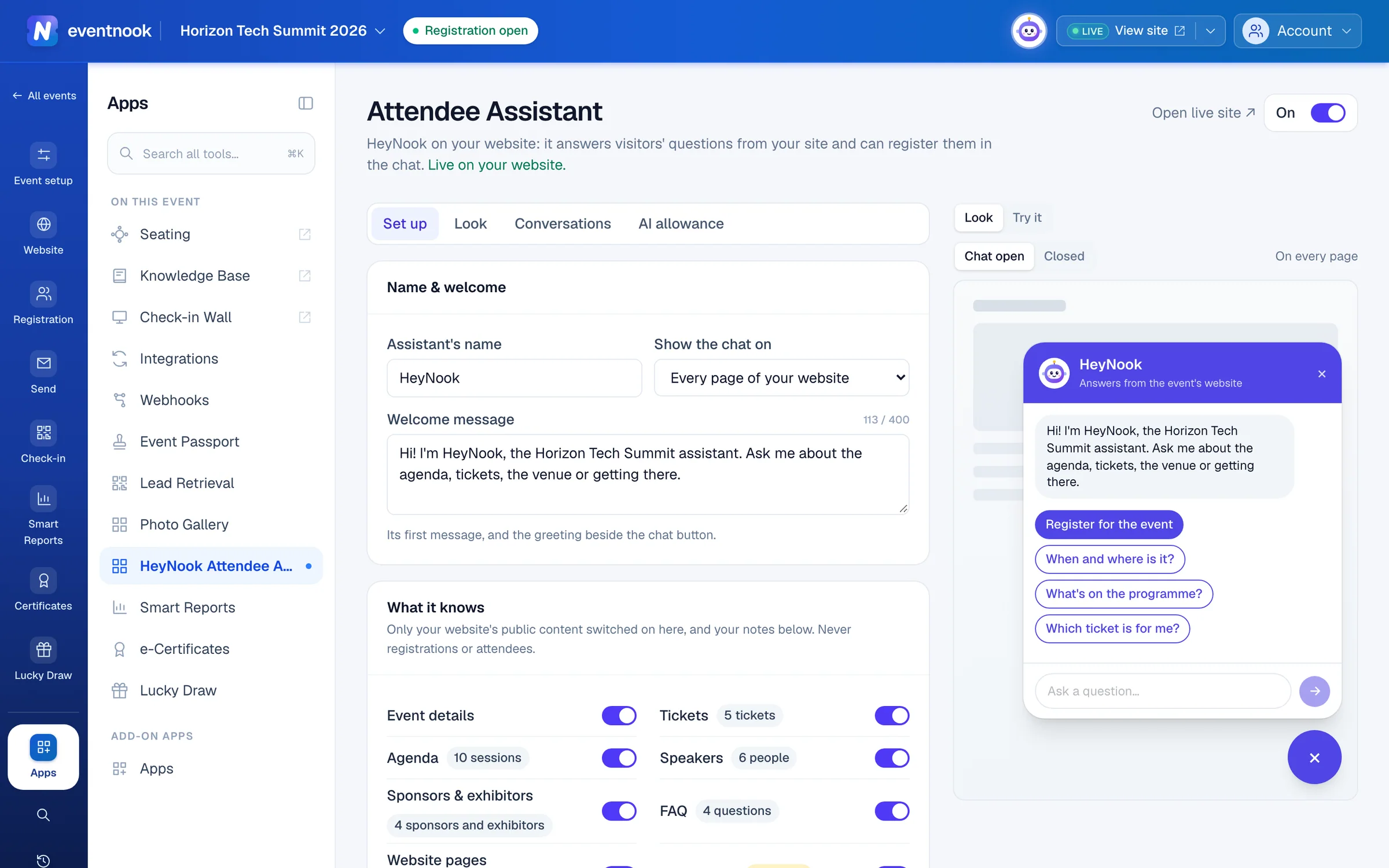
- 1Show the chat on your live website, or hide it
- 2Set up, Look, Conversations and AI allowance
- 3See the chat as visitors will, or try it live
Add the app to your event#
The HeyNook Attendee Assistant is an add-on app. Add it to the event from Apps (see Add an app to your event), then open it from Apps › On this event › HeyNook Attendee Assistant. If Apps says it isn't in your organisation's plan, ask EventNook to add it.
The chat also needs AI to be on for your organisation. The line under the page's title says when it isn't.
Set it up#
Set up has five cards: Name & welcome, What it knows, Instructions, Quick actions and Registration. Each card saves on its own: its Save and Discard appear once you change something on it. A saved card is live on your website straight away.
Name & welcome#
| Setting | What it does |
|---|---|
| Assistant's name | The name visitors see on the chat. Default: HeyNook. |
| Show the chat on | Every page of your website (the default) or The home page only. |
| Welcome message | Its first message, and the greeting beside the chat button. Up to 400 characters. |
What it knows#
- In What it knows, switch on the parts of your website it may answer from: Event details, Tickets, Agenda, Speakers, Sponsors & exhibitors, FAQ, Website pages and Documents. Each says how many it has, or None yet.
- Optional: under More it should know, write facts that aren't on your website, such as parking or the dress code. Visitors may be told anything you write here.
- Click Save.
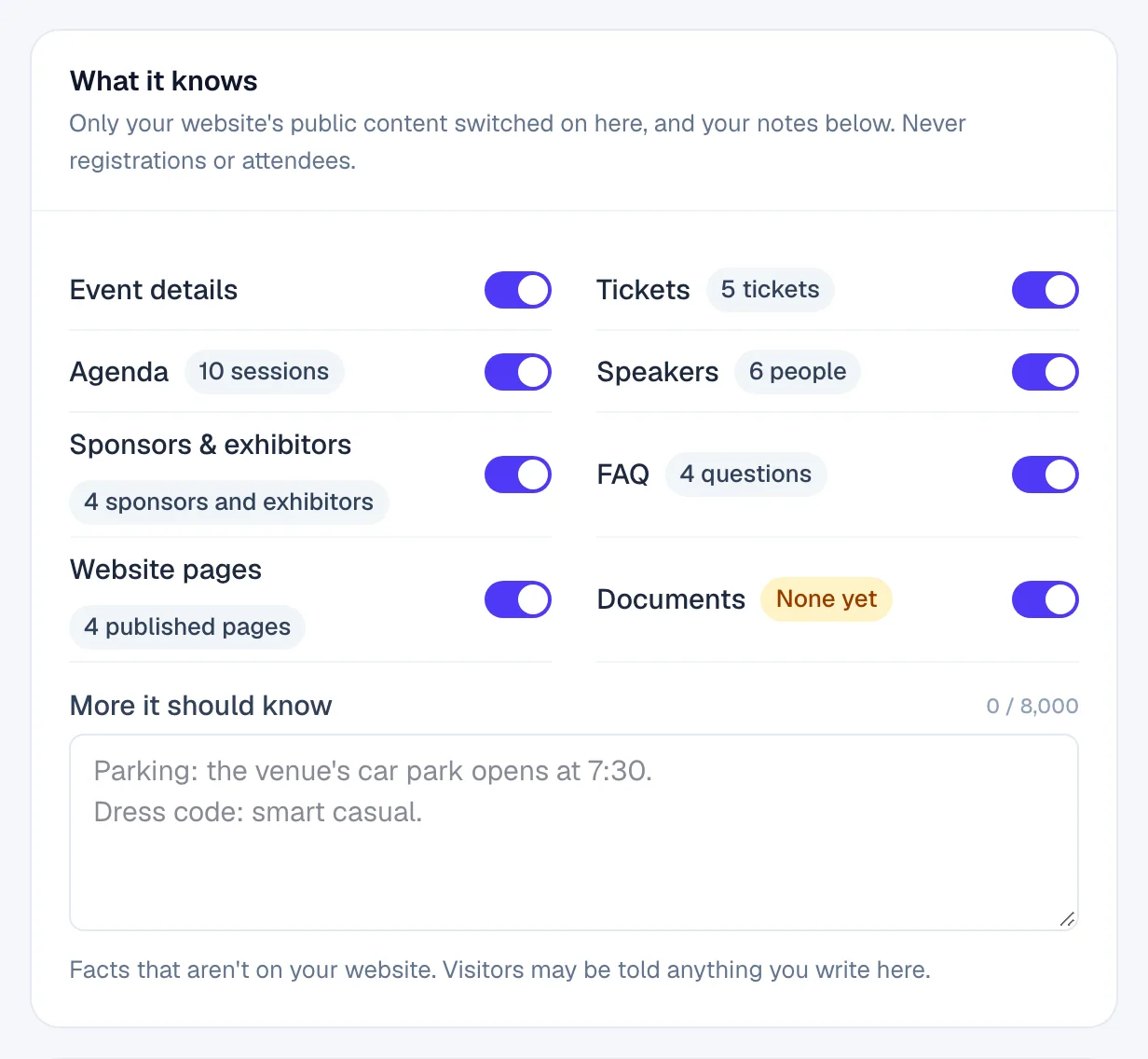
It reads what visitors can see: published pages, never a draft, and only content that is visible on your site. A type switched off in Special event content says Off in Special Event Content, so it can't read it.
Instructions#
Under How it should answer, write as you'd brief someone at your registration desk: the tone, what to point people to, what to leave to your team. Click a suggestion such as + Keep replies short and friendly. to add it. Then click Save.
Quick actions#
Quick actions are up to six buttons under the welcome message. A new event starts with four: Register for the event, When and where is it?, What's on the programme? and Which ticket is for me?
- Click Add quick action.
- Type the button's words and choose what it does: Ask a question (type the question it asks), Start registering, Open a link (an
https://address) or Manage my registration. - Use ↑ and ↓ to change the order, or the bin to remove one.
- Click Save.
Registration#
| Switch | When it's on | When it's off |
|---|---|---|
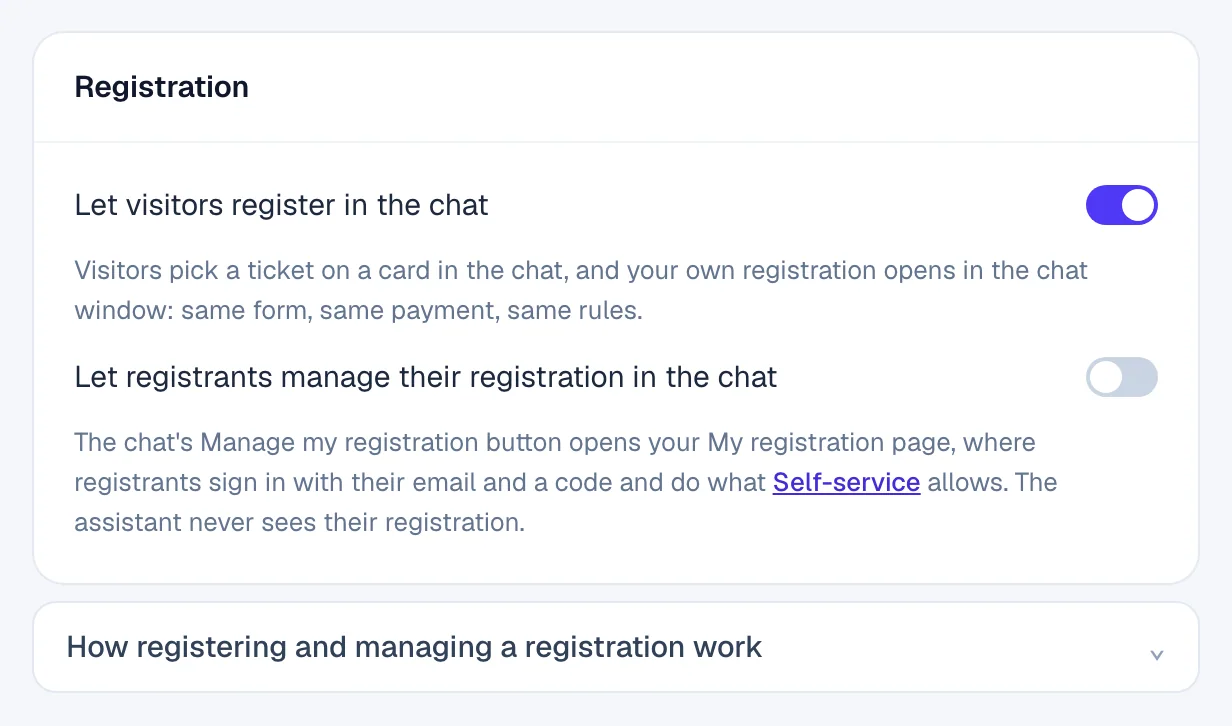
| Let visitors register in the chat | Visitors pick a ticket on a card in the chat, and your own registration opens in the chat window: same form, same payment, same rules. On by default. | The chat's Register button opens your register page. |
| Let registrants manage their registration in the chat | My registration opens in the chat window. Registrants sign in with their email and a one-time code, then change only what Self-service allows. Off by default. | The chat's Manage my registration button opens your My registration page. |
The assistant never registers anyone itself, and never asks for names, emails or order numbers in the chat. Nothing typed in the registration form goes to the AI. How registering and managing a registration work, under the card, explains each step. What registrants can change is set in Event settings › Self-service: see Registration settings.
Change the look#
- Click Look.
- Choose the Button position: Bottom right or Bottom left.
- Type the Words beside the button, or leave it empty for the round button alone. Default:
Ask us anything. - Choose whether to Pop up the welcome message beside the button.
- Choose the Colour: Your site's colour, or Your own and pick a Chat colour.
- Choose the Window (Light or Dark), the Corners (Rounded, Soft or Square) and the Avatar (HeyNook, First letter or Image).
- Click Save.
The preview on the right draws the chat as you change it. Click Chat open or Closed above it to see the open chat or the button alone.
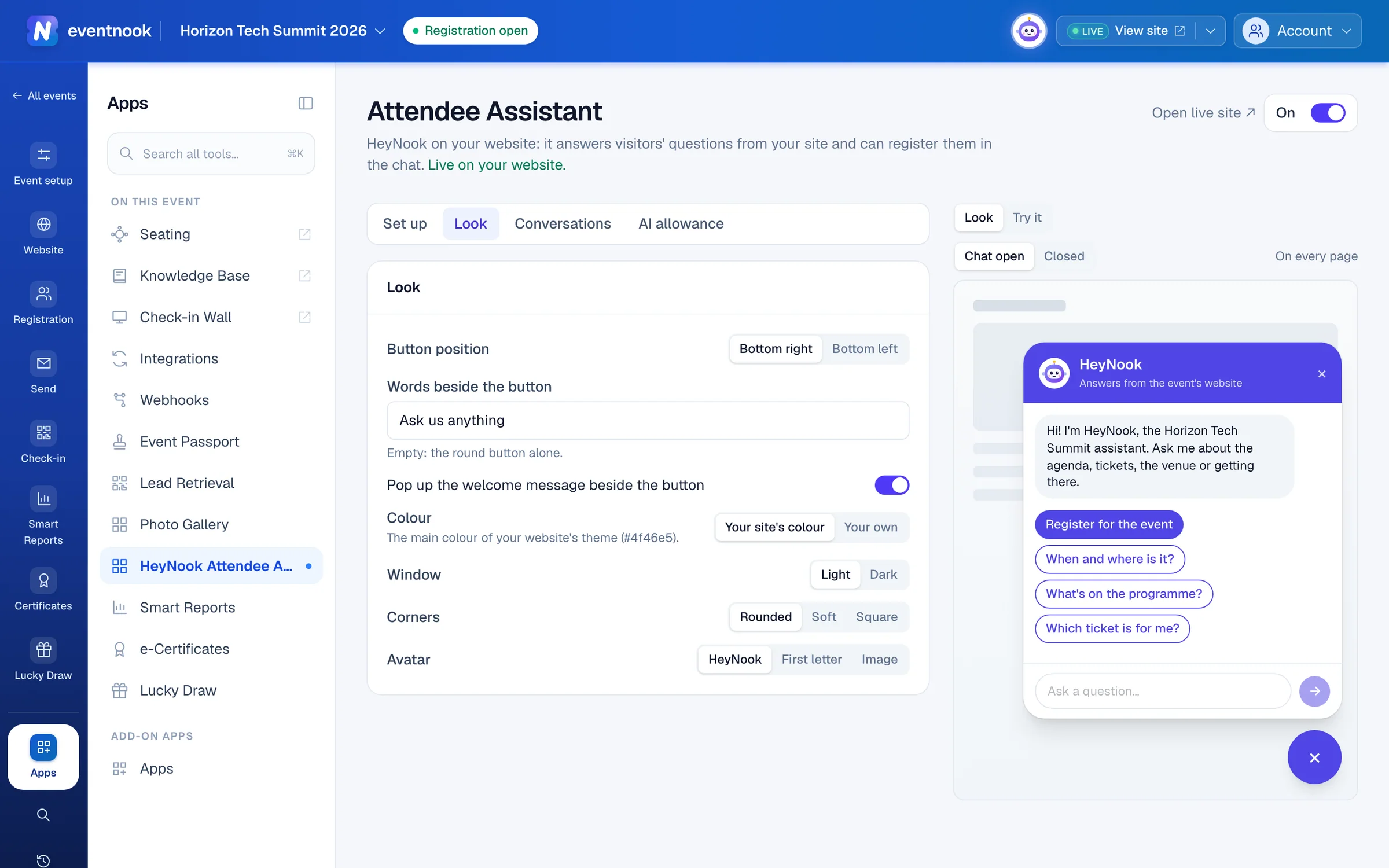
- 1Your site's colour, or a colour of your own
- 2The chat drawn with your unsaved changes
Try it, then switch it on#
- On the right, click Try it and ask a few questions. It answers as visitors will get it, from your saved settings: save a card first to try its changes. In Try it, Register and the ticket cards say what would happen on your website; they open nothing.
- At the top of the page, switch Off to On.
- Click Open live site ↗ to see the chat on your website.
The line under the page's title says where the chat stands:
| It says | What it means |
|---|---|
| Live on your website. | Visitors see the chat. |
| Off: visitors don't see the chat. | Switch it On. |
| On, but your website isn't live yet | The chat shows once your website is live. |
| Paused until … | This month's AI allowance for the chat is used up. See The chat's AI allowance. |
| Not shown: AI is turned off for your organisation. | Ask an organisation owner or admin to turn AI on in the organisation's settings. |
| Not shown: your plan doesn't include the Attendee Assistant. | Ask EventNook to add it. |
See what visitors asked#
Conversations shows what visitors asked the chat and what it answered, so you can see where it fails them.
- Click Conversations. The top says how many conversations and questions the period holds, and how many it could not answer.
- Choose All, Could not answer or No answer, search the questions and answers, or choose Last 7 days, Last 30 days or Last 90 days.
- Click a conversation to read it beside the list.
- Beside a question it could not answer, click Add the answer to What it knows, write the answer under More it should know and save.
Could not answer is a question about your event that your website and notes didn't cover: the ones worth fixing. No answer is a question that failed or took too long. A question that isn't about the event is marked Not about the event.
Visitors stay anonymous. While conversations are kept, the chat tells them: "The organiser may read questions to improve the answers." The page says how long each conversation is kept after its last question. Delete removes one conversation for good. Try it is never kept.
To stop keeping conversations, switch off Keep what visitors ask and what the assistant answers at the foot of Conversations and click Save. Conversations already kept stay until they expire or you delete them.
The chat's AI allowance#
The chat has its own monthly AI allowance for answering visitors, apart from your team's AI. It covers the chat on all your organisation's events. AI allowance shows how much is used, what is left and the day it resets.
- When it is nearly used up, a notice on the page says so.
- When it is used up, visitors don't see the chat until it resets. Your website and registration work as usual.
- Try it on this page counts towards your team's AI, not the chat's.
To get more, organisation owners and admins click Ask for a larger allowance. Others see who to ask.
If something looks wrong#
- The chat doesn't show on my website. Read the line under the page's title. Also check Show the chat on: with The home page only, other pages have no chat.
- The chat was there and has gone. The line under the title says Paused: this month's AI allowance is used up. It comes back on the day shown, or with a larger allowance.
- It doesn't know something that's on my site. Switch that source on in What it knows, publish the page, or switch the type on in Special event content.
- Try it doesn't use my new wording. Try it answers from saved settings. Save the card first.
- I can't find Save. It appears on a card once you change something on it.
- Conversations is empty. Check that Keep what visitors ask and what the assistant answers is on, and choose a longer period.
- "Someone else changed these settings: reload the page." Another organiser saved in the meantime. Reload the page and make your change again.
Who can do this#
Everyone who can see the event's website can open this page, read Conversations, see the AI allowance and use Try it. Saving a card, switching the chat On or Off, keeping conversations and deleting one need the Event Editor or Event Admin role, or an organisation owner or admin. Contact details a visitor typed are shown in full only to people who may export personal data.
Related guides
- Add an app to your eventSee which add-on apps your plan includes, add one to an event so it joins the menu for the whole team, and take it off again when you no longer need it.
- Ask HeyNookAsk HeyNook about your event in your own words, let it take you to the right page, bring in its specialists, and approve the changes it suggests.
- Set when and how people registerOpen and close registration, cap the event, screen free registrations, set the checkout time limit, and decide what registrants and your staff may change afterwards.
- Manage your registrationSign in to My Order with a code sent to your email, see your registration and tickets, change your details and cancel if the organiser allows it.
Still stuck? In EventNook, ask HeyNook. It knows the page you're on and your event, and can take you straight to the right setting.