Show live check-ins on the venue's screens
Design a live check-in counter in your event's look, and put it on a TV, a projector or a signage player with a link or a code.
Where to find it: Onsite › Wall › Check-in Wall
The Check-in Wall shows how many people have checked in, live, on the big screens at the venue: a TV in the foyer, a projector over the registration desks, a signage player. It shows counts only, never a guest's name.
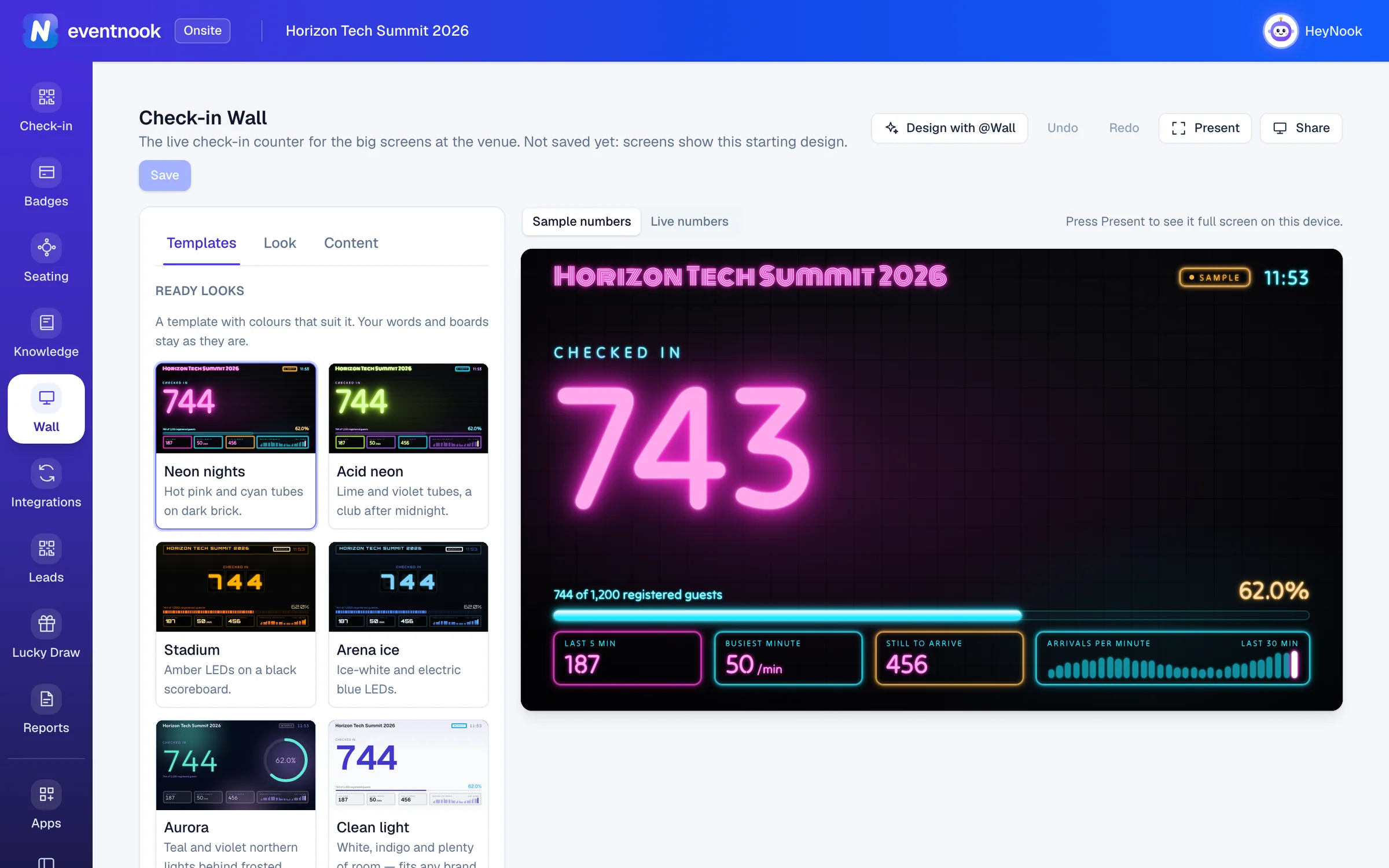
- 1A layout with colours that suit it
- 2Your words, the big number, a goal and the boards
- 3Full screen on this device
- 4Put the wall on the venue's screens
- 5Open screens change within seconds of a save
Add the app to your event#
The Check-in Wall is an add-on app, in Onsite. Add it to the event from the Apps page: see Add an app to your event. Once added, Wall is on Onsite's rail for the event's whole team, and opens the Check-in Wall designer.
Until you save a design, every screen shows the starting wall, the Neon nights look.
Choose a look#
- Open Wall in Onsite. The Templates tab is open.
- Under Ready looks, click one: Neon nights, Acid neon, Stadium, Arena ice, Aurora, Clean light or Midnight. Your words and boards stay as they are.
- Optional: under Layout only, choose Neon sign, Stadium scoreboard, Aurora or Clean to change the layout and keep your colours.
- Click Save. Screens already showing the wall change within seconds.
The preview on the right is the wall as the screens draw it. Switch it between Sample numbers and Live numbers to see your event's own counts. Present shows the preview full screen on the device you're on.
Nothing changes on the screens until you click Save. Undo and Redo step through your changes, and ⌘ S or Ctrl S saves. After a save, Checks on the saved wall lists anything that would be hard to read from the back of the room, such as a number colour too close to the backdrop. The checks never stop a save.
Change the words and the numbers#
On the Content tab:
| Setting | What it does |
|---|---|
| Title | The wall's heading. Blank uses the event's name. |
| Subtitle | Where the screen is, or what it's for, such as "Main Hall · Registration". |
| Over the number | The label above the big number. Default: Checked in. |
| Message along the bottom | One practical line: badges, Wi-Fi, a hashtag. |
| The big number shows | How many have checked in, or the Percentage of registered guests. |
| Goal | Blank counts towards everyone registered. Set one for a room smaller than the guest list, or for a target. |
| Celebrate every | A celebration on screen every 50, 100, 250, 500 or 1,000 check-ins. Default: Never. |
| Boards | The small boards around the number, each on or off: the progress bar, the last 5 minutes, the busiest minute, still to arrive, arrivals per minute, the clock in the event's time zone, and a +N flash as people arrive. |
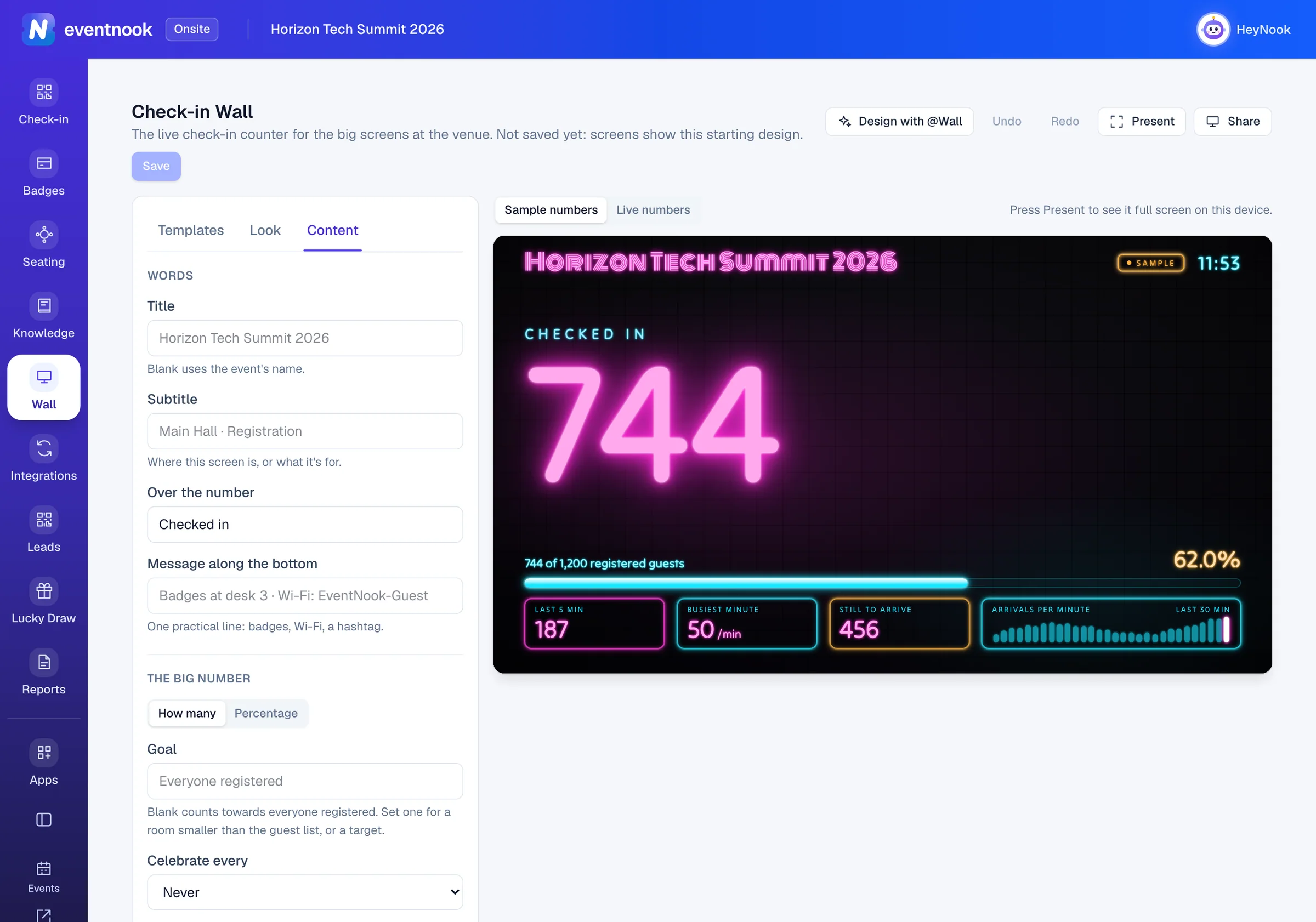
- 1One practical line, such as where badges are
- 2How many have arrived, or the percentage
- 3A celebration every so many check-ins
Change colours, fonts and the backdrop#
On the Look tab:
| Setting | What it does |
|---|---|
| Layout | The template: Neon sign, Stadium scoreboard, Aurora or Clean. |
| Colours | Background, The big number, Labels and progress, Highlights and Text. |
| Type | The font for the numbers and labels, and for the title. |
| Backdrop | The template's own, one colour, a gradient, or a picture. A picture is an https:// address of one you host (JPG, PNG or WebP), darkened so the numbers stay readable. |
| Glow and movement | How strong the glow is, and Lively, Calm or Still. |
| Logo | The https:// address of your logo, shown in the top corner. |
Design it with @Wall#
Click Design with @Wall and describe the wall you want, such as "a stadium scoreboard in our colours" or "celebrate every 100". @Wall, HeyNook's wall specialist, answers in Channels beside the designer. Click Apply to the wall on its answer to put the change on your design, then Save to keep it, or Undo to take it back. @Wall never saves by itself.
Put the wall on the venue's screens#
Click Share in the designer. The wall runs in the screen's web browser with no sign-in.
To connect a smart TV with a code:
- On the TV's web browser, open the address shown under Connect a TV. The TV shows a code.
- In Share, type it in Code on the TV.
- Name the Screen, such as "Foyer TV", and click Connect. The TV shows the wall straight away.
The TV remembers its wall after it is switched off. To show the same wall as another screen, choose The same link as "…" before you click Connect.
To share a link with a projector's laptop or a signage player:
- Click New screen link.
- Name the Screen. Only your team sees this name.
- Choose when it Ends, then click Create link.
- Click Copy link, scan its QR code, or Open it on the screen. Press
Fon the screen for full screen.
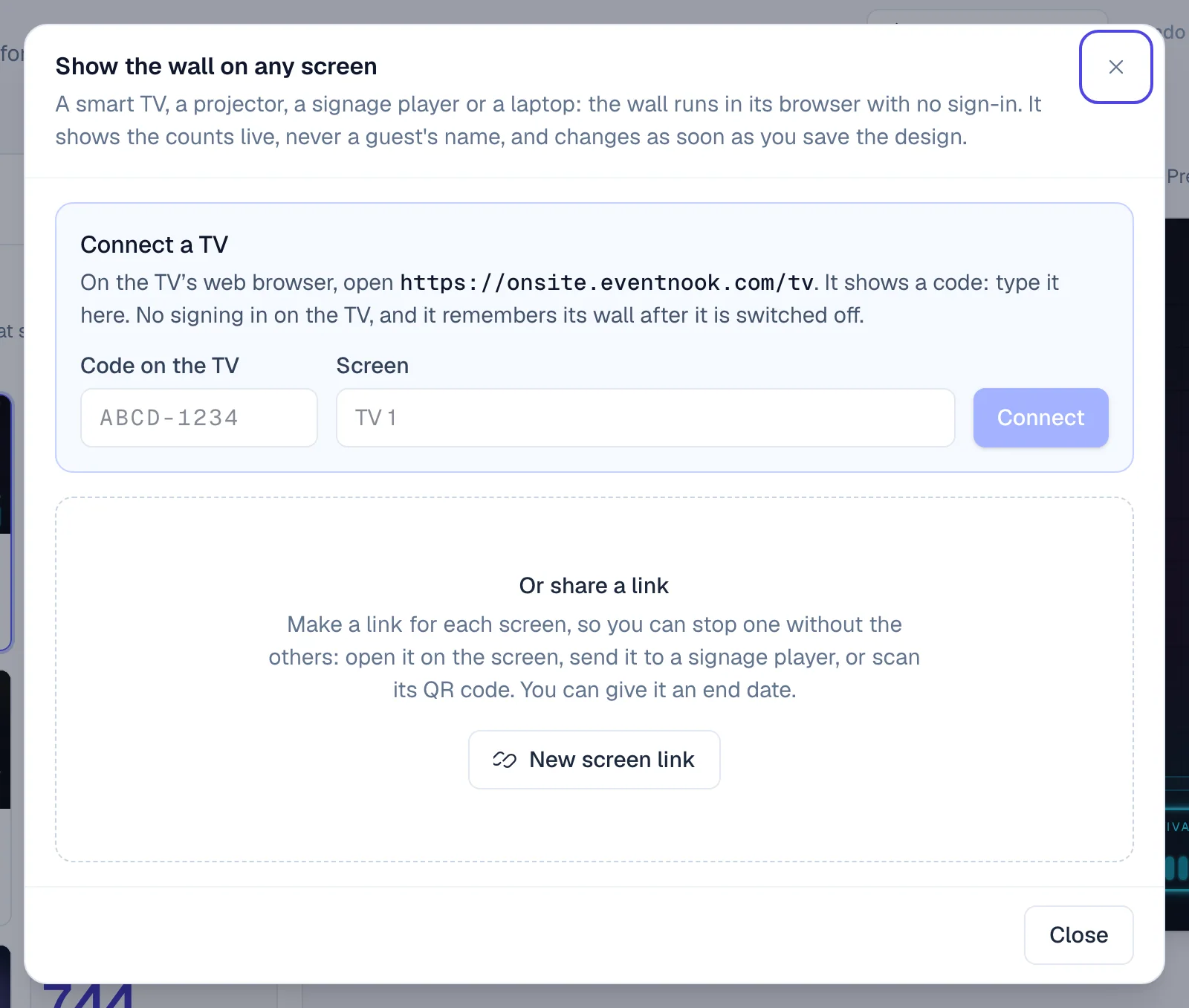
- 1Type the code a smart TV shows
- 2A link for each screen, so you can stop one alone
Make one link per screen, so you can stop one without the others. New link gives a screen a new address, and the old one goes blank at its next refresh. Stop blanks the screen within seconds and can't be undone.
What the wall counts#
Checked in and registered are the same counts the check-in screens show, so the wall never disagrees with the door. Guests your check-in rules wouldn't admit aren't counted. The arrivals chart, the last 5 minutes and the busiest minute count check-ins into the event, not into sessions. Screens update every few seconds.
If something looks wrong#
- A screen still shows the old design. The change isn't saved yet. Click Save: open screens follow within seconds.
- A screen says the link has ended or isn't working. The link was stopped, replaced or reached its end. Make a new link, or open the TV address on the screen and connect it again.
- A screen shows Reconnecting. It lost its internet connection. It keeps the last numbers and catches up by itself.
- Save is greyed out and the preview ignores a colour. A colour isn't a #rrggbb code yet. Fix it to save.
- Saving says someone else saved the wall. Another person saved since you opened it. Copy what you need, then reload to see their version.
- The TV code isn't accepted. The code changes every 10 minutes. Type the one the TV shows now.
Who can do this#
Everyone with access to the event in Onsite can open the designer, preview live numbers, Present the wall and ask @Wall. Saving the design and Share need someone who manages onsite for the event, such as an Event Admin or Event Editor.
Related guides
- Add an app to your eventSee which add-on apps your plan includes, add one to an event so it joins the menu for the whole team, and take it off again when you no longer need it.
- Check in attendeesScan tickets or find guests by name on the Check-in screen, read the verdict, undo a mistake, and keep checking in when the venue Wi-Fi drops.
- Follow arrivals and review the check-in logArrange the live check-in dashboard, share it with your crew by link, and look back at every check-in, refusal and badge print in the check-in & printing log.
- Run a lucky draw on the big screenAdd prizes, choose who can win, and draw winners live on the projector from your phone, then hand the prizes out at the desk.
Still stuck? In EventNook, ask HeyNook. It knows the page you're on and your event, and can take you straight to the right setting.