Approve or reject pending orders
Work through the orders waiting for a decision and the payments that failed, approving or rejecting each one in place, from the keyboard or many at once.
Where to find it: Event admin › Registration › Attendees & orders › Order approvals
Order approvals lists the orders waiting for your decision: registrations that need approval, and paid orders whose payment you record yourself, such as a bank transfer. Each row has Approve and Reject, so you can work down the list without opening each order.
Pending orders appear here when the event asks you to approve registrations, or when a buyer chooses a payment method you confirm yourself. See Registration settings.
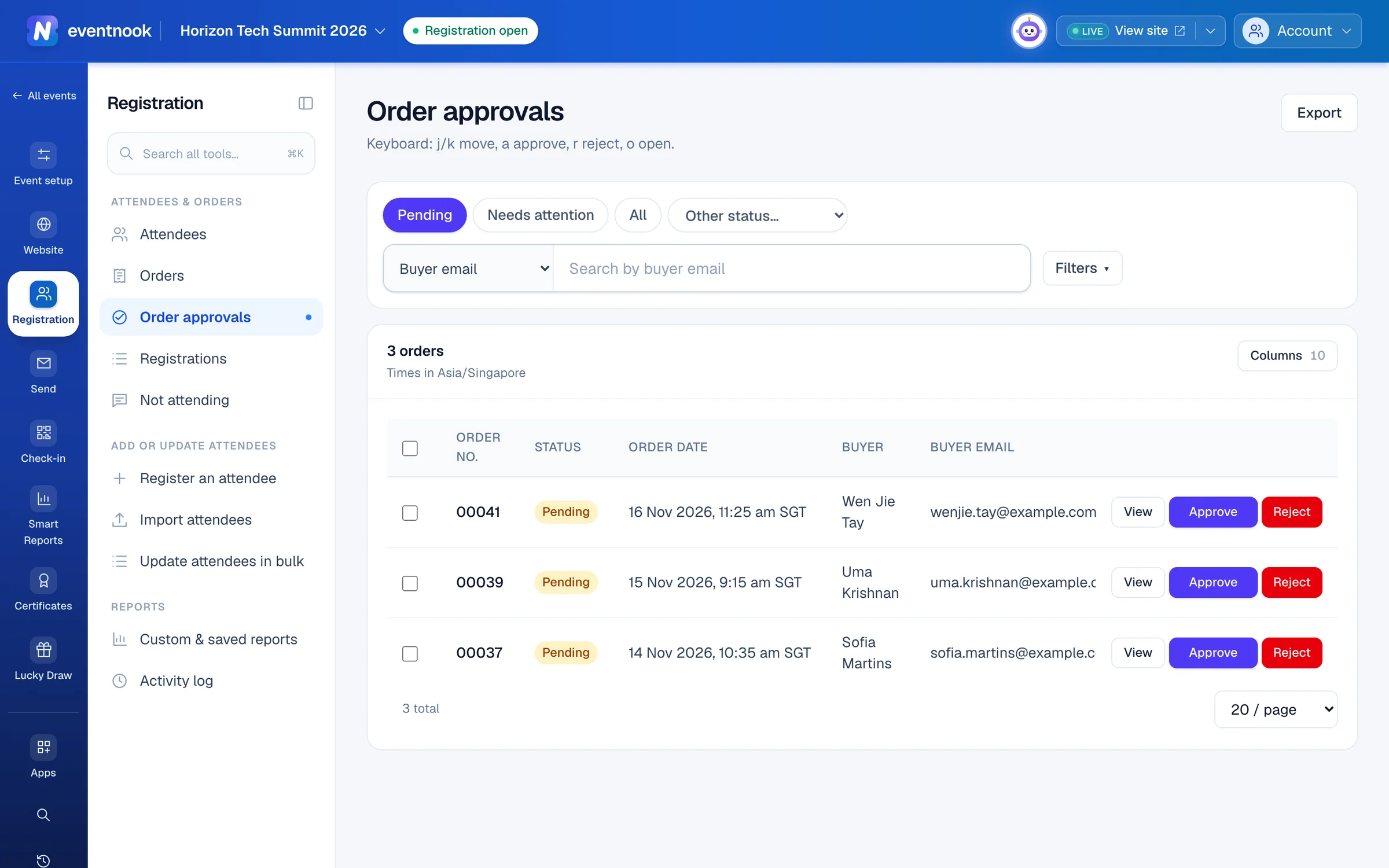
- 1Pending orders first; Needs attention for failed payments
- 2Choose what the search looks in
- 3Approve this order and send its confirmation
- 4Reject this order with a reason
Approve an order#
- Open Registration › Attendees & orders › Order approvals. It shows the Pending orders.
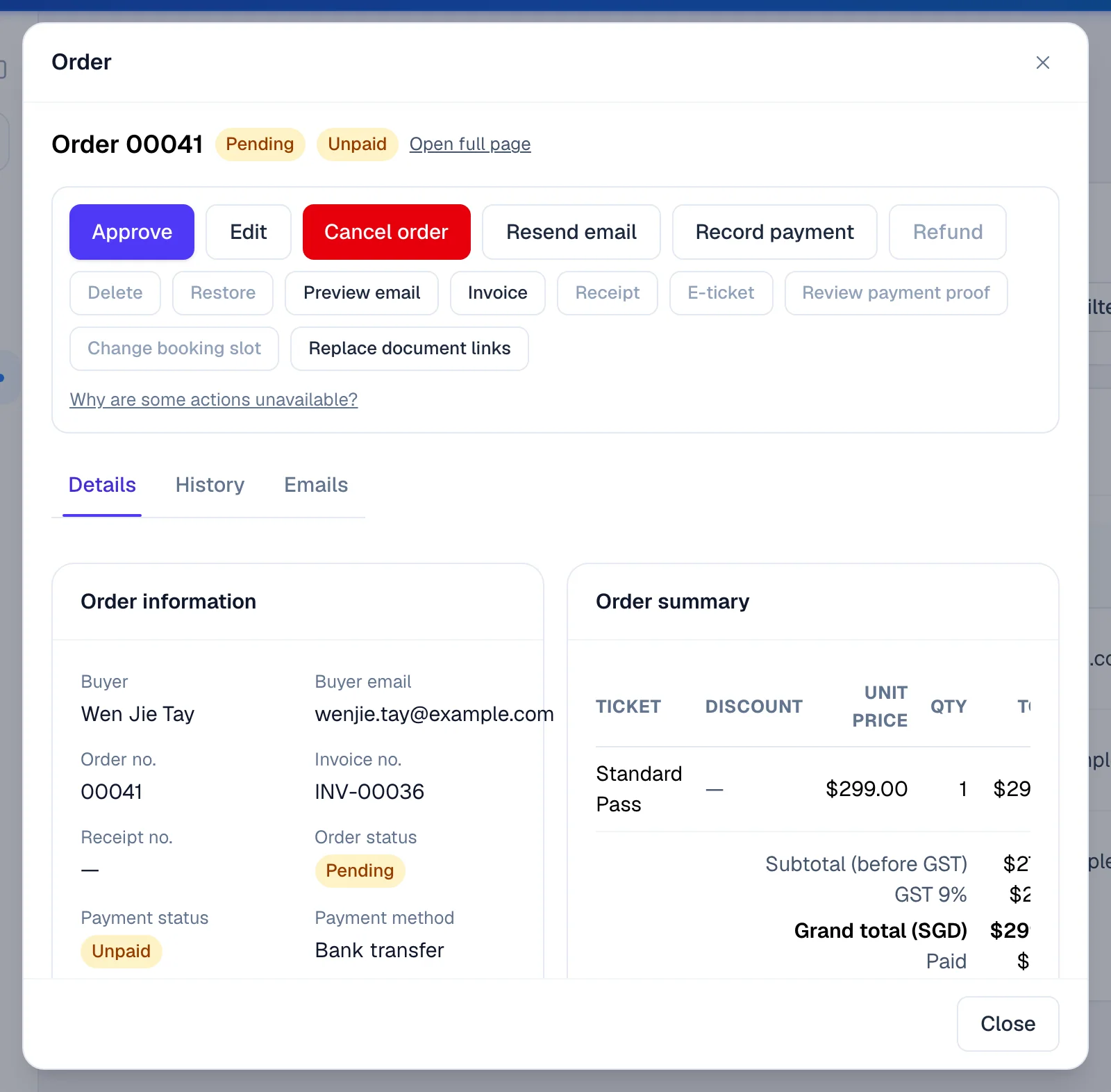
- Click View to read an order without leaving the queue.
- Click Approve. The row turns green and says Approved, with whether its email went out.
The row stays where it is while you move on, so nothing shifts under your pointer. Click Refresh list under the table to take decided orders away.
Some orders open a dialog when you click Approve:
- A paid order still awaiting payment. Enter the Amount received, the Payment received date and a Payment reference, then click Approve order. Approving alone doesn't mark it paid.
- A cancelled order is reinstated. Tick I understand — reinstate this order to go ahead.
- Not enough places, or a code that can no longer be used. The row says why and its button becomes Review, which opens the dialog to settle it.
Reject an order#
- Click Reject on the row.
- Choose a Reason. Add a Note to the buyer if they should read more than the reason.
- Click Reject (cancel) order.
Rejecting cancels the order: its attendees are cancelled and its tickets and code uses are released. The buyer gets the cancellation email unless you untick Send the cancellation email.
Work from the keyboard#
| Key | What it does |
|---|---|
j / k | Move down or up a row. |
a | Approve the row. |
r | Reject the row. |
o or Enter | Open the row's order. |
Approve or reject many at once#
- Tick the orders, or tick the box in the header for every open order on the page.
- Click Approve selected or Reject selected.
- Optional: add an Internal note. To reject, choose a Reason.
- Choose whether to Send confirmation emails or Send cancellation emails, and confirm.
Bulk result lists each order as done, skipped or failed, with the reason.
Find the right orders#
- Pending: waiting for your decision. Needs attention: failed, abandoned or expired payments. All: every status. Other status… picks one more.
- The search looks in what you choose beside it: Buyer email by default, or the order number, invoice number, a code, the buyer's name or any attendee detail.
- Filters adds the order type, payment method, payment status, source, a date range, Has payment proof and Include test orders.
- Columns chooses what the table shows; Save columns keeps the choice. Export downloads the orders in the queue as a CSV file, with these columns.
If something looks wrong#
- "This order changed since the list loaded." Someone else changed it. The row now shows its current state: check it, then approve again.
- There are no Approve or Reject buttons. Your role can see orders but not decide them.
- The queue is empty. Nothing is waiting. Click All to see every order, or check Needs attention for failed payments.
- An email says it failed. Hover over the note on the row for the reason, then resend it from the order.
Who can do this#
Everyone with access to the event's orders can see the queue. Event Admin and Event Editor roles can approve and reject. Recording a payment while approving needs an event admin.
Related guides
- Review registrations order by orderSee each order with the people registered under it, work through the pending ones and approve several at once.
- Change, cancel or refund an orderOpen one order to see who bought, what they paid and who is attending, then edit it, resend its email, record a payment, cancel it or refund it.
- Find and export ordersFind any order by number, name or email, narrow the list by status and payment, keep the layouts you use as views, and export exactly what you see.
- Set when and how people registerOpen and close registration, cap the event, screen free registrations, set the checkout time limit, and decide what registrants and your staff may change afterwards.
Still stuck? In EventNook, ask HeyNook. It knows the page you're on and your event, and can take you straight to the right setting.