Work with your team in Channels
Talk with your event team in channels and threads, ask HeyNook in front of everyone, catch up with a summary, and keep shared notes and to-dos, in the admin and in Onsite.
Where to find it: Event admin › Top bar › Channels
Channels are where your event team talks: one space per event, with channels, threads, shared notes and to-dos. HeyNook, EventNook's AI assistant, is part of the team: ask it in a channel and it answers in the thread, where everyone can see it.
The same channels are in the admin and in Onsite, so the team at the doors and the team at their desks see the same messages.
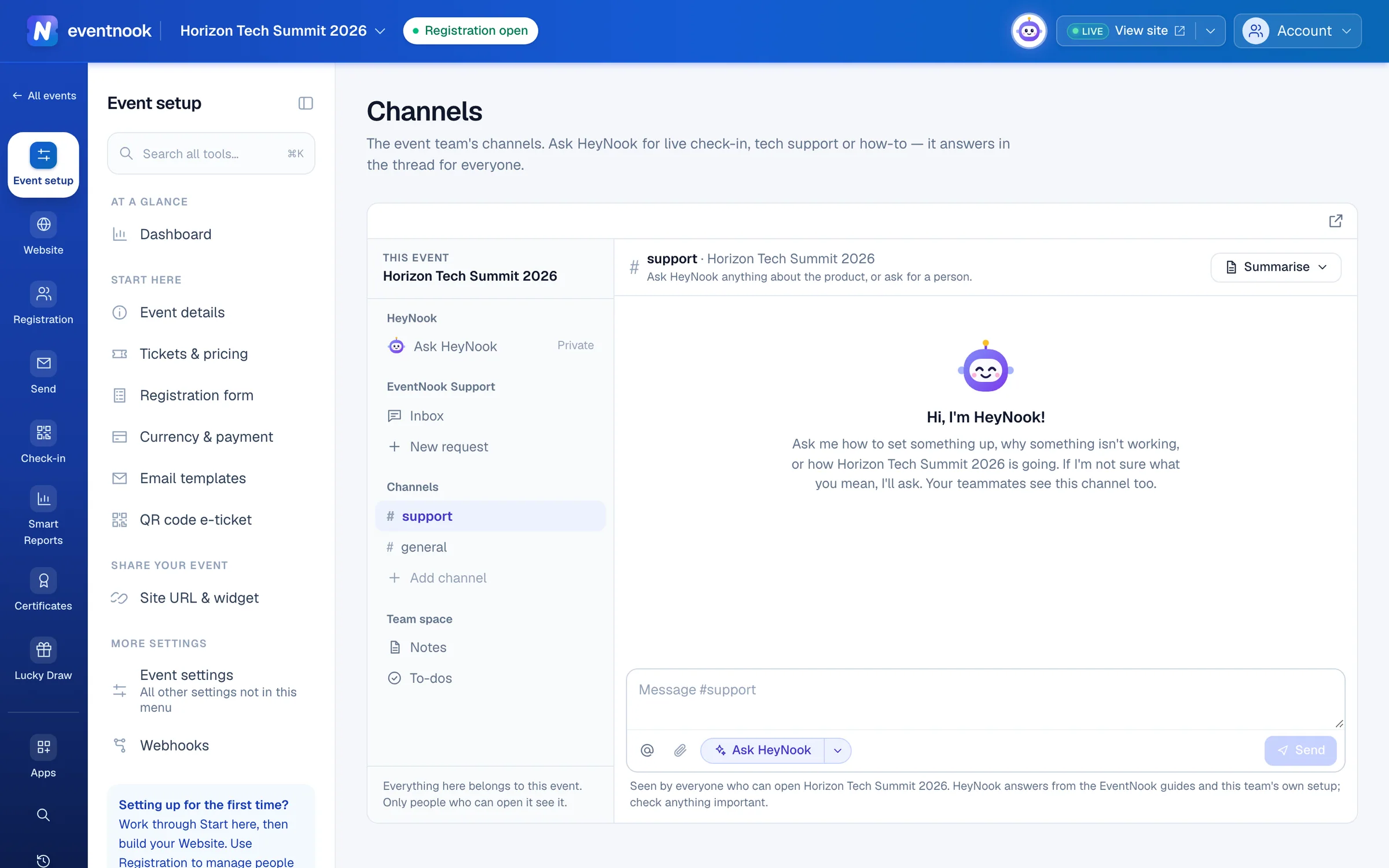
- 1Your private conversations with HeyNook
- 2Add a channel for one part of the event
- 3Notes and to-dos shared by the whole team
- 4Have HeyNook summarise what was said
Open the channels#
- In the admin: click HeyNook's face in the top bar to open the channels in a window over any page of the event. Search for Channels with Search all tools… to open them in a page of their own.
- In Onsite: open Team Chat in the menu, or click HeyNook in the top bar.
- For the whole organisation: outside an event, HeyNook's face in the top bar opens your organisation's channels, for everyone in the organisation.
In the window, Open in a new window moves the channels into a browser window of their own, Dock to the side keeps them beside the page, and Minimise (Esc) closes them. ⌘ ⇧ K (Ctrl Shift K) opens and closes the window from anywhere.
What the sidebar holds#
| Part | What it is |
|---|---|
| HeyNook | Ask HeyNook (marked Private) and your recent conversations. Only you see these. See Ask HeyNook. |
| EventNook Support | Your requests to a person at EventNook, each its own conversation. |
| Channels | #support, #general and the channels your team adds, each with how many posts you haven't read. Mentions of you show in red. |
| Team space | Notes and To-dos, shared by everyone who can open the event. |
Post and reply#
- Click a channel and type in the message box.
- To get a teammate's attention, type
@and pick them from the list. - Press
Enterto send.Shift+Enterstarts a new line.
Hover over a message to React, Reply in thread, Edit your own message or Remove it. Replies stay in the thread beside the channel. In a thread, click Mark resolved when the question is settled; the post then shows Resolved, and Resolved · Reopen opens it again.
To add a channel, click Add channel, type a name such as badge-desk and press Enter.
Ask HeyNook in front of the team#
- In #support, Ask HeyNook is on in the message box: your message is a question for HeyNook, which answers in its thread.
- In any other channel, type @HeyNook in your message.
- Click ▾ beside Ask HeyNook to ask one of its specialists instead, such as @Reporting for figures or @Checkin for the doors. You can also tag one with
@.
A message that tags a teammate goes to them, even in #support: HeyNook stays out of it. To ask HeyNook as well, tag @HeyNook in the same message.
Catch up with a summary#
- Click Summarise in the channel's header.
- Choose Last 24 hours, Last 7 days, Last 30 days or Everything.
HeyNook writes a note with the summary and suggests to-dos. Tick the ones you want and click Add.
Keep notes and to-dos#
- Notes: click New note, type the title and write. Type
/for headings, checklists and tables. The note saves as you type. Note options copies its link, copies or downloads it as Markdown, or deletes it. - To-dos: type in Add a to-do, choose an Owner and a Due date, and click Add. Tick it when it's done. Open, Mine and Done filter the list.
Ask a person at EventNook#
When HeyNook can't sort something out, click Ask a person at EventNook Support under its answer in #support, or open EventNook Support in the sidebar and click New request. From a thread, HeyNook drafts a short brief for you to check and change before you click Send to EventNook Support. Nothing is sent before you do.
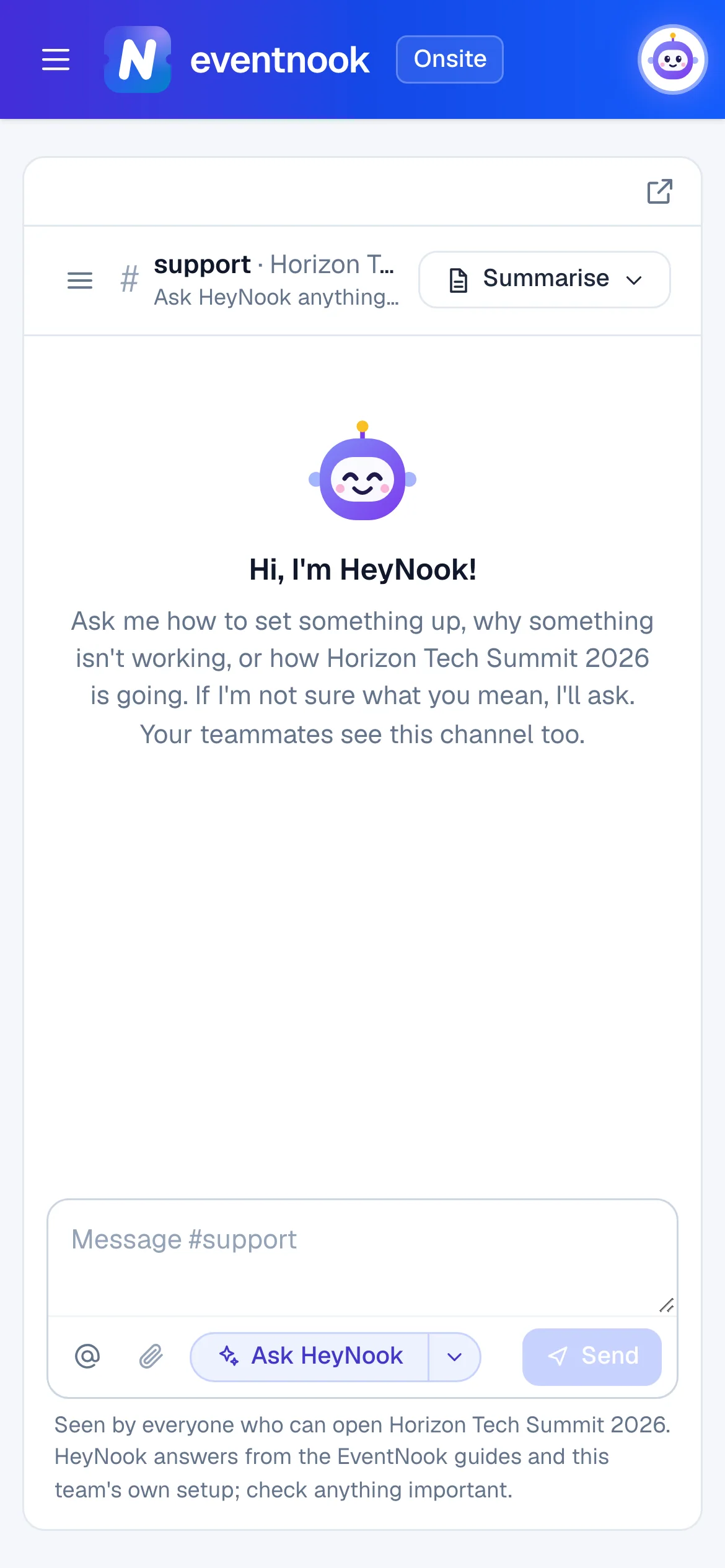
Channels in Onsite#
Onsite has the same channels on the phones and tablets used at the doors. Ask HeyNook there how check-in is going, which station or kiosk needs attention, or about a printing or scanning problem. Buttons in its answers that lead to a page open the admin.
If something looks wrong#
- "Not sent: AI features are turned off." Ask HeyNook was on, but AI is off for your organisation. Turn Ask HeyNook off to post to people only, or ask an organisation owner to turn AI on.
- "This answer uses figures your role doesn't show." Ask someone with access to reports, or an event admin to add reports to your role.
- No @Reporting or @Attendees to pick. Your role doesn't include reports.
- The window says HeyNook couldn't open and is trying again. The channels couldn't be reached. Click Try now, or wait for it to reconnect.
- A bar says a teammate saved the note while you were writing. You both changed the same part. Click Keep mine, Use theirs or Keep both.
- "You can read these channels but not post in them." Your access to this space is read-only.
Who can do this#
Everyone who can open the event can read and post, add channels, resolve threads, write notes and manage to-dos. That includes your organisation's members who can see the event and its collaborators. You can edit and remove your own messages; organisation owners and admins and event admins can remove anyone's. Asking HeyNook needs AI to be on for your organisation.
Related guides
- Ask HeyNookAsk HeyNook about your event in your own words, let it take you to the right page, bring in its specialists, and approve the changes it suggests.
- Give people access to an eventInvite someone to work on one event with the role they need, choose features one by one with a custom role, change or end their access, and see who else can reach the event.
- Get started with OnsiteOpen Onsite for your event, find your way around its menu, and see how the doors are doing on the Overview.
Still stuck? In EventNook, ask HeyNook. It knows the page you're on and your event, and can take you straight to the right setting.