See who changed what
Look up every change made in the event, who made it and when, open one to see exactly what changed and where it came from, and follow a bulk change row by row.
Where to find it: Event admin › Registration › Reports › Activity log
The Activity log lists every change made in the event: to attendees, orders, the event and its settings. Each line says who made the change, when, what it was and which record it was made to. A bulk upload or bulk edit is one line that opens into its rows.
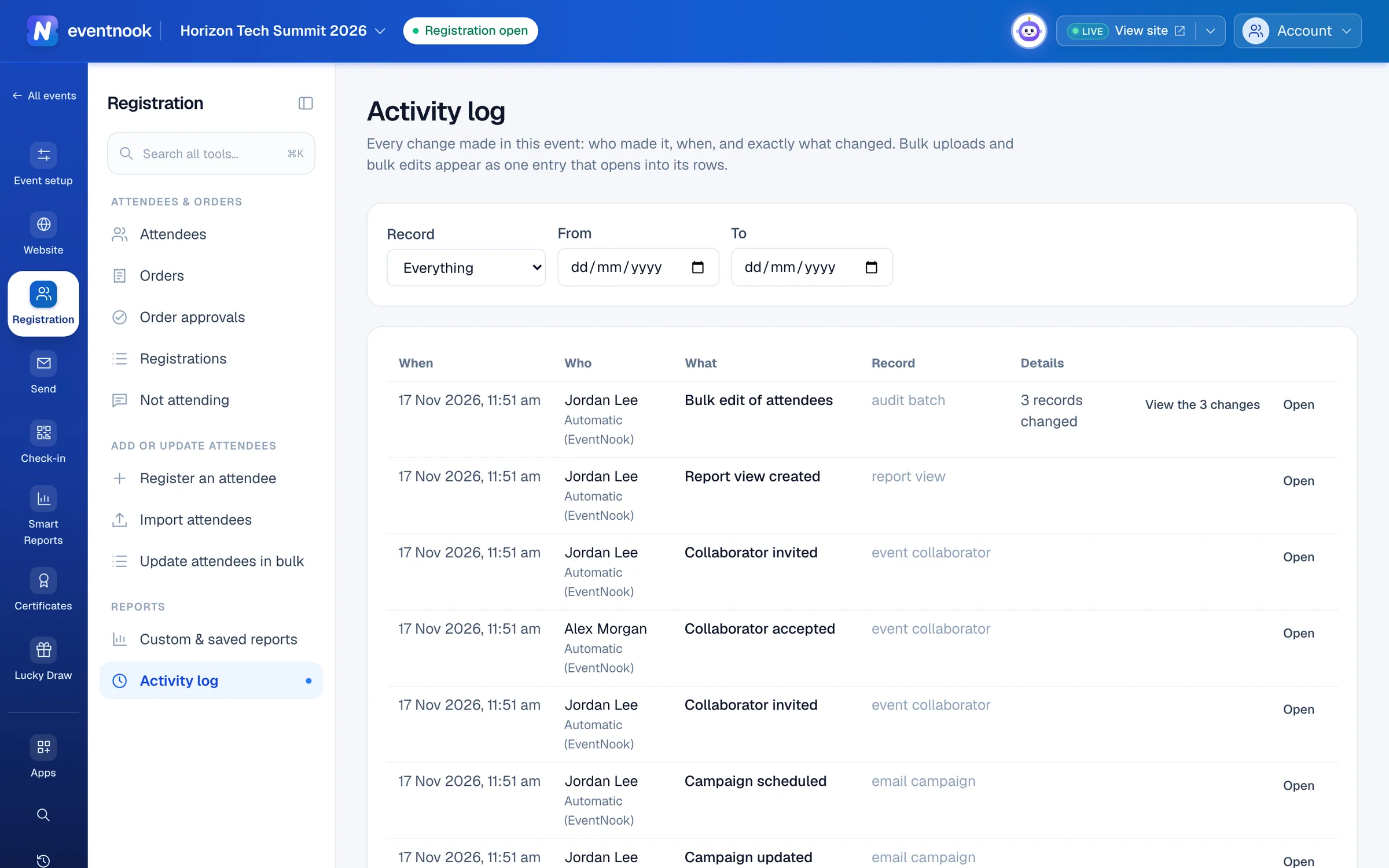
- 1Show the changes to one kind of record
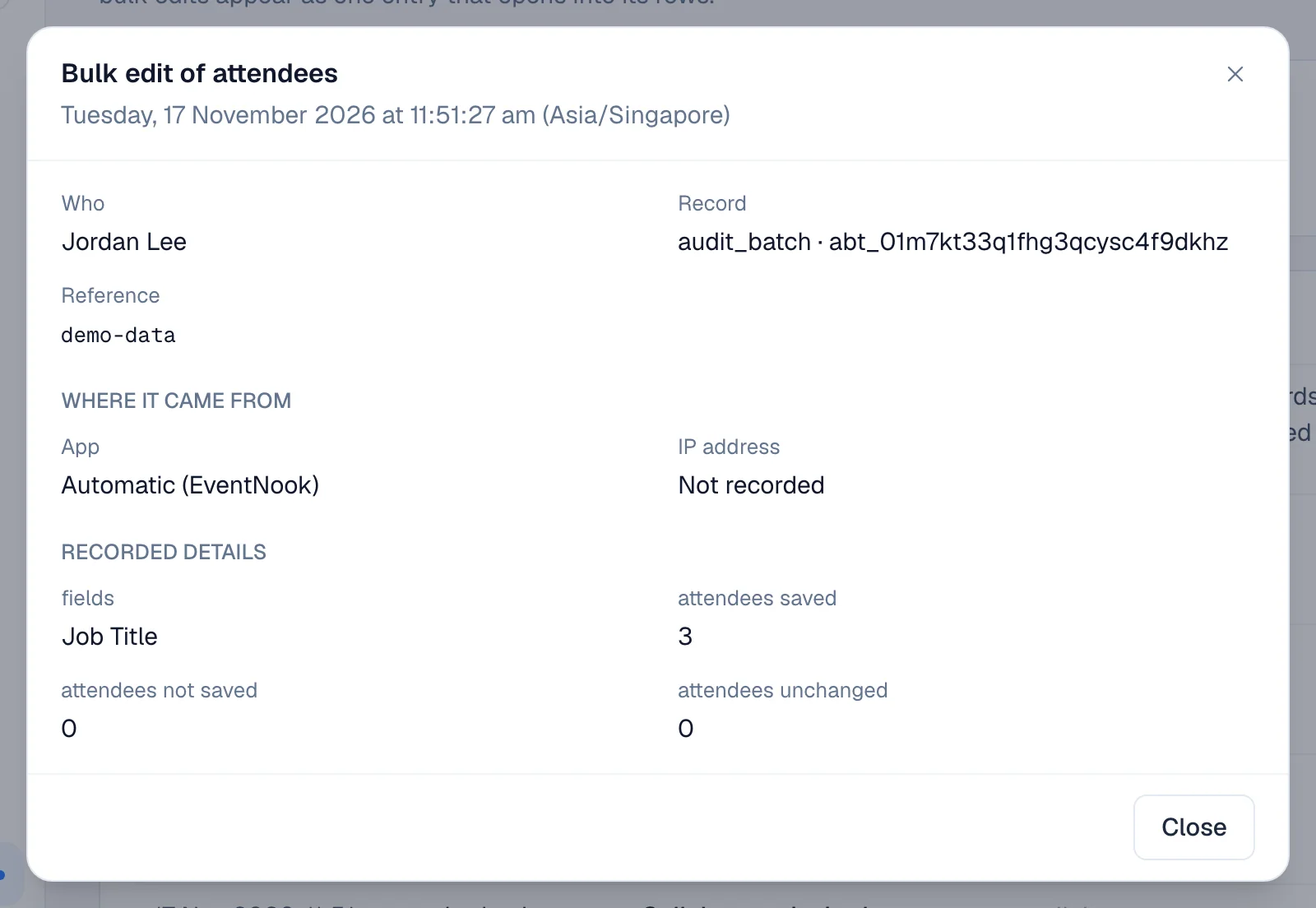
- 2See exactly what changed, and where it came from
Find a change#
- Open Registration › Reports › Activity log.
- Optional: choose a Record type, and a From and To date.
- Read down the list. It starts with the newest change. Click Show earlier activity at the bottom for more.
Each line shows When, Who, What, the Record and Details. Click the record's name to open it. A change made by EventNook Support is marked support, and one made through the API is marked API.
Clear filters takes the record type and dates off. Times are in the event's time zone.
See exactly what changed#
Click Open on a line.
- What changed lists each field with its value Before and After.
- Where it came from shows the app, the page, the device, the IP address and the sign-in session it was made from.
- Reason given shows the reason, when the change asked for one.
An attendee's personal answers aren't shown in the list: it says which field changed. An event admin sees the before and after values when they open the line, and their viewing is recorded in this log with their name. Everyone else sees "Changed. Personal values are kept sealed."
Follow a bulk change#
A bulk upload or bulk edit shows as one line, such as "40 records changed". Click View the 40 changes on it to see every row it changed. Back to all activity returns to the full log.
After saving in Update attendees in bulk, See exactly what changed in the activity log opens that save's changes directly.
If something looks wrong#
- A change you expect isn't listed. Check the Record type and the dates, or click Clear filters.
- "Recorded before the app, page and device were kept." The change is older than this detail. Its who, when and what are still there.
- You can't open the Activity log. It needs a role that can see the event's collaborators, such as Event Admin or Event Editor.
Who can do this#
Organisation owners and admins, event admins and event editors can see the activity log. Only event admins see the personal values that changed.
Related guides
- Update attendees in bulkCorrect registration answers for many attendees in one sheet, the way you would in a spreadsheet, and save them together.
- Import attendees from a spreadsheetAdd many attendees at once from a CSV or Excel file or pasted rows, check every row before anything is created, and choose whether they are emailed.
- Give people access to an eventInvite someone to work on one event with the role they need, choose features one by one with a custom role, change or end their access, and see who else can reach the event.
- Change, cancel or refund an orderOpen one order to see who bought, what they paid and who is attending, then edit it, resend its email, record a payment, cancel it or refund it.
Still stuck? In EventNook, ask HeyNook. It knows the page you're on and your event, and can take you straight to the right setting.