Summaries, saved views and exports
Count attendees by up to three fields, manage the saved views of your reports, run your organisation's custom reports and see every export of the event.
Where to find it: Event admin › Registration › Reports › Custom & saved reports
Custom & saved reports has four tabs: Attendee Summary counts your attendees by the fields you choose, Saved views lists the layouts saved on your reports, Custom reports runs your organisation's own reports against this event, and Exports lists every export made of it.
The tab you're on and the summary's set-up are part of the page's address, so a copied link opens the same report.
Count attendees by a field#
- Open Registration › Reports › Custom & saved reports. Attendee Summary is open.
- Under Group by, choose a Field, such as Ticket or Company Name. Optional: choose up to two more under Then by (optional).
- Choose the Measures: how many attendees, or other counts the list offers.
- Optional: narrow it by Registration status and Tickets. Tick Include attendees with no value for these fields to count them under (empty).
- Click Export summary to export the counts.
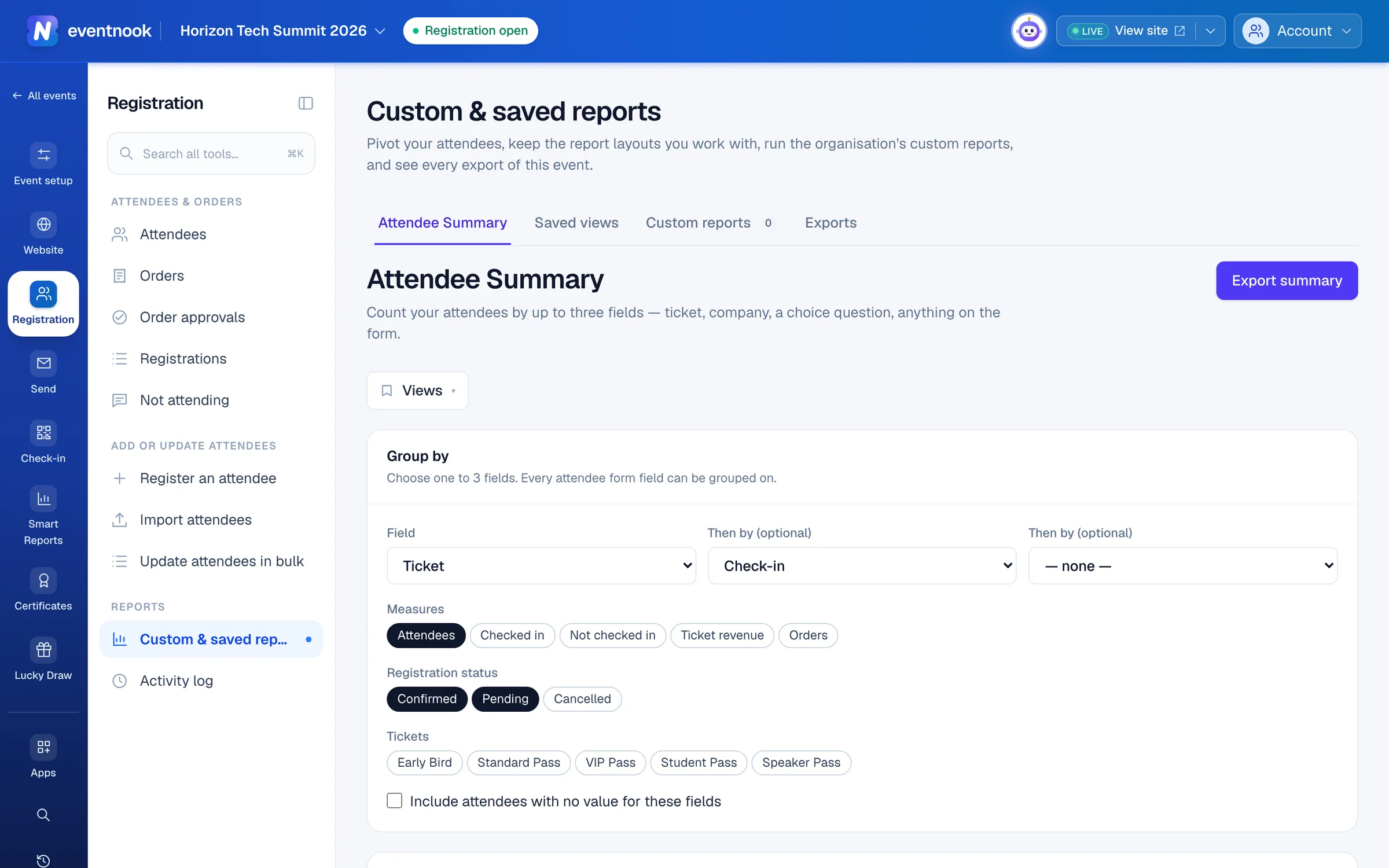
- 1Count attendees by the fields you choose
- 2Up to three fields, then the measures and filters
- 3Export the counts as they are shown
- 4Every view saved on this event's reports
Every field of the attendee form can be grouped on. A field holding personal details is marked (personal) in the list.
Manage saved views#
A view keeps a report's columns and their order, the filters, the sort and the page size. You save one from the Views menu on the report itself; this tab lists them for each report: Attendees, Registrations and Attendee Summary.
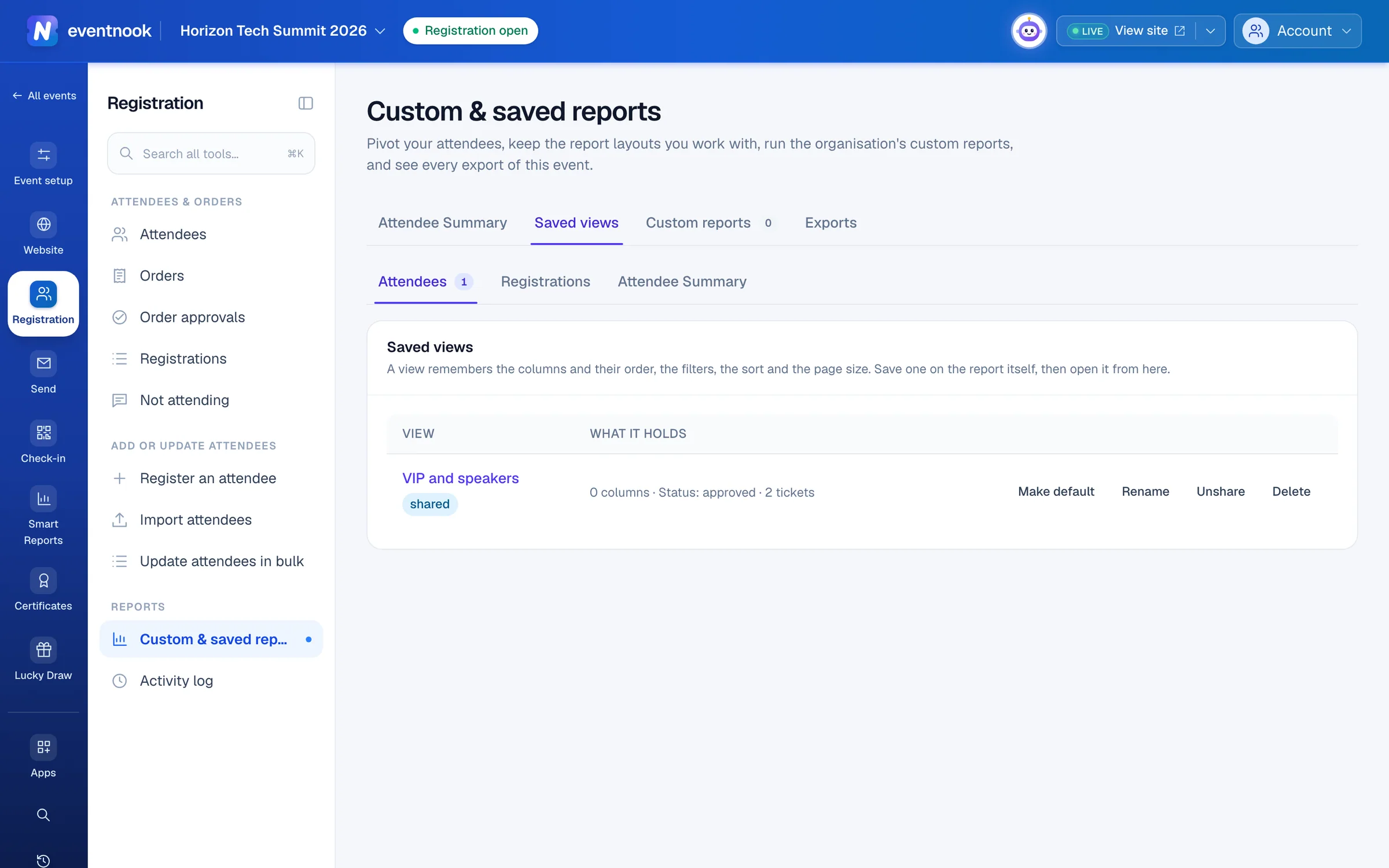
- Click a view's name to open the report with it.
- What it holds describes each view in words: its columns, statuses, filters and sort.
- Make default opens the report on that view for you. Unset default stops it.
- On your own views: Rename, Share or Unshare, and Delete.
A deleted view is removed for everyone it was shared with. Anyone using it as their default goes back to the report's default.
Run a custom report#
Custom reports are defined once for your organisation and can then be run against any of its events.
- Click Custom reports.
- Choose one in Report. It runs against this event.
If there are none, the tab says so. An organisation owner or admin sets them up.
See every export#
Click Exports for every export of the event: what it covered, its state, who asked for it and when. Tick Only mine to see your own.
- Download a finished export while its file is kept.
- Cancel one still running, Re-run one with the same scope, or Revoke a file so it can't be downloaded any more.
The record stays after the file is gone.
If something looks wrong#
- "Too many distinct values" or "Too many groups". A field you grouped on has too many values, or the fields do together. Filter by status or ticket first, or group by a field with fewer values.
- A row says (empty). Those attendees have no value for that field. They're counted only when Include attendees with no value for these fields is ticked.
- "Sharing a view with the rest of the team needs export access." You can still save views for yourself.
- There's no Exports tab. Your role can't export.
Who can do this#
Every event role can read the summary, open saved views and run custom reports. Sharing a view and the Exports tab need a role that can export. Managing someone else's export needs an event admin.
Related guides
- Find attendees and change their detailsSearch and filter the attendee list, open anyone's details beside it, correct or cancel one attendee, find duplicates, count attendees in a pivot and export the list.
- Find and export ordersFind any order by number, name or email, narrow the list by status and payment, keep the layouts you use as views, and export exactly what you see.
- Review registrations order by orderSee each order with the people registered under it, work through the pending ones and approve several at once.
- Read the event dashboardSee confirmed sales or registrations, places left, pending approvals and how each ticket is selling, and what needs your attention next.
- Present your event's figures with Smart ReportsTurn your attendees and orders into a report of slides with headline figures, charts and pivot tables, then present, download or share it with today's figures.
Still stuck? In EventNook, ask HeyNook. It knows the page you're on and your event, and can take you straight to the right setting.