Change, cancel or refund an order
Open one order to see who bought, what they paid and who is attending, then edit it, resend its email, record a payment, cancel it or refund it.
Where to find it: Event admin › My Events
Each order has a page of its own: the buyer, the tickets and money, every attendee's answers, and what happened to the order. The buttons at the top are the things you can do to this order now.
To open an order, click its row in Orders, or its Order No. in any list.
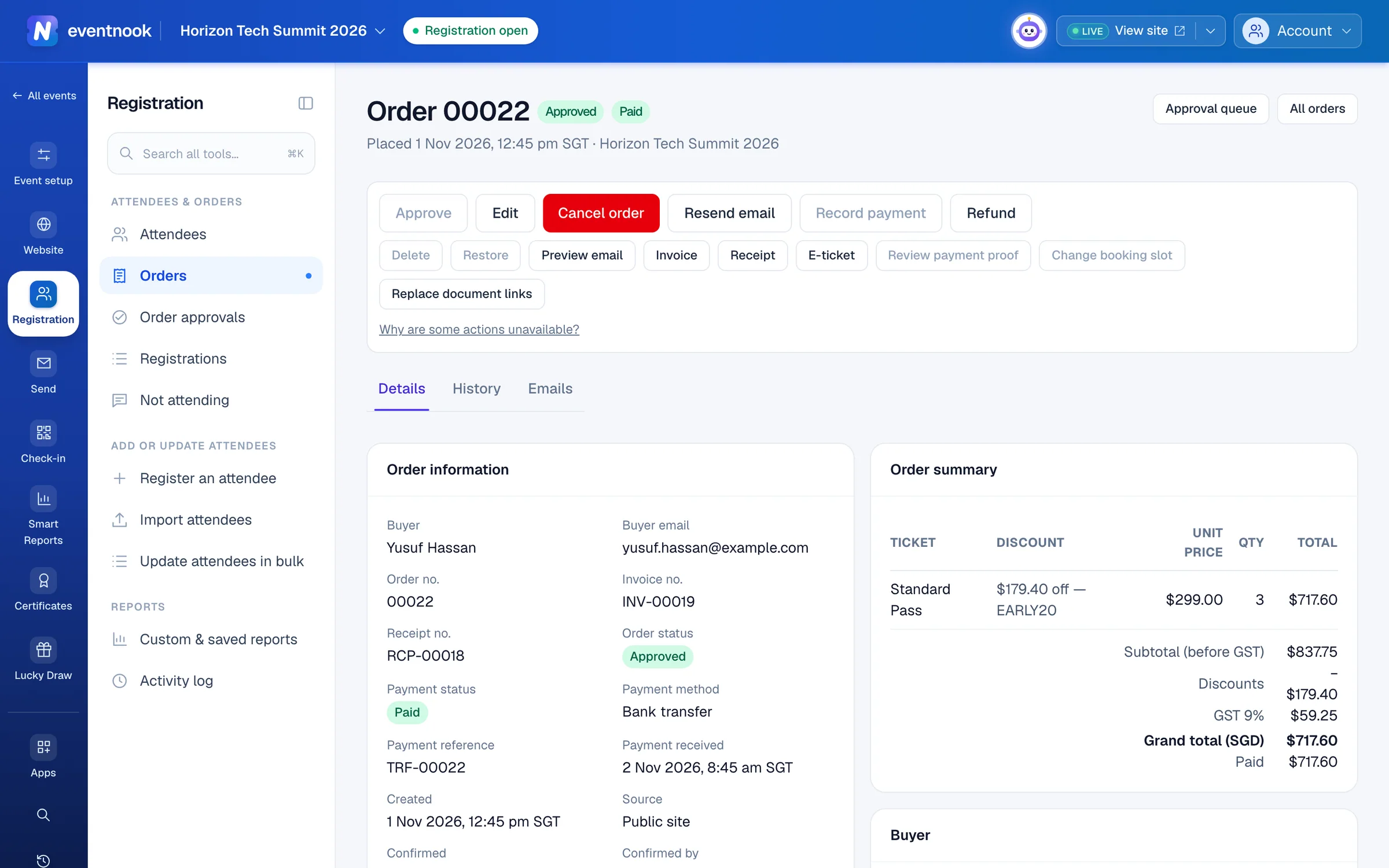
- 1Correct the buyer's or an attendee's answers
- 2Send the confirmation again to one of the order's contacts
- 3Cancel the whole order, with a refund decision if it was paid
- 4Every change to the order, and every email sent for it
What the page shows#
| Part | What it holds |
|---|---|
| Action bar | Every action for this order. One you can't use now is greyed out: hover over it for the reason, or click Why are some actions unavailable? |
| Order information | The buyer, order, invoice and receipt numbers, the order and payment status, the payment method and reference, where the order came from, and who confirmed or cancelled it. Billing details sit below. |
| Order summary | Each ticket as it was sold, with discounts and tax, the total, what has been paid and the Balance due. Refunds are listed under it. |
| Buyer and attendee cards | Every answer given at registration. A Possible duplicate badge means another registration has the same details. Click an uploaded file's name to open it. |
| Payment proof | Shown when the buyer uploaded proof of payment, with Mark verified and Reject proof. |
| History and Emails tabs | Every change to the order, and every email sent for it with its delivery status. |
Times are in the event's time zone. Hover over a time to see it in UTC.
On a free event the page opens without prices, invoices or payment actions. Turn on Show payment details beside the tabs to see them. This browser remembers the choice.
Correct someone's details#
- Click Edit. Every block of the order opens as a form: the buyer, then each attendee with their ticket.
- Change the answers.
- Under Tell the buyer, choose whether to send Email the buyer that their registration was updated. The box starts ticked when the event sends that email after every change; untick it to skip it this time.
- Click Save order. The whole order is saved at once.
To change only one attendee, you can also use their quick view in Attendees.
Resend the confirmation#
- Click Resend email.
- Under Send to, choose one of the order's own contacts. To send to a new address, edit the order first.
- Optional: add up to 3 CC addresses and a Reason.
- Click Send. A note at the top says whether it was sent.
The dialog shows how many resends are left: 5 a day and 20 in total for each order. To see the email before you send it, click Preview email, and Send me a test to get a copy yourself.
Approve a pending order#
Click Approve. The dialog says what happens: which tickets are claimed, which email goes out and, for a paid order, the amount due.
On a paid order, keep Record the payment received now ticked and enter the Amount received, the Payment received date and the Payment reference. Approving alone doesn't mark the order paid. To approve many orders in a row, use the approval queue.
Record a payment#
Click Record payment when the buyer paid outside checkout, for example by bank transfer. Enter the Amount received, a Reference and the Date received, then click Confirm payment. An amount below the balance records a part payment.
Cancel an order#
- Click Cancel order. The dialog says how many attendees are cancelled and which tickets are released.
- Type a Note to the buyer if they should know why. It goes in the cancellation email. The Internal note is never shown to the buyer.
- If money was received, choose a Refund treatment: record a refund you already made outside the system, or no refund with a reason. A refund needs Your password.
- Choose whether to Send the cancellation email, and add any CC addresses.
- Click Cancel order.
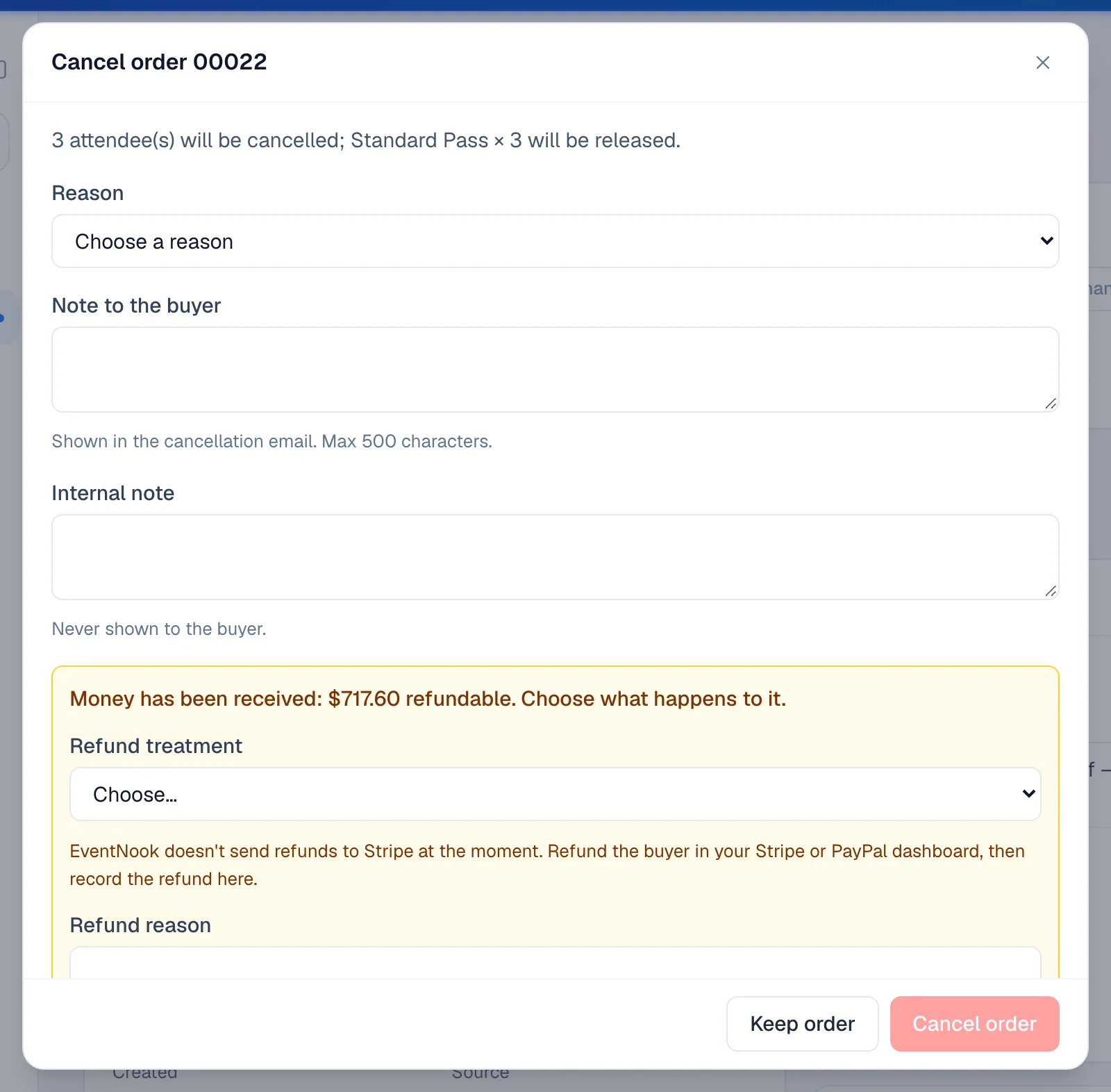
Attendees who were checked in no longer show as checked in. Keep order closes the dialog without changing anything.
Refund without cancelling#
- Click Refund.
- Under How, choose how the refund was made, then the Amount. You can refund part of an order, or tick the lines to refund.
- Give a Reason, add an Internal note if you like, and choose Email the buyer about this refund.
- Type Your password and click Record refund.
Delete or restore an order#
Delete hides an unpaid order from lists, reports and email audiences without telling the buyer. Give a Reason, then confirm it's you with an emailed 8-digit code, your authenticator app or your password, and click Delete order. Paid orders can't be deleted: cancel and refund them instead.
A deleted order stays readable and can be restored for 90 days. Open it and click Restore. It comes back with the status it had, and no email is sent.
Open the e-ticket, invoice or receipt#
- E-ticket lists each attendee with Open e-ticket, which opens their own e-ticket as they see it.
- Invoice and Receipt open the order's document.
If a ticket or invoice link reached the wrong person, an event admin can click Replace document links. The links already sent stop working straight away. Then click Resend email so the buyer gets the new ones.
If something looks wrong#
- A button is greyed out. The order's status doesn't allow it, or your role doesn't. Click Why are some actions unavailable? for each reason.
- "Someone else changed this order". A colleague saved the order while you were editing. Reload the page and make your change again.
- Approve says there isn't enough capacity. The ticket or a session filled up after the order was placed. Free some places, or an event admin can tick Approve anyway (overbook) and give a reason.
- Resend is refused. Only approved and pending orders have a confirmation to resend, and the daily or total limit may be used up. If the email is switched off for the event, the dialog offers Send anyway (recorded).
- "Refund outstanding". The order was cancelled but the refund didn't go through. Refund the buyer, then click Refund to record it.
- "Order not found". The order belongs to another event, or you don't have access to it.
Who can do this#
Everyone with access to the event's orders can open this page. Event Admin and Event Editor roles can approve, edit, cancel with no refund and resend emails. Only event admins and organisation owners or admins can refund, record payments, delete, restore or replace document links.
Related guides
- Find and export ordersFind any order by number, name or email, narrow the list by status and payment, keep the layouts you use as views, and export exactly what you see.
- Approve or reject pending ordersWork through the orders waiting for a decision and the payments that failed, approving or rejecting each one in place, from the keyboard or many at once.
- Find attendees and change their detailsSearch and filter the attendee list, open anyone's details beside it, correct or cancel one attendee, find duplicates, count attendees in a pivot and export the list.
- Change the emails your event sendsWrite the confirmation and other emails your event sends by itself, turn them on or off, choose who gets copies and check whether an email arrived.
- Set up invoices, receipts and taxPut your billing details on invoices, receipts and credit notes, choose how they are numbered and how they look, and charge tax on the tickets you choose.
Still stuck? In EventNook, ask HeyNook. It knows the page you're on and your event, and can take you straight to the right setting.