Stop duplicates, add terms and ask for billing details
Refuse duplicate registrations, make registrants accept your terms, copy order emails to a second address and choose the billing details buyers give when they pay.
Where to find it: Event admin › Event setup › Start here › Registration form
These settings sit beside the questions in Registration form. Each one saves on its own with its own Save button: they don't go through the form's draft and Review & publish.
Stop duplicate registrations#
Choose the attendee question whose answer must be unique, usually Email. Up to three questions can be unique together, such as first name, last name and company.
- Open Registration form. Under Attendee form, click Unique field.
- Tick the question, or up to three.
- Choose Unique across: The whole event or The same ticket type.
- Choose When a duplicate is found: Refuse the registration, or Accept it and flag it for review.
- Click Save.
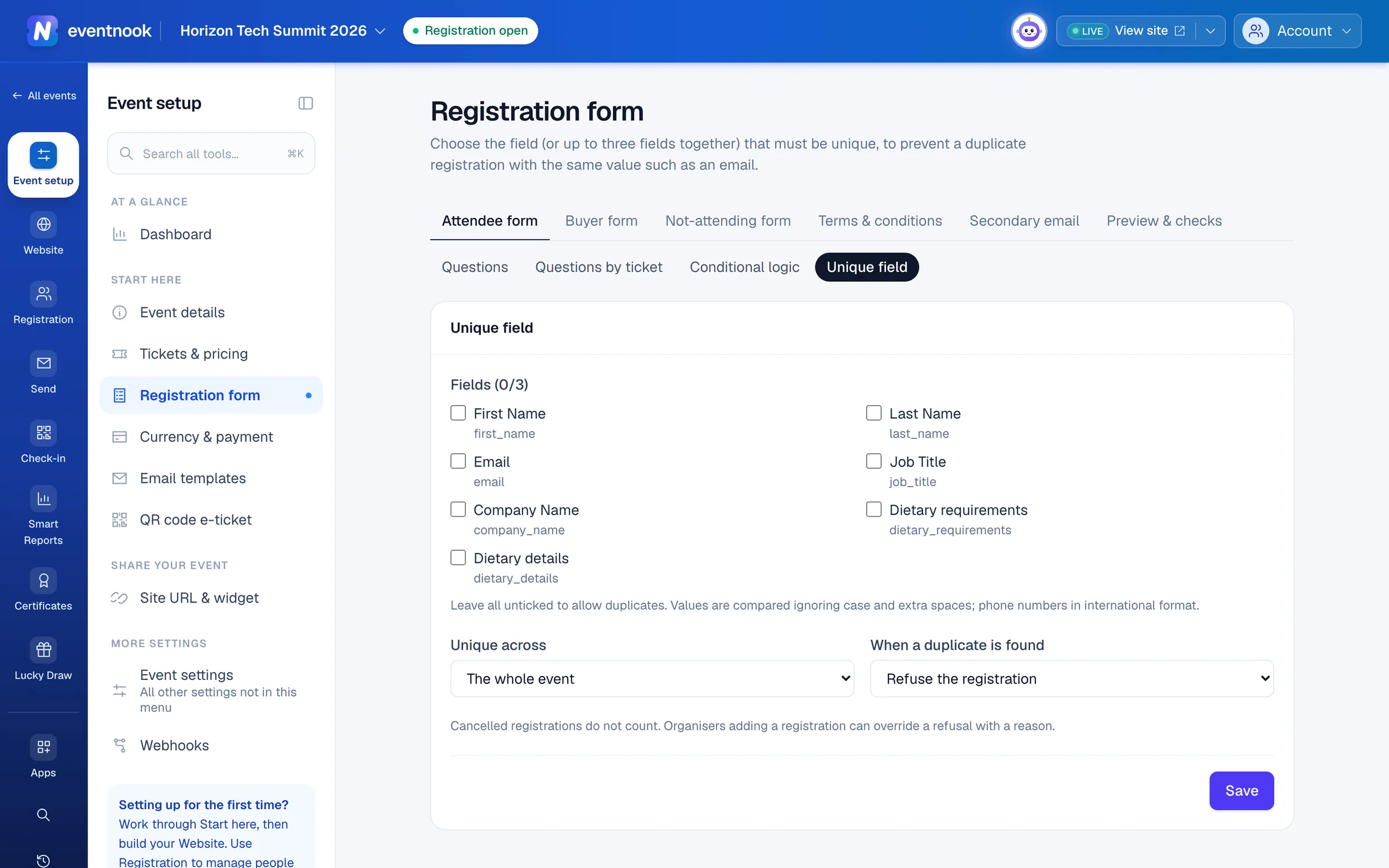
- 1Tick up to three questions that must be unique
- 2The whole event, or each ticket type
- 3Refuse it, or accept it and flag it
Answers are compared ignoring capitals and extra spaces, and phone numbers in international format. Cancelled registrations don't count. To allow duplicates again, untick every question and save: the notice says duplicate checking is off.
Only visible text, email, phone, number and choice questions on the attendee form can be chosen. A unique question can't be hidden or removed in the form builder until you untick it here.
Ask people to accept your terms#
- Open Registration form and click Terms & conditions.
- Turn on Registrants must accept terms and conditions.
- Type a Title and write your terms in Terms. Or click Copy example into editor and adapt it.
- Optional: change the Agreement checkbox text registrants tick.
- Click Save. The terms are published as a new version, shown as Live: version N.
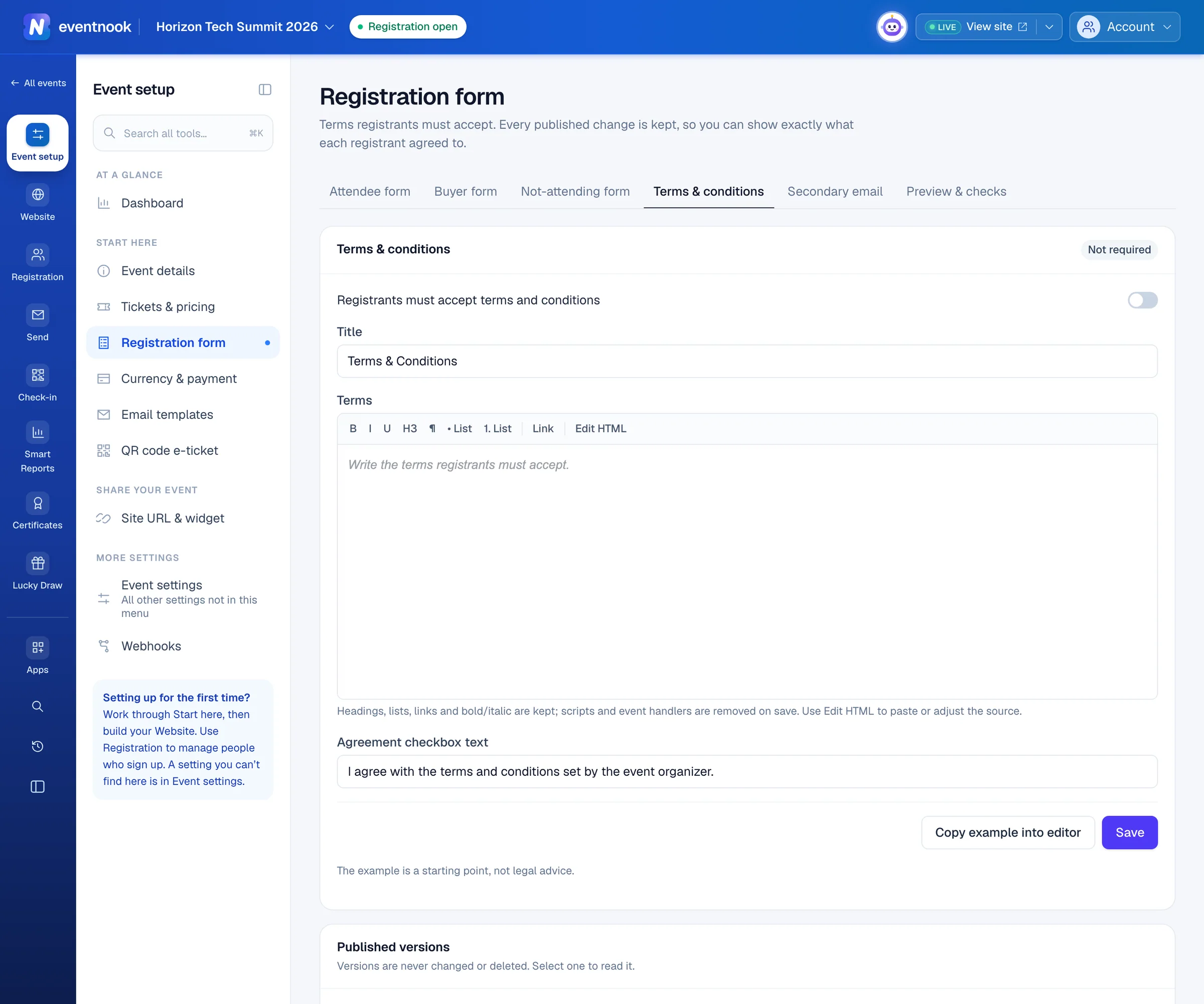
- 1Turn terms on or off
- 2Start from an example
- 3Every version registrants have accepted
The editor's toolbar keeps headings, lists, links, bold and italic. Edit HTML lets you paste or adjust the source. Scripts are removed when you save.
Every registration records the version it accepted. When you change the terms and save, earlier registrants keep the version they agreed to, and new registrants accept the new one. Published versions lists them all: click one to read it. Versions can't be changed or deleted.
To stop asking for terms, turn the switch off and save. Your published versions are kept.
Copy order emails to a second address#
Registrants can give one extra address, such as an assistant's, that gets a copy of their order emails.
- Open Registration form and click Secondary email.
- Turn on Ask for a secondary email address. A Secondary Email question is added to the form.
- Under Which emails are copied, tick CC on order confirmation, CC on order pending or CC on order cancellation or rejection.
- Click Save.
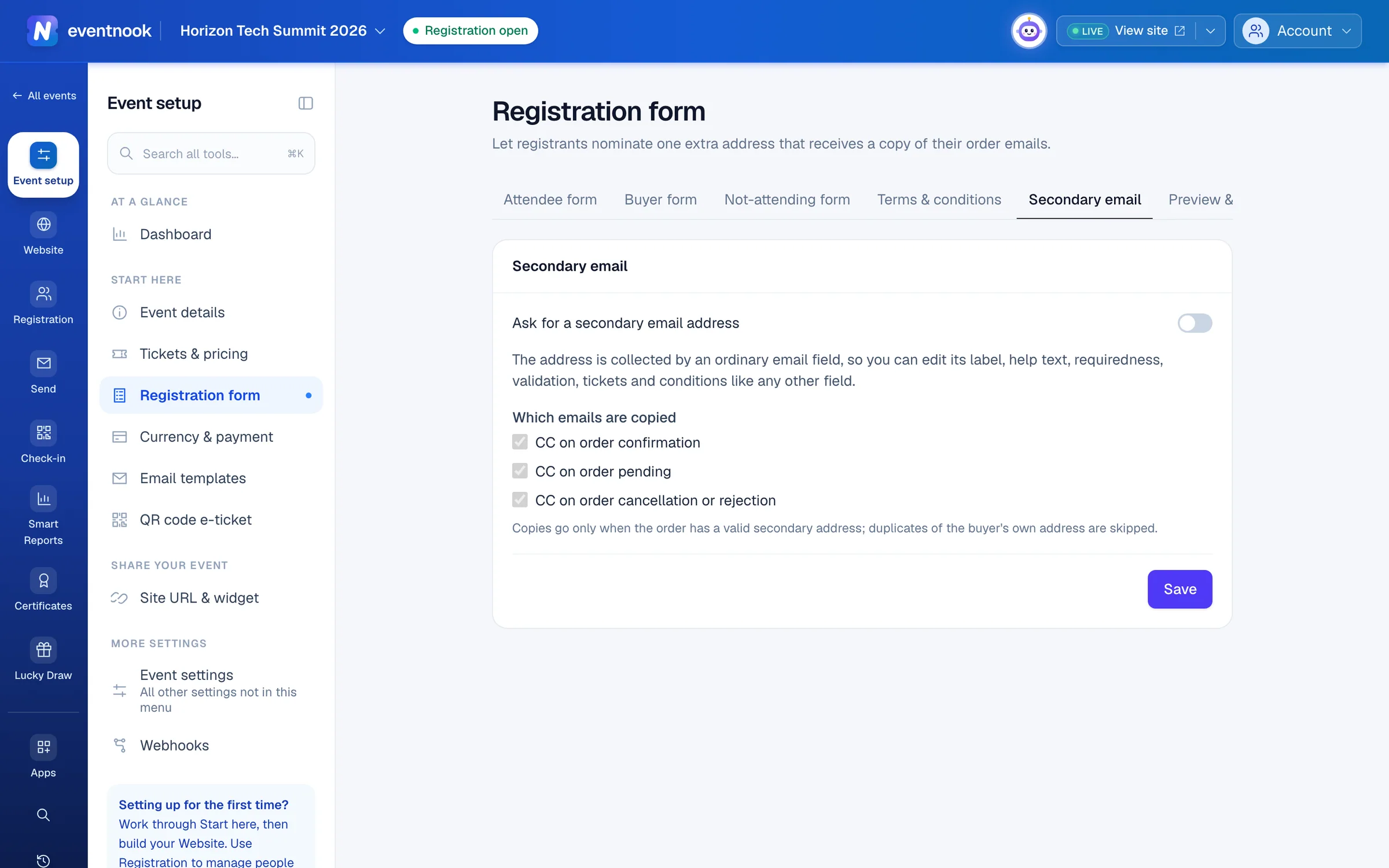
To change the question's wording, make it required or ask it only for some tickets, click Edit the field. It works like any other question. A copy goes only when the address is valid, and a copy to the buyer's own address is skipped.
Turning the switch off takes the question off the form. Answers already given are kept.
Ask for billing details#
Billing details are asked once, on the payment step, and go on the invoice and receipt. They aren't questions on the buyer form, and free orders are never asked.
- Open Registration form. Under Buyer form, click Billing information.
- Turn on Ask buyers for billing details when they pay.
- For each detail, choose Don't ask, Optional or Required.
- Optional: change the Section heading and Help text shown on the payment step.
- Click Save billing information. The payment step uses it straight away.
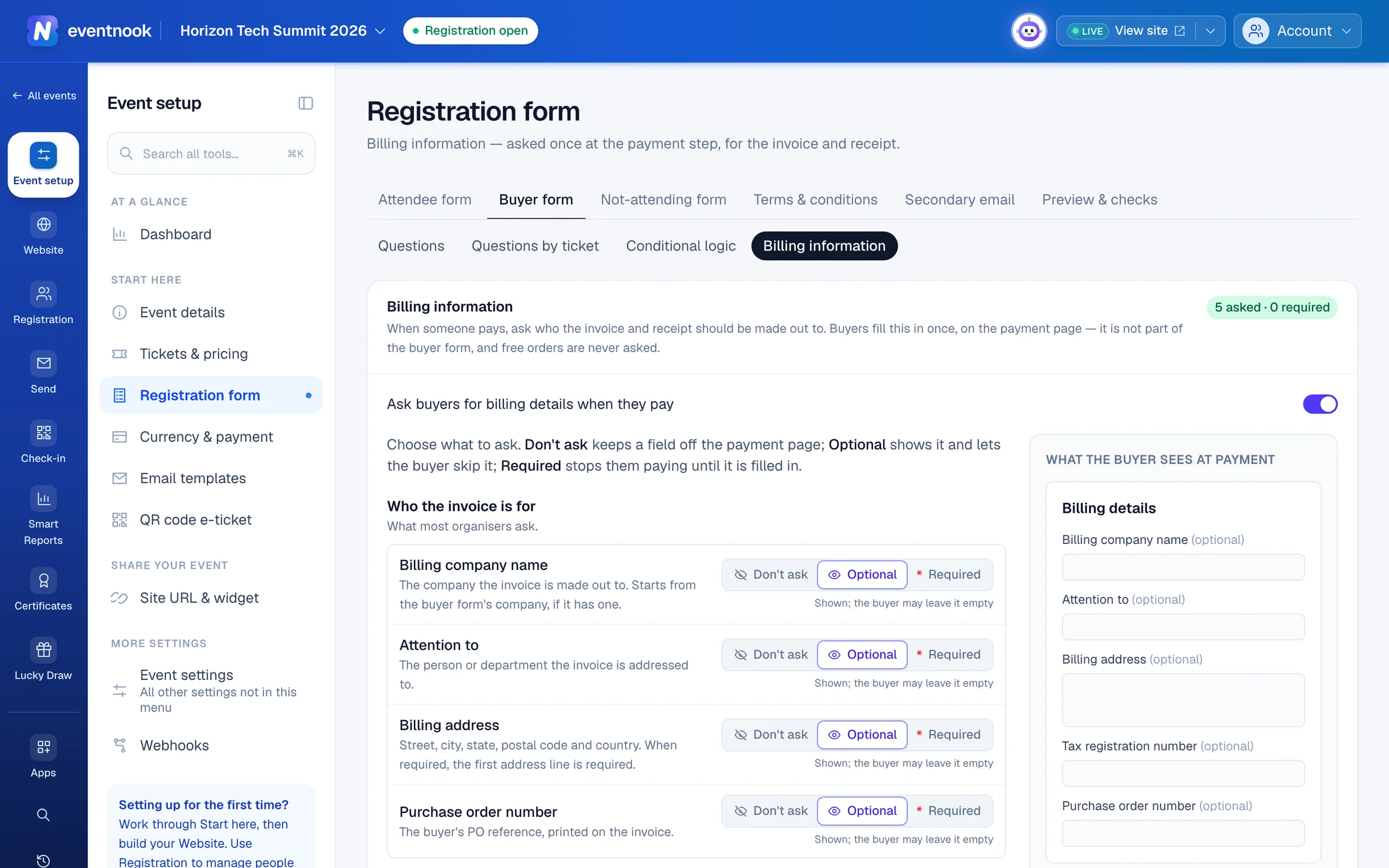
- 1Ask for billing details at payment, or not
- 2A sketch of the payment step
| Detail | What it is |
|---|---|
| Billing company name | The company the invoice is made out to. |
| Attention to | The person or department it's addressed to. |
| Billing address | Street, city, state, postal code and country. When required, the first address line must be filled in. |
| Purchase order number | The buyer's PO reference, printed on the invoice. |
| Tax registration number | The buyer's GST, VAT or other tax ID. |
| UEN | A Singapore company's Unique Entity Number, needed for an e-invoice. |
| Peppol ID | Where an e-invoice is sent. A Singapore buyer's is worked out from their UEN, so ask for the UEN instead. |
When the switch is off, the payment step shows no billing section, and invoices use the company and address from the buyer form if it has them. For the invoice itself, see Receipts, invoices and tax.
If something looks wrong#
- A question isn't offered as the unique field. Only visible text, email, phone, number and choice questions on the attendee form can be used.
- A warning says a unique field is no longer active and visible. It was hidden or removed, so duplicates aren't being checked. Restore it, or choose another question.
- Save is greyed out on Terms & conditions. Terms are switched on but the text is empty.
- You saved the terms but no new version appeared. Nothing in the title, terms or checkbox text changed.
- The CC boxes are greyed out. Turn on Ask for a secondary email address first.
- You can't remove the Secondary Email question in the form builder. It's managed here. Use the switch.
- A buyer can't pay and sees a message about a billing detail. A required detail is empty, or the UEN or Peppol ID isn't valid. Set the detail to Optional if it shouldn't be compulsory.
- "These settings changed since you opened the page." Someone else saved. Click Reload the latest version and make your change again.
Who can do this#
Everyone with access to the event can view these settings. Editors and event admins can change them.
Related guides
- Build the registration formChoose the questions attendees and buyers answer when they register, set each one up, ask some only for certain tickets, and publish the form.
- Set up invoices, receipts and taxPut your billing details on invoices, receipts and credit notes, choose how they are numbered and how they look, and charge tax on the tickets you choose.
- Change the emails your event sendsWrite the confirmation and other emails your event sends by itself, turn them on or off, choose who gets copies and check whether an email arrived.
Still stuck? In EventNook, ask HeyNook. It knows the page you're on and your event, and can take you straight to the right setting.