See the newest orders across your events
Check the latest orders from every event of your organisation, or of events shared with you, on one page.
Organisers Updated 17 November 2026
Where to find it: Event admin › Recent Orders
Recent Orders lists the newest orders across all your events, newest first. Use it to see what came in today without opening each event.
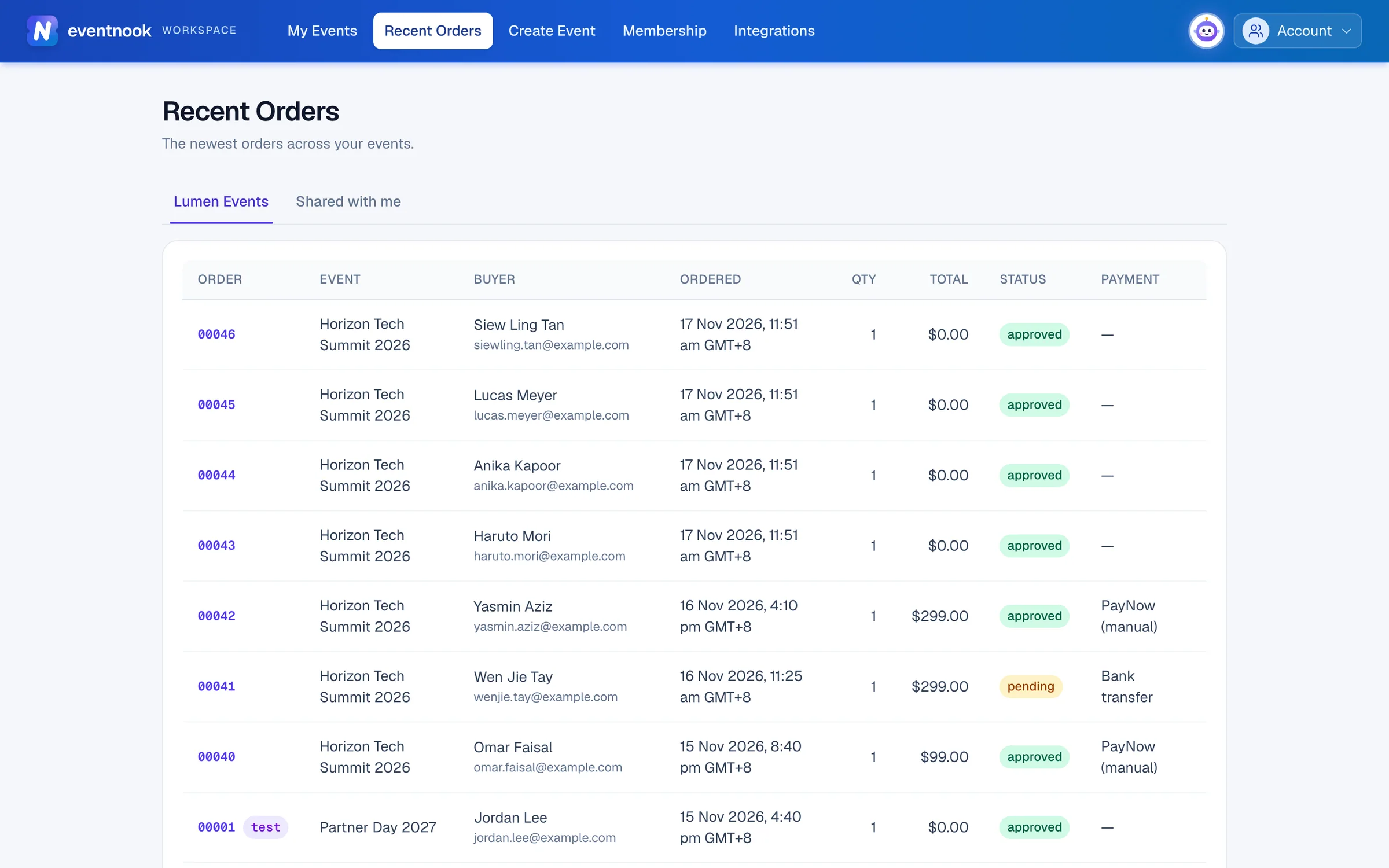
- 1Your organisation's events
- 2Events other organisations invited you to
Check the latest orders#
- Click Recent Orders in the menu at the top of the page.
- Read the list. The first tab shows your organisation's events.
- Click an order number to open the order, or the event's name to open its orders.
| Column | What it shows |
|---|---|
| Order | The order number. test marks an order placed in test mode. |
| Event | The event it belongs to. |
| Buyer | The buyer's name and email. |
| Ordered | When, in the event's own time zone. |
| Qty and Total | How many tickets, and the total in the event's currency. |
| Status and Payment | Where the order stands, and how it was paid. |
Switch organisation or see shared events#
- If you belong to more than one organisation, choose the one to see in Organisation at the top right.
- To see events from other organisations that invited you to work on them, click Shared with me.
If something looks wrong#
- Some events' orders are missing. You only see orders for events where your access includes orders. If you were given only some events, only those appear.
- "No orders yet". Try the other tab, or another organisation.
- Times look out of step. Each order shows its own event's time zone, with the zone's short name.
Who can do this#
Everyone with an account can open this page. It lists only the orders you could open in each event.
Related guides
- Find and export ordersFind any order by number, name or email, narrow the list by status and payment, keep the layouts you use as views, and export exactly what you see.
- Change, cancel or refund an orderOpen one order to see who bought, what they paid and who is attending, then edit it, resend its email, record a payment, cancel it or refund it.
- Find your eventsFind any event you can work on, narrow the list by status or whose event it is, bookmark the ones you use most, and bring events back from the Archive.
Still stuck? In EventNook, ask HeyNook. It knows the page you're on and your event, and can take you straight to the right setting.