Register someone yourself
Register a person through the event's real registration form on their behalf, or prepare a personal link with their details for them to complete.
Where to find it: Event admin › Registration › Add or update attendees › Register an attendee
Register an attendee has two ways to add someone. Register now opens the event's real registration form for you to fill in on their behalf, such as a phone booking or a guest you invite yourself. Personal links sends someone a private link to the form, with the answers you already know filled in.
Both use the event's own form, so prices, payment and the form's rules are the same as on your registration page. For walk-ins on the event day, the walk-in desk in Onsite is quicker: see Register walk-in guests.
Register someone now#
- Open Registration › Add or update attendees › Register an attendee. Register now is open.
- Under This session allows, check what the session relaxes. Each is ticked to begin with; untick what you don't need.
- Choose the Session length. Until the event ends is the default.
- Click Open registration form. The form opens in the page, with the time the session has left.
- Fill in the form as the person would, choose their ticket and complete it. A paid ticket still needs a payment or a payment method you confirm yourself.
- For the next person, click Start another registration. When you're done, click End session.
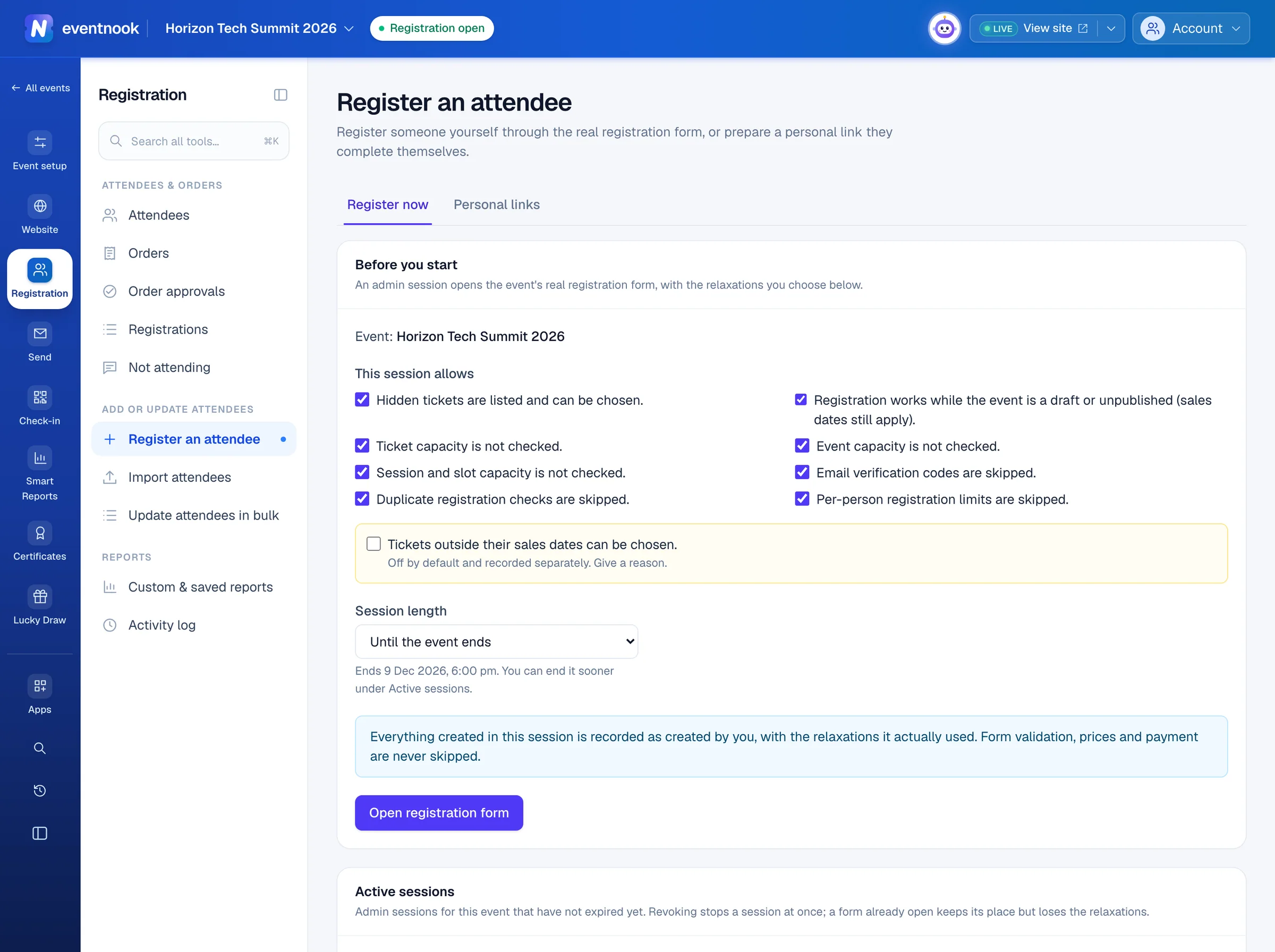
- 1The checks this session relaxes, all of which you can untick
- 2How long the session lasts
- 3Open the real registration form in the page
- 4Every session still running for this event
What a session can relax:
| Relaxation | What it means |
|---|---|
| Hidden tickets | Hidden tickets are listed and can be chosen. |
| Draft or unpublished event | Registration works while the event is a draft or unpublished. Sales dates still apply. |
| Capacity | Ticket, event, and session or slot capacity aren't checked. |
| Email verification | Email verification codes are skipped. |
| Duplicates and limits | Duplicate registration checks and per-person registration limits are skipped. |
| Tickets outside their sales dates can be chosen | Off to begin with. Only an event admin can tick it, with a Reason. |
Form validation, prices and payment are never skipped. Everything created in a session is recorded as created by you.
If the form doesn't appear in the page, click Open in a new tab.
Stop a session#
Active sessions lists every session for this event that hasn't expired: who started it, when it ends, its relaxations and how many registrations it made. Click Revoke on a row to stop it at once. An event admin can click Revoke all, for example when a device is lost. A form already open keeps its place but loses the relaxations.
Send someone a personal link#
A personal link opens the form for one person and one ticket, with the answers you prepared filled in. They check it, complete the rest and pay if needed. Each link works once.
- Click Personal links, then New link.
- Choose the Ticket. Hidden tickets can be chosen; the link unlocks only this ticket.
- Type their Email. The link is for this address and is only ever emailed to it.
- Under Answers to fill in, type what you already know. Tick Lock on an answer they mustn't change.
- Set Expires in (days) and, if you like, a Personal note for the email.
- Keep Email the link now ticked, and click Create and email. To send it yourself, untick it, click Create link, then Copy link.
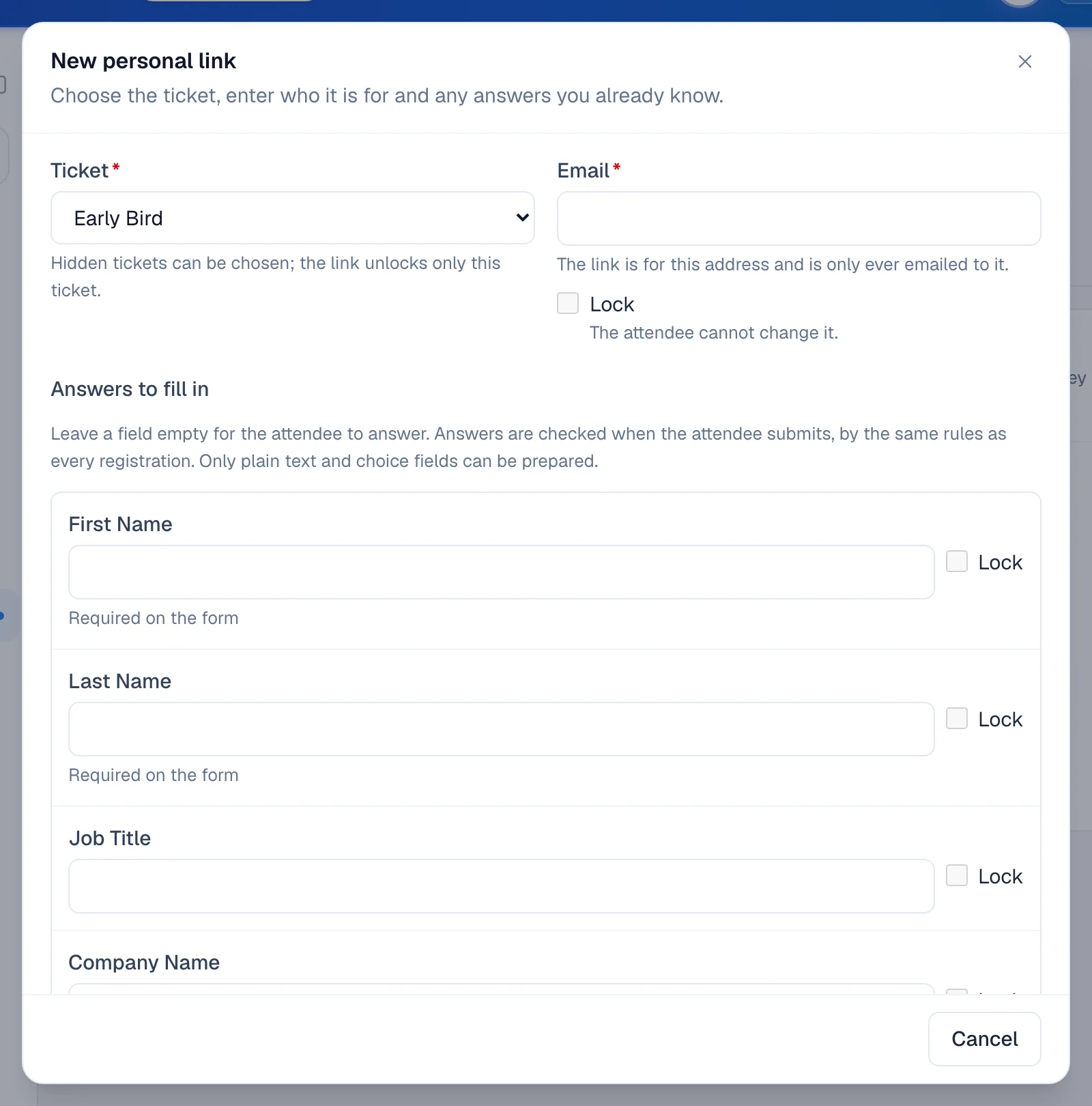
- 1The one ticket this link unlocks, hidden ones included
- 2Answers you already know, with Lock on any they mustn't change
Creating a link doesn't hold a place. Capacity, sales dates and the usual checks apply when the person registers.
Follow up on a link#
The list shows each link's status:
| Status | What it means |
|---|---|
| Active | Ready, not opened yet. |
| Opened | They opened it but haven't registered. |
| Completed | They registered. View order opens the order. |
| Expired | Past its expiry. |
| Revoked | Stopped by your team. The prepared answers were deleted. |
On an active or opened link, click Send again to remind them, Copy link to send it another way, or Revoke to stop it. View shows the prepared answers.
If something looks wrong#
- "This session has expired". Sessions end at a fixed time. Registrations already submitted are kept. Click Open the form again.
- "You cannot register people for this event". Registering on someone's behalf needs the Event Admin or Event Editor role.
- A field can't be filled in on the link. Only plain text and choice fields can be prepared. The person fills in the rest.
- The link email wasn't sent. The dialog says why. Copy the link and send it another way, or click Send again later.
- You can't revoke a completed link. The person has registered. Cancel their order instead.
Who can do this#
Event Admin and Event Editor roles can use this page. An editor can revoke only the sessions they started. Only an event admin can revoke every session or allow tickets outside their sales dates. Emailing a link needs permission to send messages.
Related guides
- Import attendees from a spreadsheetAdd many attendees at once from a CSV or Excel file or pasted rows, check every row before anything is created, and choose whether they are emailed.
- Invite guests with invitation codesMake tickets invitation-only, give each guest a code or a personal link, import a guest list and see who has registered.
- See who changed whatLook up every change made in the event, who made it and when, open one to see exactly what changed and where it came from, and follow a bulk change row by row.
- Register walk-in guestsRegister guests who arrive without a registration at a walk-in desk, scan their business card to fill in the form, check them in and print their badge, and let your crew run the desk on their own phones.
- Find and export ordersFind any order by number, name or email, narrow the list by status and payment, keep the layouts you use as views, and export exactly what you see.
Still stuck? In EventNook, ask HeyNook. It knows the page you're on and your event, and can take you straight to the right setting.