Update attendees in bulk
Correct registration answers for many attendees in one sheet, the way you would in a spreadsheet, and save them together.
Where to find it: Event admin › Registration › Add or update attendees › Update attendees in bulk
Update attendees in bulk puts the registration answers of many attendees in one sheet. Use it to fix the same mistake across many people, such as company names spelled several ways, or to fill in missing answers.
Tickets, statuses, check-in and payments aren't changed here. Those have their own actions on each attendee and order.
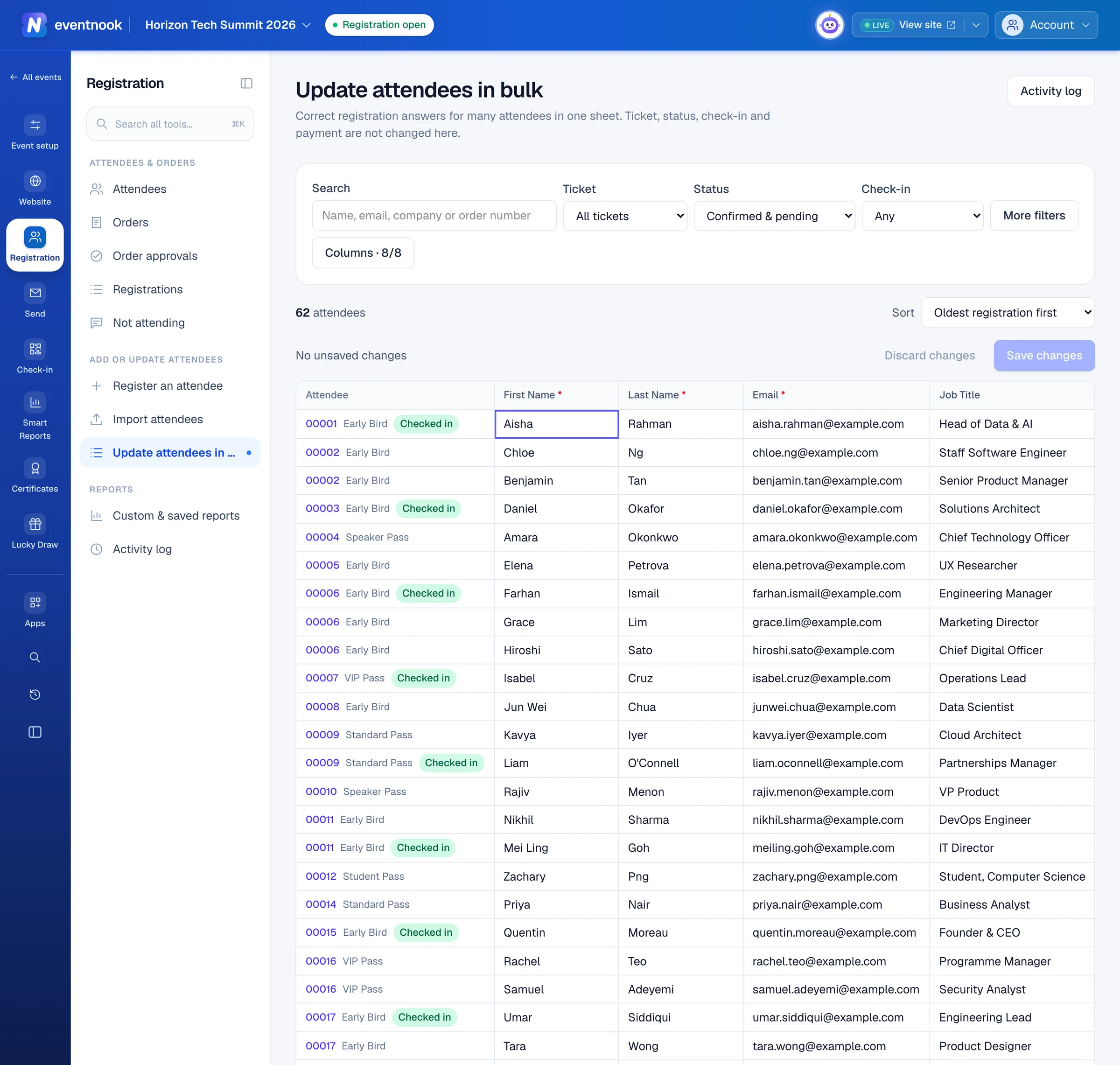
- 1Find the rows to fix as you type
- 2Match on how people registered, dates or their answers
- 3Choose the fields you want to see
- 4Click a cell and type, or paste from a spreadsheet
Find the rows to fix#
- Open Registration › Add or update attendees › Update attendees in bulk.
- Type in Search: a name, email, company or order number. The sheet follows as you type.
- Optional: narrow it with Ticket, Status and Check-in. Status shows Confirmed & pending to begin with.
- Optional: click More filters to choose How they registered, Registered from and Registered to, or add a condition on an answer under Answers, such as Company Name is empty. Click Add condition. Every condition must hold, up to 5.
Each filter shows as a chip under the bar; click × on one to remove it, or Clear all. Sort above the sheet orders the rows by registration date, name, order number or email.
Choose the columns#
Click Columns to pick the fields you see. Find one by name, or click Required only or Editable only. Show all brings them all back. This browser remembers your columns and sort for this event. A column you filter on always stays in view.
Edit the sheet#
- Click a cell and type, or press
Enterto edit it. Arrow keys andTabmove between cells;Deleteclears. - Select several cells with
Shift+click,Shift+arrow keys, or by dragging.Ctrl+A(⌘ Aon a Mac) selects everything. - Copy, cut and paste with
Ctrlor⌘+C,XandV, here or to and from Excel or Google Sheets. One value pasted into a selection fills every selected cell. Ctrlor⌘+Dcopies the top row of the selection into the rows below it.Ctrlor⌘+Zundoes. Discard changes throws away everything not saved yet.
Changed cells are highlighted, and the line above the sheet counts them. A list field only takes its own options: a value that isn't one turns red. Grey cells can't be changed here; hover over one to see why.
Save your changes#
- Click Save with the number of changes.
- Read the result. Each attendee is checked against your registration form and saved on its own.
If an attendee can't be saved, for example because a required field is empty or a colleague changed them meanwhile, their row is marked with the reason and your edit is kept. Fix it and click Save again.
While you have unsaved changes, the search, filters and pages are locked, so an edit is never lost by moving away. Save or discard first.
Every saved change is recorded in the Activity log, with who made it. Click See exactly what changed in the activity log after a save, or Activity log at the top of the page.
If something looks wrong#
- "This sheet is read-only". The note under it says why, such as your role or the event's settings.
- A cell is grey. Addresses, dates with times, files and sessions are shown here but edited on the attendee's own page. If your role can't see personal details, names, emails and phone numbers are masked and locked.
- A pasted value turned red. It isn't one of the field's options. Correct it or clear it before saving.
- "Saving was interrupted". Rows already saved are kept. Click Save again for the rest.
Who can do this#
Event Admin and Event Editor roles can update attendees in bulk.
Related guides
- Find attendees and change their detailsSearch and filter the attendee list, open anyone's details beside it, correct or cancel one attendee, find duplicates, count attendees in a pivot and export the list.
- Import attendees from a spreadsheetAdd many attendees at once from a CSV or Excel file or pasted rows, check every row before anything is created, and choose whether they are emailed.
- See who changed whatLook up every change made in the event, who made it and when, open one to see exactly what changed and where it came from, and follow a bulk change row by row.
- Build the registration formChoose the questions attendees and buyers answer when they register, set each one up, ask some only for certain tickets, and publish the form.
Still stuck? In EventNook, ask HeyNook. It knows the page you're on and your event, and can take you straight to the right setting.