Set early-bird and category prices
Change ticket prices on dates you choose, such as an early-bird price, and give groups of buyers such as Members or Students their own price.
Where to find it: Event admin › Event setup › Start here › Tickets & pricing
On a paid event, Tickets & pricing has two more tabs. Pricing & tiers decides how prices work: one price per ticket, prices that change on dates you set (an early-bird price), a price for each group of buyers, or both. Buyer categories holds those groups of buyers.
A tier is a period with its own price, such as Early Bird until 31 January. A buyer category is a group of buyers with its own price, such as Members or Students.
All amounts are in the event's currency, set in Currency & payment. Dates and times are in the event's time zone.
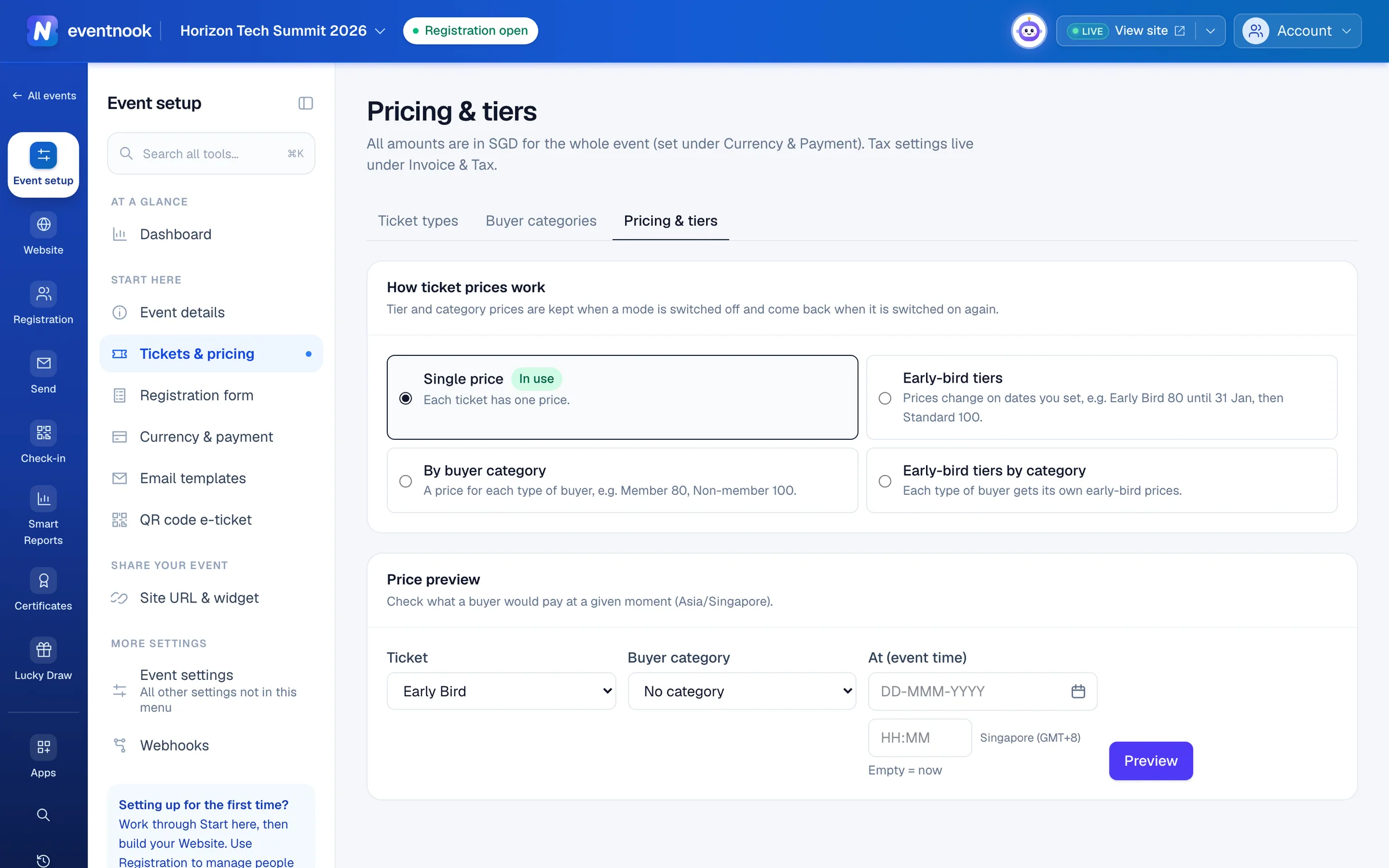
- 1Prices that change on dates you set, such as an early-bird price
- 2A price for each group of buyers, such as Members
- 3Create the groups of buyers first
Choose how prices work#
Open Tickets & pricing and click the Pricing & tiers tab. Under How ticket prices work, the option in use is marked In use.
| Option | What buyers pay |
|---|---|
| Single price | Each ticket's own price, set on the ticket. The default. |
| Early-bird tiers | The price of the tier that's on when they buy. After the last tier, each ticket's own price. |
| By buyer category | Buyers choose their category and pay its price. |
| Early-bird tiers by category | Their category's price for the tier that's on. |
When you choose another option, the card shows what it still needs before you can switch, then a Switch to … button.
Set an early-bird price#
- On Pricing & tiers, choose Early-bird tiers. The card asks When does each tier end?, with an Early Bird tier ready.
- Under Ends, choose when Early Bird ends. Shortcuts such as 1 week before the event are in the date picker.
- Optional: click Add a tier for another period, such as a second early-bird price. An event can have up to 3 tiers.
- Optional: name the price buyers pay after the last tier, in the box after After the last tier, buyers pay each ticket's own price, shown as. It starts as Standard.
- Click Save and turn on Early-bird tiers. The page moves down to Tier prices.
- In Tier prices, type each ticket's price for each tier.
- Click Save tier prices.
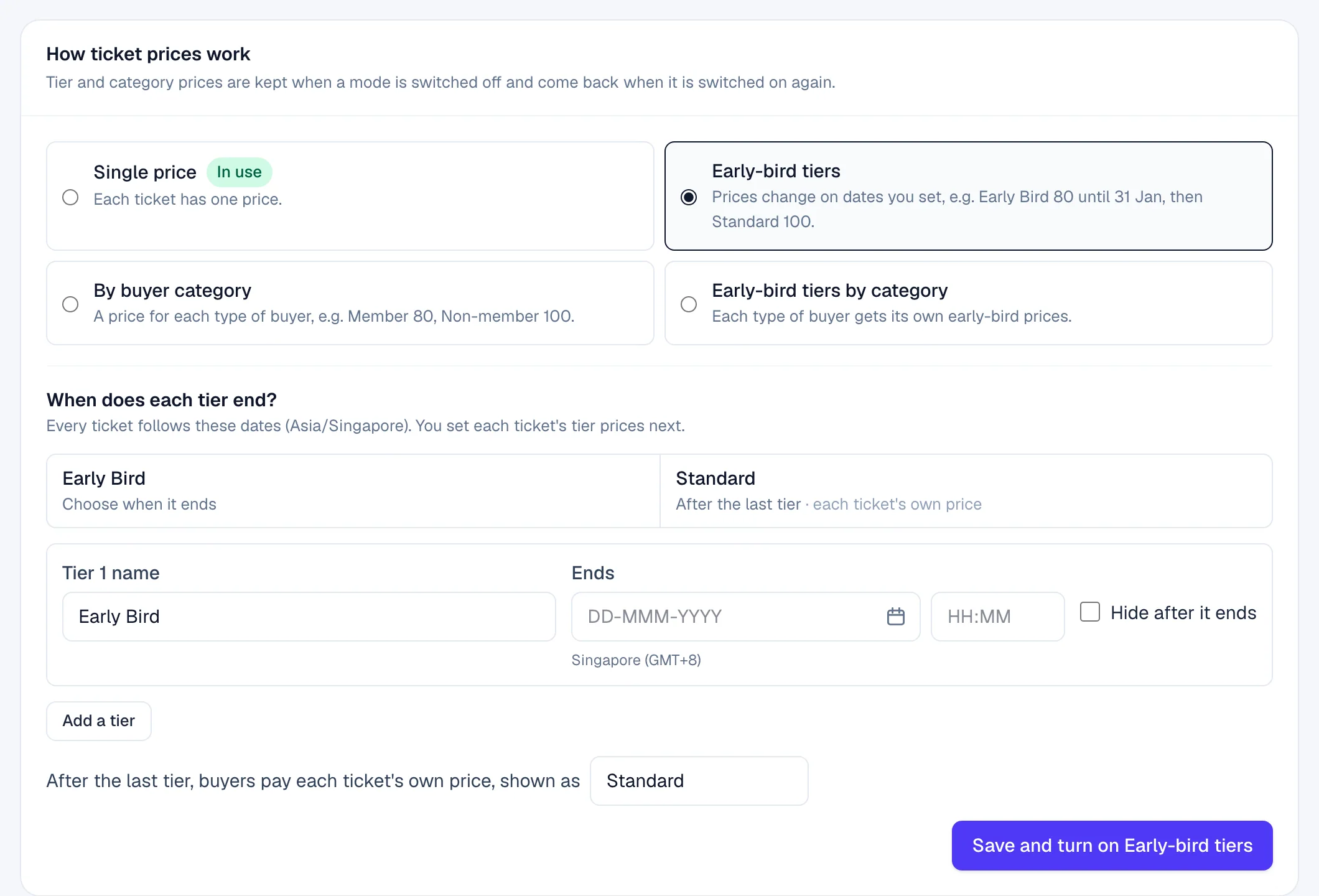
- 1Up to three tiers, each starting when the one before ends
- 2Stop showing a tier's price once it has ended
- 3Saves the dates and switches the pricing on together
Each tier starts when the one before it ends. The timeline above the tiers shows what buyers pay and when, with Now on the period that's on.
Free and donation tickets aren't part of tier prices.
Change the tier dates#
- On Pricing & tiers, change the dates in Tier dates.
- Optional: tick Hide after it ends on a tier. Once it ends, buyers no longer see its price. Otherwise it stays on the ticket, marked as ended.
- Click Save tier dates.
If you remove a tier, its prices are kept, and Tier dates lists it as saved earlier, not in use. Add a tier back to use them again.
Give a group of buyers its own price#
First create the categories, then switch the pricing on.
- Open the Buyer categories tab and click New category.
- Type a Code and a Name, such as
memberandMember. - Under Eligible tickets, keep All tickets, including ones added later, or untick it and choose the tickets this category can buy.
- Optional: tick Buyers must enter a price code and type the Price code, so only people who have the code can choose this category.
- Click Create category.
- Repeat for every group, including one for everyone else, such as
Non-member. - Open Pricing & tiers, choose By buyer category, and click Switch to By buyer category.
- In Category prices, type each category's price for each ticket. Untick Eligible to stop a category buying a ticket; its price is kept for later.
- Click Save category prices.
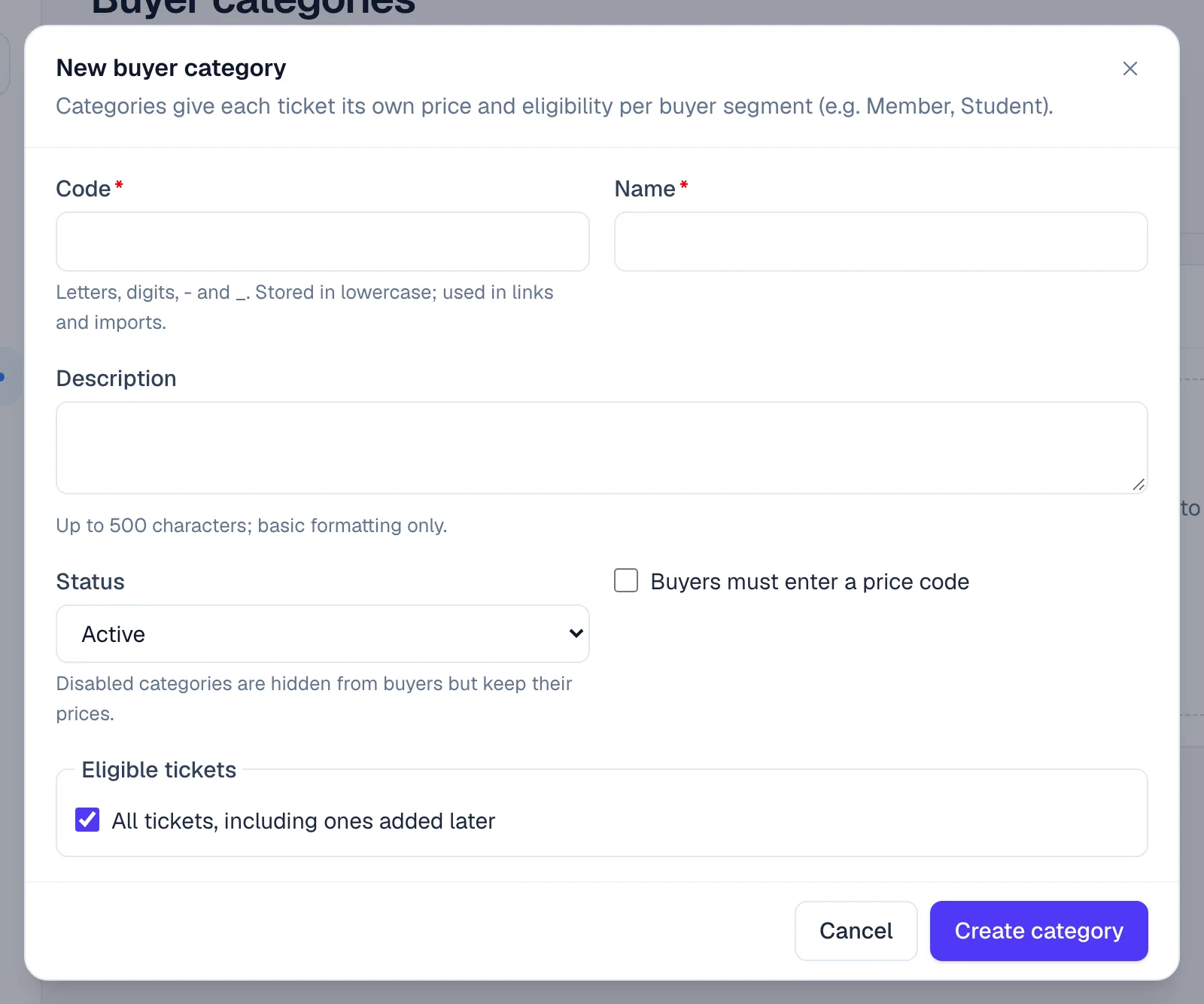
- 1Ask for a code before buyers can choose this category
- 2Which tickets this category can buy
| Setting | What it does |
|---|---|
| Code | Letters, digits, - and _, saved in lowercase. Used in links and imports. Once an order uses the category, the code can't change. |
| Name | What buyers see. |
| Description | Up to 500 characters. |
| Status | Active, or Disabled to hide the category from buyers and keep its prices. Default: Active. |
| Buyers must enter a price code | Buyers type the Price code before they can choose the category. The code can't be shown again after you save it; leave the box blank when editing to keep it. |
| Eligible tickets | The tickets this category can buy. |
On the registration page, buyers choose their Ticket category before they see the tickets. A category with a price code asks for it in Category access code.
To give each category its own early-bird prices too, choose Early-bird tiers by category. Category prices then has a box for each tier and one for the price after the tiers.
Change, reorder or remove categories#
- Change one: click Edit on its row, then Save.
- Change the order: use the ↑ and ↓ buttons. It's the order on the registration page and the column order in Category prices.
- Hide one for now: edit it and set Status to Disabled.
- Remove one: click Archive on its row, then Archive in the dialog. Its prices are kept and orders that used it keep their price. To bring it back, tick Show archived and click Restore.
Check what a buyer pays#
- On Pricing & tiers, go to Price preview.
- Choose the Ticket and, if you use categories, the Buyer category.
- Optional: set At (event time) to check a later date. Leave it empty for now.
- Click Preview. You see the Price, where it comes from (such as Tier price) and the Period.
If something looks wrong#
- The early-bird price is the same as the regular price. Each tier starts with the ticket's own price. Type the lower prices in Tier prices and click Save tier prices.
- "Some tickets already have orders" when saving prices. Click Save anyway. Existing orders keep what they paid.
- You can't switch to a category option. It needs an active buyer category first. Click Create a buyer category, add one, then switch.
- "Tickets no category can buy". Those tickets aren't eligible for any active category, so nobody can buy them. Make each one eligible for at least one category.
- Buyer categories says categories are not in use. The event is on Single price or Early-bird tiers. Switch to a category option on Pricing & tiers.
- Archiving a category is refused. Some tickets could then be bought by no category, or it is the last active category. Make those tickets eligible for another category, or switch the pricing option first.
- A category's code can't be edited. Orders already use it. You can still rename it.
- There are no Buyer categories or Pricing & tiers tabs. The event is free. Convert it to a paid event in Event details.
Who can do this#
Everyone with access to the event can see prices and use Price preview. The Event Editor role or above can change how prices work, tiers, prices and categories. Archiving and restoring a category needs the Event Admin role, or Owner or Admin of the organisation.
Related guides
- Create tickets and set pricesAdd the tickets people choose when they register, set their prices and limits, and stop selling one when you need to.
- Offer discount codesCreate codes that lower ticket prices, limit how often and when they work, and see how much discount each one gave.
- Set the currency and how buyers payChoose the event's currency, turn on card, PayPal, bank transfer and other payment methods, and confirm, refund and export payments.
Still stuck? In EventNook, ask HeyNook. It knows the page you're on and your event, and can take you straight to the right setting.