Offer discount codes
Create codes that lower ticket prices, limit how often and when they work, and see how much discount each one gave.
Where to find it: Event admin › Event setup › More settings › Event settings › Discount codes
A discount code lowers the price of tickets when a buyer enters it while registering, such as EARLY20 for 20% off. You decide how much it takes off, which tickets it applies to, how many orders can use it and when it works. Codes aren't case-sensitive.
Discount codes are for paid events. A free event has no price to lower, so Discount codes isn't in its menu.
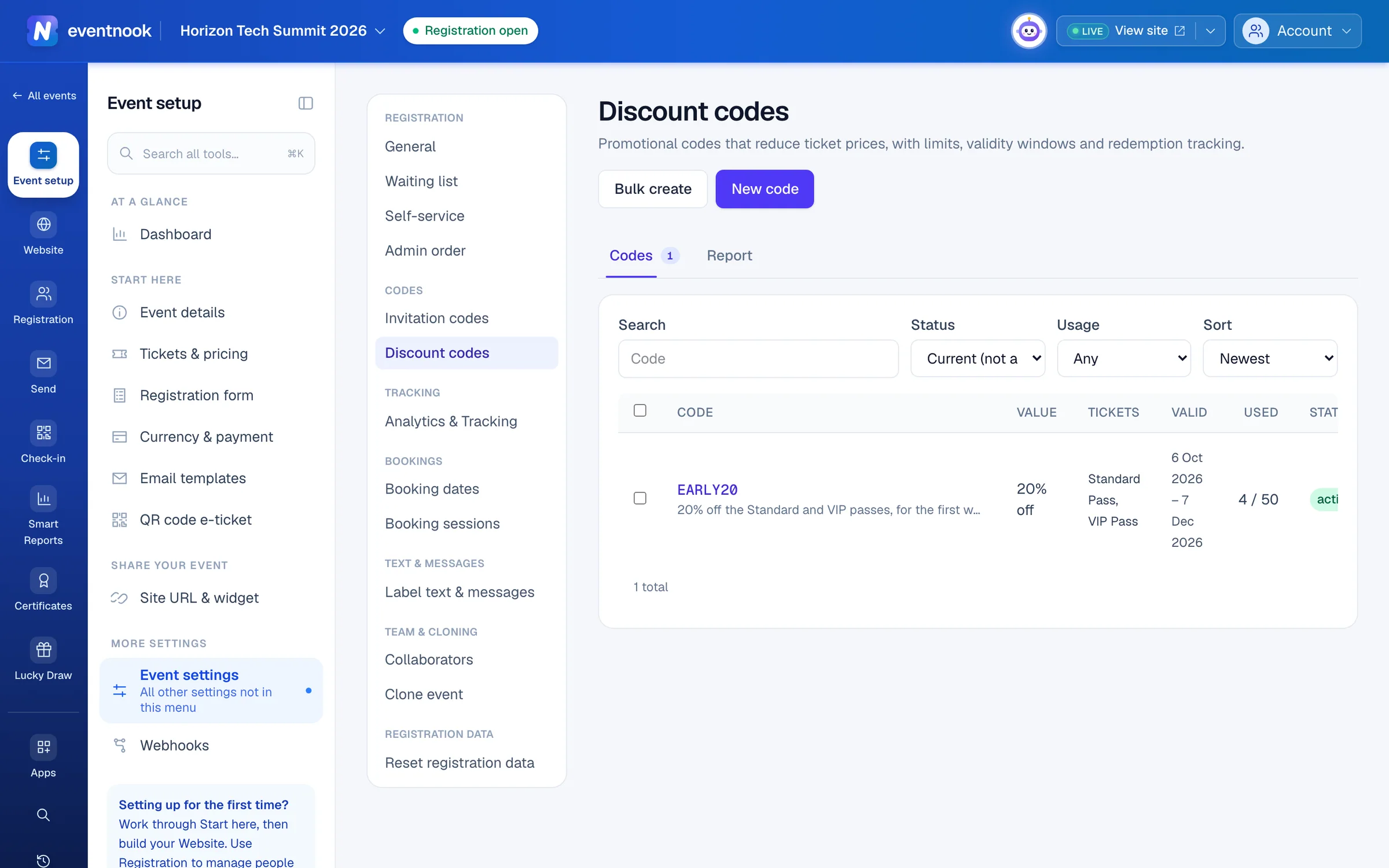
- 1One code with its discount and limits
- 2Many codes with the same settings
- 3Uses and discount given, with an export
Create a discount code#
- Open Discount codes and click New code.
- Type the Code: letters, numbers,
-and_, up to 50 characters. - Under Discount, choose the Type: Percent off or Amount off, and type the value. A percentage can be up to 100, with at most 2 decimals.
- Optional: tick Stackable to let buyers use it together with other stackable codes.
- Under Applicable tickets, keep Applies to all tickets (donation tickets are excluded), or untick it and choose tickets.
- Under Use and expiry, choose how often it Can be used: Once, Any number of times or A set number of times. Each order that uses the code is one use.
- Optional: set when it Expires. Leave it empty for no end date.
- Click Create code. It works straight away, unless you turned Active off.
As you fill in the discount, a line under Use and expiry shows an example order and what the buyer would pay.
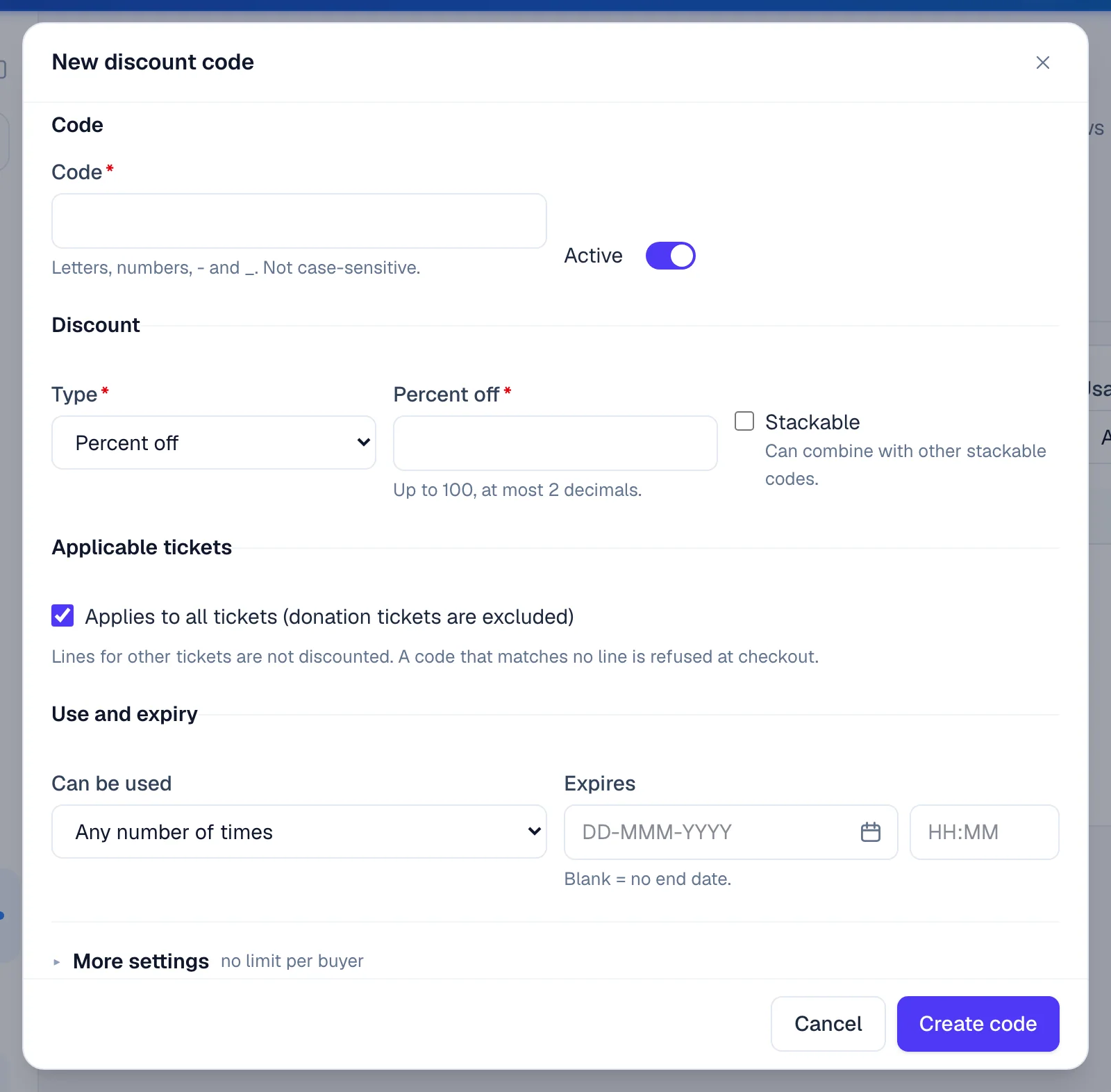
- 1Percent or amount off, and whether it combines with other codes
- 2Which tickets it lowers the price of
- 3How many orders can use it, and until when
- 4Start date, uses per buyer and quantity per ticket line
| More settings | What it does |
|---|---|
| Starts | The code works from this time. Empty means straight away. |
| Uses per buyer | How many orders one buyer can use it on, matched on their email. Empty means no limit. |
| Min quantity per ticket line | A ticket bought in a smaller quantity isn't discounted. |
| Max quantity per ticket line | Tickets beyond this number are charged full price. |
| Internal note | Only organisers see it. |
How the discount is worked out#
- Amount off comes off each ticket's price, and never takes a ticket below zero.
- Percent off comes off the price of each ticket it applies to.
- The discount comes off the price the buyer would otherwise pay, including an early-bird or category price, before tax.
- Tickets the code doesn't apply to are charged in full. A code that applies to none of the tickets chosen is refused.
- A buyer can use more than one code only when every code is stackable. Otherwise a new code replaces the one already applied.
Get the code to buyers#
Buyers type the code in the Have a discount code? box on the registration page. The box shows while the event has an active discount code and registration is open. You can hide it in Site URL & widget; codes still work from links.
To send buyers a link with the code already applied, see Make a link with a discount code.
Create many codes at once#
- Click Bulk create.
- Choose Paste a list and type or paste one code per line, or choose Generate random codes and set How many and, optionally, Start each code with.
- Optional: click Change code format to set the number of Random characters, the Characters and End each code with. Letters + digits, easy to read leaves out characters that look alike.
- Under Settings for every code, set the discount, tickets, use and expiry.
- Click Create … codes or Generate … codes.
You can create up to 500 codes at a time. The result lists codes that couldn't be created, with the reason. Click Fix and resubmit these to correct them and try again.
If your plan doesn't include bulk creation, the dialog says so. You can still create codes one at a time, or ask EventNook to add it.
See how a code is used#
- Used in the list shows uses against the limit, such as
12 / 50, or∞for no limit.(+1 held)after it means a buyer is checking out with it right now. - Click a code and open Usage for Used, Held in carts, Remaining and each order that used it, with the discount given.
- Click Open the full usage page for every use in a table, with each order's status and the total Discount given.
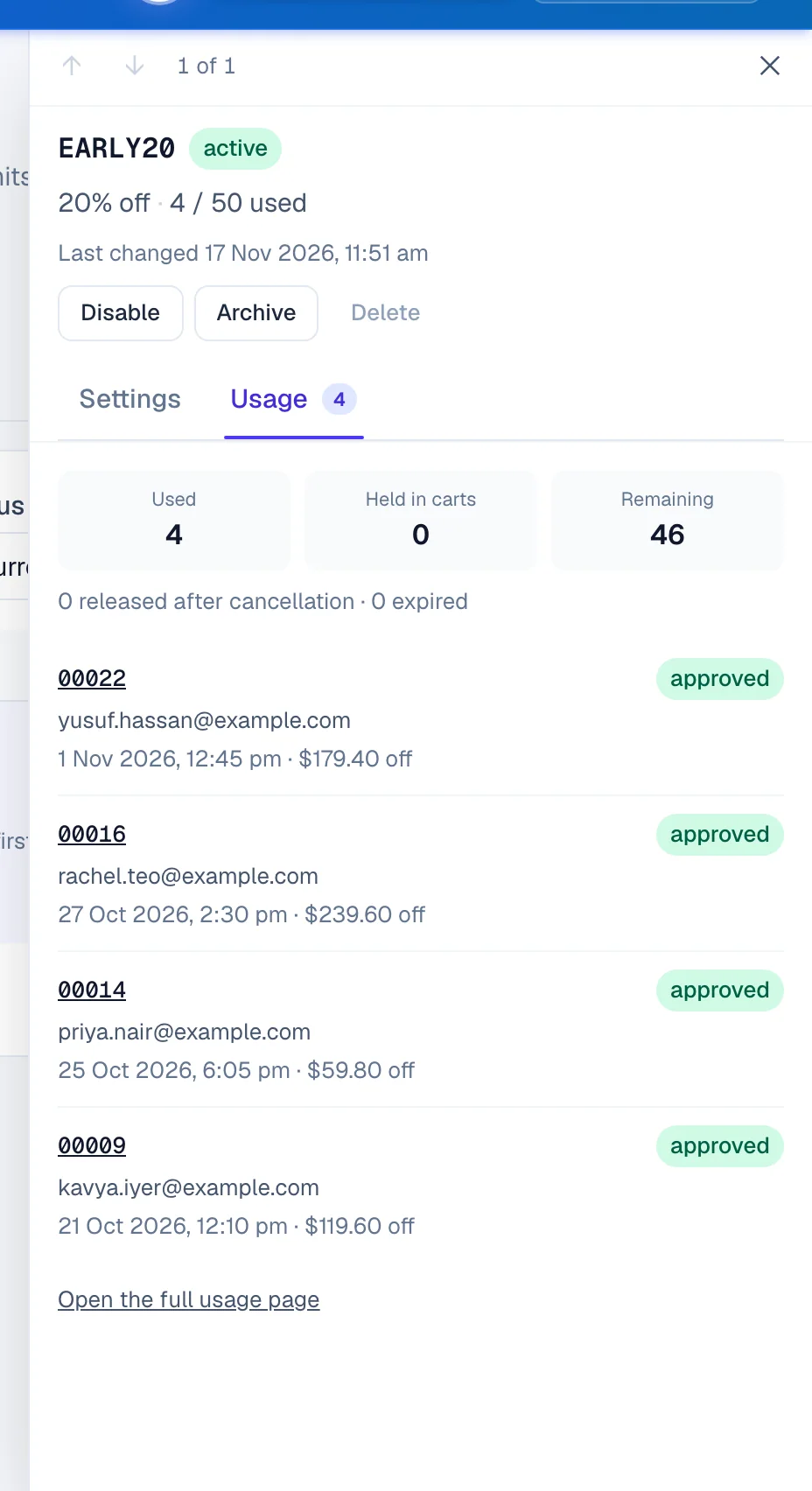
- 1Stop the code for now
- 2Every use, with its order and the discount given
The Report tab totals every code: Redemptions, Held in carts and Discount given. Filter it by Status, Usage or the dates codes were used, and click Export CSV to download it.
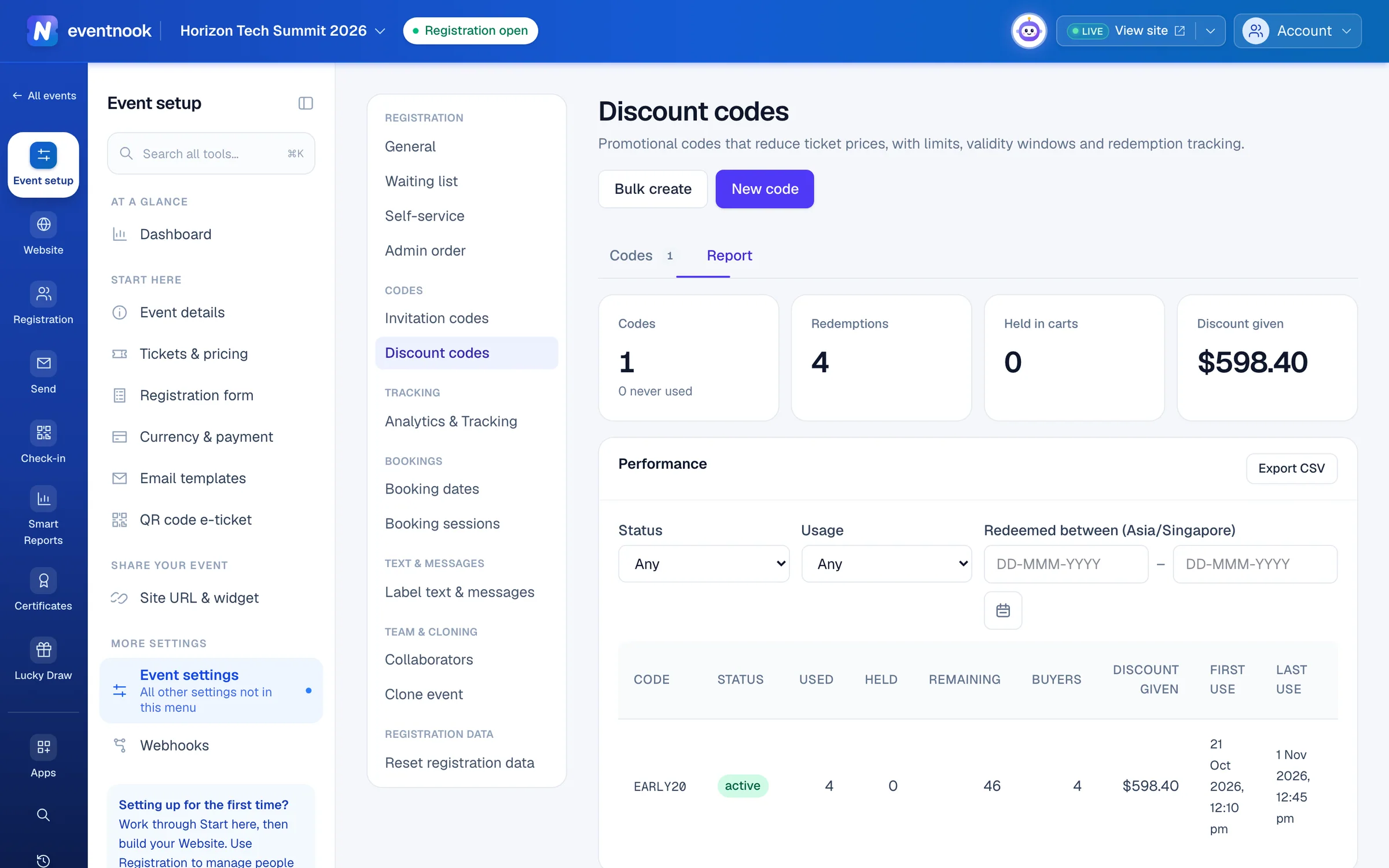
- 1Only count uses between these dates
- 2Download the report as a spreadsheet
Change, stop or remove codes#
- Change one: click it, change its settings in the quick view and click Save changes. The ↑ and ↓ at the top move to the next code. A code can't be renamed: archive it and create a new one.
- Change several: tick them, click Edit, tick each setting to change, and click Save to … codes. What you don't tick stays as it is on each code. A code the change doesn't fit is skipped and named.
- Give more time: tick the codes, click Extend expiry and type the Days to add. Codes with no end date aren't changed; expired codes are extended from today.
- Stop for now: click Disable, and Enable to turn it back on.
- Remove: click Archive. An archived code no longer works and leaves the list. To find it, set Status to archived. Restore brings it back disabled, so click Enable to use it again.
- Delete: only a code that was never used can be deleted. Tick it and click Delete. It can't be undone.
If a change affects orders already placed, such as taking a ticket off the code, the form lists what changes under This change affects existing redemptions. Click Confirm and save to go ahead. Existing orders keep the discount they were given.
The Status column shows active, scheduled (not started yet), expired, exhausted (no uses left), disabled or archived.
If something looks wrong#
- A buyer is told "This code is not valid". No discount code of this event matches what they typed. Check the spelling against the list.
- "This code is not valid yet" or "This code has expired". Check Starts and Expires, or use Extend expiry.
- "This code has been fully used" or "This code has no uses left right now". It reached its limit, or the last uses are held in carts. Raise Can be used, or wait for those carts to expire.
- "This code does not apply to the selected tickets". Add the ticket under Applicable tickets.
- "This code needs at least … of an eligible ticket". The order is below Min quantity per ticket line.
- "You have already used this code the maximum number of times". The buyer reached Uses per buyer.
- The first code disappears when a buyer adds a second. One of them isn't stackable.
- Saving warns that the amount is larger than the cheapest ticket. That ticket's price goes to zero, not below.
- Delete is greyed out. The code has been used. Archive it instead.
- Discount codes isn't in the menu. The event is free. Convert it to a paid event in Event details, or use invitation codes to control who registers.
Who can do this#
Everyone with access to the event can see the codes. The Event Editor role or above can create, change, disable, archive and restore codes. Deleting codes needs the Event Admin role, or Owner or Admin of the organisation. Exporting needs permission to export data.
Related guides
- Create tickets and set pricesAdd the tickets people choose when they register, set their prices and limits, and stop selling one when you need to.
- Set early-bird and category pricesChange ticket prices on dates you choose, such as an early-bird price, and give groups of buyers such as Members or Students their own price.
- Invite guests with invitation codesMake tickets invitation-only, give each guest a code or a personal link, import a guest list and see who has registered.
- Share your event's links and embed the registration widgetChange the event's web address, copy its links and QR codes, put the registration widget on your own website, and make private, pre-filled and custom-domain links.
- Use an invitation or discount codeEnter a discount code to take money off your tickets, or an invitation code to see tickets that are kept for invited guests.
Still stuck? In EventNook, ask HeyNook. It knows the page you're on and your event, and can take you straight to the right setting.