Take bookings by date and timeslot
Turn an event into a booking event, choose which days can be booked, and add the timeslots visitors pick, each with its own capacity.
Where to find it: Event admin › Event setup › More settings › Event settings
A booking event lets visitors choose a date and a timeslot, such as a morning or afternoon visit, each with its own capacity. Use it for an exhibition, an attraction or anything that runs on many days. On the event site, below the tickets, visitors pick a Visit date and a Visit session under Choose your visit.
Make this a booking event#
- Open Event settings and click Booking dates in its menu.
- In Booking mode, click Make this a booking event. The badge changes to Booking event.
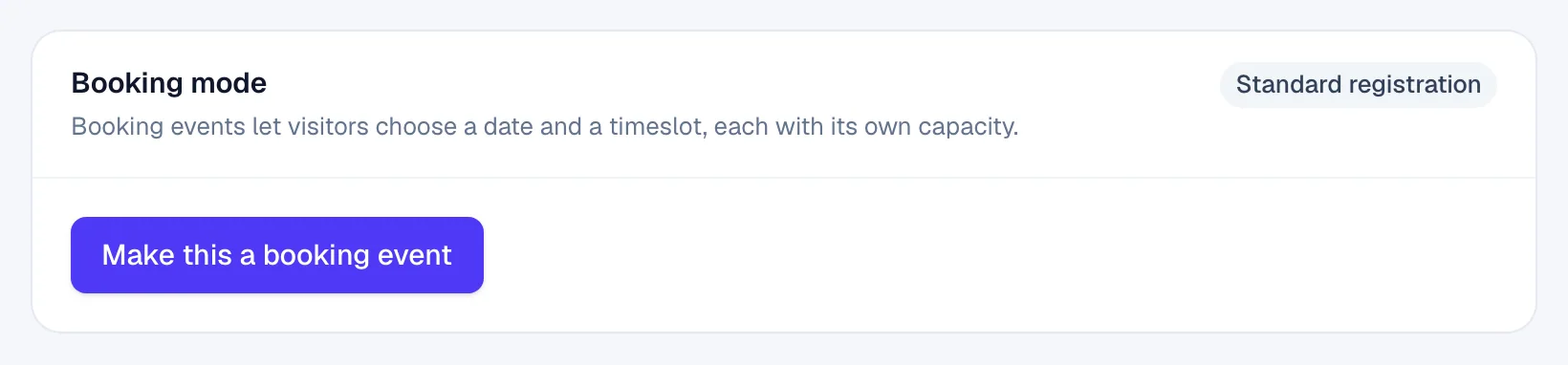
If the event already has orders, Booking mode says This event already has orders: those orders have no booking date. Type a Reason and click Make this a booking event again. The reason is recorded with the change.
To go back, click Switch to standard registration. This is refused once the event has bookings.
Choose which days can be booked#
- On Booking dates, under Bookable dates, choose Repeat every week or Specific dates only.
- For Repeat every week, tick the days, such as Mon to Fri. Optional: set Starts on (empty means from today) and Ends on (empty means it never ends).
- For Specific dates only, add each date under Open dates with Add date, or a span of days under Open date ranges with Add range.
- Optional: under Unavailable dates, add Blocked dates and Blocked date ranges, such as public holidays.
- Optional: under Advance notice, set Book at least this many days ahead. 0 allows same-day bookings.
- Click Save booking dates.
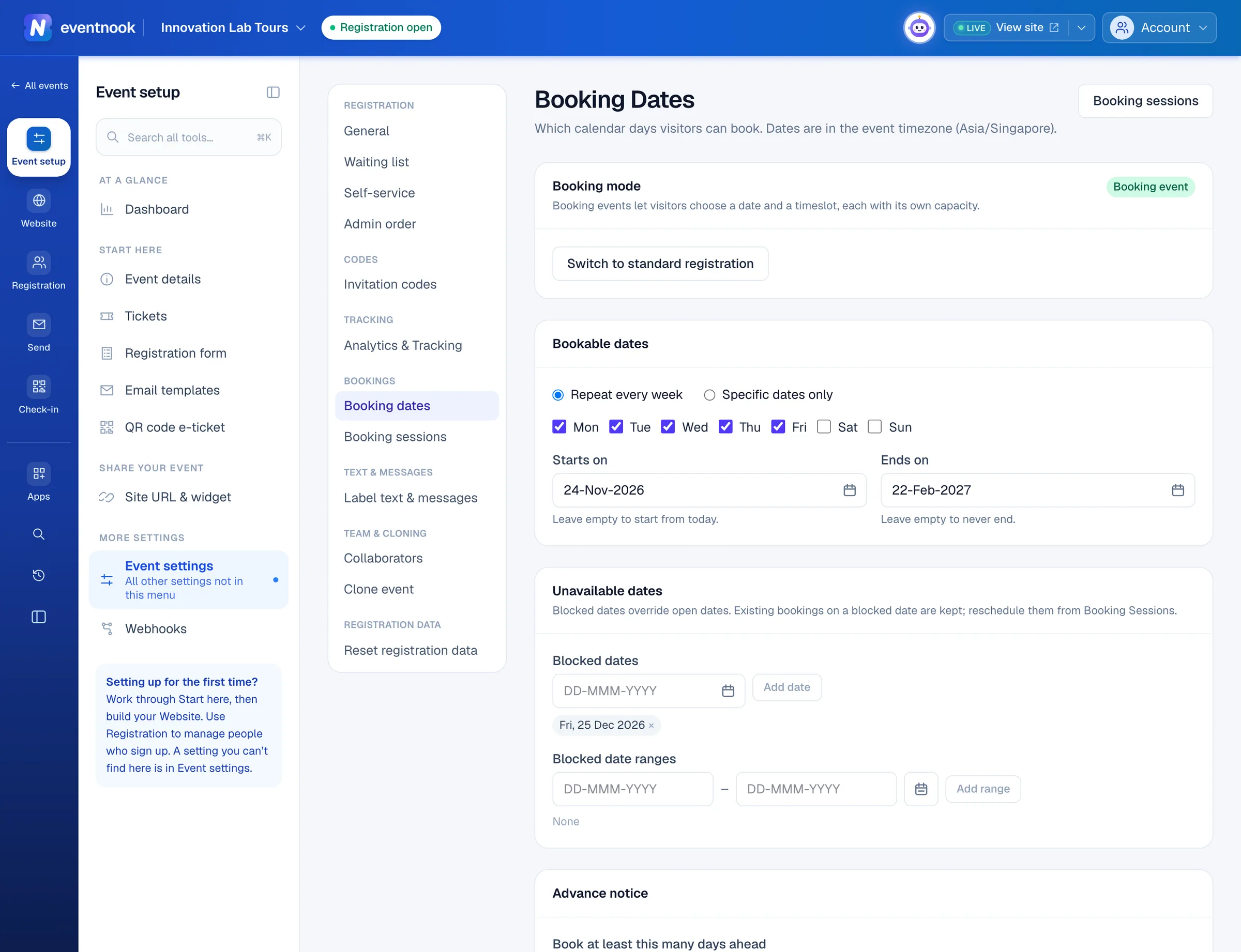
- 1Open the same weekdays every week, or list the dates
- 2Close holidays and other days, even inside the open dates
- 3How many days ahead people must book
Blocked dates win over open dates. Bookings already made on a date you block are kept.
Next six weeks, at the bottom, shows each coming day as open, or why it isn't: past, notice (inside the advance notice), not yet, ended, closed day, closed or blocked. It shows saved settings, so save first.
Add timeslots#
A booking session is a timeslot offered on every bookable date, with a capacity per date.
- Click Booking sessions at the top of Booking dates, or in the Event settings menu.
- Click Add session.
- Type the Name visitors see, such as
Morning. Optional: set a Start time, an End time and a Description. - Set the Capacity per date, from 1 to 900,000.
- Leave Status on Active (offered to visitors), or choose Disabled (hidden from new bookings).
- Click Create session.
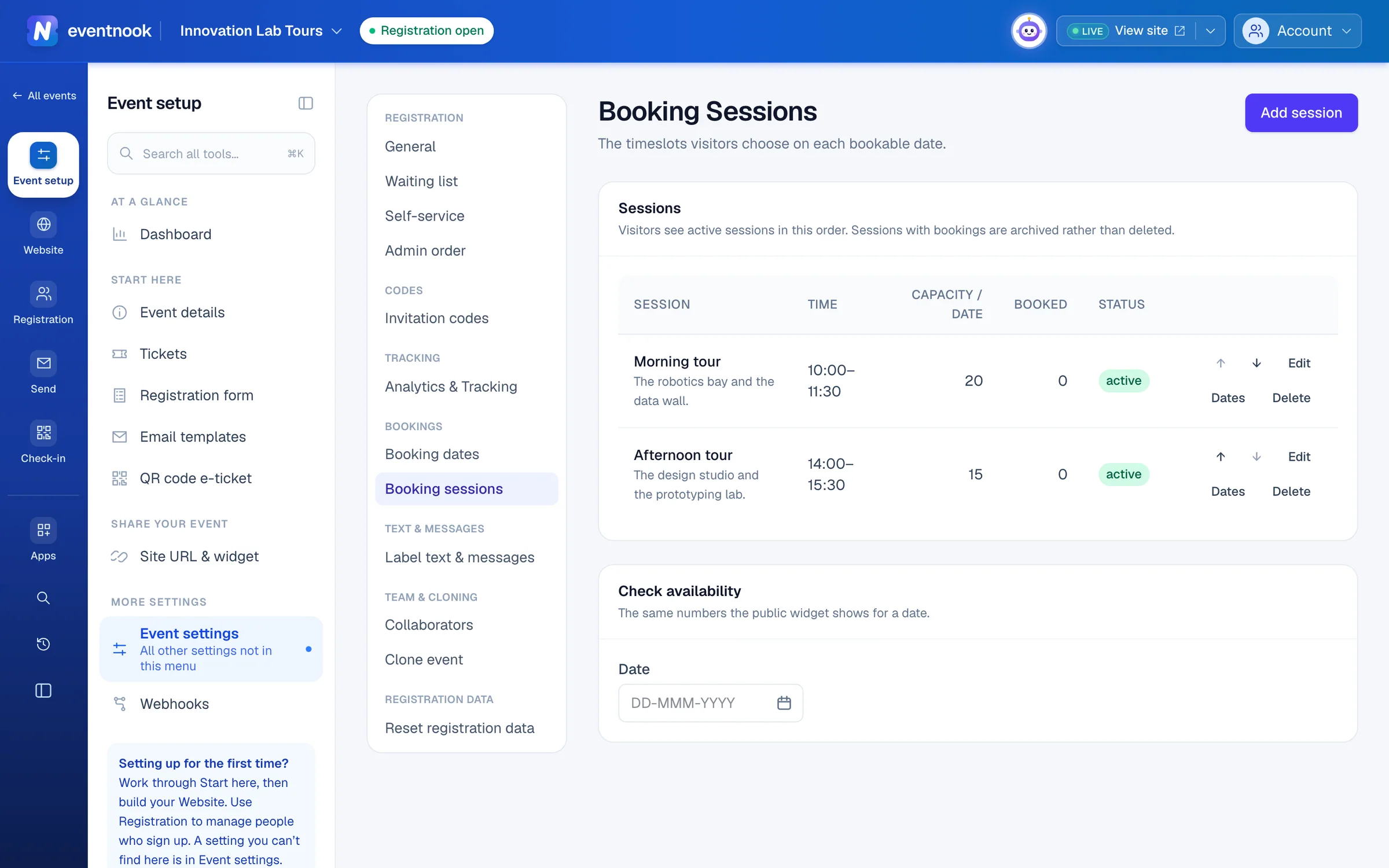
- 1Add a timeslot visitors can choose
- 2Change a timeslot's capacity on particular dates
- 3What visitors see as free on a date
Visitors see active sessions in the order of the list. Use ↑ and ↓ on a row to change it. Click Edit to rename a session or change it at any time.
Change capacity on particular dates#
- Click Dates on the session's row.
- Choose a date and click Add override.
- Type the Capacity for that date. Set 0 to close the session on that date.
- Click Save capacities.
Every other date keeps the session's default capacity. A capacity can't go below what is already booked on that date.
Check what's free on a date#
Under Check availability, choose a Date. The table shows each session's Capacity, Booked, In carts and Remaining: the same numbers visitors see. If the date can't be booked, a notice says why.
Whether places in other people's carts count as taken is set in Tickets held in carts on Event settings. Either way a session is never overbooked.
Remove a session#
Click Delete on its row and confirm. A session that has bookings is archived instead: it is hidden from new bookings and its history is kept.
If something looks wrong#
- Switch to standard registration is refused. The event has bookings, so it stays a booking event.
- Booking sessions says This is not a booking event. Switch the event to booking mode on Booking dates first.
- Saving says to choose at least one day of the week. Repeat every week needs at least one day ticked.
- A day shows notice in Next six weeks. It falls inside the advance notice. Lower Book at least this many days ahead to open it.
- Next six weeks hasn't changed. It shows saved settings. Click Save booking dates.
- A session doesn't appear for visitors. Its Status is disabled, its capacity on that date is 0 or full, or the date isn't bookable.
Who can do this#
Everyone with access to the event can view the booking settings. The Event Editor role or above can switch booking mode, change the dates and manage sessions.
Related guides
- Set when and how people registerOpen and close registration, cap the event, screen free registrations, set the checkout time limit, and decide what registrants and your staff may change afterwards.
- Create tickets and set pricesAdd the tickets people choose when they register, set their prices and limits, and stop selling one when you need to.
Still stuck? In EventNook, ask HeyNook. It knows the page you're on and your event, and can take you straight to the right setting.