Run a waiting list
Offer a waiting list on tickets that sell out, choose what it asks for, and invite people to register when places free up.
Where to find it: Event admin › Event setup › More settings › Event settings
A waiting list collects the people who want a ticket that is full, so you can invite them when places free up. Joining it is not a registration: it holds no place and never counts against capacity.
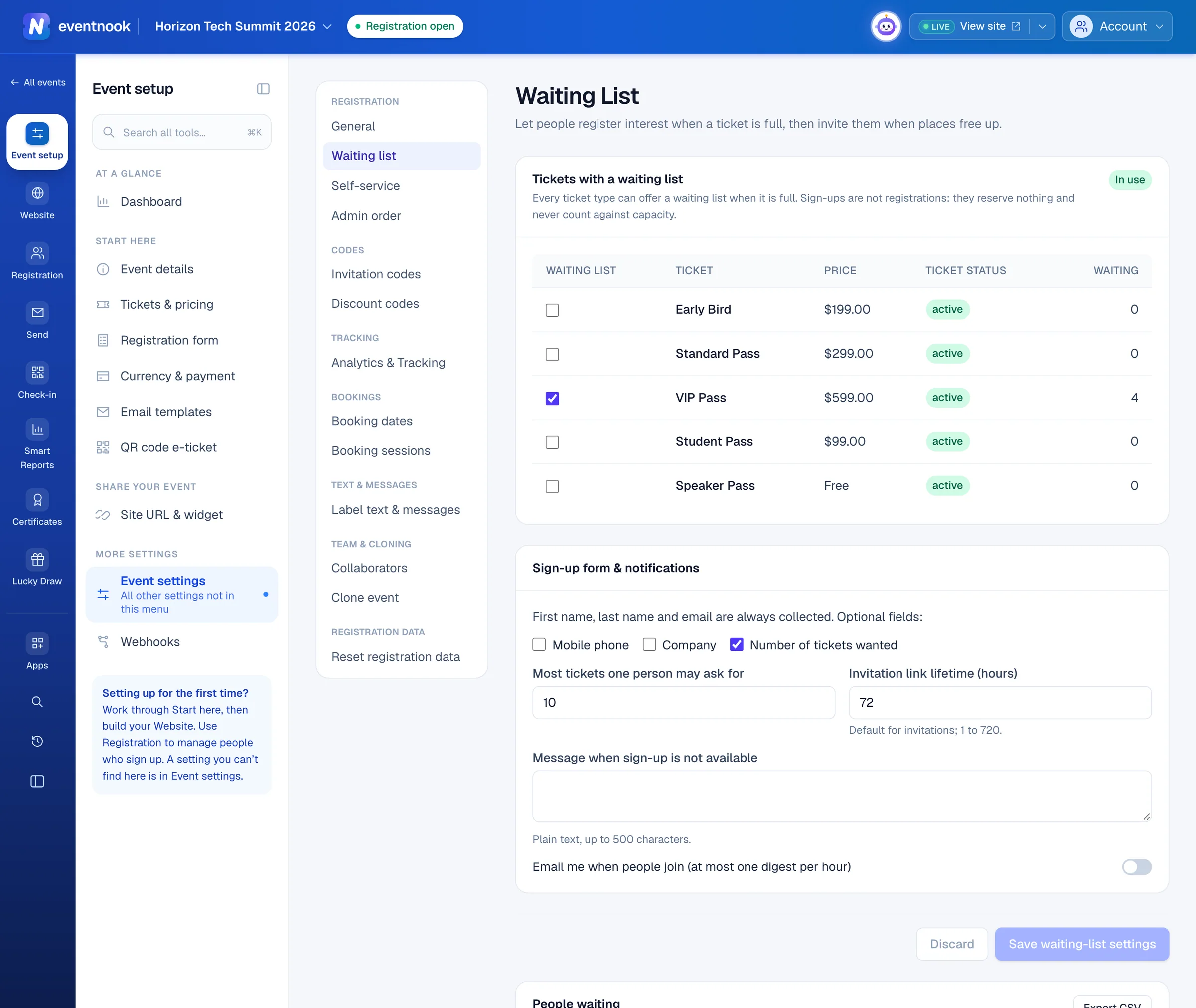
- 1Tick each ticket that offers a waiting list
- 2What people give when they join, and your email digest
- 3Saves the tickets and the sign-up settings together
Offer a waiting list on a ticket#
- Open Event settings and click Waiting list in its menu.
- Under Tickets with a waiting list, tick each ticket that should offer one.
- Click Save waiting-list settings. The badge beside the heading changes to In use.
The same switch is on each ticket: open it in Tickets & pricing and, under When it sells out, tick Offer a waiting list. Waiting shows how many people are waiting for each ticket.
Choose what people give when they join#
First name, last name and email are always collected. Under Sign-up form & notifications:
| Setting | What it does |
|---|---|
| Mobile phone, Company, Number of tickets wanted | Optional fields to ask for as well. |
| Most tickets one person may ask for | The largest number someone can ask for, 1 to 100. |
| Invitation link lifetime (hours) | How long an invitation link lasts unless you change it when you invite, 1 to 720. |
| Message when sign-up is not available | Plain text shown when the waiting list isn't open for a ticket, up to 500 characters. |
| Email me when people join (at most one digest per hour) | A summary of new sign-ups. It goes to the Notification address, or to the organiser email in the event details when that's empty. |
Click Save waiting-list settings when you're done.
Invite people when places free up#
Invitations are manual: nothing moves people off the list by itself.
- Under People waiting, tick the people to invite. Filter by ticket or search by name or email to find them.
- Click Invite to register.
- Optional: change Link expires after (hours) and add a Message (optional) for the email.
- Click Send invitations.
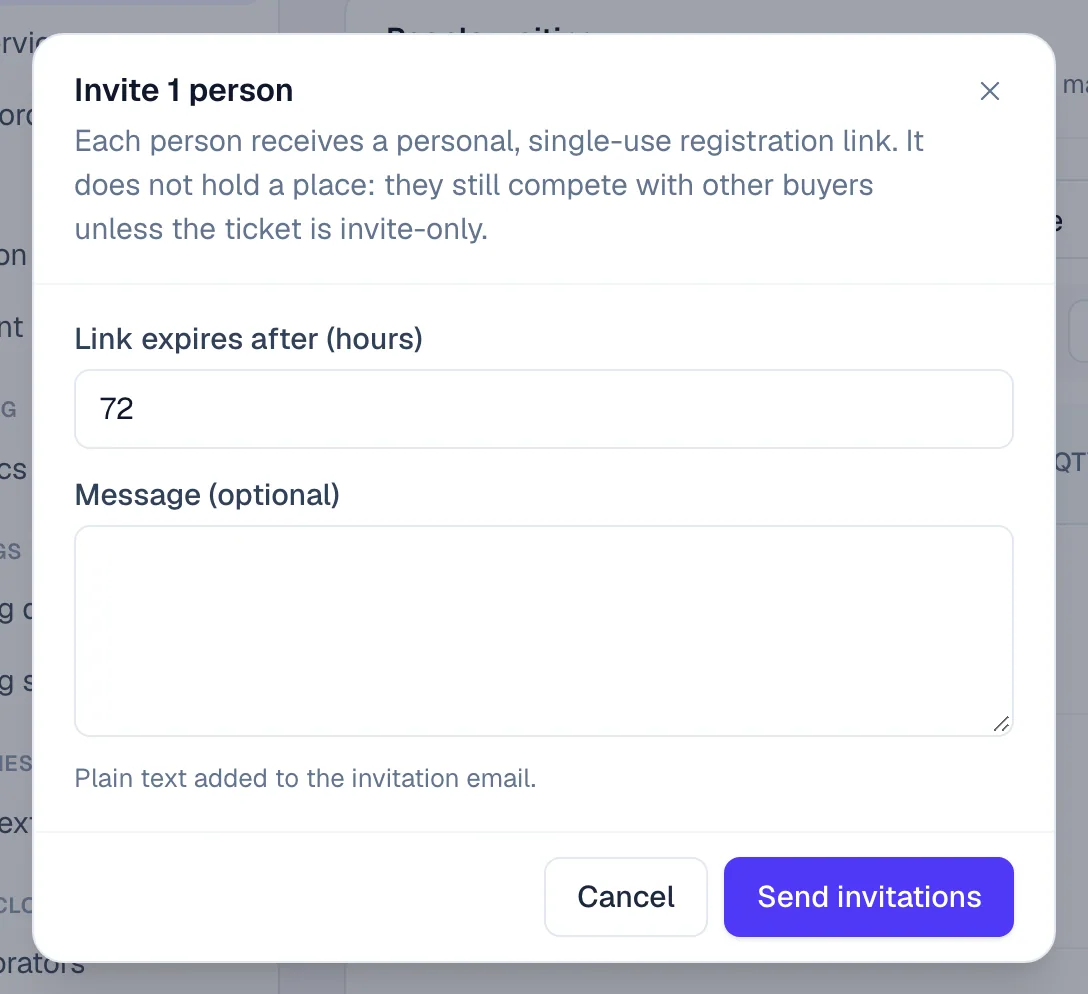
Each person gets an email inviting them to register, with a link to the registration page and the time the invitation expires.
To invite someone again, select them and click Invite to register. A row whose invitation has run out shows link expired.
Keep the list tidy#
On a person's row, click Decline, Remove or Reset (back to new). To change several at once, tick them and click Mark declined or Remove.
The list shows Active (new + invited) at first. Use the status filter to see New, Invited, Registered, Declined, Expired or Removed, and sort by Newest first or Oldest first.
Export the list#
Set the filters, then click Export CSV. The file has the people the filters show.
If something looks wrong#
- Some invitations were skipped. Those people had already registered, were removed or declined. Reset a declined person to invite them.
- People waiting isn't on the page. You need access to attendee details. Ask an event admin.
- Names and emails are partly hidden, like j••••@example.com. Your role doesn't see personal details. The export hides them the same way. The Event Editor role and above see them in full.
- Saving says the waiting list isn't included in your plan. Contact EventNook.
Who can do this#
Everyone with access to the event can view the settings. The Event Editor role or above can change them, invite, decline and remove people. Exporting needs permission to export.
Related guides
- Create tickets and set pricesAdd the tickets people choose when they register, set their prices and limits, and stop selling one when you need to.
- Set when and how people registerOpen and close registration, cap the event, screen free registrations, set the checkout time limit, and decide what registrants and your staff may change afterwards.
- Invite guests with invitation codesMake tickets invitation-only, give each guest a code or a personal link, import a guest list and see who has registered.
Still stuck? In EventNook, ask HeyNook. It knows the page you're on and your event, and can take you straight to the right setting.