Ask AI beside the attendee list
Open the Attendees agent beside the attendee list, ask for the people you need in plain words, and review and run the actions it prepares.
Where to find it: Event admin › Registration › Attendees & orders › Attendees
The Ask AI button on the attendee list opens the Attendees agent beside it. Ask in plain words for the people you need, such as "VIPs who haven't checked in" or "people from banks, with their job title", and the list beside it changes to show them. The agent also checks the data for what needs fixing and prepares actions on the list for you to review and run.
The list it shows is the page's own list, with ordinary filters. You can change them, save the list as a view or export it like any other.
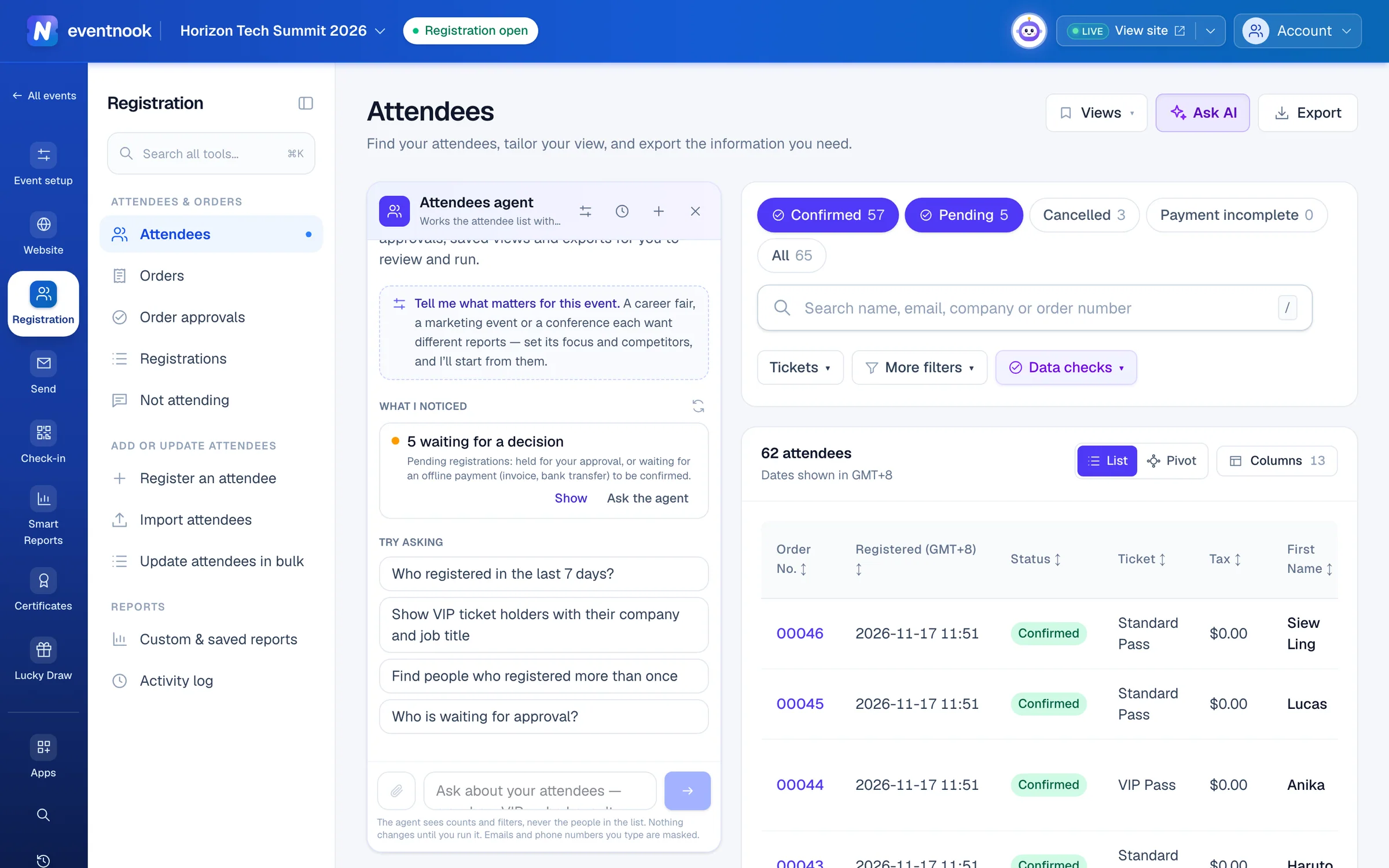
- 1Open or close the agent beside the list
- 2What needs attention in the list, worked out without AI
- 3Requests that fit this event, to start from
- 4Describe the people you need in your own words
Before you start#
- AI features must be on for your organisation, and your role must include reports.
- The agent sees how many people match and the filters, never the people in the list. Emails and phone numbers you type to it are masked, so search for a particular person in the list's own search box.
Ask for the people you need#
- Open Registration › Attendees & orders › Attendees and click Ask AI in the header. On a wide screen the agent may already be open: this browser remembers.
- Type what you need in the message box, or click a request under Try asking, and press
Enter. - The list changes to show who you asked for. The answer says what the list shows and how many, with Shown in the list and Undo to go back to the list before.
- Keep refining: "only the pending ones", "add their job title".
When you ask for a company or a job title, the agent looks for every way people typed it. Each name it found is a tick box under its answer: tick one in or out and the list follows at once, without asking again.
Start from what it noticed#
A new conversation opens on What I noticed: counts of what needs attention, such as registrations waiting for a decision, people registered more than once, attendees who can't be emailed or haven't checked in yet. These are worked out from the data, without AI.
- Show puts exactly those people in the list.
- Ask the agent asks for its advice on them.
Act on a list#
Ask the agent to act on the list, such as "tag them as VIP" or "approve the pending ones". It prepares a card instead of doing it:
- Click Review. The card counts who it touches now, since the list may have changed.
- Click the action, such as Add the tags, Set the category, Approve or Save the view. For an approval, choose whether to Email each buyer their confirmation.
- The card then says what was done.
Tags and categories can be undone from the card for a day: click Undo. Not now puts a card away without running it. For an export, Open export opens the export dialog on that list. You only see actions your role allows.
Tell it what matters for this event#
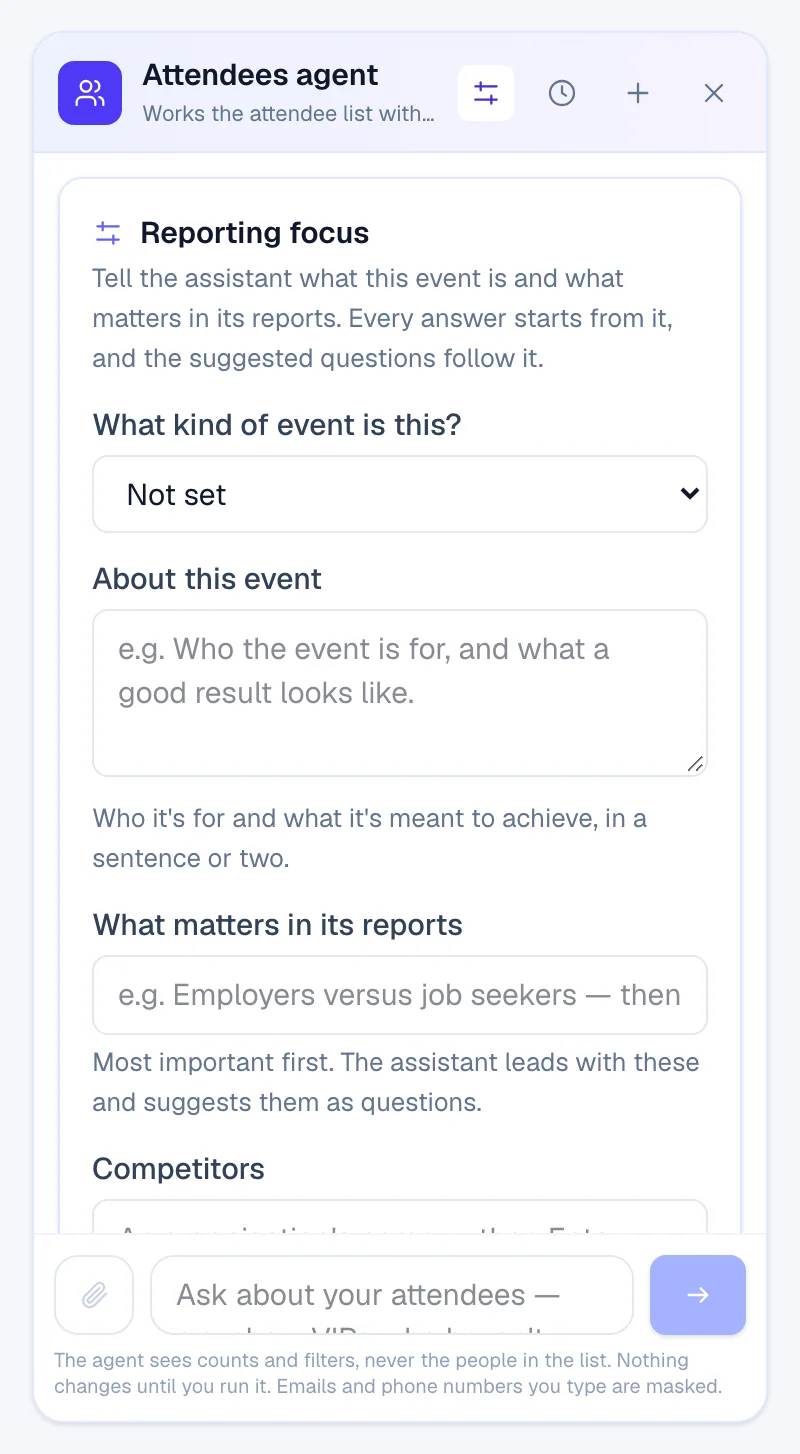
Click the gear in the agent's header to set the Reporting focus: What kind of event is this?, About this event, What matters in its reports and your Competitors. The agent starts every answer from it and suggests requests that fit. The same focus is used by HeyNook's reports.
Go back to a conversation#
- The clock in the agent's header lists Your conversations with the Attendees agent. Click one to reopen it.
- + starts a new conversation. × closes the agent; the list stays as it is.
To rename or delete conversations, open the Smart Assistant page.
If something looks wrong#
- There's no Ask AI button. AI may be off for your organisation, or your role doesn't include reports.
- The card says the list changed. Someone registered or was updated after you reviewed it. Click Review again and run it with the new count.
- The agent's answer doesn't show anyone you expected. Look at the filters it set, under the search box. Change or remove one like any other filter, or ask again in other words.
Who can do this#
Everyone whose role on the event includes reports can ask the agent. Running an action needs the same role as doing it yourself: tagging and approving need Event Admin or Event Editor.
Related guides
- Find attendees and change their detailsSearch and filter the attendee list, open anyone's details beside it, correct or cancel one attendee, find duplicates, count attendees in a pivot and export the list.
- Ask HeyNookAsk HeyNook about your event in your own words, let it take you to the right page, bring in its specialists, and approve the changes it suggests.
- Summaries, saved views and exportsCount attendees by up to three fields, manage the saved views of your reports, run your organisation's custom reports and see every export of the event.
Still stuck? In EventNook, ask HeyNook. It knows the page you're on and your event, and can take you straight to the right setting.