Change the wording people see
Reword or translate the buttons, messages and labels of the event site, registration, emails and e-ticket, and set the date and time formats.
Where to find it: Event admin › Event setup › More settings › Event settings › Label text & messages
Label text & messages holds the wording of the event site, the registration pages, emails and the e-ticket: every button, heading and message. Change a label to reword it, or add a language to translate the event. Only your changes are kept, so the platform's own wording improvements still reach every label you haven't changed.
Open it from Event settings, under Text & messages in its menu.
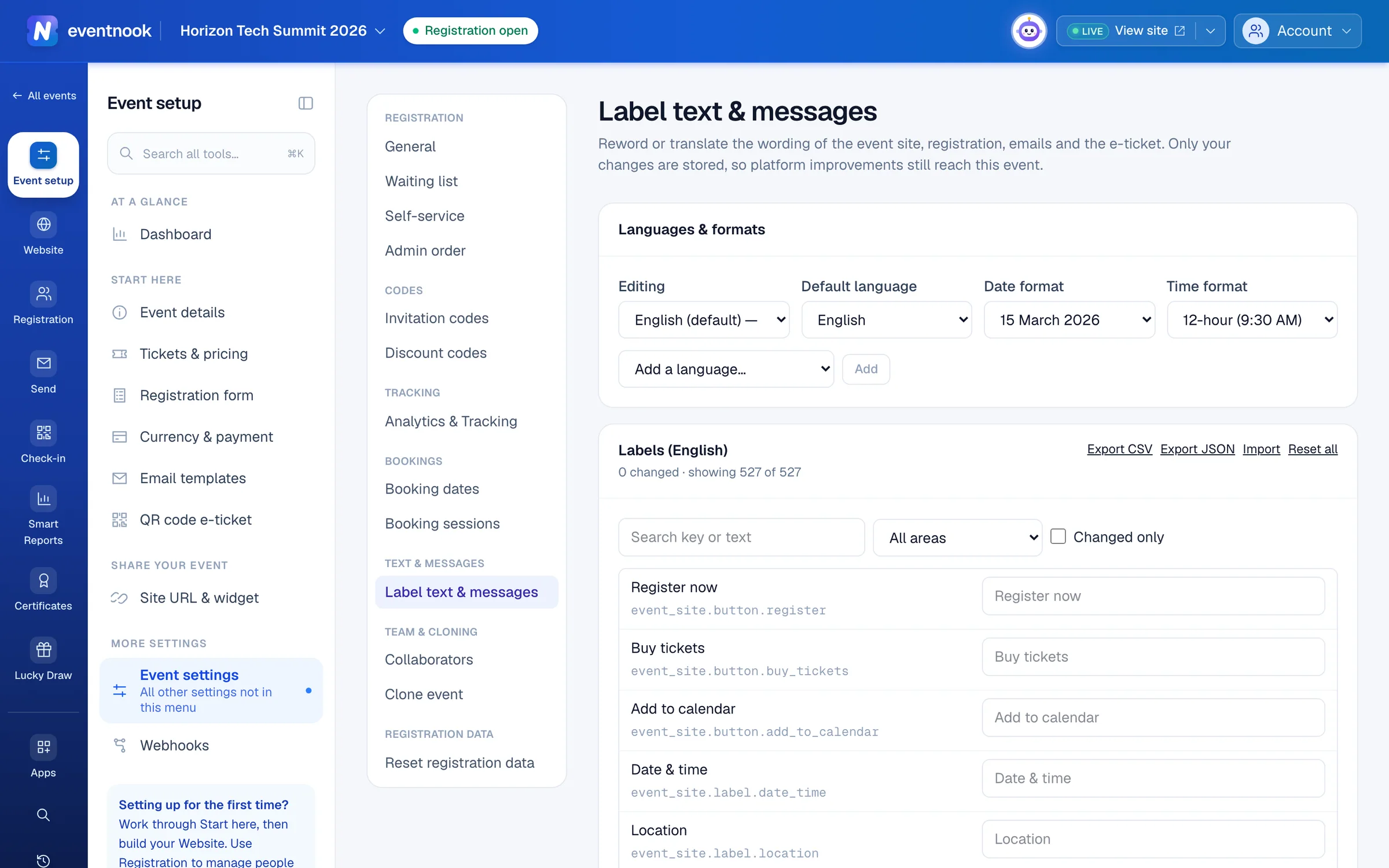
- 1The language whose wording you're changing
- 2The language attendees see
- 3Find a label by the words it shows
- 4Show only the labels you've reworded
Reword a label#
- In Labels, type the words you see on the page in Search key or text, such as
Register. - Type your wording in the box beside the label. The platform's wording is on the left.
- Click Save. The label gets a changed badge.
Narrow the list with the area menu (All areas, or a part such as registration, checkout, email or ticket), or tick Changed only.
To go back to the platform's wording, click Reset beside the label. Reset all removes every change in the language you're editing.
Translate the event into another language#
- Under Languages & formats, choose the language in Add a language… and click Add.
- Choose it in Editing. Each language shows how many labels are translated, such as
120/480. - Type the translations and click Save.
- To show the event in that language, choose it as the Default language.
Attendees see the wording of the Default language. A label you haven't translated shows the platform's own wording.
To remove a language you no longer use, choose it in Editing and click Remove with its name. Its translations are deleted. You can't remove the default language.
Translate in a spreadsheet#
- Choose the language in Editing.
- Click Export CSV (or Export JSON).
- Fill in your wording in the file and save it.
- Click Import and choose the file. The notice says how many labels it applied, and which it rejected.
Change the date and time formats#
Choose a Date format (15 March 2026, 15/03/2026, 03/15/2026 or 2026-03-15) and a Time format (12-hour (9:30 AM) or 24-hour (09:30)). These, and the Default language, save as soon as you change them.
If something looks wrong#
- Saving says to keep a placeholder. Put the placeholder back exactly as the label's Keep: line shows it.
- Import applied fewer labels than the file had. Unknown keys and values the same as the platform's wording aren't applied. The notice lists what it rejected and why.
- You can't remove a language. It is the default language. Choose another Default language first.
Who can do this#
Everyone with access to the event can browse and export the labels. The Event Editor role or above can change wording, languages and formats, and import.
Related guides
- Set when and how people registerOpen and close registration, cap the event, screen free registrations, set the checkout time limit, and decide what registrants and your staff may change afterwards.
- Change the emails your event sendsWrite the confirmation and other emails your event sends by itself, turn them on or off, choose who gets copies and check whether an email arrived.
- Design the QR code e-ticketTurn on e-tickets with QR codes, choose what the pass shows and where attendees get it, and check it in the live preview before you save.
Still stuck? In EventNook, ask HeyNook. It knows the page you're on and your event, and can take you straight to the right setting.