Archive, reset or delete an event
Move an event you've finished with to the Archive, clear the registrations made while testing, or delete an event you no longer need.
Where to find it: Event admin › Event setup › More settings › Event settings › Reset registration data
When an event is over, move it to the Archive to keep your events list short. Everything is kept, and you can restore it at any time. To clear the registrations made while testing, reset them. To remove an event altogether, delete it.
Move an event to the Archive#
- In My Events, click the archive button beside the event's star (Move to Archive). Inside the event, you can also click the arrow beside View site and choose Move to Archive.
- If the event's site is live, choose what happens to it. Nothing is chosen for you.
- Click Move to Archive, or Archive and deactivate if you chose to deactivate the site.
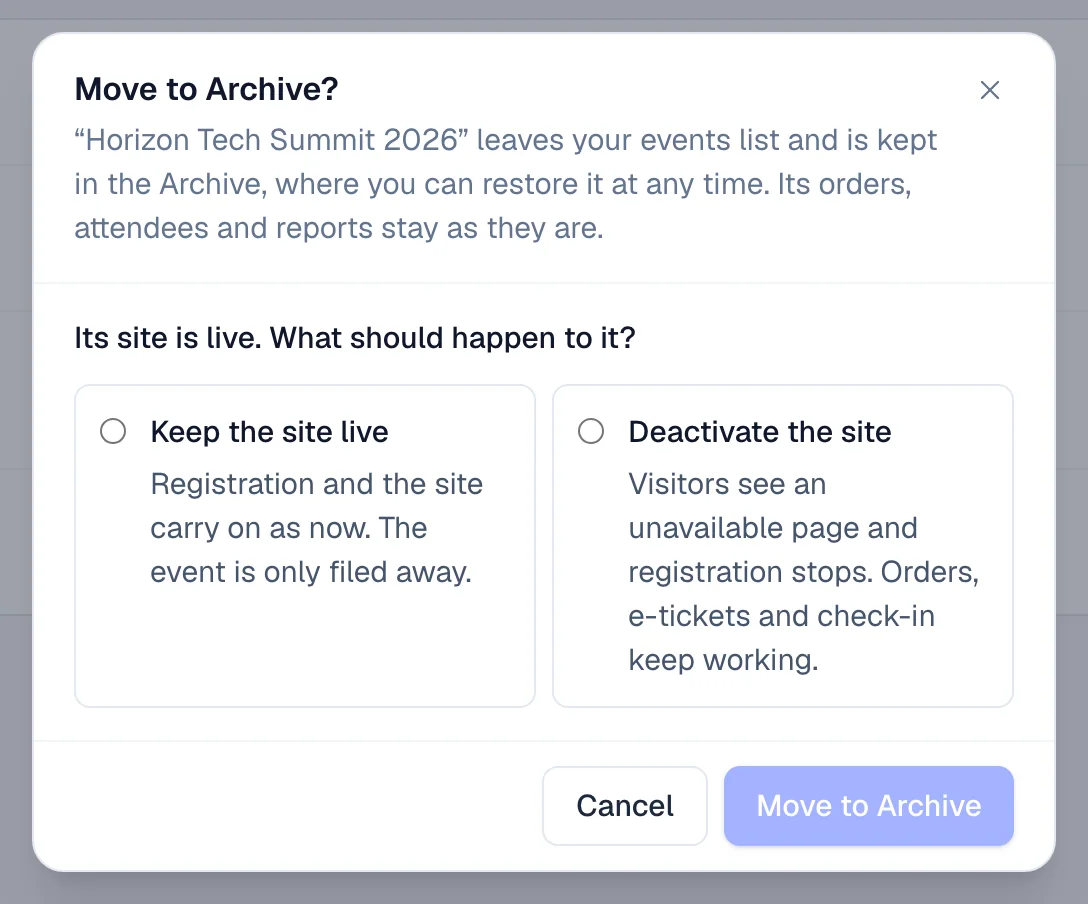
- 1File the event away; the site and registration carry on
- 2File it away and take the site offline
| Choice | What happens |
|---|---|
| Keep the site live | Registration and the site carry on as now. The event is only filed away. |
| Deactivate the site | Visitors see an unavailable page and registration stops. Orders, e-tickets and check-in keep working. |
The event leaves your events list and search, and waits in the Archive tab of My Events. Its orders, attendees and reports stay as they are, and you can still open it: the top bar says In the Archive.
Restore an event from the Archive#
- In My Events, open Archive and click Restore on the event.
- Or, inside the event, click the arrow beside View site and choose Restore from Archive.
There is nothing to confirm. The event is back in your events list. If you deactivated its site, it stays off until you click Make live again.
Reset registration data#
A reset removes an event's orders and attendees, such as those made while testing, so it goes live with clean numbers. Every registration is saved to a file first, and a reset can be restored for 30 days.
Before you start:
- You need to be the organisation's Owner or an Admin.
- The event can't have captured payments. Cancel and refund those orders one by one instead. See Cancel or refund an order.
- Have your password and your authenticator app, or access to your email for a code.
- Open Event settings and, under Registration data, click Reset registration data.
- Check Registrations on this event: Orders, Approved attendees, Pending attendees and Captured payments. Anything that stops the reset is listed below them.
- In Confirm the reset, read what is Removed, what Also changes and what Stays. The lists use this event's numbers.
- Type the event's title in Type the event title (…) to confirm, exactly as shown.
- On a live event, tick I understand this is a live event and its registrations will be removed.
- Optional: give a reason. It is kept in the audit log.
- Enter Your password.
- Enter the 6-digit Authenticator code. Or click Send code and enter the Emailed verification code, which expires in 10 minutes. Email me a code instead and Use my authenticator instead switch between the two.
- Click Export and reset registrations. A small event is reset at once. For a large one, Resetting registrations shows each step and how far it has got, and carries on if you leave the page.
- When Registrations were reset appears, click download it to keep the saved file. It is offered on the page for a day, and each link works for an hour.
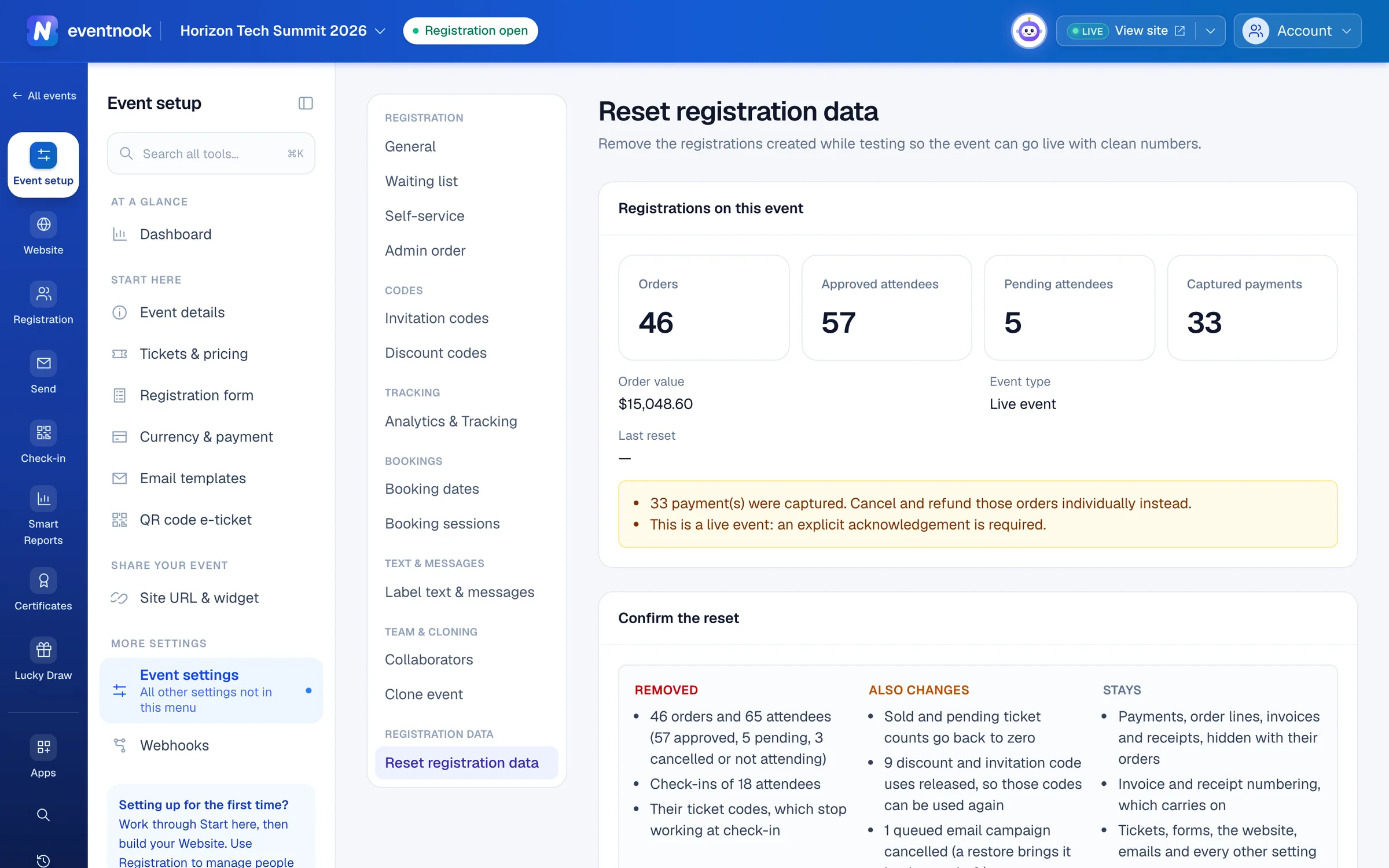
- 1What the event holds now
- 2Anything that stops the reset right now
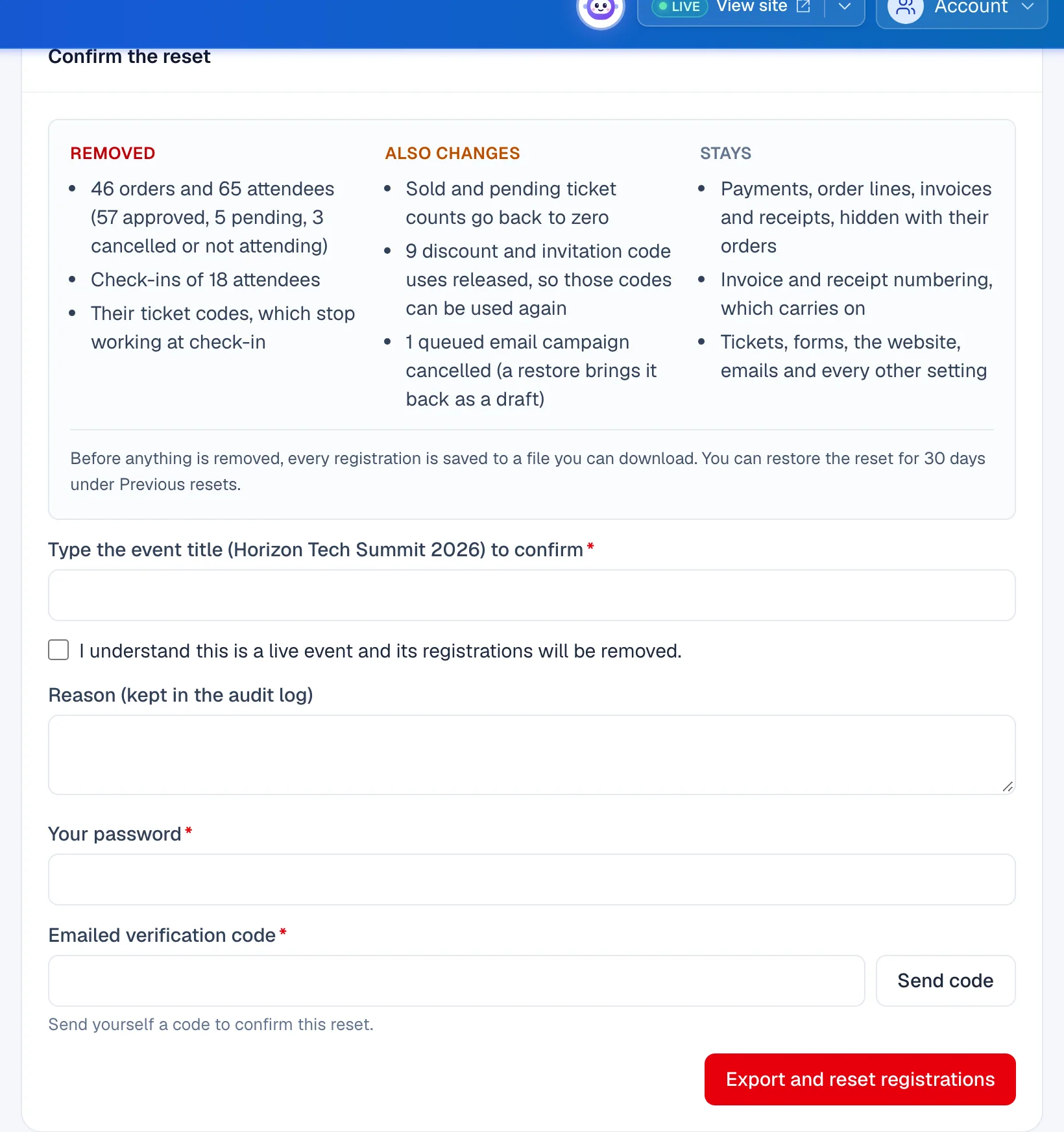
- 1What the reset removes, changes and keeps, with this event's numbers
- 2Type the title exactly as shown
- 3Save every registration to a file, then remove them
| Group | What's in it |
|---|---|
| Removed | The orders and attendees, their check-ins, and their ticket codes, which stop working at check-in. |
| Also changes | Sold and pending ticket counts go back to zero. Discount and invitation code uses are released, so those codes can be used again. Places held by checkouts in progress are released. Queued email campaigns are cancelled; a restore brings them back as drafts. Undelivered webhook messages about these registrations are dropped, and exports still running stop. Only what applies to this event is listed. |
| Stays | Payments, order lines, invoices and receipts, hidden with their orders. Invoice and receipt numbering, which carries on. Tickets, forms, the website, emails and every other setting. |
Undo a reset#
- Under Previous resets, find the reset. Recovery says until when it can be restored.
- Click Restore, then Restore in the dialog. The orders and attendees come back and counts are recalculated. On a live event they come back as real registrations.
If a reset stops#
The page says The reset did not finish. Click Retry the reset: it carries on from where it stopped and doesn't ask for your password or a code again. Until the file is saved, nothing is removed.
Delete an event#
- Inside the event, click the arrow beside View site and choose Delete.
- Read the dialog. It lists what happens: the public site and registration go offline; collaborators lose access, webhooks are paused, scheduled email campaigns are cancelled and print agents stop.
- If the event holds registrations, the dialog says how many orders, attendees and payments, and saves every registration to a file before anything is deleted. Type the event's title to confirm, and enter your Authenticator code or an emailed code (Send code).
- Optional: give a reason. It is kept in the audit log.
- Enter Your password.
- Click Delete event, or Save registrations and delete when the event holds registrations.
An event without registrations is deleted at once and you return to My Events. For one with registrations, Deleting this event shows how far it has got; you can close the dialog meanwhile. When it is done, Event deleted offers the saved file to download. The link works for an hour.
If the dialog says This event can't be deleted at the moment, contact EventNook support if it needs to be removed. You can move it to the Archive instead.
If something looks wrong#
- An archived event still takes registrations. Its site was kept live. Open the event and choose Deactivate or Close registration.
- A restored event's site is still off. Restoring leaves the site as it is. Click Make live again.
- The dialog says the site stays live. "Deactivating it needs someone who can publish this event." Ask an Owner, Admin or Event Admin to deactivate it.
- The reset is refused because payments were captured. Cancel and refund those orders one by one.
- "Type the event title exactly to confirm." The title must match exactly, including capitals and spaces.
- "There are no registrations to remove." The event has no orders or attendees to reset.
- The emailed code isn't accepted. It expires after 10 minutes. Click Resend code and use the new one.
- There is no authenticator field. You haven't set up two-step verification, so use the emailed code. See Change your password and two-step verification.
- "A reset or restore is already running for this event". Wait for it to finish, then try again.
- A restore says some registrations clash with newer ones. Registrations made since the reset would be duplicates of them or share their ticket codes, so nothing was restored.
- "The delete did not finish". The event is still there, unchanged. Click Retry the delete; it doesn't ask for your password or a code again.
Who can do this#
Moving an event to the Archive and restoring it needs the Owner, Admin, Event Admin or Event Editor role. Deactivating the site while archiving needs Owner, Admin or Event Admin. Resetting registration data, and restoring a reset, is for the organisation's Owner and Admins only: Event Admins can't, and the menu doesn't show it to them. Only the organisation's Owner and Admins can delete an event.
Related guides
- Find your eventsFind any event you can work on, narrow the list by status or whose event it is, bookmark the ones you use most, and bring events back from the Archive.
- Open an event and see where it standsOpen an event, read its status in the top bar, preview or view its site, find all its links, and open, close or deactivate registration.
- Publish your event and go liveFinish the pre-launch checklist, publish the event so people can see it and register, and take a test event live when you're ready for real registrations.
- Change, cancel or refund an orderOpen one order to see who bought, what they paid and who is attending, then edit it, resend its email, record a payment, cancel it or refund it.
Still stuck? In EventNook, ask HeyNook. It knows the page you're on and your event, and can take you straight to the right setting.