Read the event dashboard
See confirmed sales or registrations, places left, pending approvals and how each ticket is selling, and what needs your attention next.
Where to find it: Event admin › Event setup › At a glance › Dashboard
The Dashboard is the page an event opens on, and is always in Event setup › At a glance › Dashboard. Under the event's status, it shows the figures that matter most and what to do next. The figures are worked out by EventNook, not estimated.
Where the event stands, and its set-up checklist on a draft, are at the top of the page. See Open an event and see where it stands.
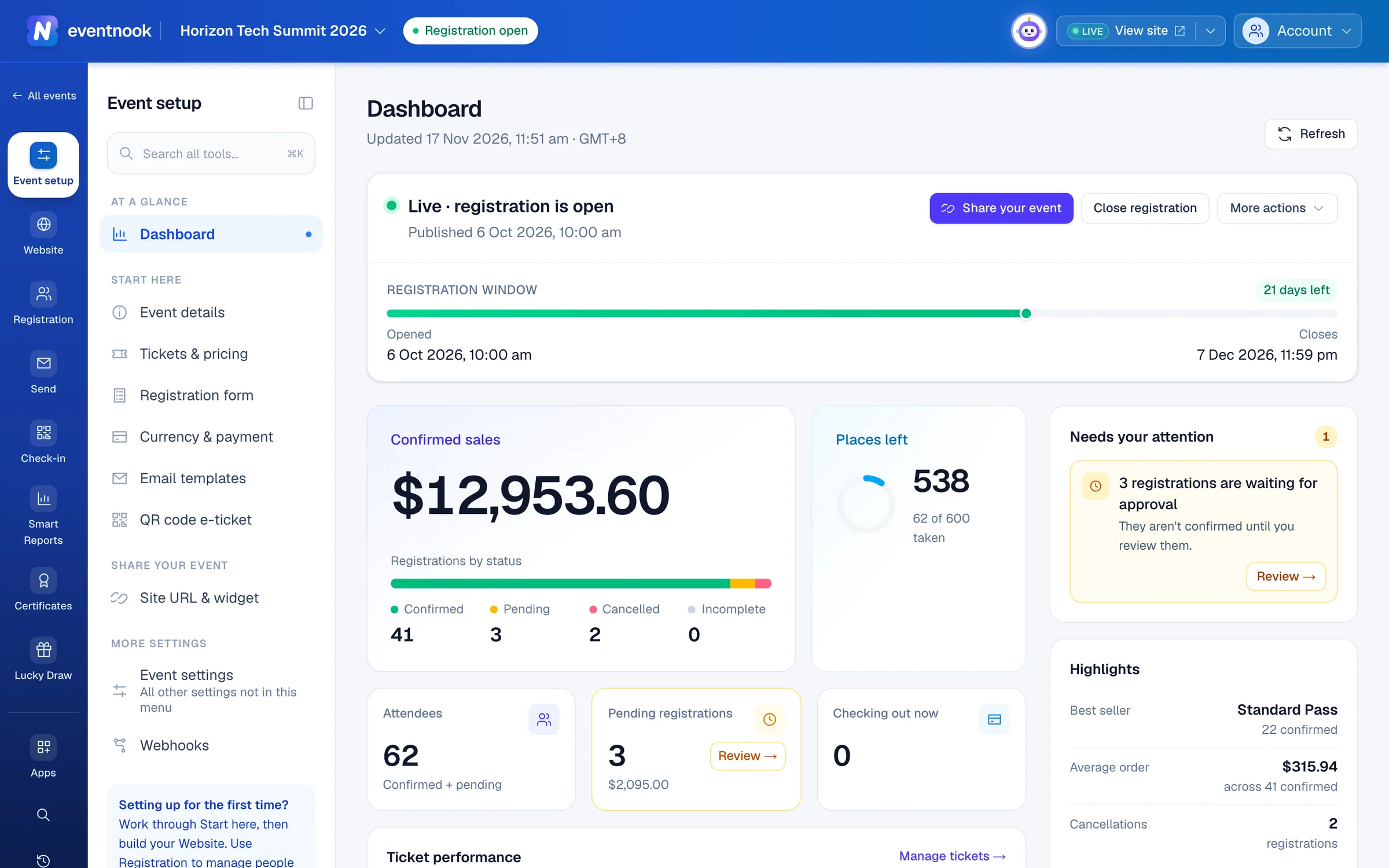
- 1Confirmed, pending, cancelled and incomplete registrations
- 2How many places are left against the event's capacity
- 3What to do now, most urgent first
- 4Read the figures again
The figures#
| Figure | What it shows |
|---|---|
| Confirmed sales | The money from confirmed orders, in the event's currency. On a free event this is Confirmed registrations instead. |
| Registrations by status | A bar and the number of registrations that are Confirmed, Pending, Cancelled and Incomplete. Hover over one for its tickets. |
| Places left | Places left against the event's capacity, and how many are taken. Unlimited when the event has no overall limit; Set limit sets one. |
| Attendees | People registered, one per ticket, confirmed or pending. |
| Pending registrations | Registrations waiting for approval, with what they're worth. Turns amber when there are some; Review opens the approval queue. |
| Checking out now | People in checkout right now, and the places their carts hold. |
The colours mean the same everywhere: green confirmed, amber pending, red cancelled and grey incomplete.
How each ticket is selling#
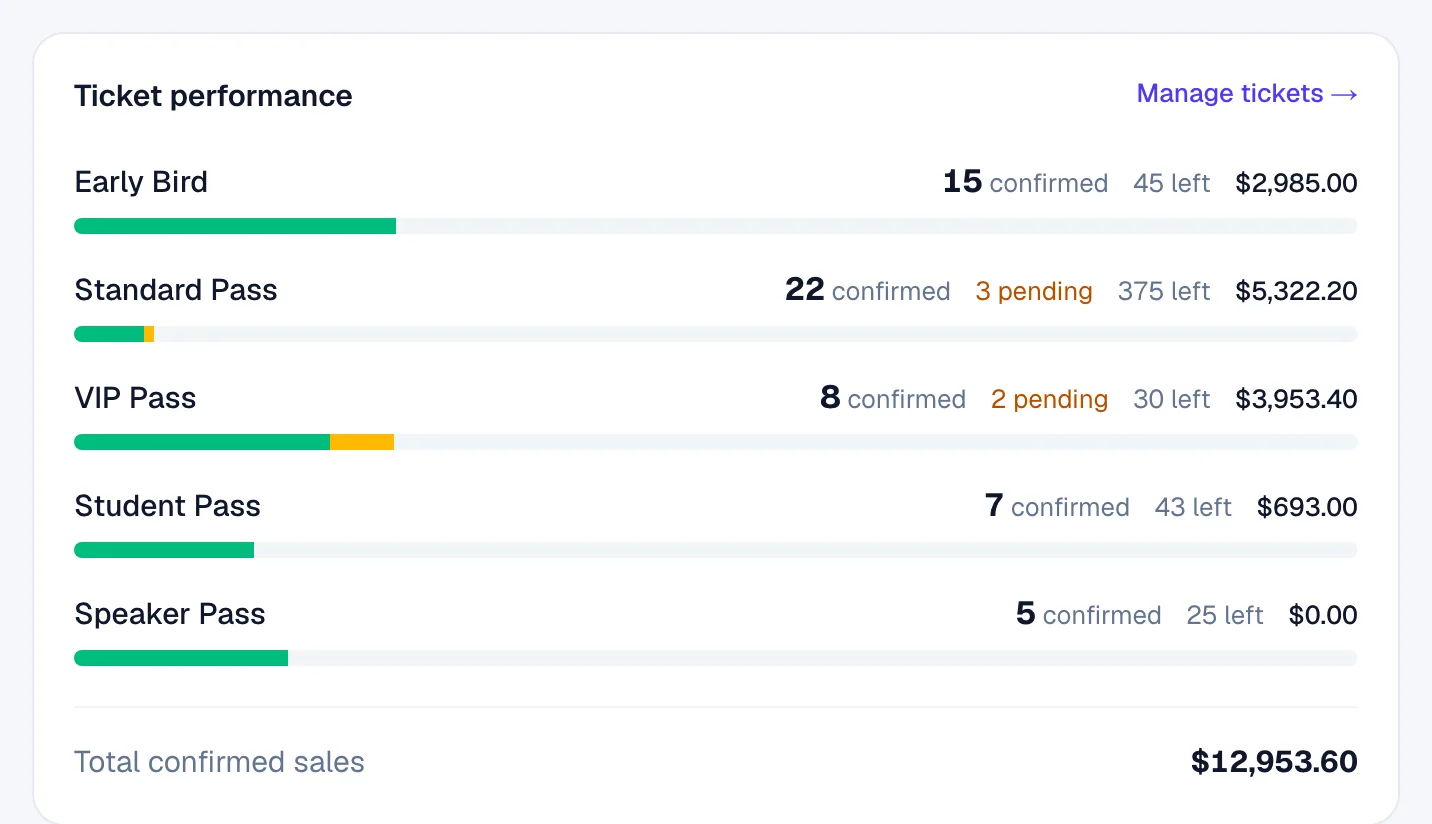
Ticket performance lists every ticket with how many are confirmed and pending, how many are left, and, on a paid event, its confirmed sales. The bar fills towards the ticket's capacity. Total confirmed sales is under the list. Manage tickets → opens Tickets & pricing.
What needs your attention#
Needs your attention lists what to do now, most urgent first, each with a button to the page that fixes it:
- an event still in draft, with Continue setup
- registrations waiting for approval, with Review
- the event full or nearly full, or a ticket sold out or nearly gone
- registration not open yet, or closed
- your plan's registration limit reached
When there is nothing, it says You're all caught up.
Highlights shows the best-selling ticket, the average order (or tickets per registration on a free event) and how many registrations were cancelled, once registrations come in. Next steps links to the approvals, orders, attendees, tickets and sharing your event.
Ask about the figures#
To ask a question the dashboard doesn't answer, such as "Compare this week's sales with last week", ask HeyNook: press ⌘ J (Ctrl J on Windows) to ask it privately. On the report pages, HeyNook brings in @Reporting, its specialist for figures and reports, when the question is theirs. See Ask HeyNook.
If something looks wrong#
- The figures look out of date. They are read when the page opens. Click Refresh.
- The title says "Test event" or "Includes test orders". The event is in test mode, or a live event still holds orders placed while it was a test. See Publish your event and go live.
- "Dashboard access is limited". Your role on this event doesn't include reports.
- A tile has no Review button. Your role can't see orders.
Who can do this#
Every event role can see the dashboard. The links under Next steps show only for pages your role can open.
Related guides
- Open an event and see where it standsOpen an event, read its status in the top bar, preview or view its site, find all its links, and open, close or deactivate registration.
- Approve or reject pending ordersWork through the orders waiting for a decision and the payments that failed, approving or rejecting each one in place, from the keyboard or many at once.
- Create tickets and set pricesAdd the tickets people choose when they register, set their prices and limits, and stop selling one when you need to.
- Summaries, saved views and exportsCount attendees by up to three fields, manage the saved views of your reports, run your organisation's custom reports and see every export of the event.
- Ask HeyNookAsk HeyNook about your event in your own words, let it take you to the right page, bring in its specialists, and approve the changes it suggests.
- Publish your event and go liveFinish the pre-launch checklist, publish the event so people can see it and register, and take a test event live when you're ready for real registrations.
Still stuck? In EventNook, ask HeyNook. It knows the page you're on and your event, and can take you straight to the right setting.